> ## Documentation Index
> Fetch the complete documentation index at: https://help.sendspark.com/llms.txt
> Use this file to discover all available pages before exploring further.
# Hubspot Sales Sequences - Send Dynamic Videos
> Learn how to send AI-personalized dynamic videos in HubSpot sales sequences with step-by-step setup and contact enrollment tips.
To send AI-personalized dynamic videos in a HubSpot sales sequence, create an automated email sequence, add your Sendspark dynamic video campaign using the Share Campaign snippet for the HubSpot Sales Hub, save the template, then enroll your matching contacts and launch the sequence to send now or later.
## Key takeaways
* Sendspark shares dynamic video campaigns into HubSpot via **Share Campaign → HubSpot Sequences Hub**, choosing the **Sales Cap** option.
* The Sales Cap option has fewer customization features, like resizing the video thumbnail.
* If a contact does not have a personalized video, a fallback background (e.g., Sendspark) will be used.
* Enrolled contacts' emails must match the ones associated with your dynamic video campaign.
Sendspark makes it easy to send AI-personalized videos in Mixmax email sequences. Watch the video, or follow the steps below:
This guide will walk you through how to share a dynamic video campaign using HubSpot's sales sequences.
## Step 1: Create a New Sequence
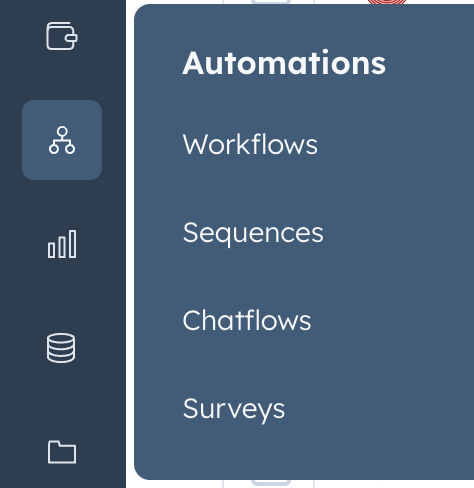
1. Navigate to the **Sequences** section in HubSpot.
2. Click on **Create** and select **Automated Email**.
3. You'll be prompted to create an email template.
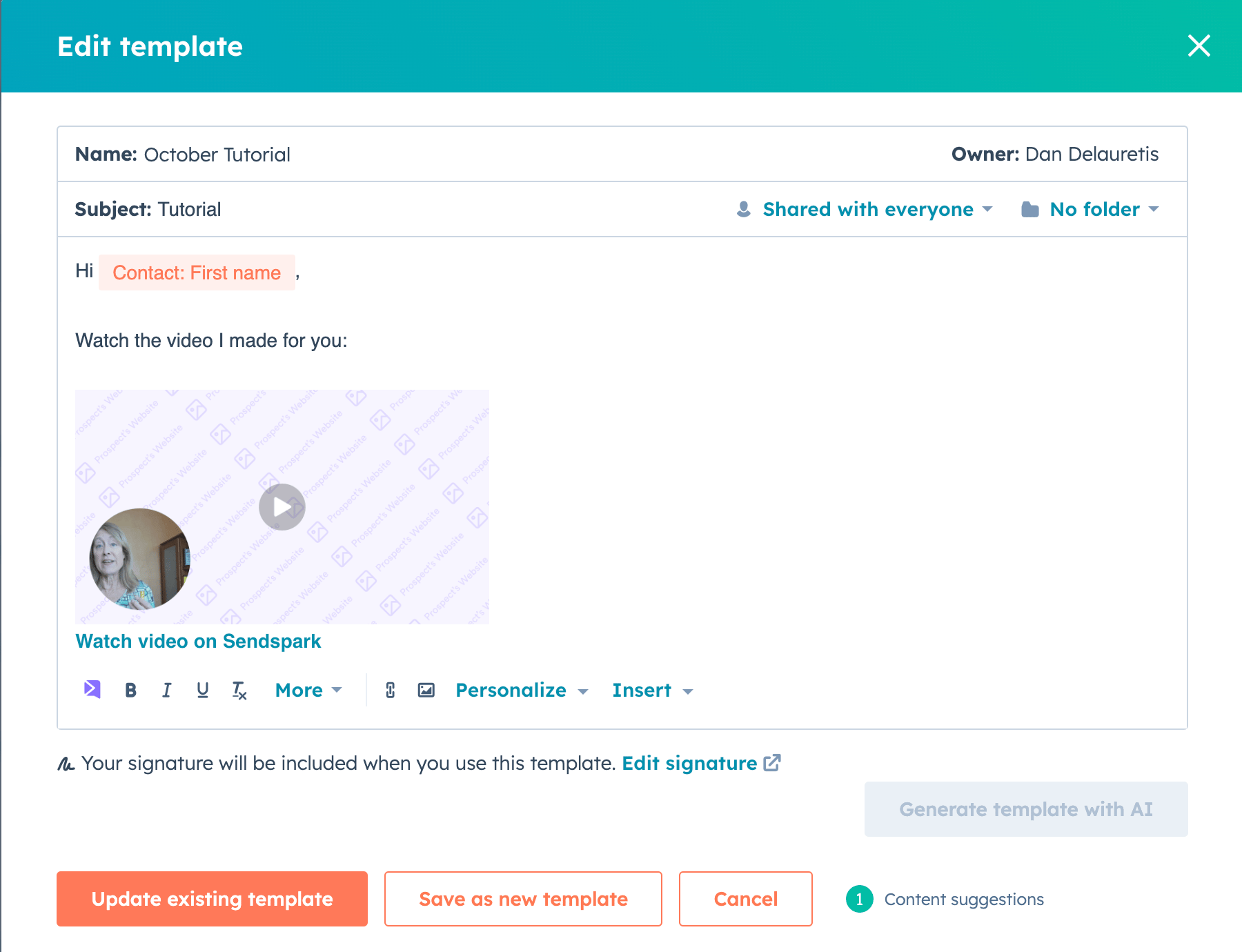
4. Give your template a name (e.g., "October Tutorial").
5. Personalize your email with tokens like **First Name** (e.g., "Hey \{First Name}, watch the video I made").
## Step 2: Add Your Dynamic Video
1. Access your **Dynamic Video Campaign**. Ensure the campaign is ready to be shared.
2. Click **Share Campaign** and select **HubSpot** **Sequences Hub**
3. From the options, choose **Sales Cap** (Note: Marketing Hub is covered in a different tutorial).
4. Copy the snippet code and paste it into the email template.
*Note: The Sales Cap option has fewer customization features, like resizing the video thumbnail.*
## Step 3: Save and Finalize the Template
1. Save the email template. You can leave it in **Private Mode** or make additional adjustments if necessary.
2. The first step of your sequence is now ready.
## Step 4: Enroll Contacts in the Sequence
1. Click **Enroll** to start adding contacts.
2. Ensure that the correct contacts are selected, and their emails match the ones associated with your dynamic video campaign.
* If a contact does not have a personalized video, a fallback background (e.g., Sendspark) will be used.
## Step 5: Create and Filter a Contact List (Optional)
1. If needed, you can create a new list of contacts to enroll in the sequence:
* Go to the **Lists** section and create a new list (e.g., "October Tutorial Test").
* Apply filters like company name or other criteria to ensure you target the correct audience.
2. Save the list and return to the sequence to enroll the contacts.
## Step 6: Launch the Campaign
1. Once you've enrolled all necessary contacts, you can set the campaign to **Send Now** or schedule it to **Send Later**.
2. Refresh the sequence page to confirm all contacts are enrolled.
That's it! Your dynamic video campaign is now ready to launch via HubSpot's sales sequences. If you have any further questions, feel free to reach out.
## Frequently asked questions
Click **Share Campaign** and select **HubSpot Sequences Hub**, then choose the **Sales Cap** option. Marketing Hub is covered in a different tutorial.
A fallback background (e.g., Sendspark) will be used for that contact.
Yes. Once you've enrolled all necessary contacts, you can set the campaign to **Send Now** or schedule it to **Send Later**.
It's optional. If needed, you can create a new list under the **Lists** section, apply filters like company name, then return to the sequence to enroll those contacts.
*Updated July 2026.*
 ## Step 2: Add Your Dynamic Video
1. Access your **Dynamic Video Campaign**. Ensure the campaign is ready to be shared.
2. Click **Share Campaign** and select **HubSpot** **Sequences Hub**
3. From the options, choose **Sales Cap** (Note: Marketing Hub is covered in a different tutorial).
4. Copy the snippet code and paste it into the email template.
*Note: The Sales Cap option has fewer customization features, like resizing the video thumbnail.*
## Step 2: Add Your Dynamic Video
1. Access your **Dynamic Video Campaign**. Ensure the campaign is ready to be shared.
2. Click **Share Campaign** and select **HubSpot** **Sequences Hub**
3. From the options, choose **Sales Cap** (Note: Marketing Hub is covered in a different tutorial).
4. Copy the snippet code and paste it into the email template.
*Note: The Sales Cap option has fewer customization features, like resizing the video thumbnail.*
 ## Step 3: Save and Finalize the Template
1. Save the email template. You can leave it in **Private Mode** or make additional adjustments if necessary.
2. The first step of your sequence is now ready.
## Step 4: Enroll Contacts in the Sequence
1. Click **Enroll** to start adding contacts.
2. Ensure that the correct contacts are selected, and their emails match the ones associated with your dynamic video campaign.
* If a contact does not have a personalized video, a fallback background (e.g., Sendspark) will be used.
## Step 5: Create and Filter a Contact List (Optional)
1. If needed, you can create a new list of contacts to enroll in the sequence:
* Go to the **Lists** section and create a new list (e.g., "October Tutorial Test").
* Apply filters like company name or other criteria to ensure you target the correct audience.
2. Save the list and return to the sequence to enroll the contacts.
## Step 6: Launch the Campaign
1. Once you've enrolled all necessary contacts, you can set the campaign to **Send Now** or schedule it to **Send Later**.
2. Refresh the sequence page to confirm all contacts are enrolled.
That's it! Your dynamic video campaign is now ready to launch via HubSpot's sales sequences. If you have any further questions, feel free to reach out.
## Frequently asked questions
## Step 3: Save and Finalize the Template
1. Save the email template. You can leave it in **Private Mode** or make additional adjustments if necessary.
2. The first step of your sequence is now ready.
## Step 4: Enroll Contacts in the Sequence
1. Click **Enroll** to start adding contacts.
2. Ensure that the correct contacts are selected, and their emails match the ones associated with your dynamic video campaign.
* If a contact does not have a personalized video, a fallback background (e.g., Sendspark) will be used.
## Step 5: Create and Filter a Contact List (Optional)
1. If needed, you can create a new list of contacts to enroll in the sequence:
* Go to the **Lists** section and create a new list (e.g., "October Tutorial Test").
* Apply filters like company name or other criteria to ensure you target the correct audience.
2. Save the list and return to the sequence to enroll the contacts.
## Step 6: Launch the Campaign
1. Once you've enrolled all necessary contacts, you can set the campaign to **Send Now** or schedule it to **Send Later**.
2. Refresh the sequence page to confirm all contacts are enrolled.
That's it! Your dynamic video campaign is now ready to launch via HubSpot's sales sequences. If you have any further questions, feel free to reach out.
## Frequently asked questions