> ## Documentation Index
> Fetch the complete documentation index at: https://help.sendspark.com/llms.txt
> Use this file to discover all available pages before exploring further.
# HubSpot: Embed Videos in Emails as Images
> Learn how to embed videos in HubSpot emails as clickable images with step-by-step setup instructions for better tracking.
To send a video in a HubSpot email as a clickable image, record or upload your video in Sendspark, download the video thumbnail, add it to an image block in a new HubSpot email, then copy the video URL from Sendspark and link it to that thumbnail. Recipients see a consistent preview image in every email client and click through to your video landing page.
## Key takeaways
* Sending a video as an image + link gives you better tracking (clicks and plays), a consistent preview across Gmail, Outlook, and other clients, and a call-to-action on the landing page to drive conversions.
* The tradeoff versus embedding the video in-line is engagement versus ability to track: linking adds slight friction but captures more data.
* The setup is: record/upload in Sendspark → download the thumbnail → add it to a HubSpot image block → link the thumbnail to the Sendspark video URL.
* If you prefer the video to play in-line instead, Sendspark also supports embedding it directly in HubSpot emails.
### Image + link vs. in-line embed
| | Image + link (this guide) | Embedded video |
| -------------- | ---------------------------------- | ------------------------- |
| Tracking | Track clicks and plays | Less click/play data |
| Consistency | Same preview in every email client | Depends on client support |
| Friction | Slight (recipient clicks through) | None (plays in email) |
| Call-to-action | Add a CTA on the landing page | Limited |
There are 2 ways to send videos in email:
1. With the actual **video embedded in the email**.
2. With a preview **image of the video + a link** to your video.
Sendspark supports both. You can choose which way you to want to use. The main tradeoff to consider is **actual engagement** vs**ability to track engagement**. When you link to the video, you add a little friction, but can gather more data on clicks and plays.
In a world where *if you didn't track it, it didn't happen*, it's a tough choice. I'd recommend testing both opens with an objective goal (like signups, meetings, other conversions), and seeing which way helps you achieve your true objective better.
In this article, we will cover **how to send a video in hubspot as an image + link to a video landing page**. The benefits of sending videos as images are...
* **Better insight** - you can track how viewers are engaging video videos
* **Consistency** - recipients will have the same experience no matter which email client they use, as the preview images will look the same on Gmail, Outlook, etc.
* **Conversions** - you can add a call-to-action on your video landing page to funnel viewers into taking the next step in the customer journey immediately after watching your video.
If you prefer to have the video play in-line, [see how to embed a video in Hubspot emails](/hubspot-static-videos-marketing-hub) here.
## How to send a video through Hubspot as an image
1. Record, request, or upload your video in Sendspark.
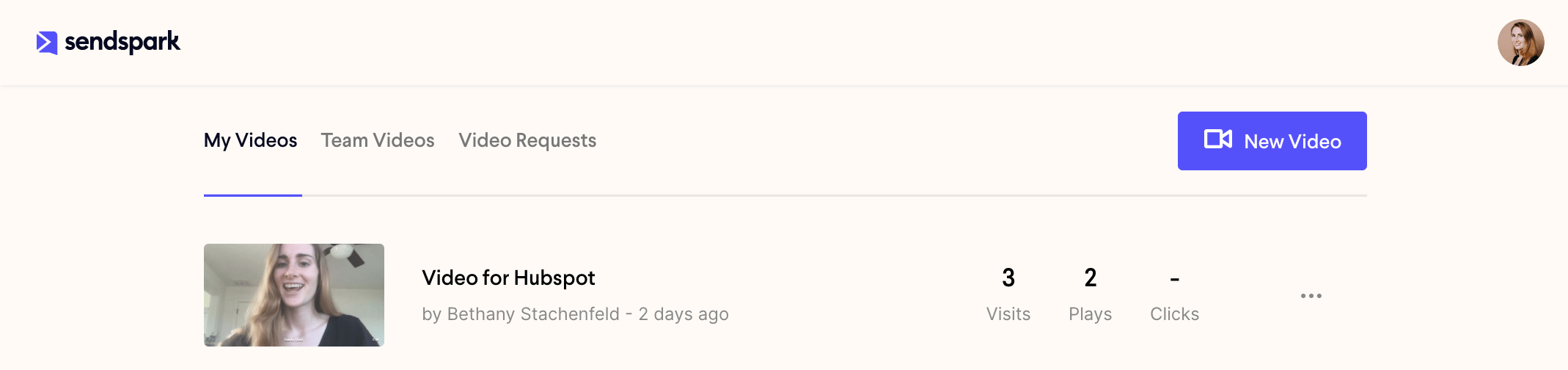 2. Click "share"
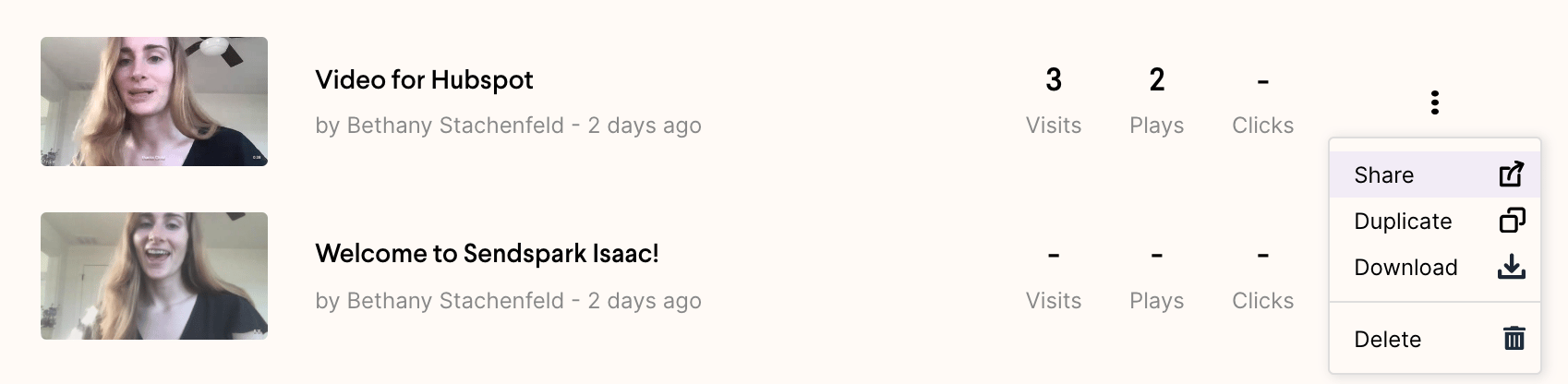 3. Download your video thumbnail
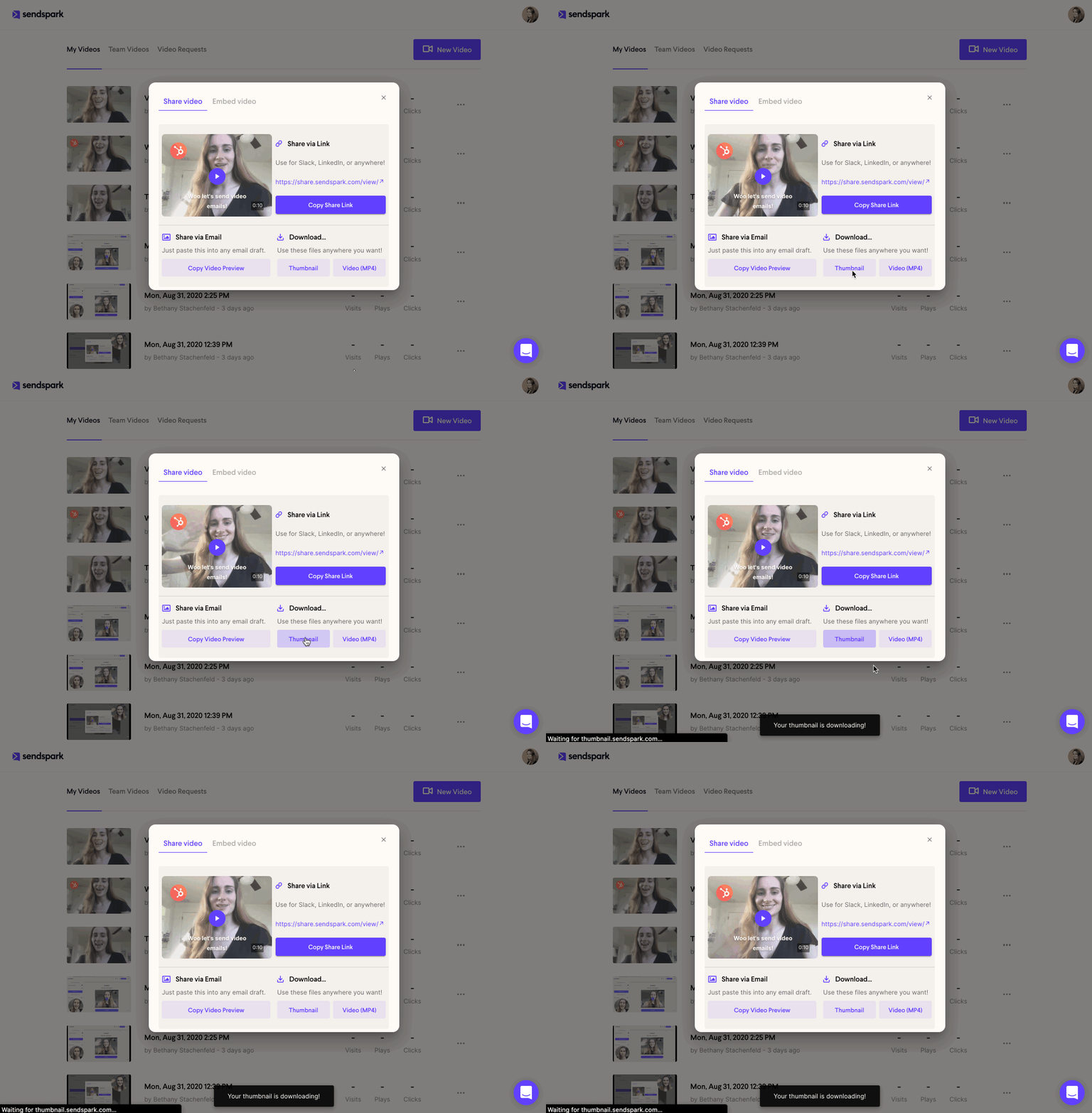 4. Make a new email on Hubspot
 5. Upload the video thumbnail to Hubspot in an image block
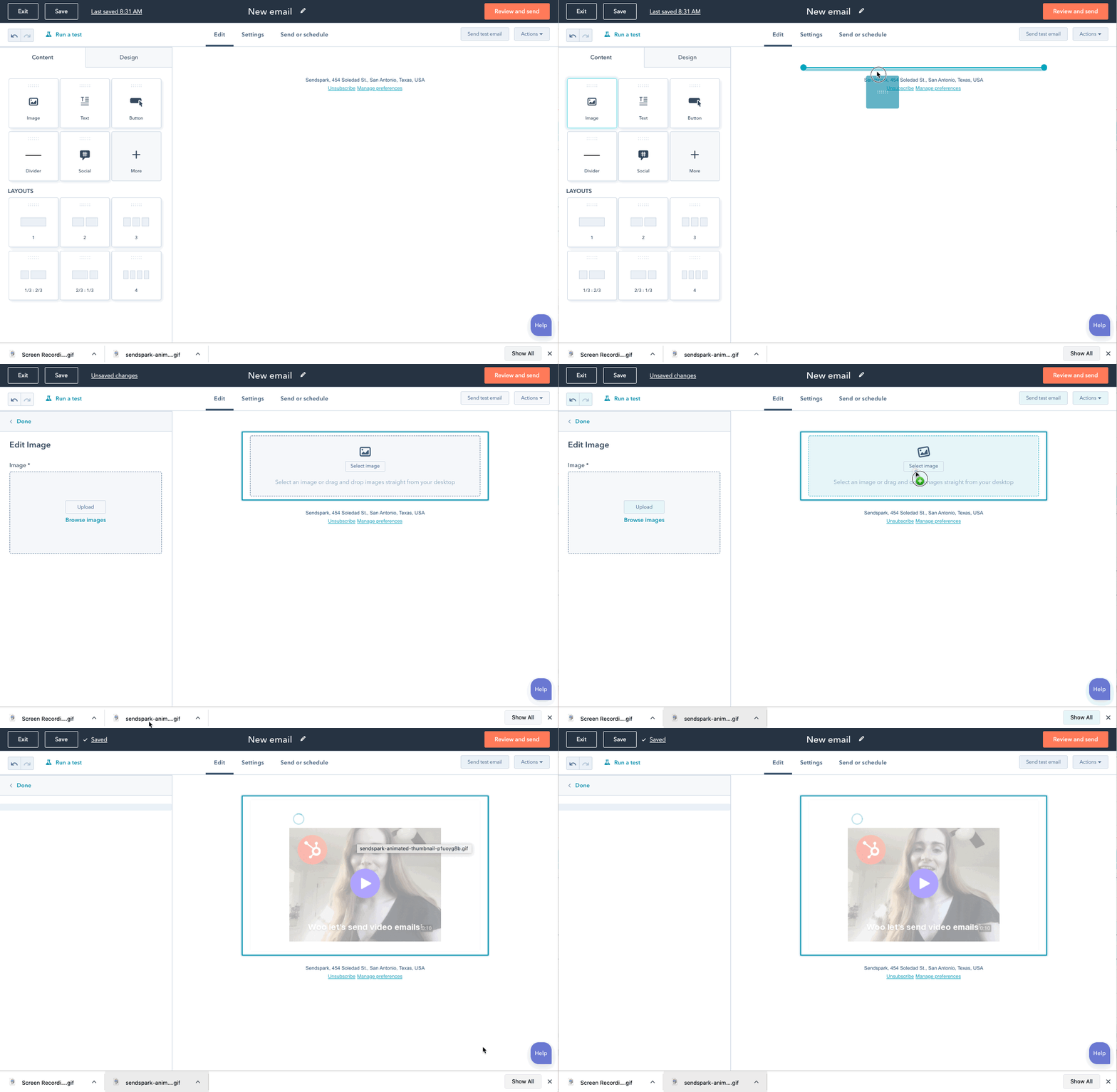 6. Copy the video URL from Sendspark & link it to the video thumbnail in Hubspot
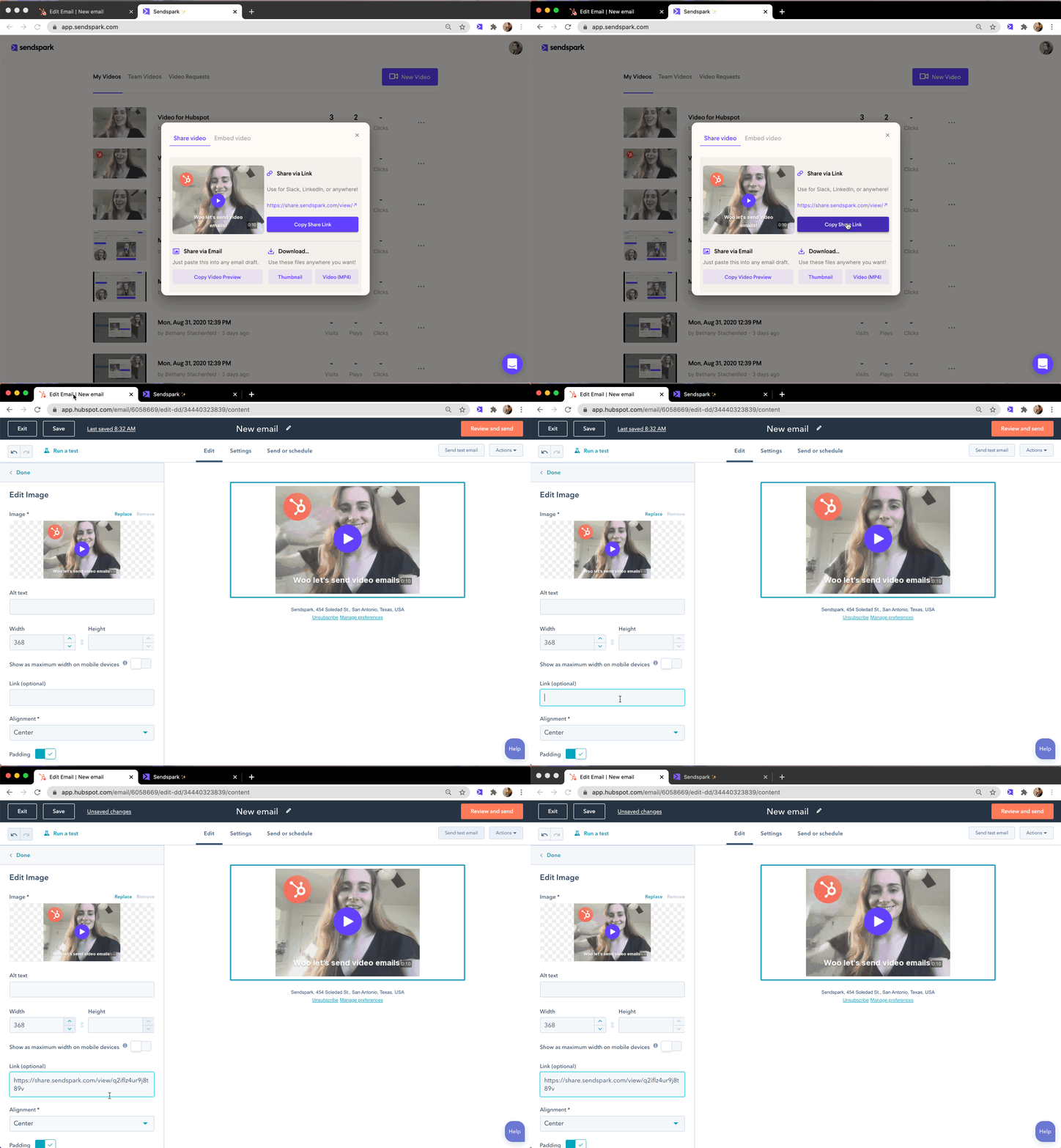 7. That's it! You're all set to send your video email
 Let us know if you have any questions about sending video emails in Hubspot. We're happy to help!
## Frequently asked questions
Record, request, or upload your video in Sendspark, click "share", and download the video thumbnail. In HubSpot, create a new email, upload the thumbnail into an image block, then copy the video URL from Sendspark and link it to that thumbnail image.
It's a tradeoff between engagement and tracking. An image + link adds slight friction but lets you track clicks and plays, keeps the preview consistent across email clients, and lets you add a call-to-action on the landing page. Embedding plays in-line but gives you less data. Testing both against a real goal like signups or meetings is a good way to decide.
Because recipients see a static preview image rather than an embedded player, the video looks the same whether they open it in Gmail, Outlook, or another client, so you get a consistent experience regardless of email client support.
Yes. Sendspark supports embedding a video so it plays in-line in HubSpot emails. See the guide on embedding a static video in HubSpot marketing emails.
*Updated July 2026.*
Let us know if you have any questions about sending video emails in Hubspot. We're happy to help!
## Frequently asked questions
Record, request, or upload your video in Sendspark, click "share", and download the video thumbnail. In HubSpot, create a new email, upload the thumbnail into an image block, then copy the video URL from Sendspark and link it to that thumbnail image.
It's a tradeoff between engagement and tracking. An image + link adds slight friction but lets you track clicks and plays, keeps the preview consistent across email clients, and lets you add a call-to-action on the landing page. Embedding plays in-line but gives you less data. Testing both against a real goal like signups or meetings is a good way to decide.
Because recipients see a static preview image rather than an embedded player, the video looks the same whether they open it in Gmail, Outlook, or another client, so you get a consistent experience regardless of email client support.
Yes. Sendspark supports embedding a video so it plays in-line in HubSpot emails. See the guide on embedding a static video in HubSpot marketing emails.
*Updated July 2026.*