> ## Documentation Index
> Fetch the complete documentation index at: https://help.sendspark.com/llms.txt
> Use this file to discover all available pages before exploring further.
# How to use the Teleprompter
> Learn how to set up and use the Teleprompter feature in your Chrome Extension for seamless video recording with scrolling scripts.
To use the Teleprompter, open it from the Sendspark Chrome Extension and add the text you want to read. The moment you click **Start Recording**, the prompter begins scrolling down so you can read your script while filming. You can click into the prompter window at any time to edit the text.
## Key takeaways
* The Teleprompter opens from the Sendspark Chrome Extension and scrolls your script automatically once you click **Start Recording**.
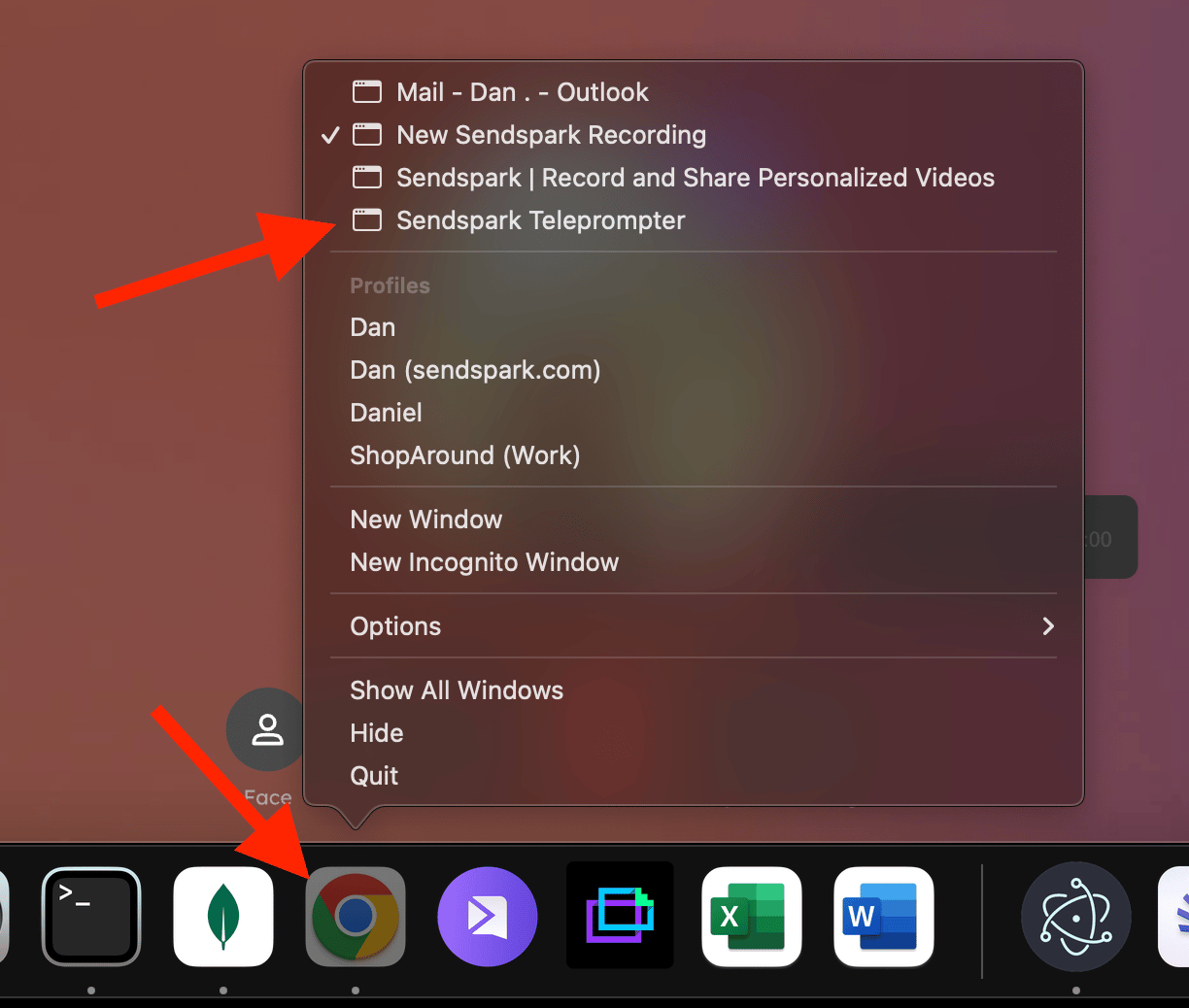
* If you click away and lose the window, right-click the Chrome icon and select the Teleprompter from the menu to reopen it.
* You can click directly in the prompter window to edit the text and adjust it to your needs.
* Need script ideas? The **WELCOME** section offers AI script templates you can load into the Teleprompter via the **Script** button.
## How to manipulate the Teleprompter from the Chrome Extension
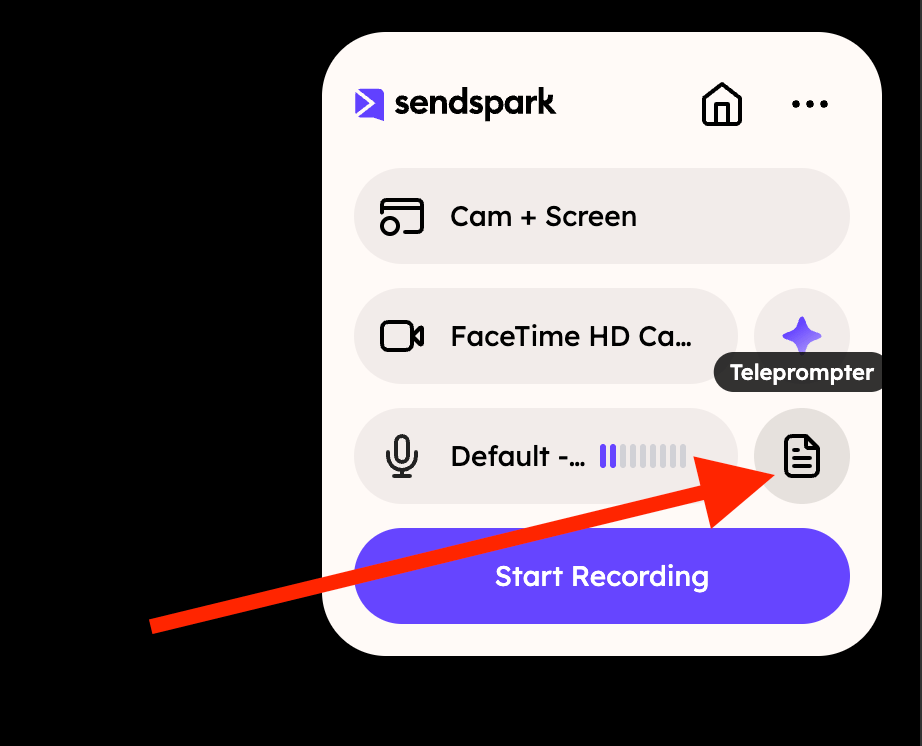 Clicking there will open the Teleprompter:
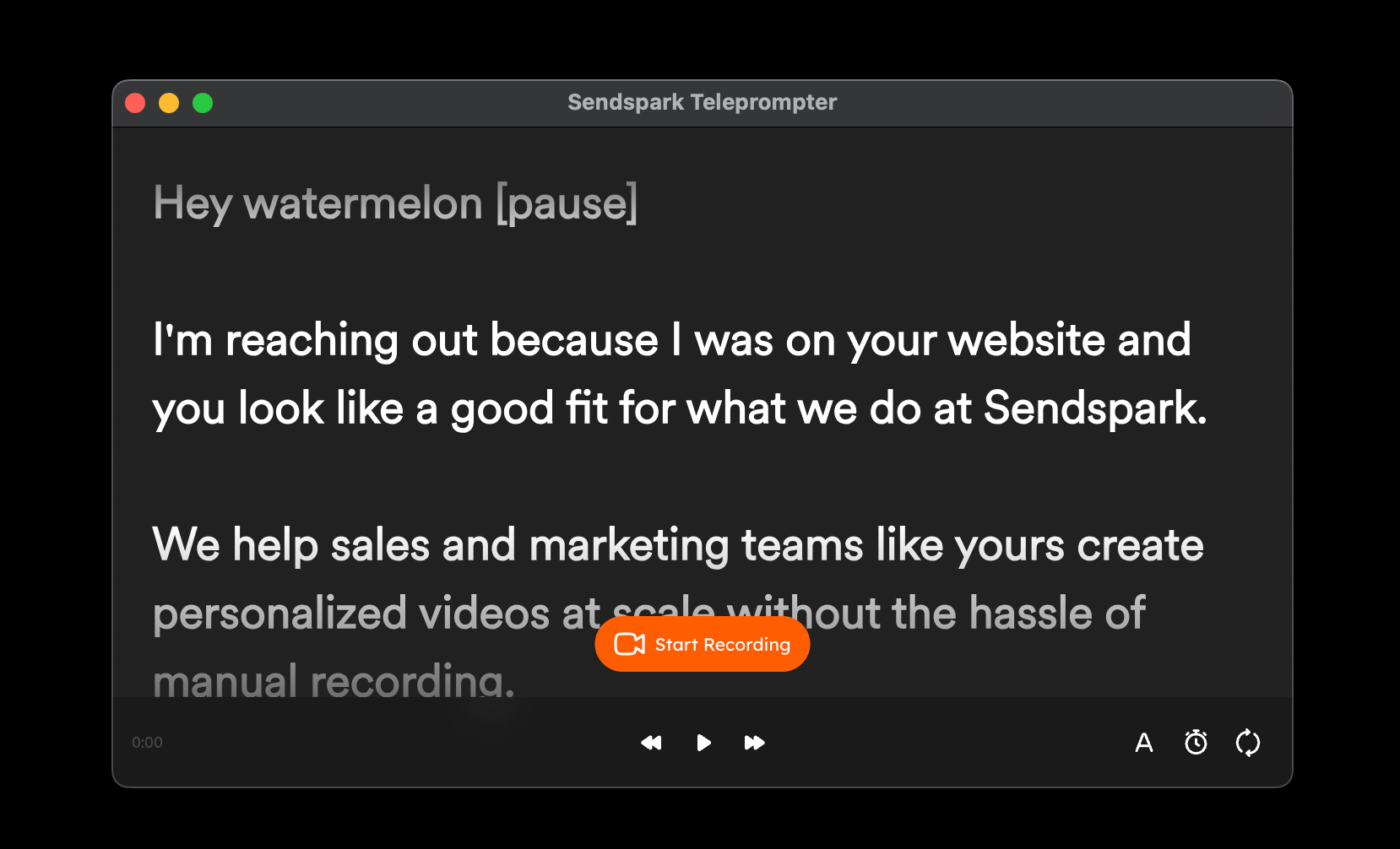 This window lets you add the text you want to use, and the moment you click on "Start Recording" the prompter will begin to scroll down.
If you accidentally clicked away, just make a right click on the Chrome icon, and you'll see the Teleprompter within the options to select
This window lets you add the text you want to use, and the moment you click on "Start Recording" the prompter will begin to scroll down.
If you accidentally clicked away, just make a right click on the Chrome icon, and you'll see the Teleprompter within the options to select
 ## Are you looking for some fresh ideas for your videos?
Head to WELCOME and click on one of the Templates, and you'll get some AI scripts to use in different scenarios:
## Are you looking for some fresh ideas for your videos?
Head to WELCOME and click on one of the Templates, and you'll get some AI scripts to use in different scenarios:
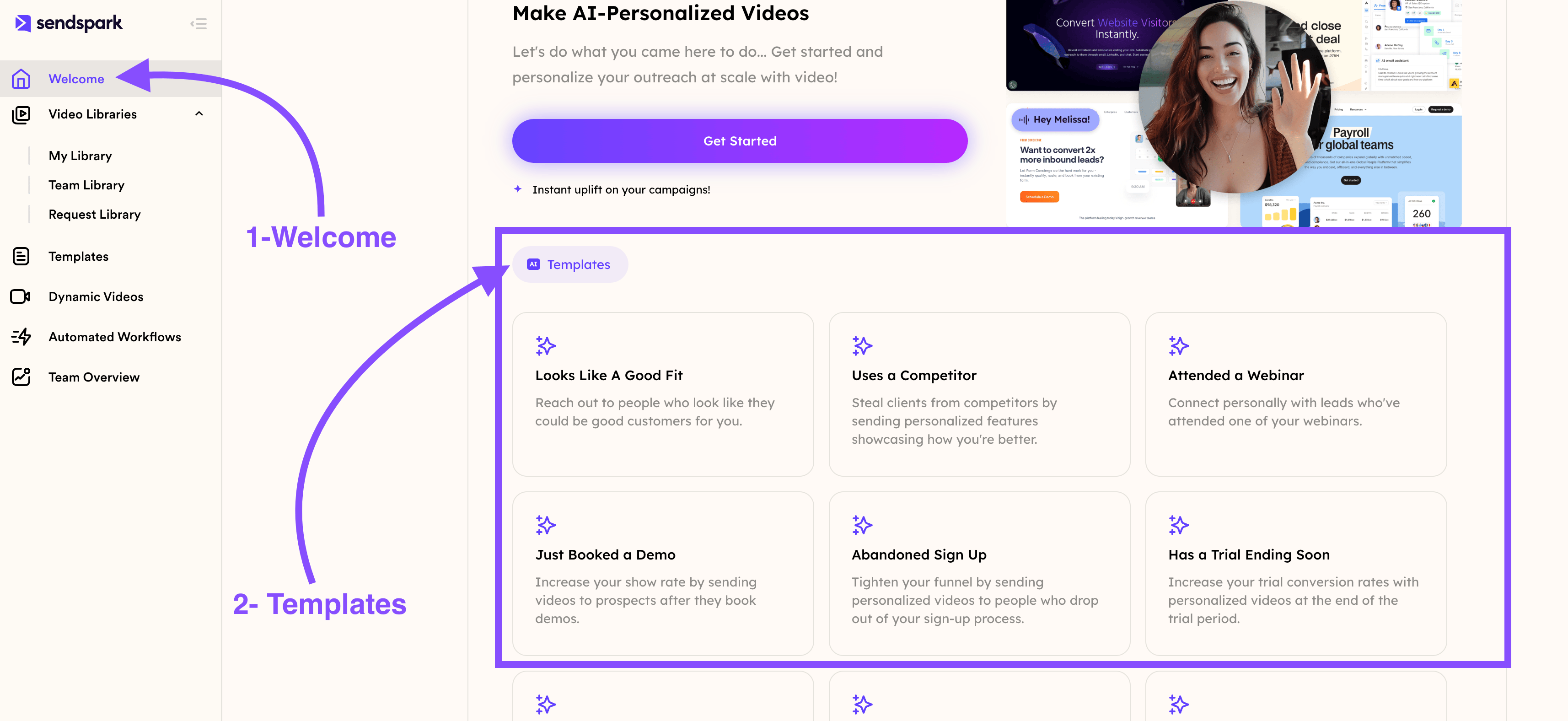 You can select between these options, and once you are ready, head to READY TO GO:
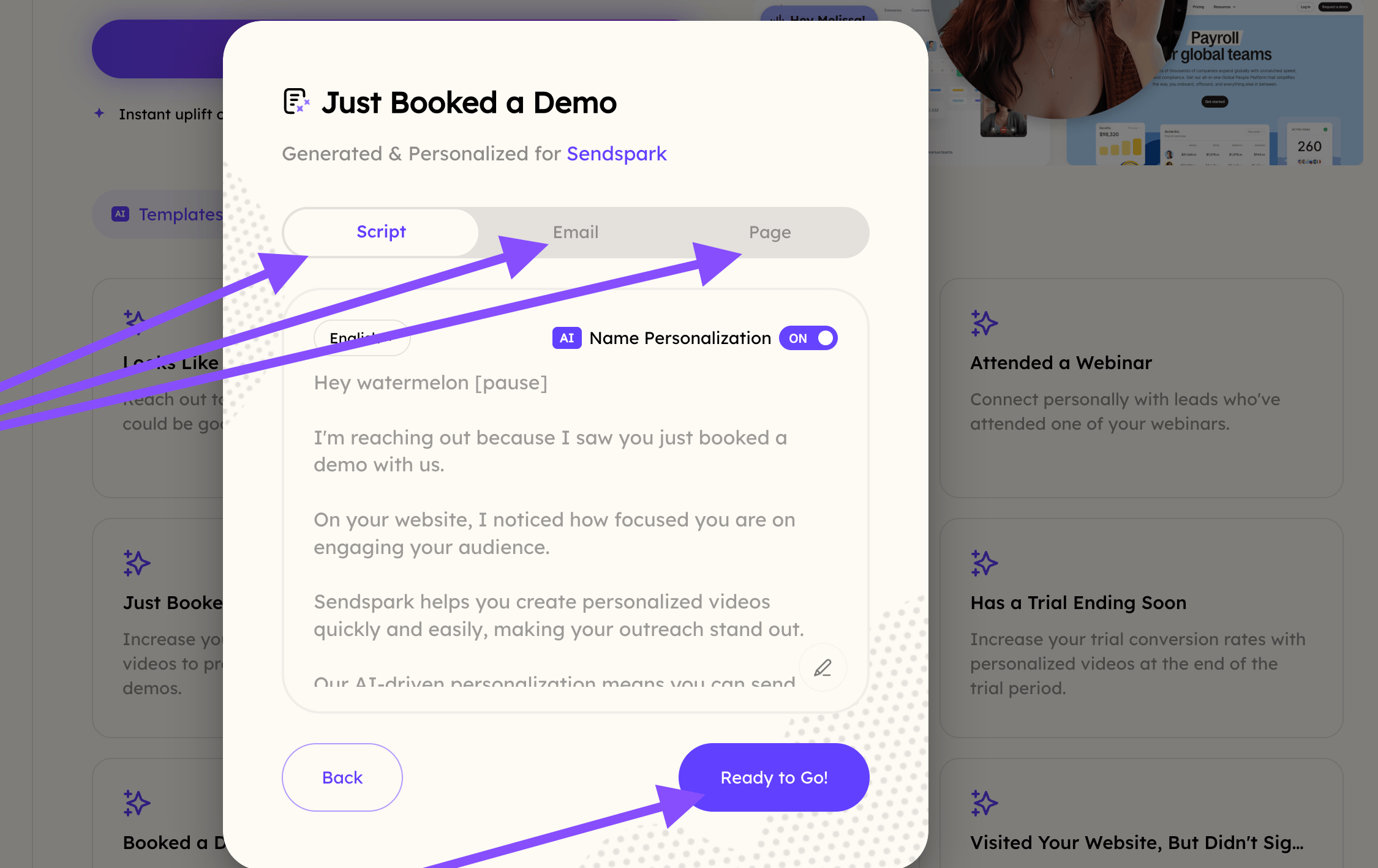 Clicking that button will fire up the Chrome Extension, and if you click the Script button, the Template you selected before will show up:
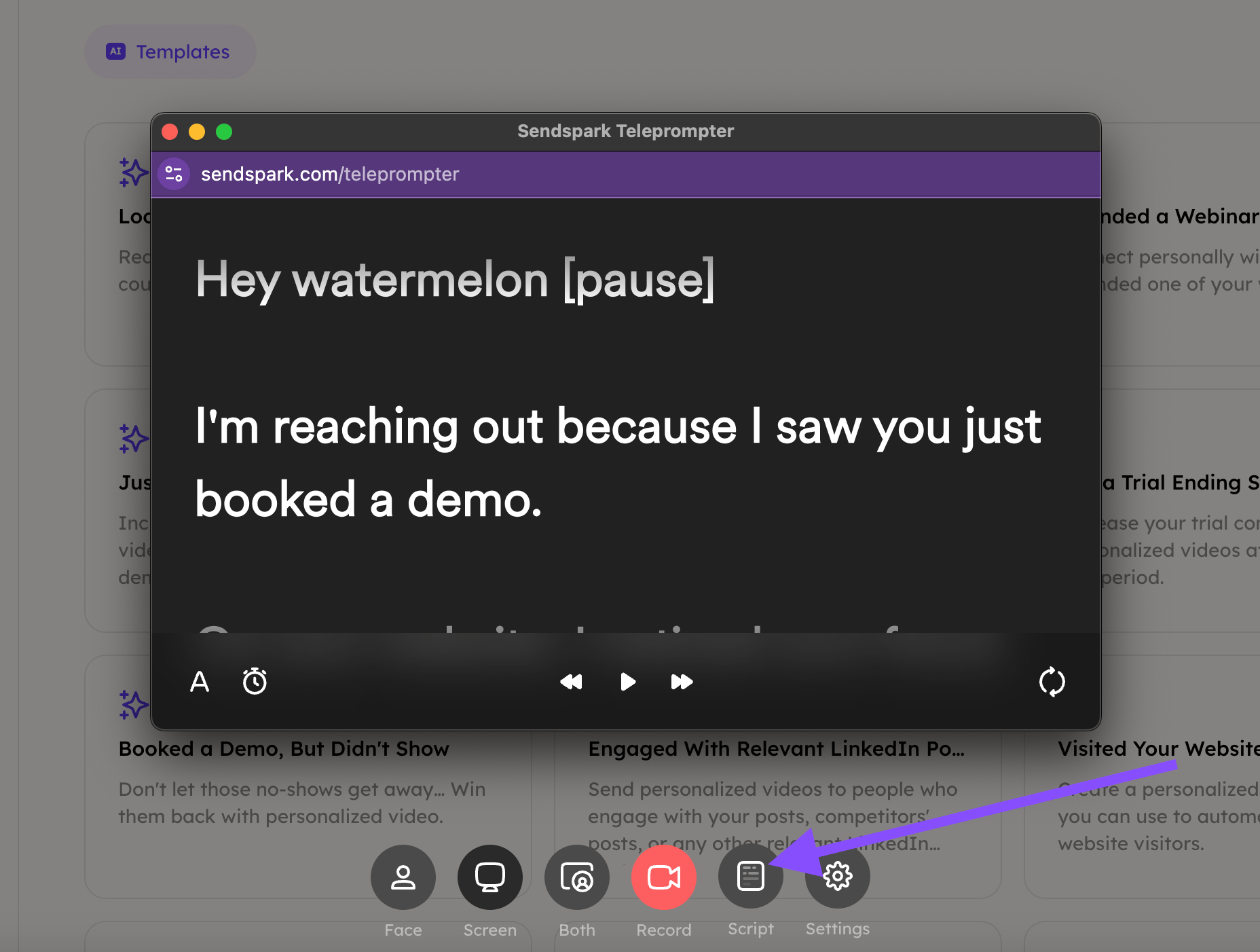 You can click on the prompter window to edit the text and better adjust it to your needs.
And that's it! You are now ready to start recording :)
## Frequently asked questions
The prompter begins to scroll down the moment you click **Start Recording**, so your script moves with you as you film.
Right-click the Chrome icon and you'll see the Teleprompter listed among the options to select. Choose it to reopen the window.
Yes. Click on the prompter window to edit the text and better adjust it to your needs, whether it's your own script or a loaded template.
Head to **WELCOME** and click one of the Templates to get AI scripts for different scenarios. Once you've picked one, go to **READY TO GO** to launch the Chrome Extension, then click the **Script** button and your selected template appears in the Teleprompter.
*Updated July 2026.*
You can click on the prompter window to edit the text and better adjust it to your needs.
And that's it! You are now ready to start recording :)
## Frequently asked questions
The prompter begins to scroll down the moment you click **Start Recording**, so your script moves with you as you film.
Right-click the Chrome icon and you'll see the Teleprompter listed among the options to select. Choose it to reopen the window.
Yes. Click on the prompter window to edit the text and better adjust it to your needs, whether it's your own script or a loaded template.
Head to **WELCOME** and click one of the Templates to get AI scripts for different scenarios. Once you've picked one, go to **READY TO GO** to launch the Chrome Extension, then click the **Script** button and your selected template appears in the Teleprompter.
*Updated July 2026.*