> ## Documentation Index
> Fetch the complete documentation index at: https://help.sendspark.com/llms.txt
> Use this file to discover all available pages before exploring further.
# How to Use The Sendspark Countdown Timer
> Learn how to enable and configure Sendspark countdown timers for both Chrome extension and web app camera and screen recordings.
Sendspark offers countdown timers for both the Chrome extension and the web application. In the Chrome extension, open the Settings icon and toggle the Countdown option for camera and screen recordings. In the web app, click the countdown button in the bottom-left of the camera recorder to toggle it, and you can skip the countdown on screen recordings.
## Key takeaways
* Countdown timers are available in both the Chrome extension and the web app.
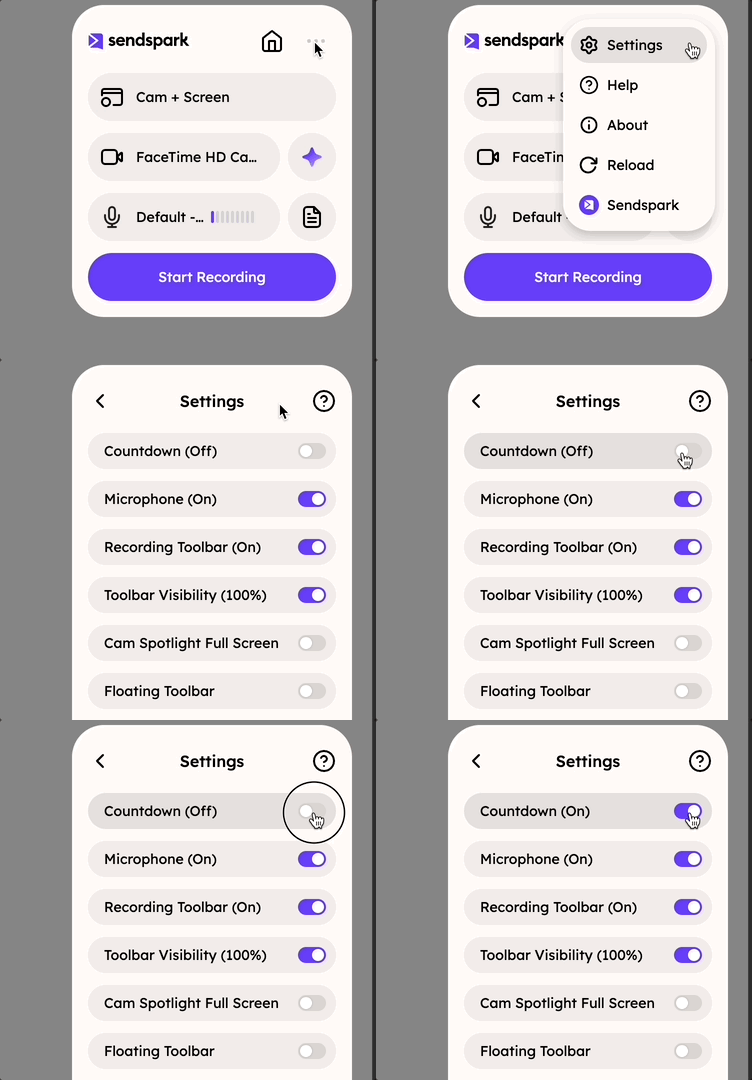
* In the Chrome extension, open the **Settings** icon and toggle **Countdown** for camera and screen recording.
* In the web app camera recorder, click the countdown timer button in the bottom left to toggle it on/off.
* Web app screen recording has no on/off toggle, but you can **skip** the countdown to start recording sooner.
Sendspark has **countdown timers** for both the Chrome extension and web application. Here is how to use both:
## Countdown in Chrome Extension
## Camera & Screen Recording
1. **Launch** the Sendspark Chrome Extension
2. Click on the **Settings** icon
3. Toggle the Countdown option on/off
 ## Web Application
## Camera Recording
1. **Select Camera recording** to launch the recorder
## Web Application
## Camera Recording
1. **Select Camera recording** to launch the recorder 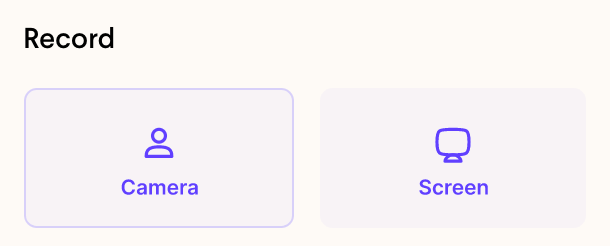
2. **Click the countdown timer**on the bottom left of the video player to toggle it on/off
2. **Click the countdown timer**on the bottom left of the video player to toggle it on/off 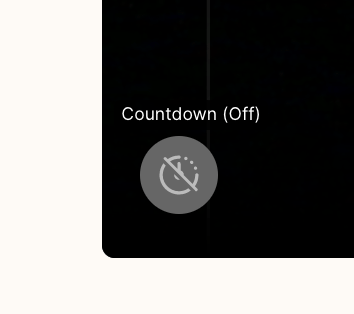 ## Screen Recording
1. There is no way to toggle on/off the countdown timer for screen recording, but you can **skip countdown**to start recording sooner — so you don't have to wait!
## Screen Recording
1. There is no way to toggle on/off the countdown timer for screen recording, but you can **skip countdown**to start recording sooner — so you don't have to wait! 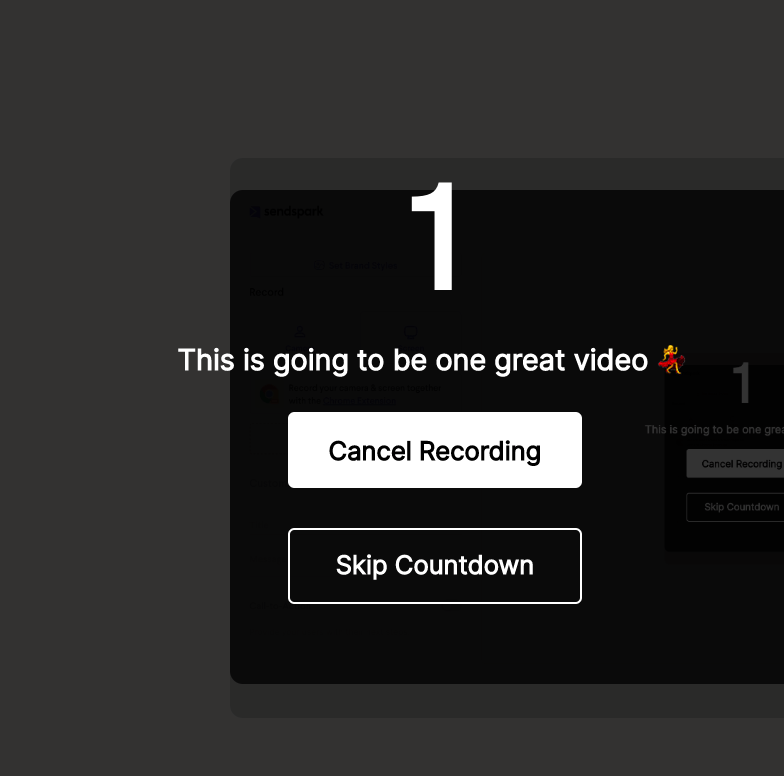 ***
## Frequently asked questions
Launch the Sendspark Chrome extension, click the Settings icon, and toggle the Countdown option on or off. This applies to both camera and screen recording.
Select Camera recording to launch the recorder, then click the countdown timer button on the bottom left of the video player to toggle it on or off.
No. There's no on/off toggle for the countdown timer on web app screen recording, but you can skip the countdown to start recording sooner.
In the Chrome extension, the Countdown toggle covers both camera and screen recording. In the web app, you can toggle it for camera recording and skip it for screen recording.
*Updated July 2026.*
***
## Frequently asked questions
Launch the Sendspark Chrome extension, click the Settings icon, and toggle the Countdown option on or off. This applies to both camera and screen recording.
Select Camera recording to launch the recorder, then click the countdown timer button on the bottom left of the video player to toggle it on or off.
No. There's no on/off toggle for the countdown timer on web app screen recording, but you can skip the countdown to start recording sooner.
In the Chrome extension, the Countdown toggle covers both camera and screen recording. In the web app, you can toggle it for camera recording and skip it for screen recording.
*Updated July 2026.*