> ## Documentation Index
> Fetch the complete documentation index at: https://help.sendspark.com/llms.txt
> Use this file to discover all available pages before exploring further.
# How to Use Templates
> Learn how to create and use Sendspark video templates to pre-write headers, messages, and CTAs for faster video sending.
Sendspark templates let you pre-write your header, message, and call-to-action content so you can send videos faster instead of retyping the same copy. Create templates in the Sendspark Templates library, then apply one when recording by clicking **Select Template** in the Chrome extension preview modal. Your video share page is pre-filled automatically.
## Key takeaways
* Templates pre-write the **header**, **message**, and **call-to-action** so you don't paste the same content below every video.
* Create and manage templates in your [Sendspark Templates library](https://sendspark.com/templates); suggested text is available if you're not sure what to say.
* Apply a template by clicking **Select Template** in the Sendspark Chrome extension preview modal when you record.
* Templates are shared across your whole workspace, so name workspace-specific ones clearly (for example, "My Calendar - Autumn").
## Why Use Templates?
Sick of pasting the same call-to-action below each video?
Templates let you pre-write call-to-action, header, and message content, so you can send videos much faster!
## How to use Sendspark Video Templates
Read the article or watch the video!
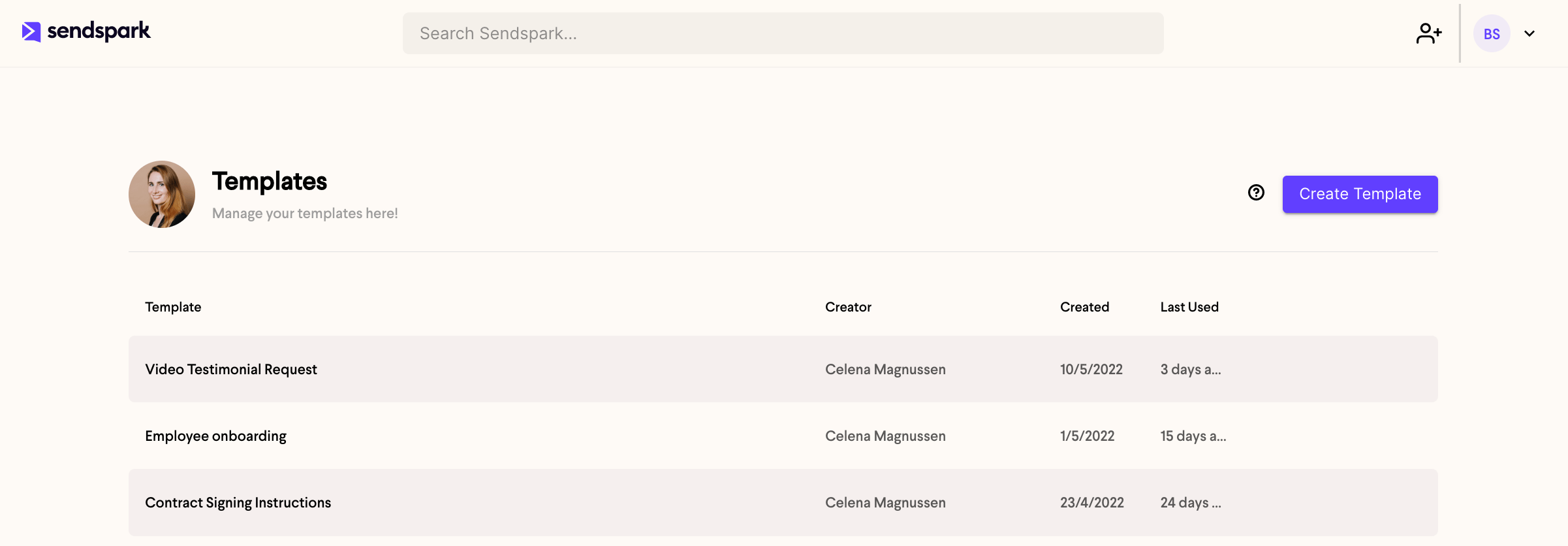
## 1. Create your video template
Create and manage templates in your [Sendspark Templates library](https://sendspark.com/templates)
## 2. Edit template content
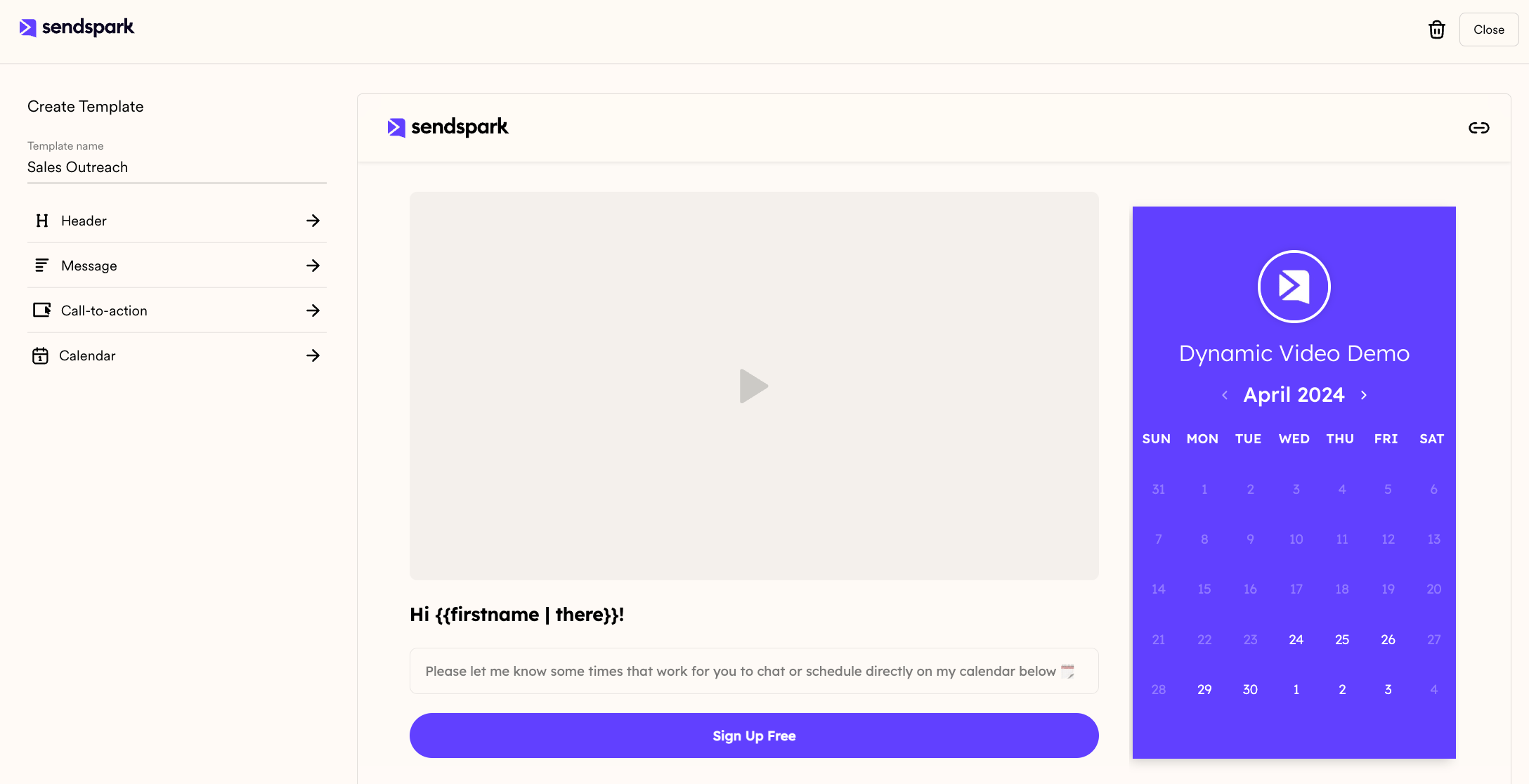
You’ll be able to set the Header, Message area, and Call-to-Action content for your videos here.
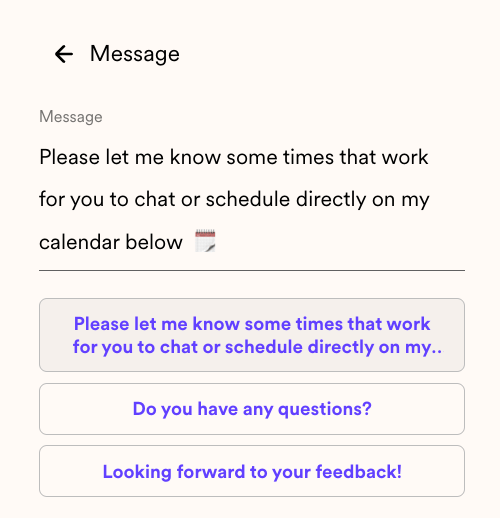
If you’re not sure what to say, try using some of the suggested text we provide!
## 3. Record a video with the Chrome extension
If you don’t have the Sendspark Browser Extension installed now, you can [install it here](https://chrome.google.com/webstore/detail/sendspark-video-and-scree/blimjkpadkhcpmkeboeknjcmiaogbkph?hl=en-US).
## 4. Select your template
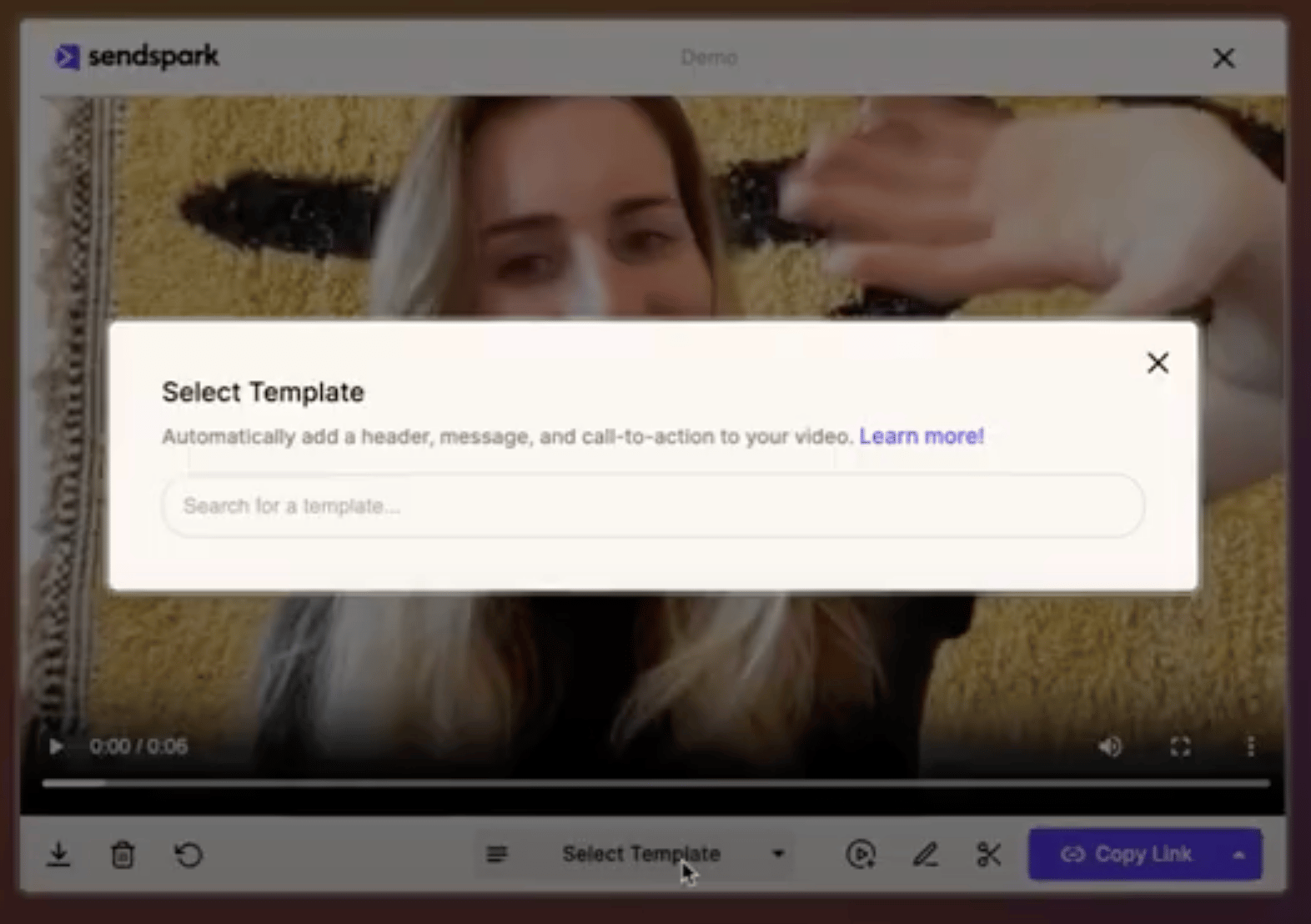
Click the **Select Template** button on the browser extension preview modal, and choose the template you want to use.
## 5. Send your video
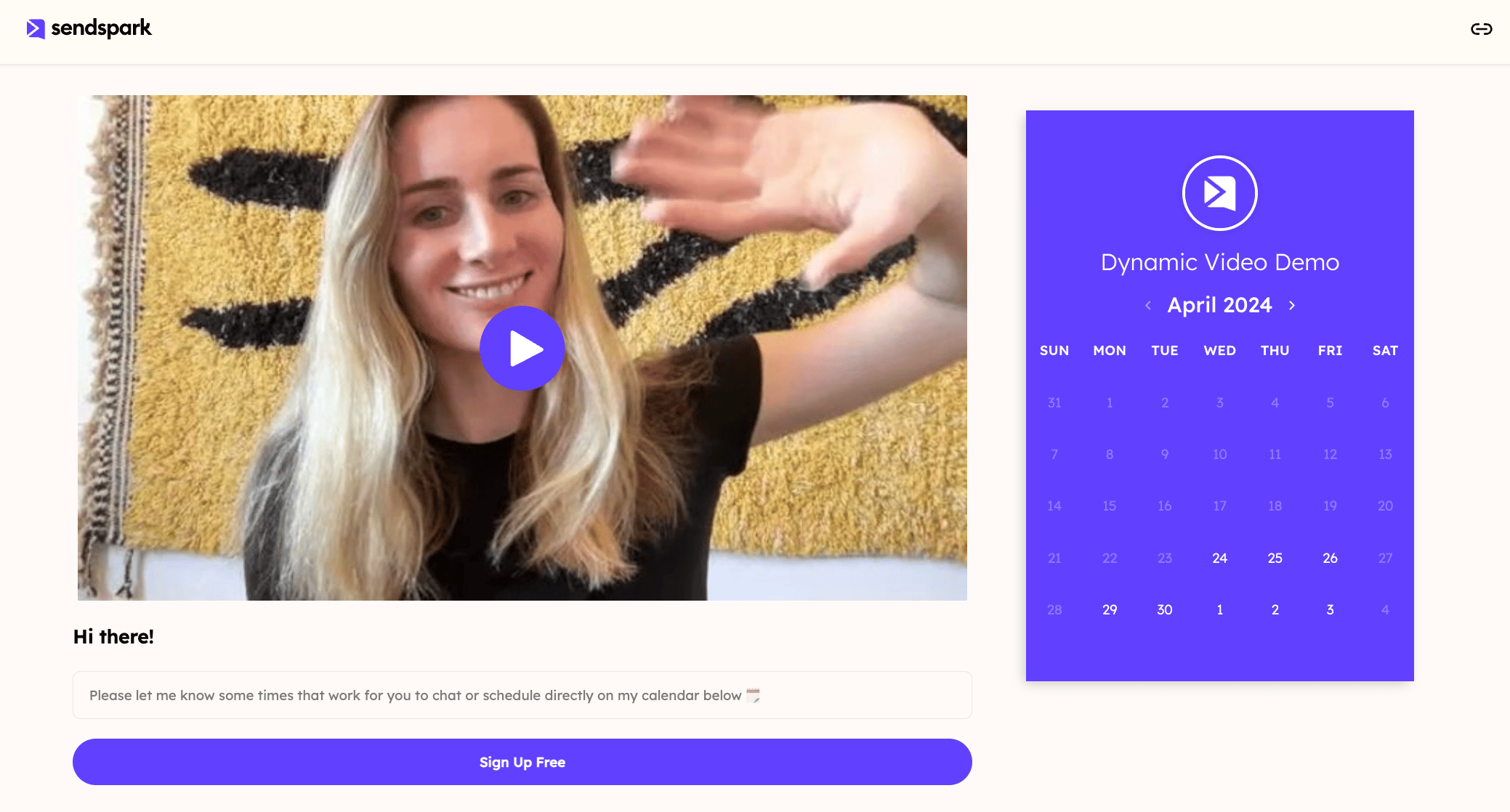
That’s it! Your video "share" page will be pre-filled with the template content you created.
## Templates FAQ
## Q: Who can see templates I’ve created?
A: Everyone in your workspace can see all video templates created for that workspace. (So if you have a template called “My Calendar” that automatically adds your calendar to videos, make sure to add your name – i.e. “My Calendar - Autumn”
## Q: If I update my template, what happens to videos I’ve sent out with that template?
If you update your template, the previous videos you’ve sent out will NOT be affected. The updated template will only affect new videos using that template.
## Frequently asked questions
A template lets you pre-write the **Header**, **Message** area, and **Call-to-Action** content for your videos, so your share page is filled in automatically instead of you retyping it each time.
Record with the Sendspark Chrome extension, then click the **Select Template** button on the preview modal and choose the template you want. Your video's share page will be pre-filled with that template's content.
When editing a template you can use the suggested text Sendspark provides for the header, message, and call-to-action.
Everyone in your workspace can see all video templates created for that workspace. If a template is personal (for example, one that adds your calendar), include your name so it's clear whose it is.
No. Updating a template does not affect videos you've already sent — the change only applies to new videos created with that template.
*Updated July 2026.*
 ## 2. Edit template content
You’ll be able to set the Header, Message area, and Call-to-Action content for your videos here.
## 2. Edit template content
You’ll be able to set the Header, Message area, and Call-to-Action content for your videos here.
 If you’re not sure what to say, try using some of the suggested text we provide!
 ## 3. Record a video with the Chrome extension
If you don’t have the Sendspark Browser Extension installed now, you can [install it here](https://chrome.google.com/webstore/detail/sendspark-video-and-scree/blimjkpadkhcpmkeboeknjcmiaogbkph?hl=en-US).
## 4. Select your template
Click the **Select Template** button on the browser extension preview modal, and choose the template you want to use.
## 3. Record a video with the Chrome extension
If you don’t have the Sendspark Browser Extension installed now, you can [install it here](https://chrome.google.com/webstore/detail/sendspark-video-and-scree/blimjkpadkhcpmkeboeknjcmiaogbkph?hl=en-US).
## 4. Select your template
Click the **Select Template** button on the browser extension preview modal, and choose the template you want to use.
 ## 5. Send your video
That’s it! Your video "share" page will be pre-filled with the template content you created.
## 5. Send your video
That’s it! Your video "share" page will be pre-filled with the template content you created.
 ## Templates FAQ
## Q: Who can see templates I’ve created?
A: Everyone in your workspace can see all video templates created for that workspace. (So if you have a template called “My Calendar” that automatically adds your calendar to videos, make sure to add your name – i.e. “My Calendar - Autumn”
## Q: If I update my template, what happens to videos I’ve sent out with that template?
If you update your template, the previous videos you’ve sent out will NOT be affected. The updated template will only affect new videos using that template.
## Frequently asked questions
## Templates FAQ
## Q: Who can see templates I’ve created?
A: Everyone in your workspace can see all video templates created for that workspace. (So if you have a template called “My Calendar” that automatically adds your calendar to videos, make sure to add your name – i.e. “My Calendar - Autumn”
## Q: If I update my template, what happens to videos I’ve sent out with that template?
If you update your template, the previous videos you’ve sent out will NOT be affected. The updated template will only affect new videos using that template.
## Frequently asked questions