> ## Documentation Index
> Fetch the complete documentation index at: https://help.sendspark.com/llms.txt
> Use this file to discover all available pages before exploring further.
# How to Use Camera Spotlight
> Learn how to use Camera Spotlight in Sendspark to shift focus between your screen and camera during recordings for more engaging product demos.
Camera Spotlight lets you shift focus between your screen and your camera while recording, so you can highlight yourself during a product demo. It requires the Sendspark Chrome Extension. Launch the recorder with "Both" selected, then click the camera spotlight icon on your camera bubble to enter spotlight mode, either before or anytime during the recording.
## Key takeaways
* Camera Spotlight shifts focus between your screen and yourself to make product demos more engaging.
* It requires the Sendspark Chrome Extension, so install that first if you don't have it.
* Select "Both" as your recording option, then click the camera spotlight icon on the camera bubble to launch spotlight mode.
* You can toggle spotlight before or during recording; click anywhere on the spotlight bubble to return the camera to its original position.
[Camera Spotlight](https://blog.sendspark.com/camera-spotlight) helps you personalize your product demos by shifting the focus between your screen and yourself.
***
Please note: you need to [install the Sendspark Chrome Extension](https://chrome.google.com/webstore/detail/blimjkpadkhcpmkeboeknjcmiaogbkph) to use Camera Spotlight.
If you do not have it, please install the Chrome extension first, and then come back to continue this article.
Install Sendspark Chrome Extension
***
## How to Use Camera Spotlight
1. Launch the Sendspark recorder.
2. Make sure you have “Both” selected as your recording option: 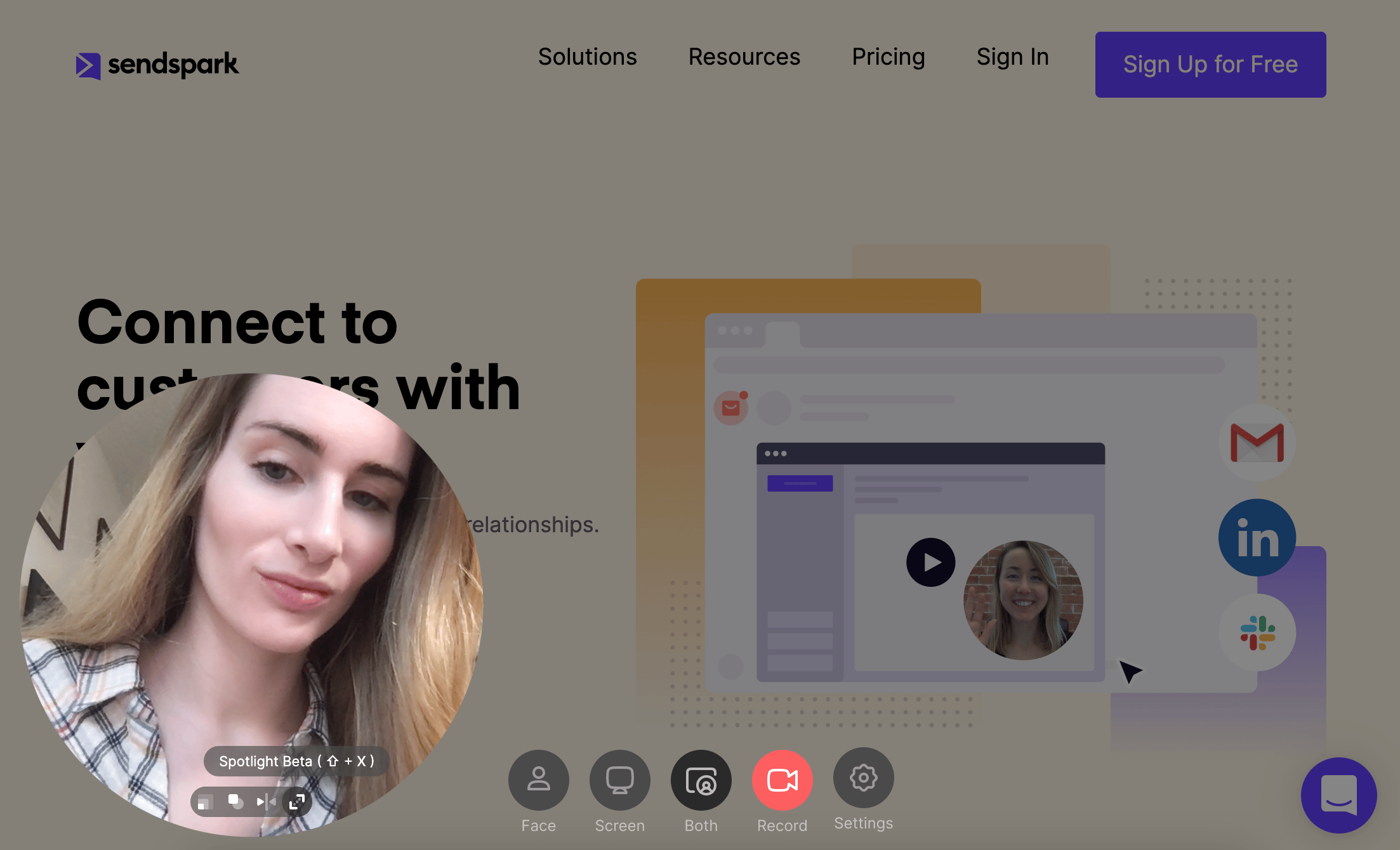 3. Click on the camera spotlight icon on your camera bubble to launch spotlight mode. You can do this before you start recording, and anytime during the recording.
 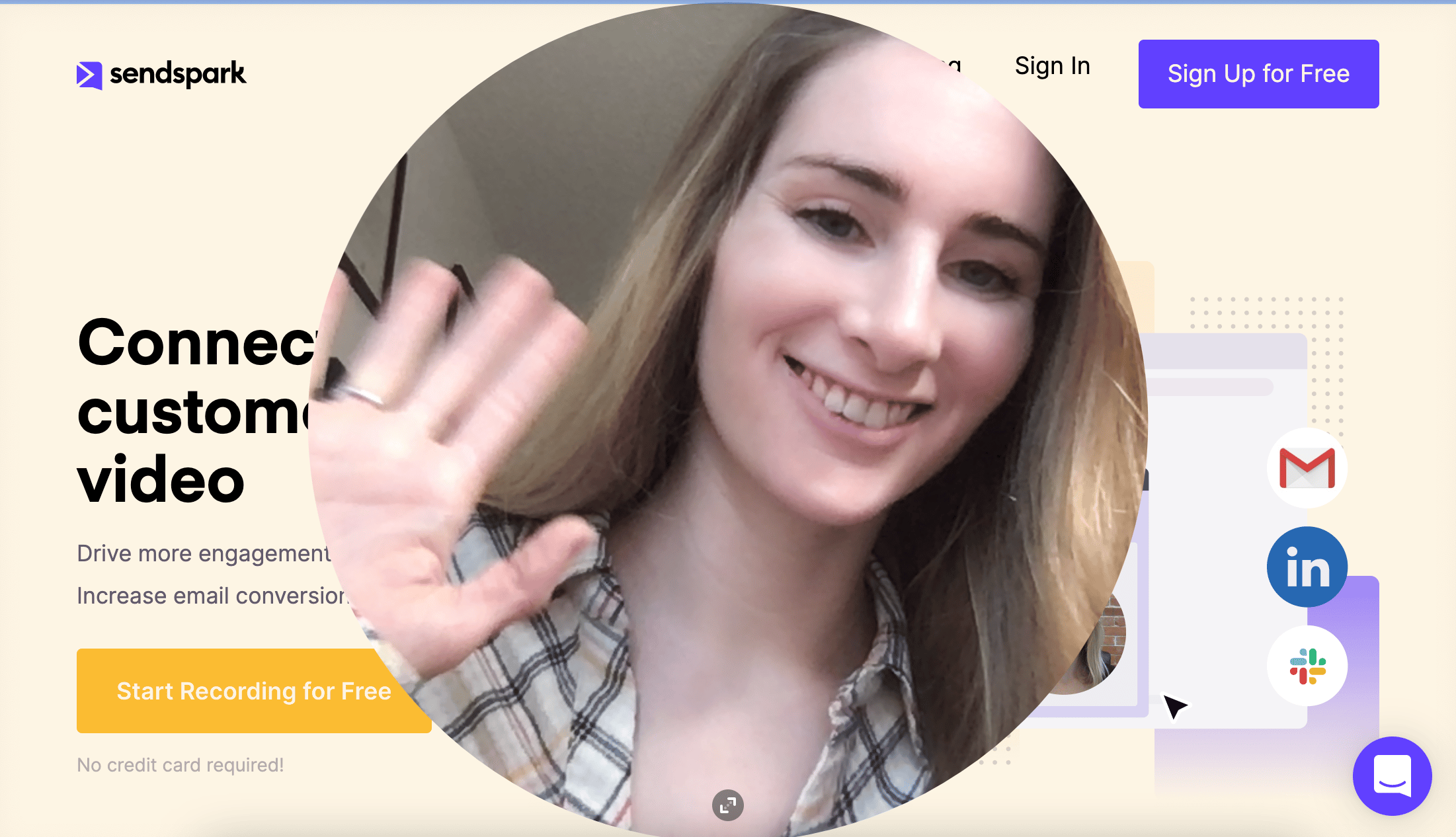 4. Click anywhere on the spotlight bubble to revert your camera bubble to its original position.
## Frequently asked questions
Yes. Camera Spotlight is included on every Sendspark plan, including the free tier.
Yes. You can switch Camera Spotlight either before you start recording, or anytime during your recording.
You need the Sendspark Chrome Extension installed, and you need to have "Both" selected as your recording option when you launch the recorder.
Click anywhere on the spotlight bubble to revert your camera bubble to its original position.
*Updated July 2026.*
4. Click anywhere on the spotlight bubble to revert your camera bubble to its original position.
## Frequently asked questions
Yes. Camera Spotlight is included on every Sendspark plan, including the free tier.
Yes. You can switch Camera Spotlight either before you start recording, or anytime during your recording.
You need the Sendspark Chrome Extension installed, and you need to have "Both" selected as your recording option when you launch the recorder.
Click anywhere on the spotlight bubble to revert your camera bubble to its original position.
*Updated July 2026.*