> ## Documentation Index
> Fetch the complete documentation index at: https://help.sendspark.com/llms.txt
> Use this file to discover all available pages before exploring further.
# How to Use an Image as a Background URL
> Use a custom image URL as your video background in Sendspark to create on-brand, personalized dynamic videos. Supports any publicly accessible image URL.
Yes, you can use an image instead of a video as your dynamic video background in Sendspark. Upload the image to Google Drive, set sharing to "Anyone with the link can view," then edit the share link into a direct format and paste it into the Background URL field. Personalization features still apply.
## Key takeaways
* Sendspark is built for dynamic videos, but you can still use its personalization features with a static image as the background.
* The image must be publicly accessible: in Google Drive, set link access to "Anyone with the link can view."
* For image files (PNG, JPG), rewrite the share link to the direct format `https://drive.google.com/uc?export=view&id=FILE_ID`.
* For PDFs or other non-image files, change the end of the link from `/view` to `/preview` (you can't avoid seeing the zoom controls in this case).
* Keep the public sharing link active for the whole time the campaign is running.
Can I use an image instead of a video in a Sendspark dynamic video?
Absolutely! While Sendspark is built for creating dynamic videos, you can still leverage its personalization features with images.
## Here's how to use an image as a background in your Sendspark dynamic video:
**1. Prepare your image: Upload your desired image to Google Drive.**\
**2. Share the image publicly:**
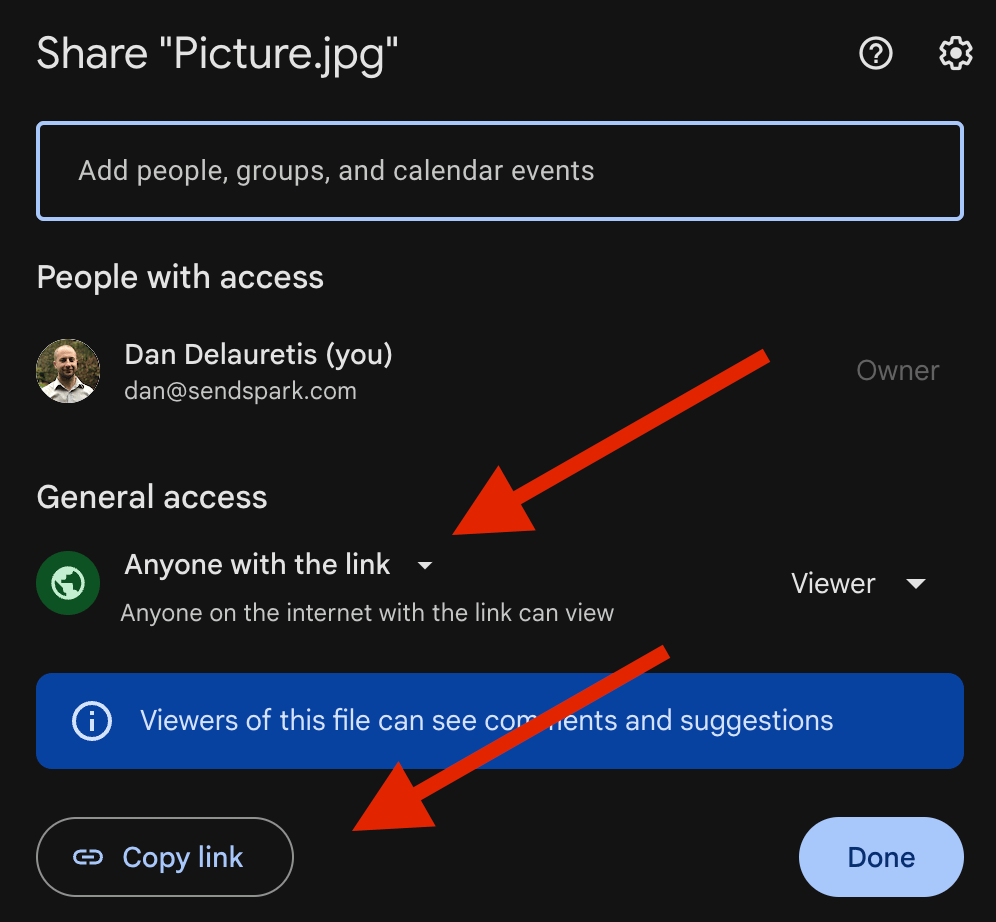
In Google Drive, right-click on the image and select "Share."
Under the "Get link" section, change access to "Anyone with the link can view."
Click "Copy link" to obtain the public sharing URL.
**3. Create your Sendspark dynamic video:**
Follow the usual process for creating a Dynamic Video Campaign in Sendspark.
This will only work if this is an image file (PNG, JPG):
Basically you remove the "file/d/xxxxx/view etc..." and you add
"uc?export=view\&id=" followed by the same ID
**Original Link:**
[https://drive.google.com/file/d/1FqSaH5H0nxm192Hv9eEsyRExjC1kimmU/view?usp=sharing](https://drive.google.com/file/d/1FqSaH5H0nxm192Hv9eEsyRExjC1kimmU/view?usp=sharing)
**Edited Link:**
[https://drive.google.com/uc?export=view\&id=1FqSaH5H0nxm192Hv9eEsyRExjC1kimmU](https://drive.google.com/uc?export=view\&id=1FqSaH5H0nxm192Hv9eEsyRExjC1kimmU)
***
If this is a PDF, or any other type of non-image file, you can't avoid seeing the Zoom controls in the screenshot. This is the way
When editing the Background URL field, paste the copied public sharing URL from Google Drive into this background URL field with a slight modification. You need to correct the last section of it. Instead of "VIEW", it should say "PREVIEW" instead:
**Original Link:**
[https://drive.google.com/file/d/10sKCccDG7xHtv3FWqRM-zGvdwGbVE-Lg/view?usp=drive\_link](https://drive.google.com/file/d/10sKCccDG7xHtv3FWqRM-zGvdwGbVE-Lg/view?usp=drive_link)
**Edited Link:**
[https://drive.google.com/file/d/10sKCccDG7xHtv3FWqRM-zGvdwGbVE-Lg/preview](https://drive.google.com/file/d/10sKCccDG7xHtv3FWqRM-zGvdwGbVE-Lg/preview)
**4. Additional Tips:**
-Consider using a visually appealing and high-resolution image for best results.\
-Remember to keep the public sharing link active on Google Drive while the campaign is in process.\
By following these steps, you can create personalized image messages with Sendspark, adding a unique touch to your outreach campaigns
***
## Frequently asked questions
Yes. While Sendspark is built for dynamic videos, you can still use its personalization features with an image. Set the image as your Background URL and personalize as you normally would.
Sendspark pulls the image from the URL you provide, so it has to be reachable without a login. In Google Drive, right-click the image, choose "Share," and set access to "Anyone with the link can view."
Remove the `file/d/xxxxx/view...` portion of the share link and replace it with `uc?export=view&id=` followed by the same file ID. For example, `https://drive.google.com/file/d/FILE_ID/view?usp=sharing` becomes `https://drive.google.com/uc?export=view&id=FILE_ID`.
Use the same share link but change the ending from `/view` to `/preview`. Note that with non-image files you can't avoid seeing the zoom controls in the background.
Yes. Keep the public sharing link active on Google Drive for as long as the campaign is running, otherwise the background image won't load. Using a high-resolution image also gives the best results.
*Updated July 2026.*
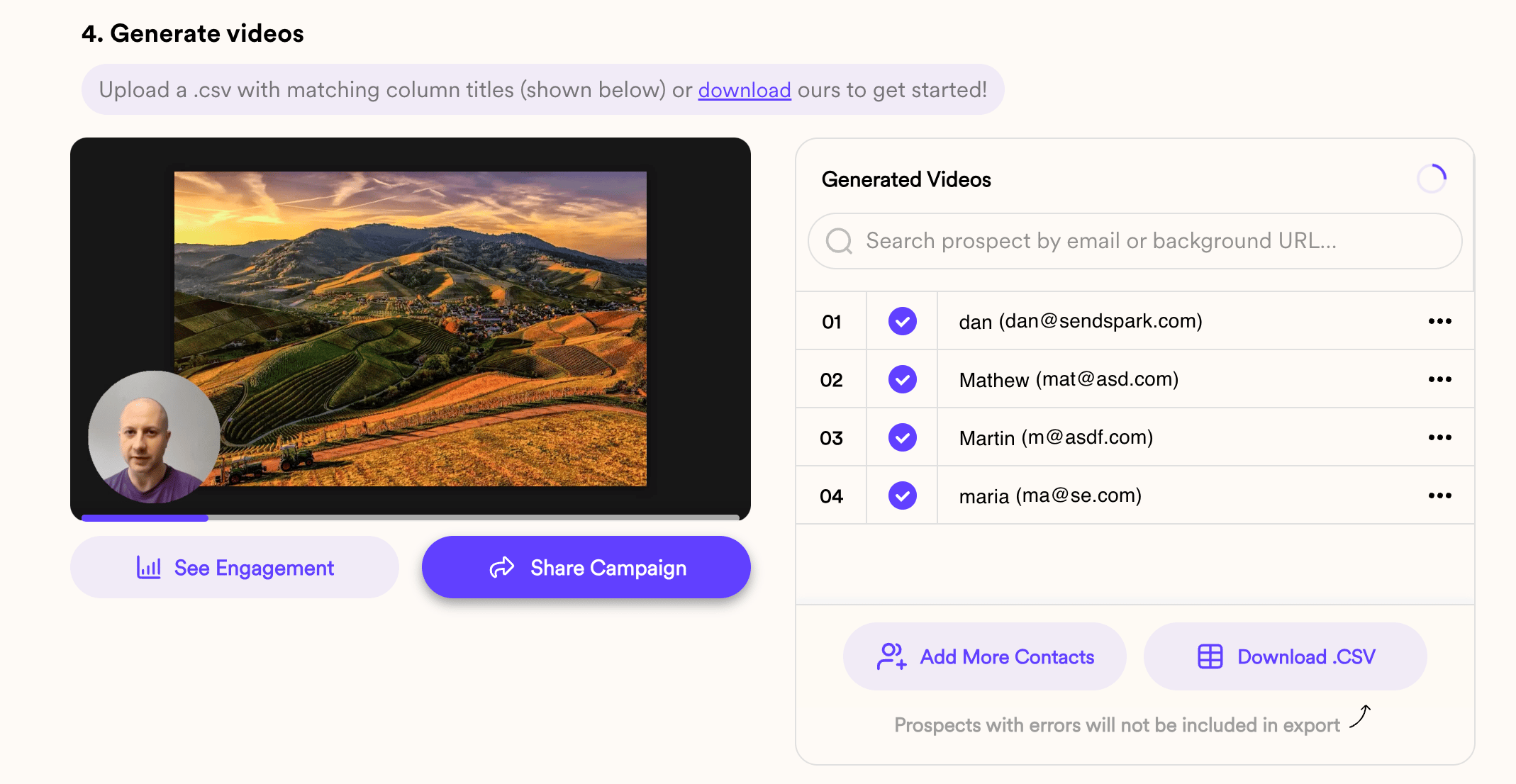 Absolutely! While Sendspark is built for creating dynamic videos, you can still leverage its personalization features with images.
## Here's how to use an image as a background in your Sendspark dynamic video:
**1. Prepare your image: Upload your desired image to Google Drive.**\
**2. Share the image publicly:**
In Google Drive, right-click on the image and select "Share."
Under the "Get link" section, change access to "Anyone with the link can view."
Click "Copy link" to obtain the public sharing URL.
Absolutely! While Sendspark is built for creating dynamic videos, you can still leverage its personalization features with images.
## Here's how to use an image as a background in your Sendspark dynamic video:
**1. Prepare your image: Upload your desired image to Google Drive.**\
**2. Share the image publicly:**
In Google Drive, right-click on the image and select "Share."
Under the "Get link" section, change access to "Anyone with the link can view."
Click "Copy link" to obtain the public sharing URL.
 **3. Create your Sendspark dynamic video:**
Follow the usual process for creating a Dynamic Video Campaign in Sendspark.
This will only work if this is an image file (PNG, JPG):
Basically you remove the "file/d/xxxxx/view etc..." and you add
"uc?export=view\&id=" followed by the same ID
**Original Link:**
[https://drive.google.com/file/d/1FqSaH5H0nxm192Hv9eEsyRExjC1kimmU/view?usp=sharing](https://drive.google.com/file/d/1FqSaH5H0nxm192Hv9eEsyRExjC1kimmU/view?usp=sharing)
**Edited Link:**
[https://drive.google.com/uc?export=view\&id=1FqSaH5H0nxm192Hv9eEsyRExjC1kimmU](https://drive.google.com/uc?export=view\&id=1FqSaH5H0nxm192Hv9eEsyRExjC1kimmU)
***
If this is a PDF, or any other type of non-image file, you can't avoid seeing the Zoom controls in the screenshot. This is the way
When editing the Background URL field, paste the copied public sharing URL from Google Drive into this background URL field with a slight modification. You need to correct the last section of it. Instead of "VIEW", it should say "PREVIEW" instead:
**Original Link:**
[https://drive.google.com/file/d/10sKCccDG7xHtv3FWqRM-zGvdwGbVE-Lg/view?usp=drive\_link](https://drive.google.com/file/d/10sKCccDG7xHtv3FWqRM-zGvdwGbVE-Lg/view?usp=drive_link)
**Edited Link:**
[https://drive.google.com/file/d/10sKCccDG7xHtv3FWqRM-zGvdwGbVE-Lg/preview](https://drive.google.com/file/d/10sKCccDG7xHtv3FWqRM-zGvdwGbVE-Lg/preview)
**4. Additional Tips:**
-Consider using a visually appealing and high-resolution image for best results.\
-Remember to keep the public sharing link active on Google Drive while the campaign is in process.\
By following these steps, you can create personalized image messages with Sendspark, adding a unique touch to your outreach campaigns
***
## Frequently asked questions
**3. Create your Sendspark dynamic video:**
Follow the usual process for creating a Dynamic Video Campaign in Sendspark.
This will only work if this is an image file (PNG, JPG):
Basically you remove the "file/d/xxxxx/view etc..." and you add
"uc?export=view\&id=" followed by the same ID
**Original Link:**
[https://drive.google.com/file/d/1FqSaH5H0nxm192Hv9eEsyRExjC1kimmU/view?usp=sharing](https://drive.google.com/file/d/1FqSaH5H0nxm192Hv9eEsyRExjC1kimmU/view?usp=sharing)
**Edited Link:**
[https://drive.google.com/uc?export=view\&id=1FqSaH5H0nxm192Hv9eEsyRExjC1kimmU](https://drive.google.com/uc?export=view\&id=1FqSaH5H0nxm192Hv9eEsyRExjC1kimmU)
***
If this is a PDF, or any other type of non-image file, you can't avoid seeing the Zoom controls in the screenshot. This is the way
When editing the Background URL field, paste the copied public sharing URL from Google Drive into this background URL field with a slight modification. You need to correct the last section of it. Instead of "VIEW", it should say "PREVIEW" instead:
**Original Link:**
[https://drive.google.com/file/d/10sKCccDG7xHtv3FWqRM-zGvdwGbVE-Lg/view?usp=drive\_link](https://drive.google.com/file/d/10sKCccDG7xHtv3FWqRM-zGvdwGbVE-Lg/view?usp=drive_link)
**Edited Link:**
[https://drive.google.com/file/d/10sKCccDG7xHtv3FWqRM-zGvdwGbVE-Lg/preview](https://drive.google.com/file/d/10sKCccDG7xHtv3FWqRM-zGvdwGbVE-Lg/preview)
**4. Additional Tips:**
-Consider using a visually appealing and high-resolution image for best results.\
-Remember to keep the public sharing link active on Google Drive while the campaign is in process.\
By following these steps, you can create personalized image messages with Sendspark, adding a unique touch to your outreach campaigns
***
## Frequently asked questions