> ## Documentation Index
> Fetch the complete documentation index at: https://help.sendspark.com/llms.txt
> Use this file to discover all available pages before exploring further.
# How to Update Your Payment Method
> Update your payment method in your Sendspark account billing settings. Change your credit card or payment details with this simple step-by-step guide.
To update your payment method in Sendspark, open your account menu and click Billing, then Manage Card, then Edit Information. Fill in your new card details and click Update Information. Updating your card does not trigger a payment, so if you have an unpaid invoice you'll still need to pay it separately.
## Key takeaways
* Update your card under Account menu → Billing → Manage Card → Edit Information.
* Enter the new card details and click Update Information to save.
* Updating your card does not trigger a payment on its own.
* If you have an unpaid invoice, follow the Review and Pay Our Invoices guide to settle it.
In this article, you will learn how to update your payment method
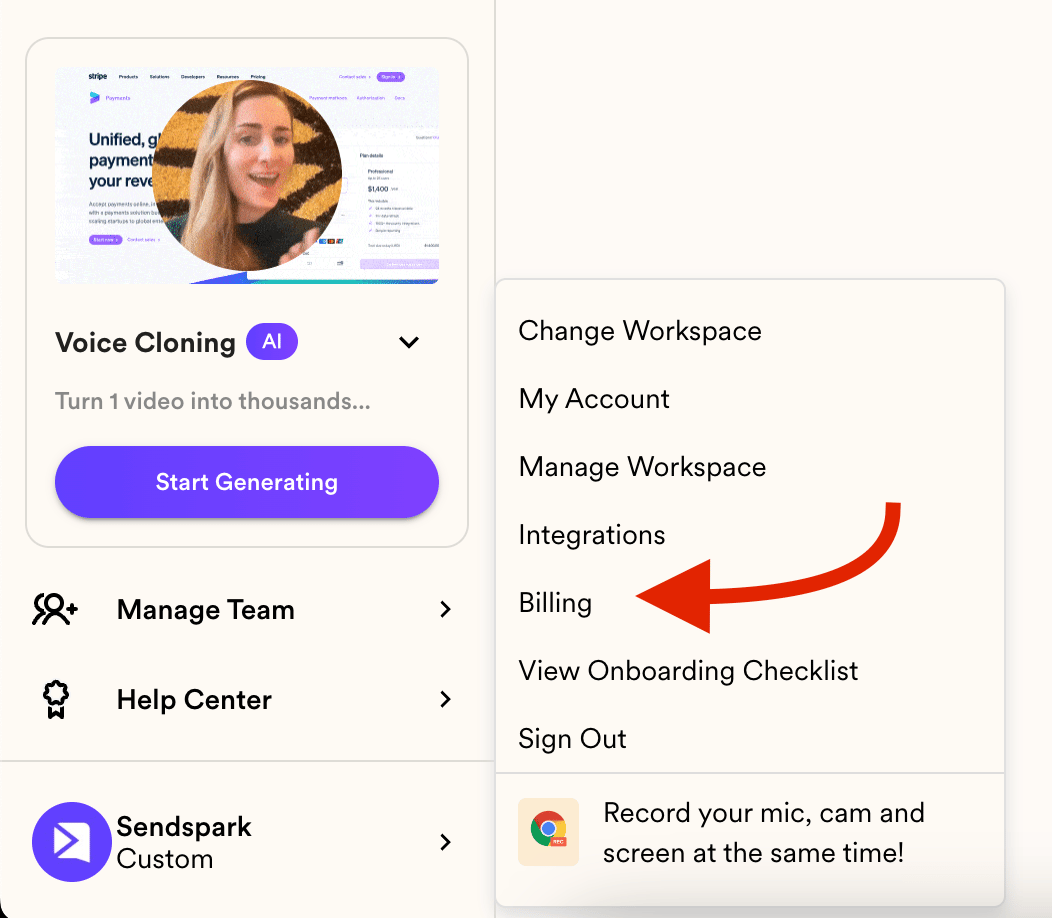
1. Head to your account Menu and click on BILLING:
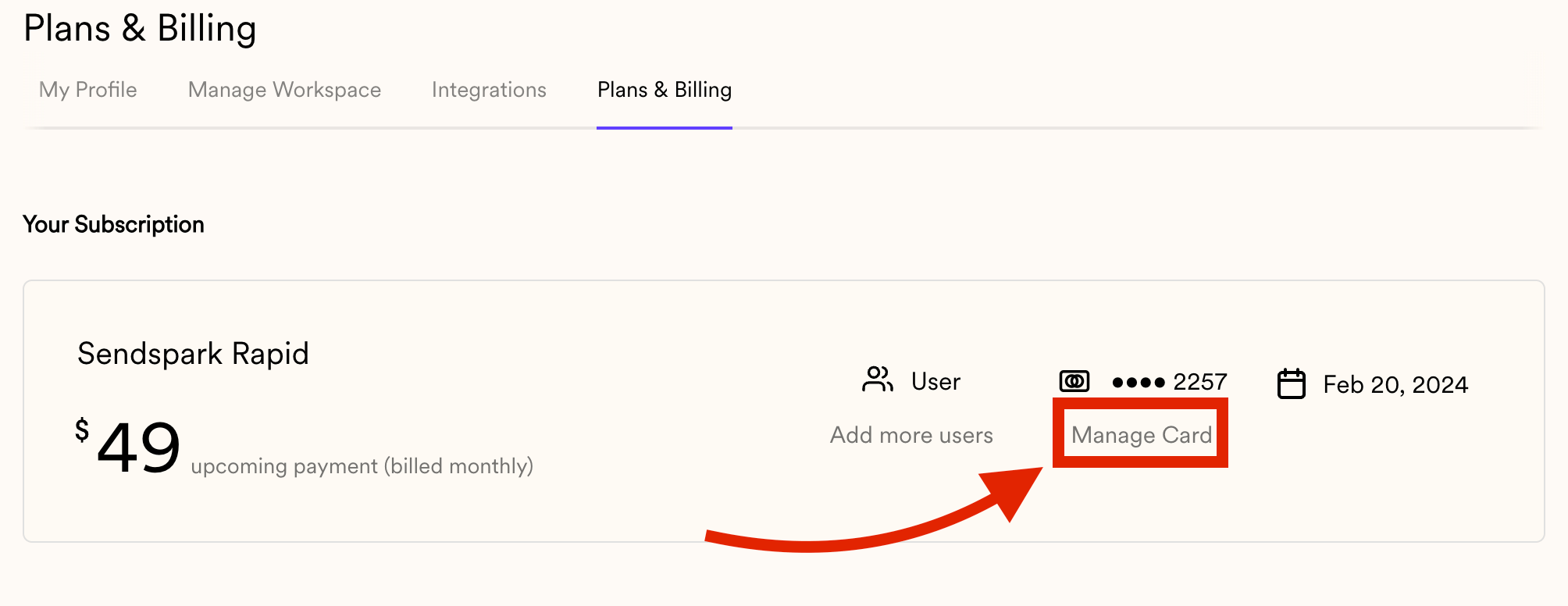
 2. Click on Manage Card:
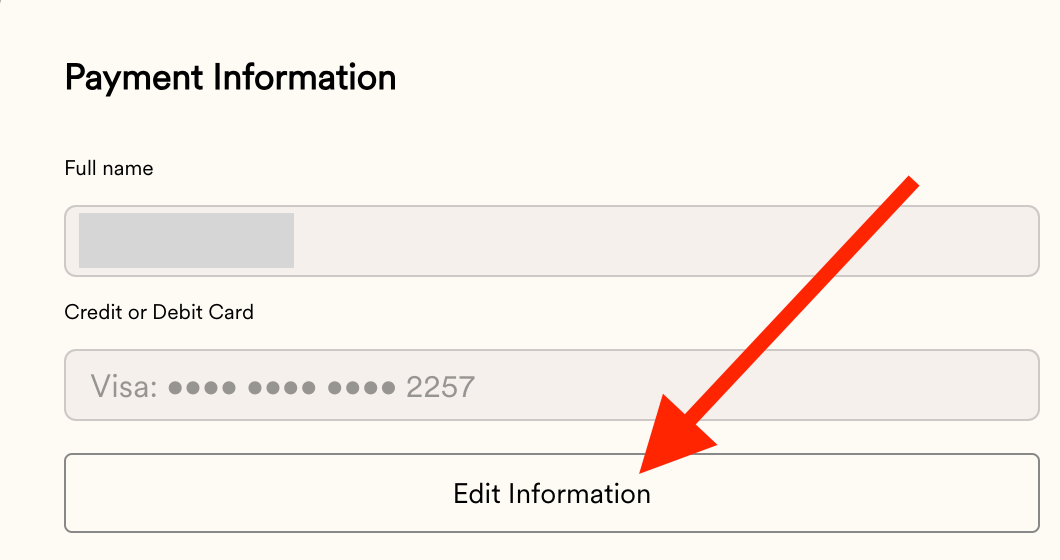
 3. Click on Edit Information:
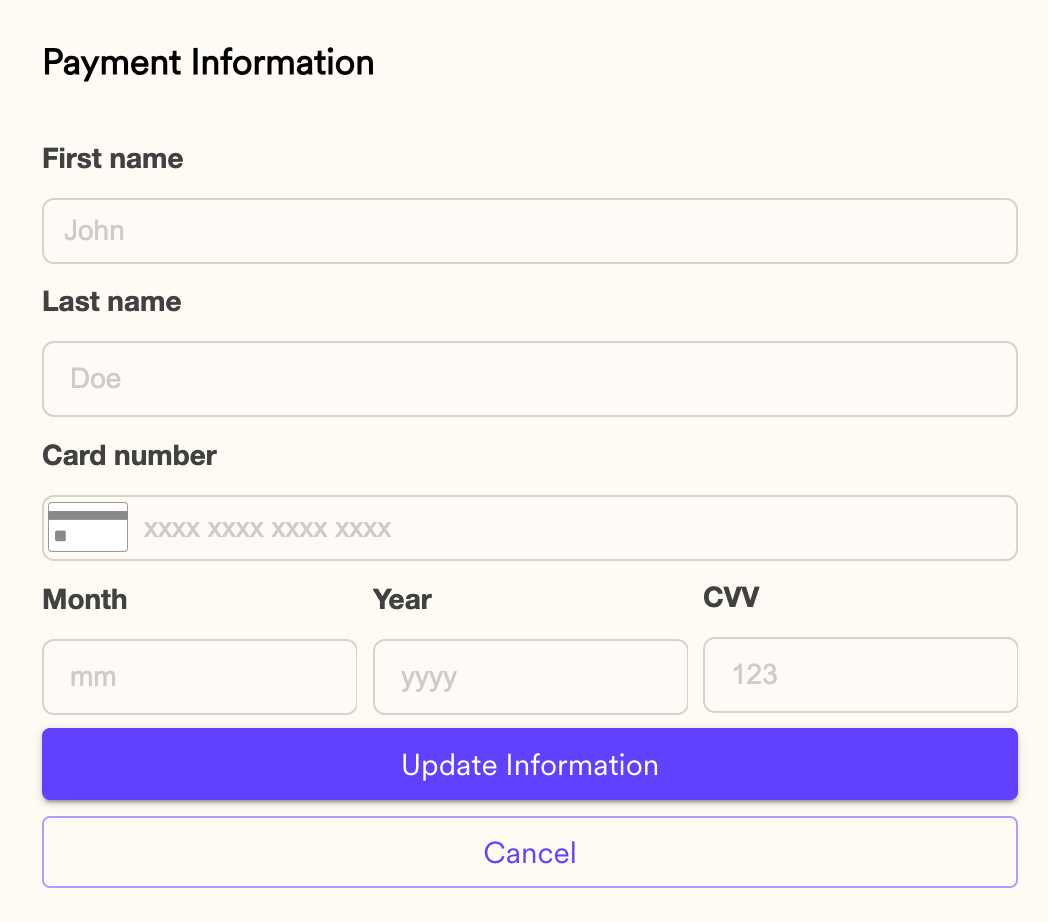
 4. Fill out the form with the new information and click on Update Information:
 Note that updating your credit card won't trigger a payment and if there is an invoice still unpaid, you will need to follow the steps in this article:
[How to Review and Pay our Invoices](/how-to-review-and-pay-our-invoices)
## Frequently asked questions
Open your account menu and click Billing, then Manage Card, then Edit Information. Fill out the form with your new card details and click Update Information.
No. Updating your credit card won't trigger a payment on its own.
Updating your card does not pay an outstanding invoice. If an invoice is still unpaid, follow the steps in [How to Review and Pay our Invoices](/how-to-review-and-pay-our-invoices) to settle it.
*Updated July 2026.*
Note that updating your credit card won't trigger a payment and if there is an invoice still unpaid, you will need to follow the steps in this article:
[How to Review and Pay our Invoices](/how-to-review-and-pay-our-invoices)
## Frequently asked questions
Open your account menu and click Billing, then Manage Card, then Edit Information. Fill out the form with your new card details and click Update Information.
No. Updating your credit card won't trigger a payment on its own.
Updating your card does not pay an outstanding invoice. If an invoice is still unpaid, follow the steps in [How to Review and Pay our Invoices](/how-to-review-and-pay-our-invoices) to settle it.
*Updated July 2026.*