> ## Documentation Index
> Fetch the complete documentation index at: https://help.sendspark.com/llms.txt
> Use this file to discover all available pages before exploring further.
# How to Request a Testimonial with Sendspark
> Learn how to request video testimonials from customers using Sendspark's Request Video feature with simple link sharing steps.
Sendspark's Request Video feature lets you collect video testimonials with a simple link. Open the [Video Requests](https://sendspark.com/requested-videos) folder, click **Copy Request Link**, and share it with customers. Recipients record and approve a video, with or without a Sendspark account, and it uploads automatically to your Video Requests folder to view, download, or share.
## Key takeaways
* Requesting a testimonial takes one link: open the [Video Requests](https://sendspark.com/requested-videos) folder and click **Copy Request Link** to share with customers.
* Recipients do not need a Sendspark account. They can record through any of three options and review and approve the video before submitting.
* Submitted videos upload automatically to your Video Requests folder, where you can view, download, or share them.
* To make customers more comfortable, [record yourself](/record-yourself) asking for the testimonial and add your request link as a [call-to-action below your video](/use-a-call-to-action-url-link).
Sendspark's Request Video makes it easy to request testimonials from your customers.
## How to Request a Testimonial with Sendspark
1. Navigate to the Sendspark [Video Requests](https://sendspark.com/requested-videos) folder
2. Click **Copy Request Link**  3. Now, simply share the link with your customers. Here are [some common ways to get video testimonials](https://blog.sendspark.com/get-video-testimonials).
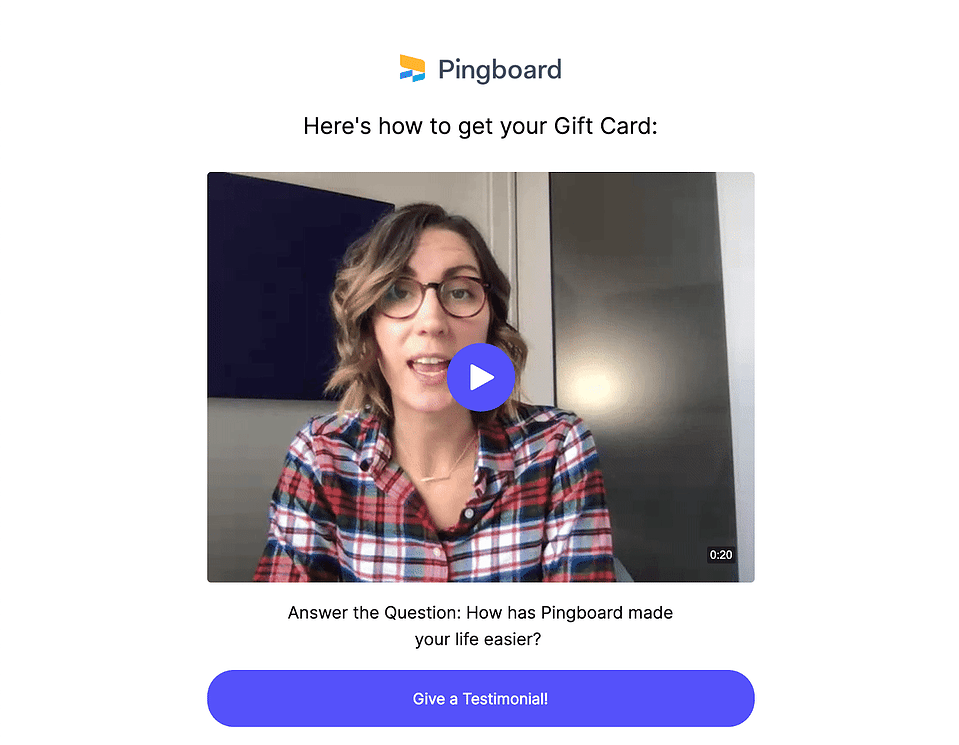
4. Once your recipients open the link, this is what they'll see:
3. Now, simply share the link with your customers. Here are [some common ways to get video testimonials](https://blog.sendspark.com/get-video-testimonials).
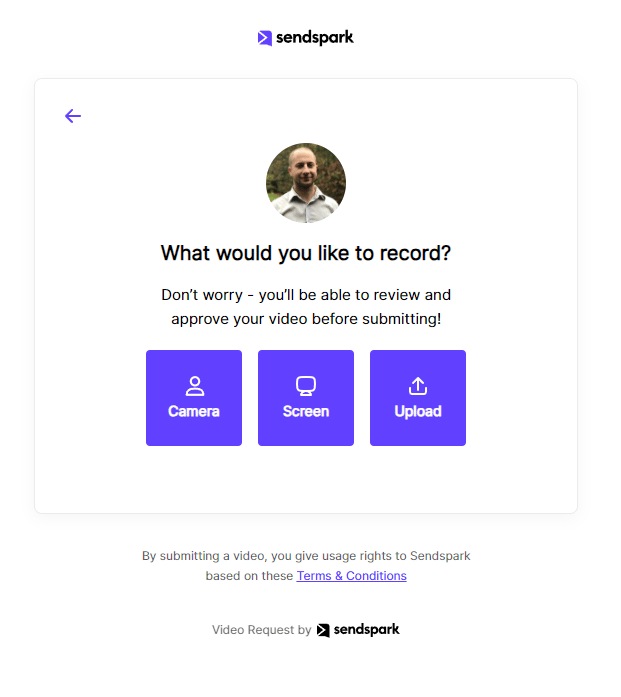
4. Once your recipients open the link, this is what they'll see: 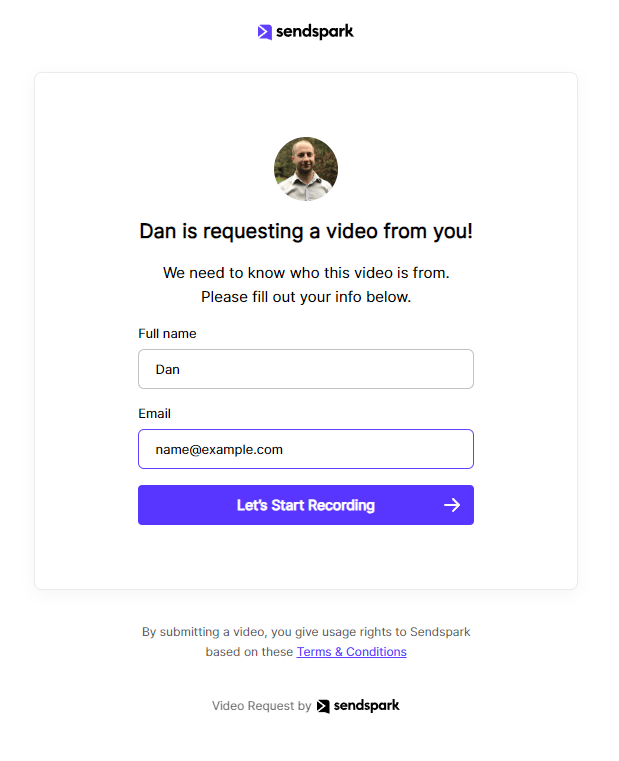 5. Regardless of whether they have a Sendspark account or not, they will be able to share a recording through any of these three options:
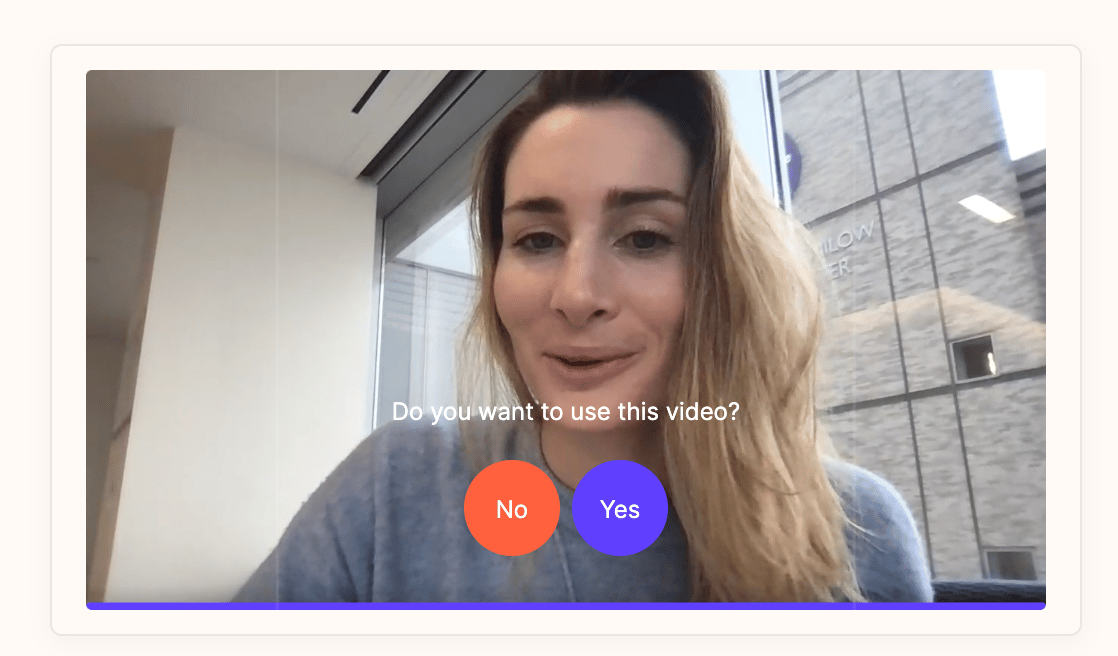
  6. Recipients will have a chance to **review and approve** the video before submitting it. (Try it out by [recording a video for us here](https://sendspark.com/request/Sendspark/ywpsoec6egdg2yvg8r9sd9payzm0svhg)!)
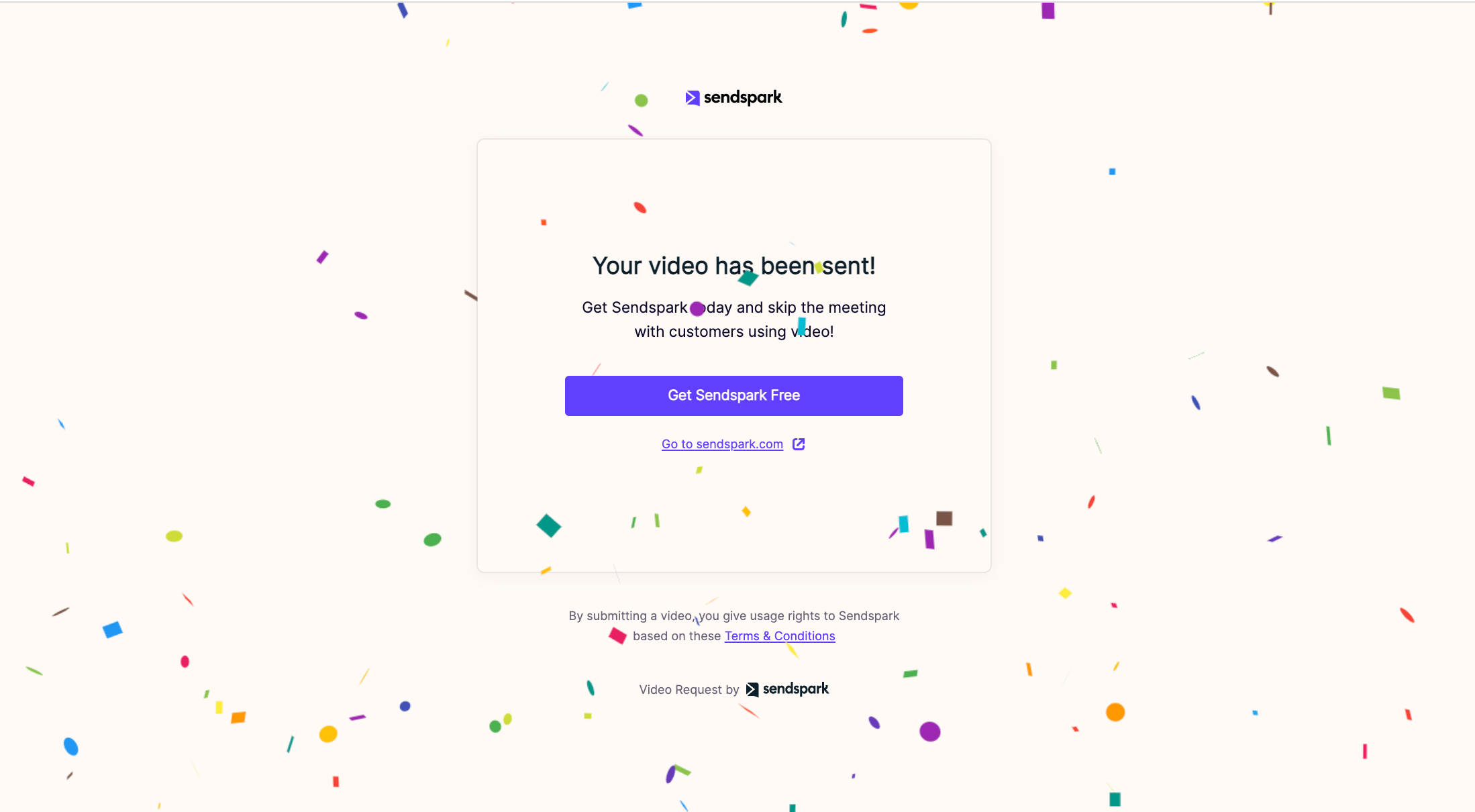
  7. When viewers submit the video, it will **automatically upload** to your [Video Requests folder](https://sendspark.com/requested-videos) for you to view, download, or share.
  ## 💡 Bonus tip: Help your customers feel more comfortable recording videos
Use Sendspark to [record yourself](/record-yourself) asking customers to make you a testimonial to help them feel more comfortable (and prompt them with [customer testimonial questions](https://blog.sendspark.com/video-testimonial-questions)).
If you'd like to do this, just add your video request link to the [call-to-action below your video](/use-a-call-to-action-url-link).
## 💡 Bonus tip: Help your customers feel more comfortable recording videos
Use Sendspark to [record yourself](/record-yourself) asking customers to make you a testimonial to help them feel more comfortable (and prompt them with [customer testimonial questions](https://blog.sendspark.com/video-testimonial-questions)).
If you'd like to do this, just add your video request link to the [call-to-action below your video](/use-a-call-to-action-url-link).
 ## Frequently asked questions
No. Whether or not they have a Sendspark account, recipients can record and share a video through any of three options once they open your request link.
Navigate to the [Video Requests](https://sendspark.com/requested-videos) folder, click **Copy Request Link**, and share that link with your customers.
Yes. Recipients get a chance to review and approve the video before submitting it.
When viewers submit a video, it automatically uploads to your [Video Requests folder](https://sendspark.com/requested-videos), where you can view, download, or share it.
Use Sendspark to [record yourself](/record-yourself) asking for the testimonial, and add your request link as a [call-to-action below your video](/use-a-call-to-action-url-link). Prompting them with clear questions helps too.
*Updated July 2026.*
## Frequently asked questions
No. Whether or not they have a Sendspark account, recipients can record and share a video through any of three options once they open your request link.
Navigate to the [Video Requests](https://sendspark.com/requested-videos) folder, click **Copy Request Link**, and share that link with your customers.
Yes. Recipients get a chance to review and approve the video before submitting it.
When viewers submit a video, it automatically uploads to your [Video Requests folder](https://sendspark.com/requested-videos), where you can view, download, or share it.
Use Sendspark to [record yourself](/record-yourself) asking for the testimonial, and add your request link as a [call-to-action below your video](/use-a-call-to-action-url-link). Prompting them with clear questions helps too.
*Updated July 2026.*