> ## Documentation Index
> Fetch the complete documentation index at: https://help.sendspark.com/llms.txt
> Use this file to discover all available pages before exploring further.
# How to Rename a Video
> Rename videos in Sendspark from the dashboard, video page, workspace library, or campaign editor. Four quick methods to keep your video library organized.
You can rename a Sendspark video in four places: hover a video thumbnail and use the three-dot menu, click the name directly in the video's edit section, or set the name when you finish a recording in the Chrome Extension or the Desktop App. Each option opens an inline editing mode.
## Key takeaways
* There are four ways to rename a video: the three-dot menu on hover, clicking the name in the edit section, at the end of a Chrome Extension recording, or at the end of a Desktop App recording.
* Hovering a thumbnail and clicking the three dots reveals a Rename option that opens editing mode.
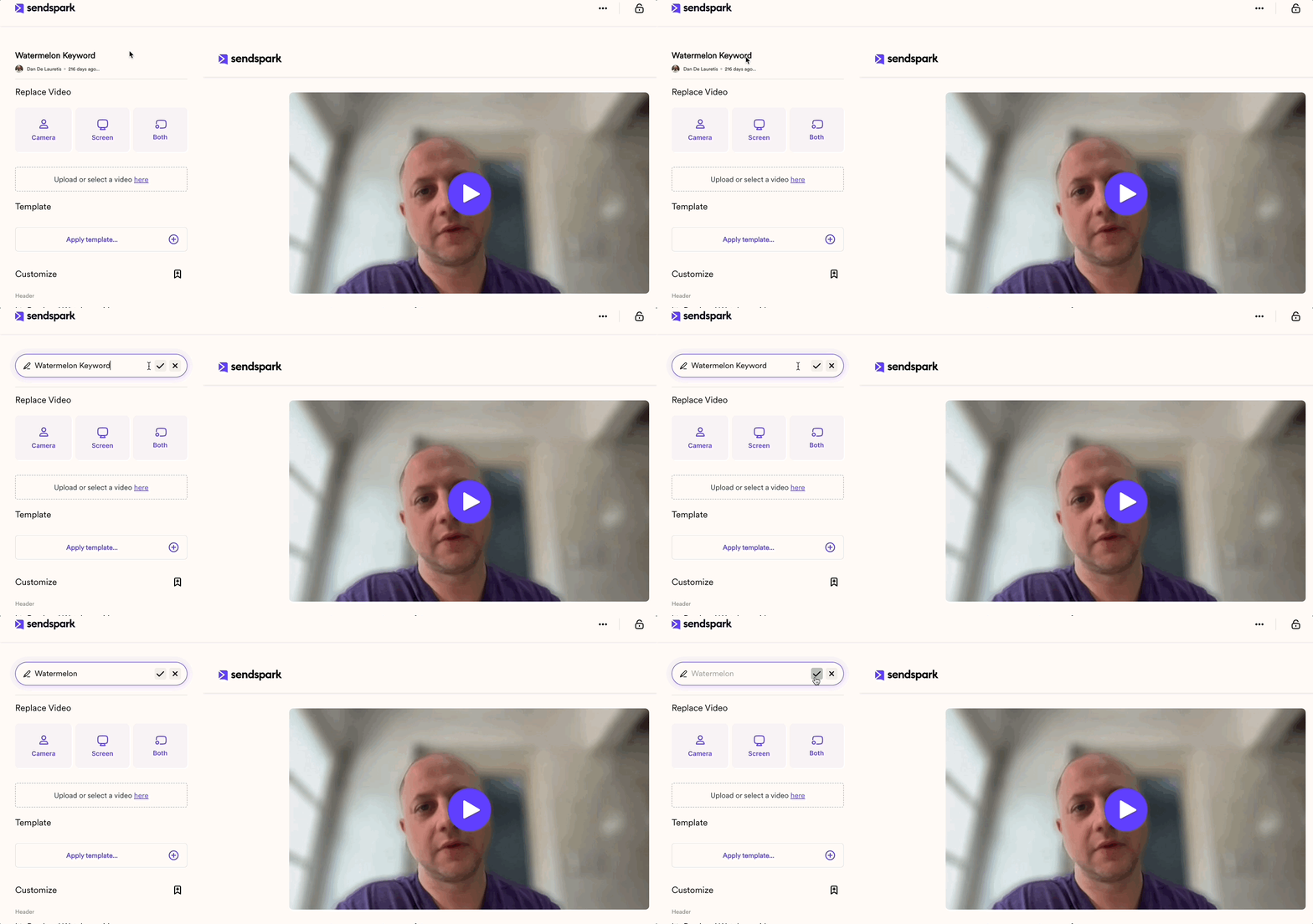
* Clicking a video opens its edit section, where clicking the name enables inline editing.
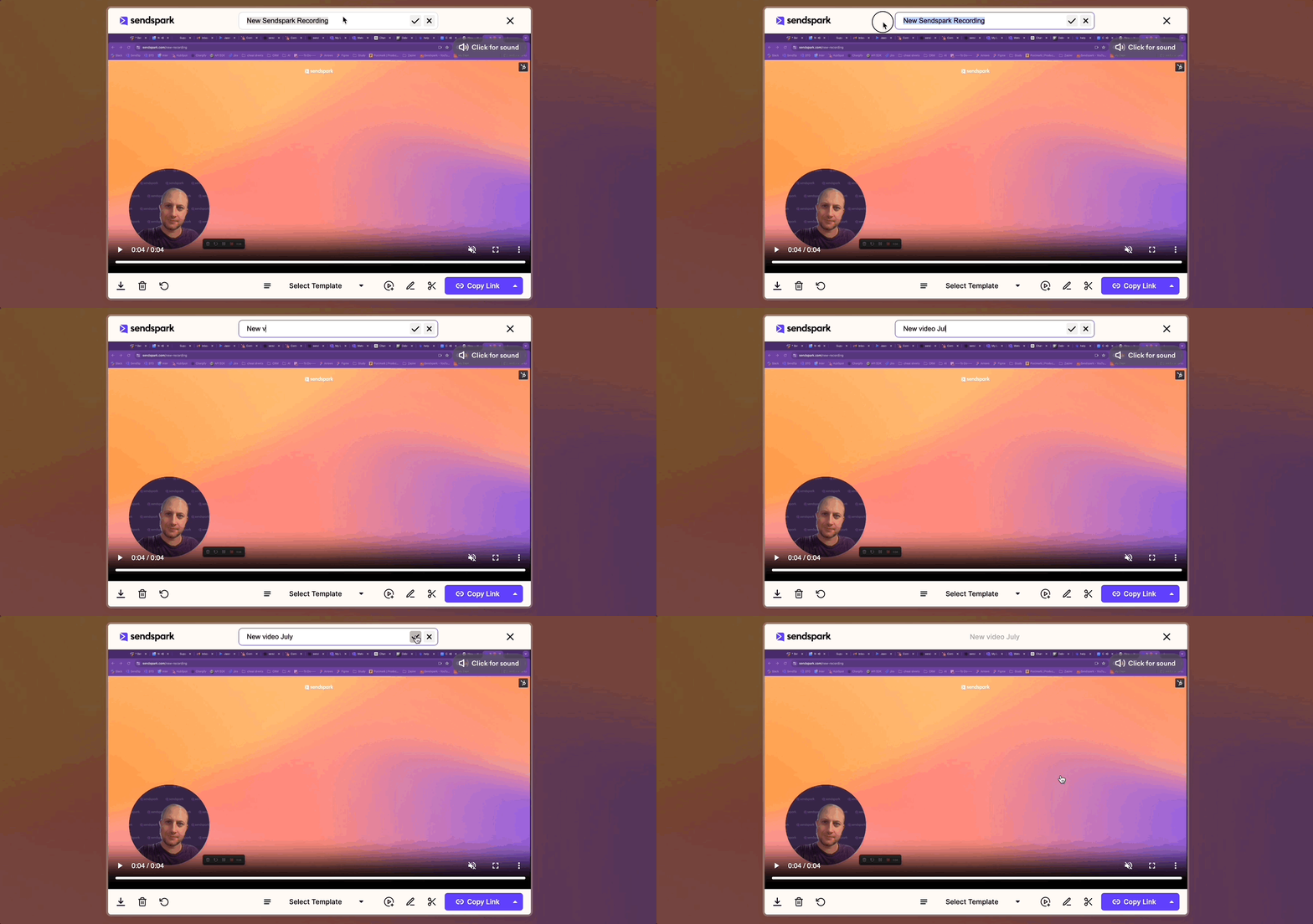
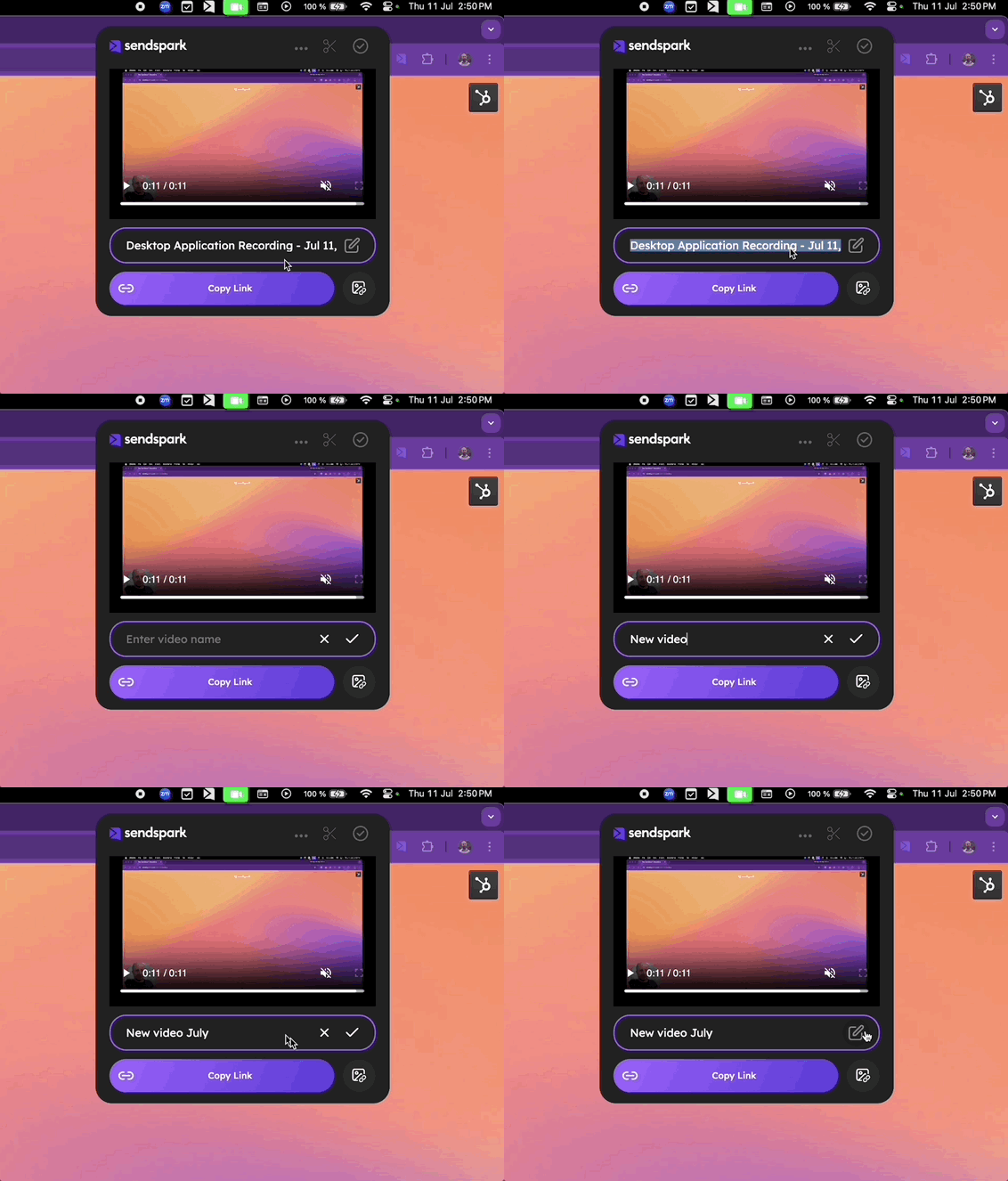
* You can name a recording the moment you finish it in both the Chrome Extension and the Desktop App.
## There are 4 different ways and/ or locations where a video can be renamed:
**1) Hover your video and head to the 3 dots to the right:**
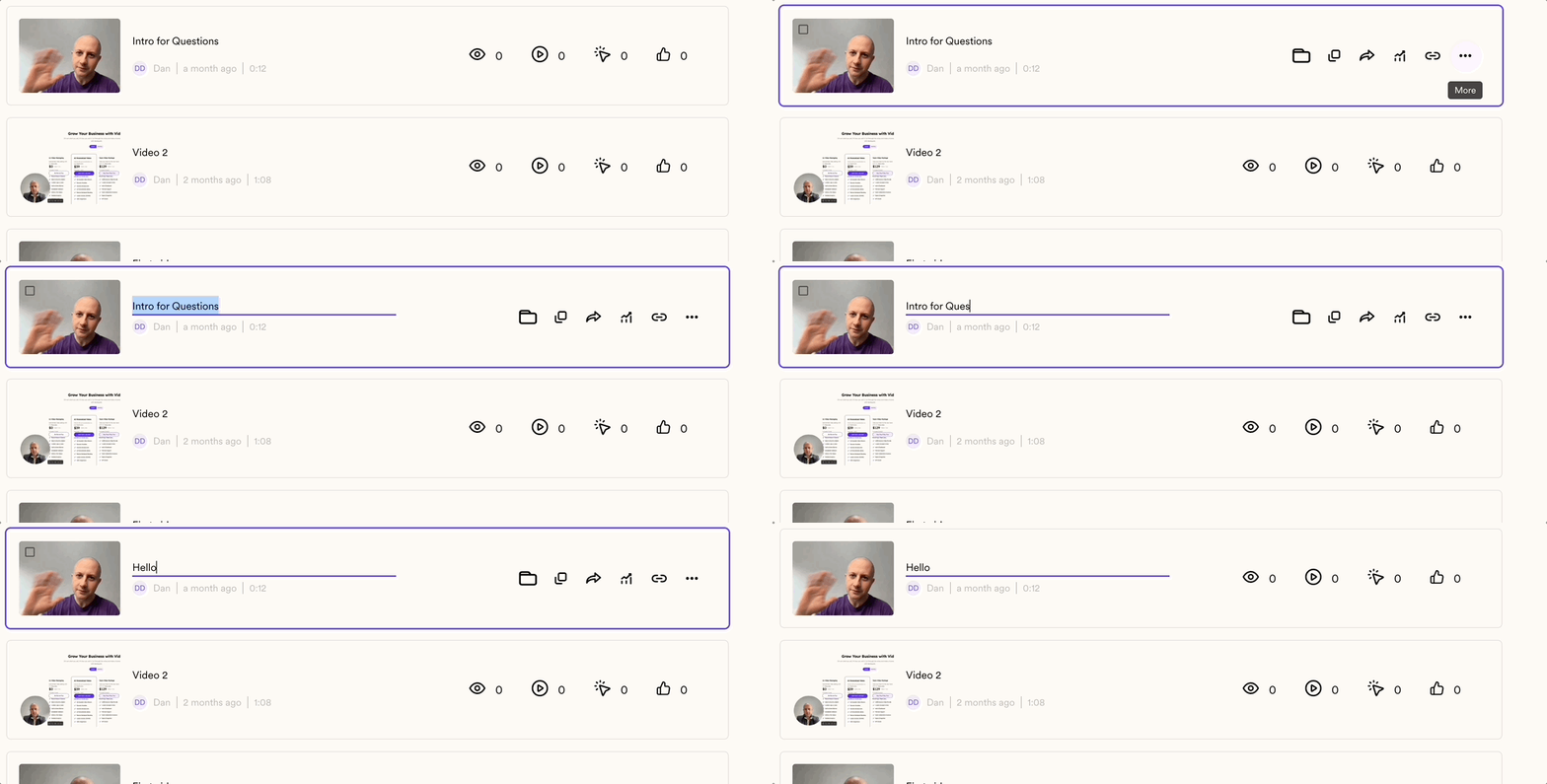 **Click on Rename to enable the editing mode**
***
**2) If you are in the Edit Section of the video (by clicking on the video), you can simply hit the Name to enable the Edit mode:**
**Click on Rename to enable the editing mode**
***
**2) If you are in the Edit Section of the video (by clicking on the video), you can simply hit the Name to enable the Edit mode:**
 ***
**3) When finishing a recording with the Chrome Extension, you can also set the name for the video:**
***
**3) When finishing a recording with the Chrome Extension, you can also set the name for the video:**
 ***
**4) Finally, the same procedure applies to a recording made through the Desktop App**
***
**4) Finally, the same procedure applies to a recording made through the Desktop App**
 ## Frequently asked questions
In four places: the three-dot menu when hovering a video, the name field in the video's edit section, the finish screen of a Chrome Extension recording, and the finish screen of a Desktop App recording.
Hover over the video, click the three dots to the right, and choose Rename to enable editing mode.
Yes. When you finish a recording with either the Chrome Extension or the Desktop App, you can set the video's name on the finish screen.
Open the video to enter its edit section, then click the name to enable edit mode and type a new one.
*Updated July 2026.*
## Frequently asked questions
In four places: the three-dot menu when hovering a video, the name field in the video's edit section, the finish screen of a Chrome Extension recording, and the finish screen of a Desktop App recording.
Hover over the video, click the three dots to the right, and choose Rename to enable editing mode.
Yes. When you finish a recording with either the Chrome Extension or the Desktop App, you can set the video's name on the finish screen.
Open the video to enter its edit section, then click the name to enable edit mode and type a new one.
*Updated July 2026.*