> ## Documentation Index
> Fetch the complete documentation index at: https://help.sendspark.com/llms.txt
> Use this file to discover all available pages before exploring further.
# How To Remove Team Members
> Learn how to remove team members from your Sendspark account through the Manage Team settings in just a few simple steps.
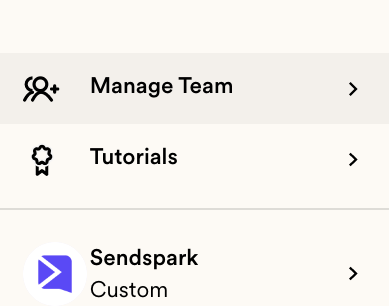
To remove a team member in Sendspark, open **Manage Team** from the bottom left of your profile, go to the **Manage Team** tab, click the **three dots** next to the teammate, and select **remove**. The one exception is the original account owner, who can't be removed this way.
## Key takeaways
* Open **Manage Team** from the bottom left of your Sendspark profile.
* In the **Manage Team** tab, click the **three dots** next to a teammate and select **remove**.
* The original account owner has no three dots and can't be removed here.
* If you need to remove the original owner, reach out to the Sendspark team for support.
In the bottom left of your Sendspark profile, you should see an option for**Manage Team:**
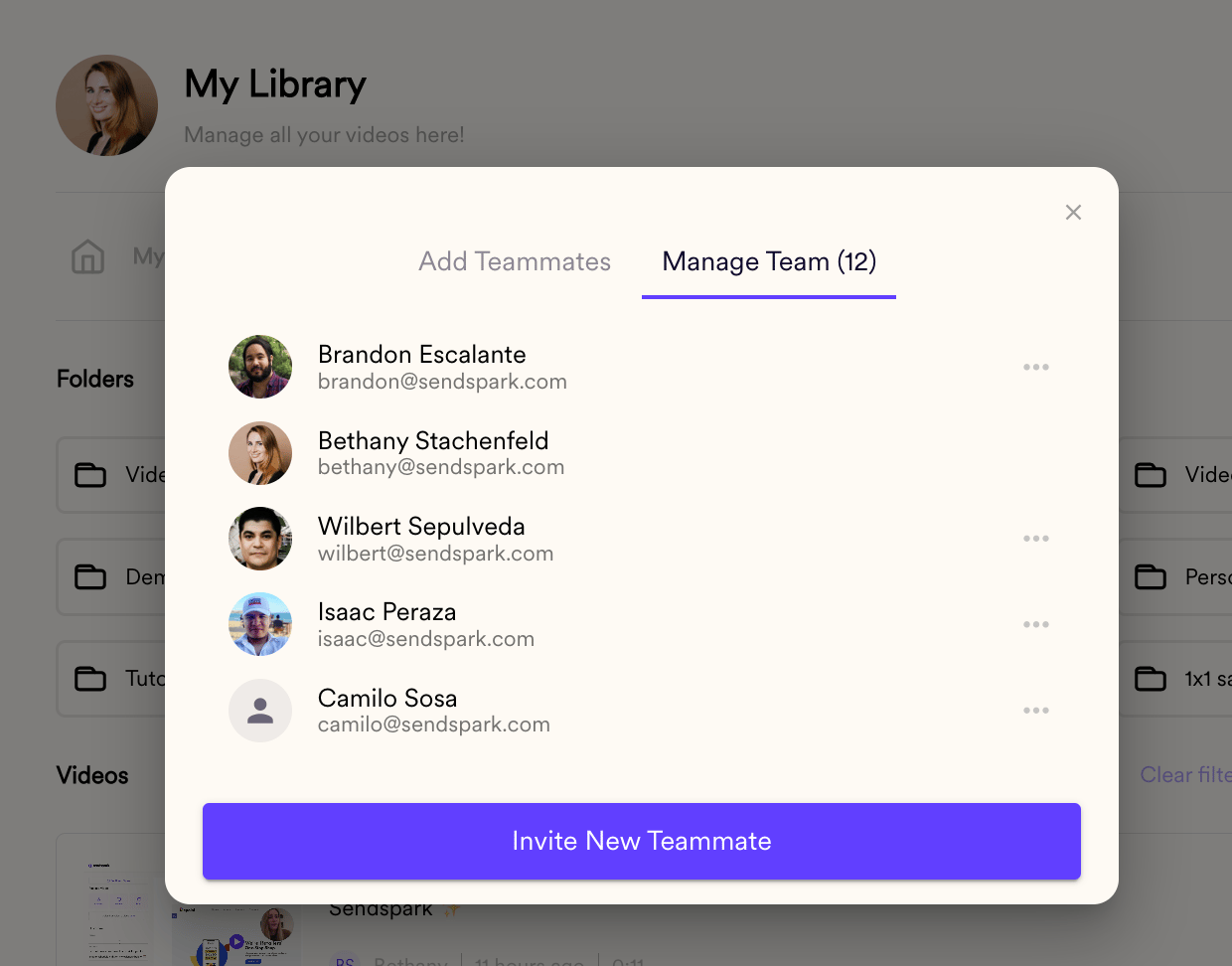
 On the modal that pops up, click into the second tab that says**Manage Team**
 To remove a team member, click the**three dots** next to the teammate you want to remove, and then select the **remove**option.
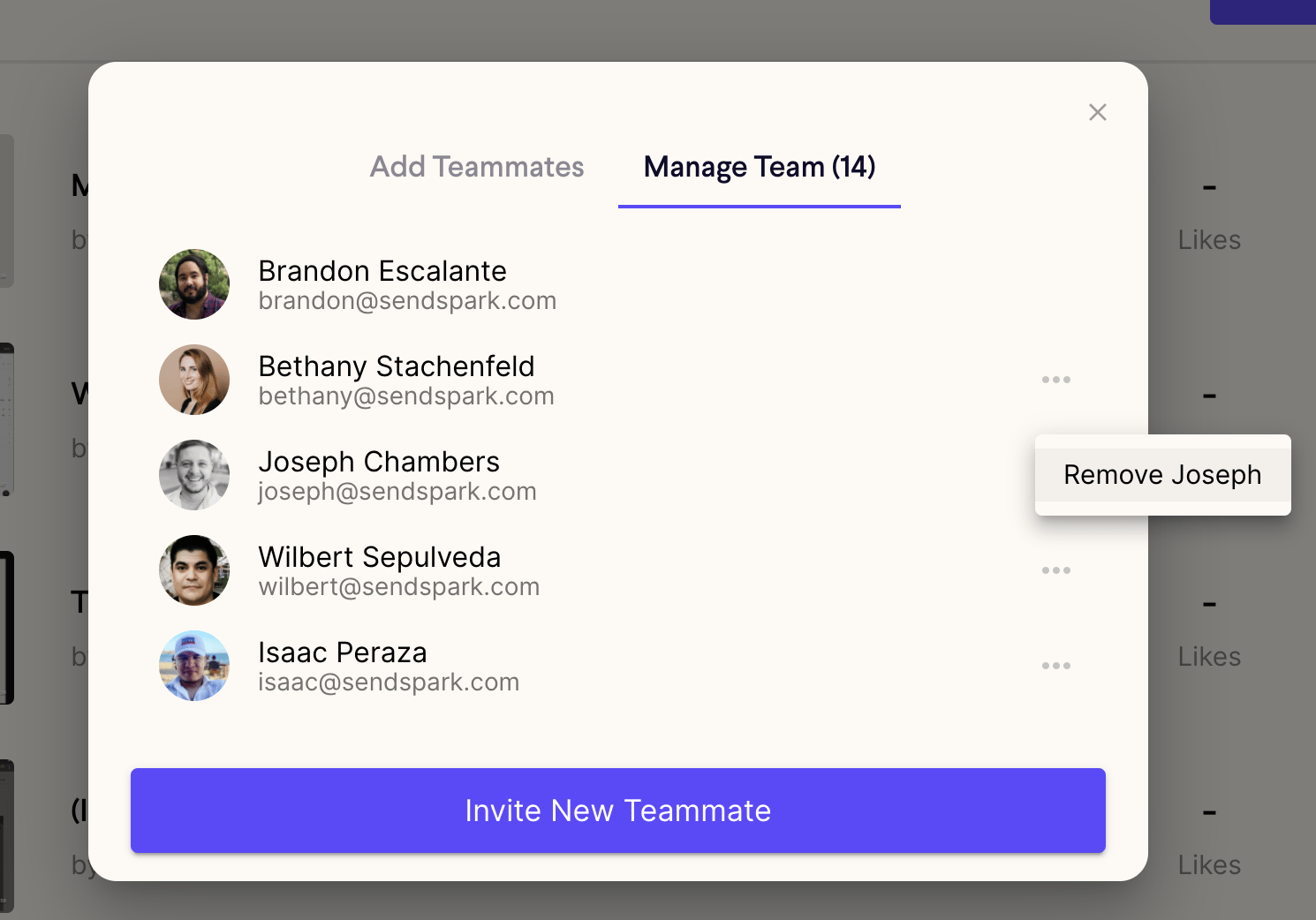 If you don't see the three dots next to the team member, this might be because they were the original owner who created the account, and you don't have the ability to remove them.
In this case, you can reach out to the Sendspark team for additional support.
***
## Frequently asked questions
Open **Manage Team** from the bottom left of your Sendspark profile, click into the second tab (also called **Manage Team**), then click the **three dots** next to the teammate you want to remove and select **remove**.
If there are no three dots next to a team member, it's likely because they were the original owner who created the account, and you don't have the ability to remove them.
The original account owner can't be removed through the Manage Team settings. Reach out to the Sendspark team for additional support in that case.
*Updated July 2026.*
If you don't see the three dots next to the team member, this might be because they were the original owner who created the account, and you don't have the ability to remove them.
In this case, you can reach out to the Sendspark team for additional support.
***
## Frequently asked questions
Open **Manage Team** from the bottom left of your Sendspark profile, click into the second tab (also called **Manage Team**), then click the **three dots** next to the teammate you want to remove and select **remove**.
If there are no three dots next to a team member, it's likely because they were the original owner who created the account, and you don't have the ability to remove them.
The original account owner can't be removed through the Manage Team settings. Reach out to the Sendspark team for additional support in that case.
*Updated July 2026.*