> ## Documentation Index
> Fetch the complete documentation index at: https://help.sendspark.com/llms.txt
> Use this file to discover all available pages before exploring further.
# How to Remove Breakpoints from Combined Videos
> Learn how to remove breakpoints from combined videos in Sendspark for seamless playback by adjusting workspace settings.
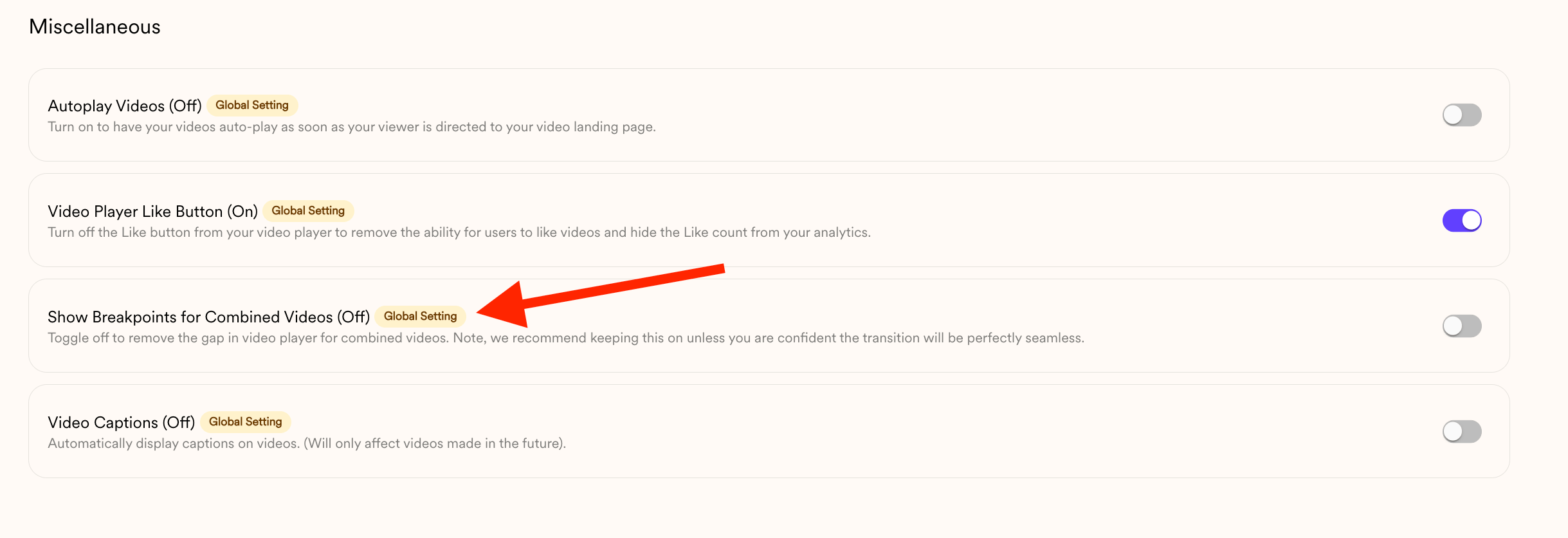
To remove breakpoints from combined videos, open Workspace Settings from your profile menu in the bottom left, scroll to Miscellaneous Options, and toggle off "Show Breakpoints for Combined Videos." This is a global setting, so it applies only to newly created videos, not to ones you recorded before.
## Key takeaways
* A **breakpoint** is the small gap Sendspark shows on the progress bar of a **combined video** to mark the transition from one clip to the next.
* You remove it from **Workspace Settings**: open your profile menu (bottom left), then find **Miscellaneous Options** at the bottom of the page.
* Toggle off **Show Breakpoints for Combined Videos** to get a seamless timeline.
* This is a **global setting** that applies only to **newly created videos** — videos recorded before the change are not affected.
When you create **combined videos** in Sendspark, the video player shows a small gap (called a **breakpoint**) on the progress bar to indicate the transition between one video and the next.
 If you’d prefer a seamless timeline without that gap, you can turn this option off in your workspace settings.
⚠️ **Important:** This is a **global setting**, which means it will only apply to **newly created videos**. Any videos you recorded before will not be affected.
***
## Steps to Remove Breakpoints
1. **Open Workspace Settings**
* Click on your profile menu in the **bottom left-hand corner** of your Sendspark dashboard.
* From the dropdown, select **Workspace Settings**.
2. **Scroll Down to Miscellaneous Options**
* At the bottom of the Workspace Settings page, you’ll find a section labeled **Miscellaneous Options**.
3. **Turn Off Breakpoints**
* Find the option labeled **Show Breakpoints for Combined Videos**.
* Toggle it **off** to remove breakpoints from the timeline.
If you’d prefer a seamless timeline without that gap, you can turn this option off in your workspace settings.
⚠️ **Important:** This is a **global setting**, which means it will only apply to **newly created videos**. Any videos you recorded before will not be affected.
***
## Steps to Remove Breakpoints
1. **Open Workspace Settings**
* Click on your profile menu in the **bottom left-hand corner** of your Sendspark dashboard.
* From the dropdown, select **Workspace Settings**.
2. **Scroll Down to Miscellaneous Options**
* At the bottom of the Workspace Settings page, you’ll find a section labeled **Miscellaneous Options**.
3. **Turn Off Breakpoints**
* Find the option labeled **Show Breakpoints for Combined Videos**.
* Toggle it **off** to remove breakpoints from the timeline.
 ***
## That’s It! 🎉
Once this setting is turned off, any new combined videos you create will play seamlessly without showing breakpoints in the progress bar.
## Frequently asked questions
It's the small gap Sendspark shows on the video player's progress bar to indicate the transition between one video and the next in a combined video.
Open your profile menu in the bottom left-hand corner of your Sendspark dashboard, select Workspace Settings, scroll to the Miscellaneous Options section, and toggle off "Show Breakpoints for Combined Videos."
No. This is a global setting that only applies to newly created videos. Any videos you recorded before the change are not affected.
Any new combined videos you create will play seamlessly, without the gap showing on the progress bar between segments.
*Updated July 2026.*
***
## That’s It! 🎉
Once this setting is turned off, any new combined videos you create will play seamlessly without showing breakpoints in the progress bar.
## Frequently asked questions
It's the small gap Sendspark shows on the video player's progress bar to indicate the transition between one video and the next in a combined video.
Open your profile menu in the bottom left-hand corner of your Sendspark dashboard, select Workspace Settings, scroll to the Miscellaneous Options section, and toggle off "Show Breakpoints for Combined Videos."
No. This is a global setting that only applies to newly created videos. Any videos you recorded before the change are not affected.
Any new combined videos you create will play seamlessly, without the gap showing on the progress bar between segments.
*Updated July 2026.*