> ## Documentation Index
> Fetch the complete documentation index at: https://help.sendspark.com/llms.txt
> Use this file to discover all available pages before exploring further.
# How to record videos over PDF files (Chrome extension)
> Step-by-step guide to recording Sendspark videos over PDF documents using the Chrome extension for engaging sales presentations.
If your camera bubble doesn't appear when recording over a PDF, it's because Chrome blocks extensions from accessing local files by default. To fix it, open the Sendspark extension's "Manage extension" page, turn on "Allow access to file URLs," then refresh your PDF tab and start recording again so your face shows over the document.
## Key takeaways
* Chrome **blocks extensions from accessing local files** (like PDFs) by default, which hides the camera bubble.
* Open the **Sendspark extension → Manage extension**.
* Turn on **"Allow access to file URLs."**
* **Refresh the PDF tab**, then start recording again.
If your camera bubble (your face) is not showing when recording over a PDF, this is due to a Chrome security setting. By default, Chrome blocks extensions from accessing files (like PDFs opened from your computer), which prevents the camera overlay from appearing.
⚙️ **Enable access to PDF files**
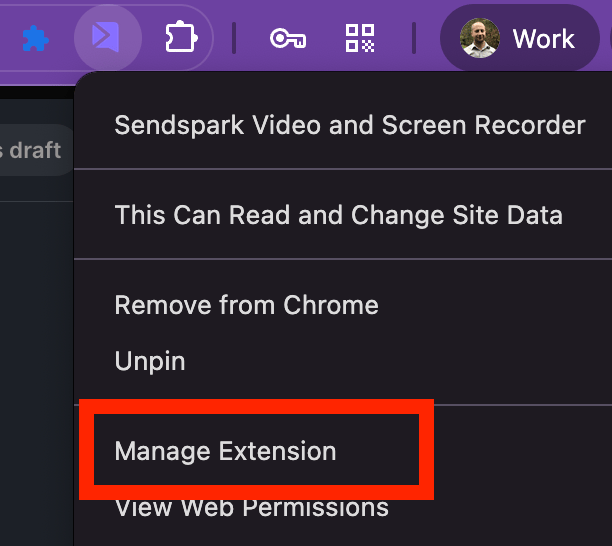
1️⃣ Open extension settings
Click the 🧩 puzzle icon (top right in Chrome)
Find Sendspark
Click the ⋮ three dots next to it
Select “Manage extension”
Right-click the Sendspark icon
Click “Manage extension”
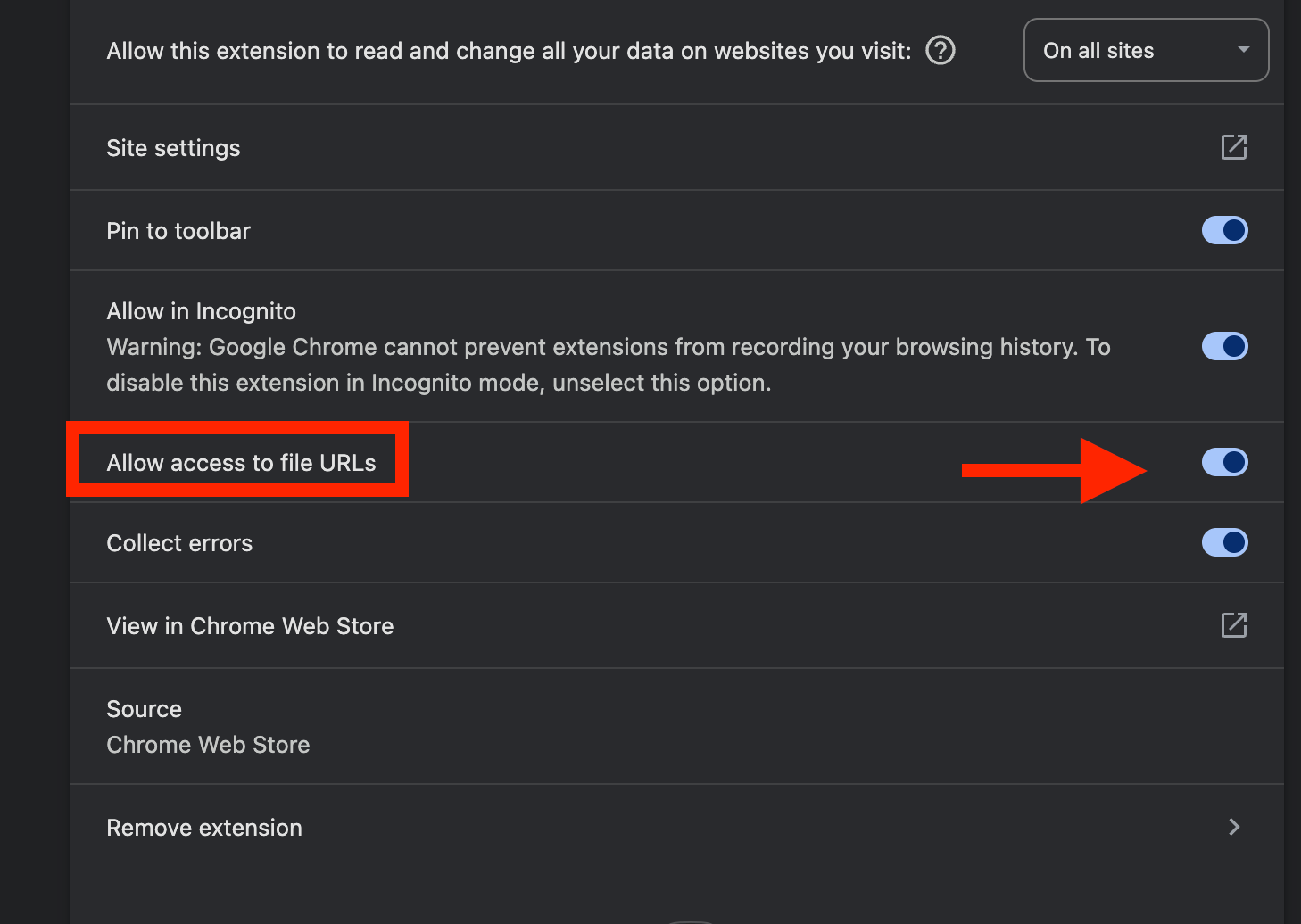
2️⃣ Turn on file access
Scroll down
Find “Allow access to file URLs”
Toggle it ON ✅
3️⃣ Refresh and record
Go back to your PDF tab
Refresh the page
Start recording again 🎬
 💡 Why this is needed:
Chrome blocks extensions from interacting with local files (like PDFs) for security reasons.
Enabling this setting allows Sendspark to properly display your camera bubble overlay during recordings.
⚠️ If this is not enabled
You may notice:
Your camera bubble not appearing
Your face missing from the recording
## 🤝 Need help?
If you're unsure or want to double-check before recording, feel free to reach out — support is available to help 👍
## Frequently asked questions
By default, Chrome blocks extensions from accessing files (like PDFs opened from your computer), which prevents the camera overlay from appearing.
Open the Sendspark extension's "Manage extension" page, scroll down to "Allow access to file URLs," and toggle it ON.
Yes. Go back to your PDF tab, refresh the page, and then start recording again.
*Updated July 2026.*
💡 Why this is needed:
Chrome blocks extensions from interacting with local files (like PDFs) for security reasons.
Enabling this setting allows Sendspark to properly display your camera bubble overlay during recordings.
⚠️ If this is not enabled
You may notice:
Your camera bubble not appearing
Your face missing from the recording
## 🤝 Need help?
If you're unsure or want to double-check before recording, feel free to reach out — support is available to help 👍
## Frequently asked questions
By default, Chrome blocks extensions from accessing files (like PDFs opened from your computer), which prevents the camera overlay from appearing.
Open the Sendspark extension's "Manage extension" page, scroll down to "Allow access to file URLs," and toggle it ON.
Yes. Go back to your PDF tab, refresh the page, and then start recording again.
*Updated July 2026.*