> ## Documentation Index
> Fetch the complete documentation index at: https://help.sendspark.com/llms.txt
> Use this file to discover all available pages before exploring further.
# How to record in PowerPoint in full screen
> Learn how to record PowerPoint presentations in full screen mode by hiding thumbnails and configuring ribbon settings properly.
To record a PowerPoint presentation in full screen, hide the slide thumbnails on the left, then open the ribbon drop-down menu and enable "Single Line Ribbon" and "Automatically Hide." This clears the interface so your slides fill the screen while you record. You only need a free Microsoft account, not a paid subscription.
## Key takeaways
* You do **not** need a paid Microsoft subscription — a free Microsoft account with OneDrive access is enough to use this version of PowerPoint.
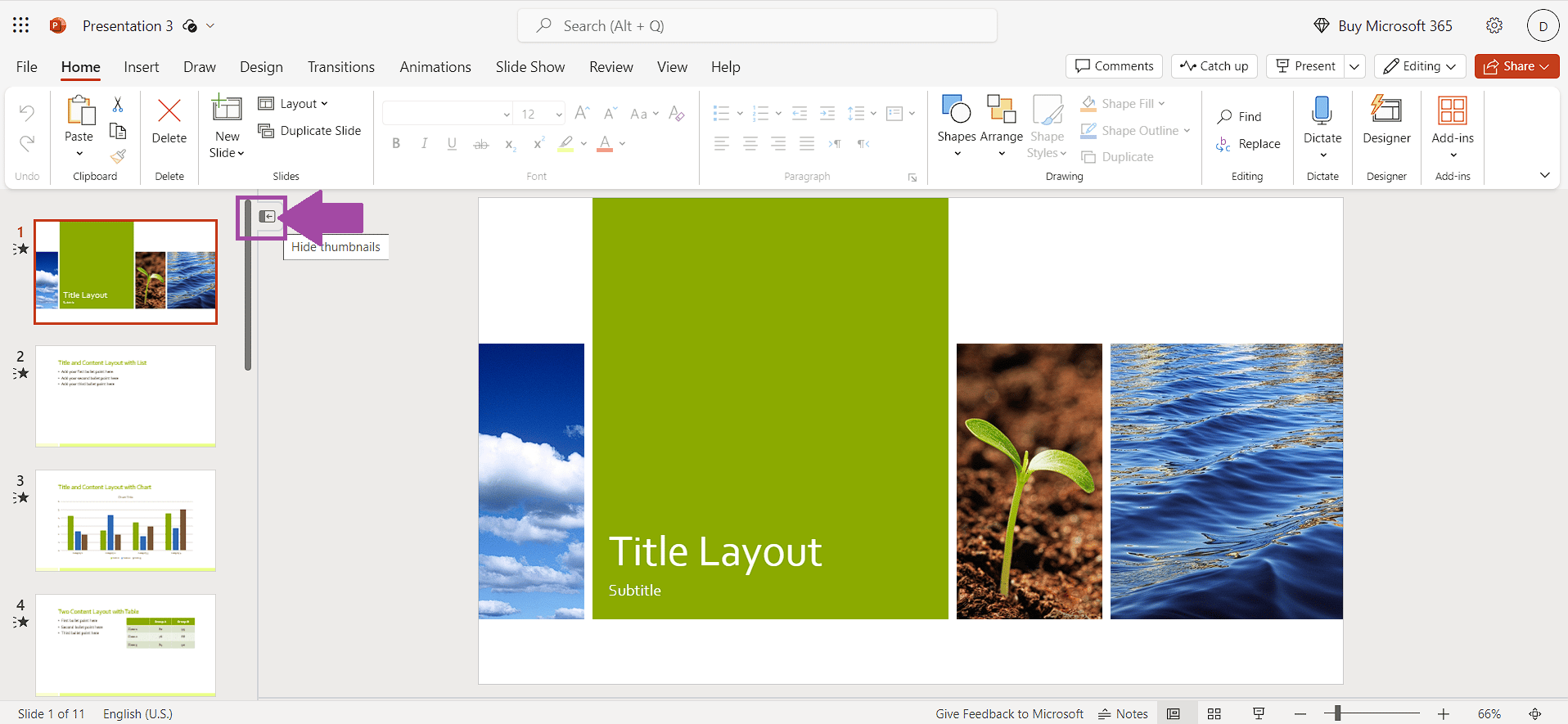
* **Hide the image thumbnails** on the left side to clear space.
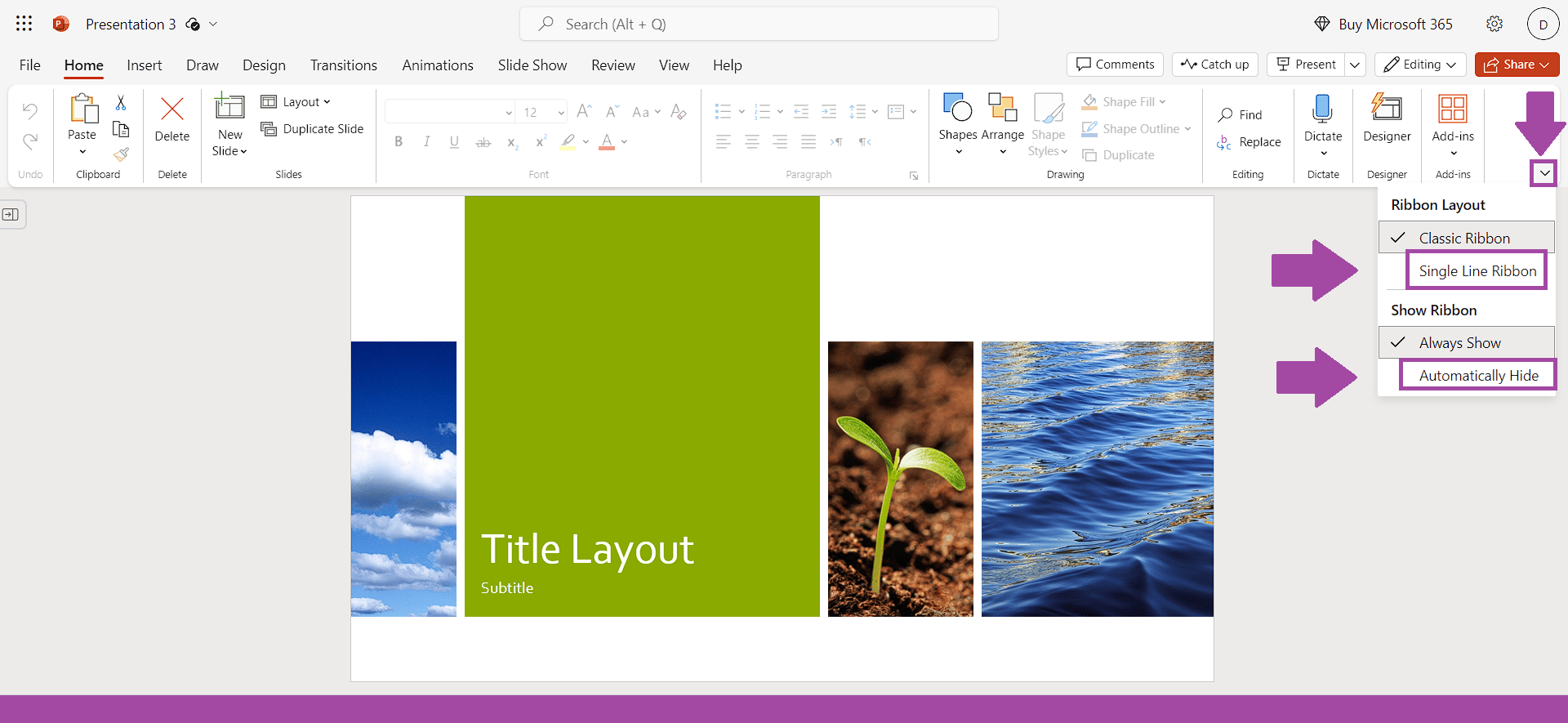
* Open the ribbon drop-down (arrow in the right-hand corner) and enable **"Single Line Ribbon"** and **"Automatically Hide"** to maximize your slide area.
* To record yourself over PowerPoint in full screen, use the [Sendspark Desktop Recorder](/record-over-powerpoint-pdfs-applications) — the Chrome Extension can't record outside the browser.
Note that you do not need an active subscription to Microsoft in order to access PowerPoint. You simply need a free Microsoft account and log into OneDrive to access this PowerPoint version.
1. Start by hiding the image thumbnails on the left:
 2. Click on the arrow in the right-hand corner to deploy the drop-down menu. Once there, check the "Single Line Ribbon" and the "Automatically Hide"
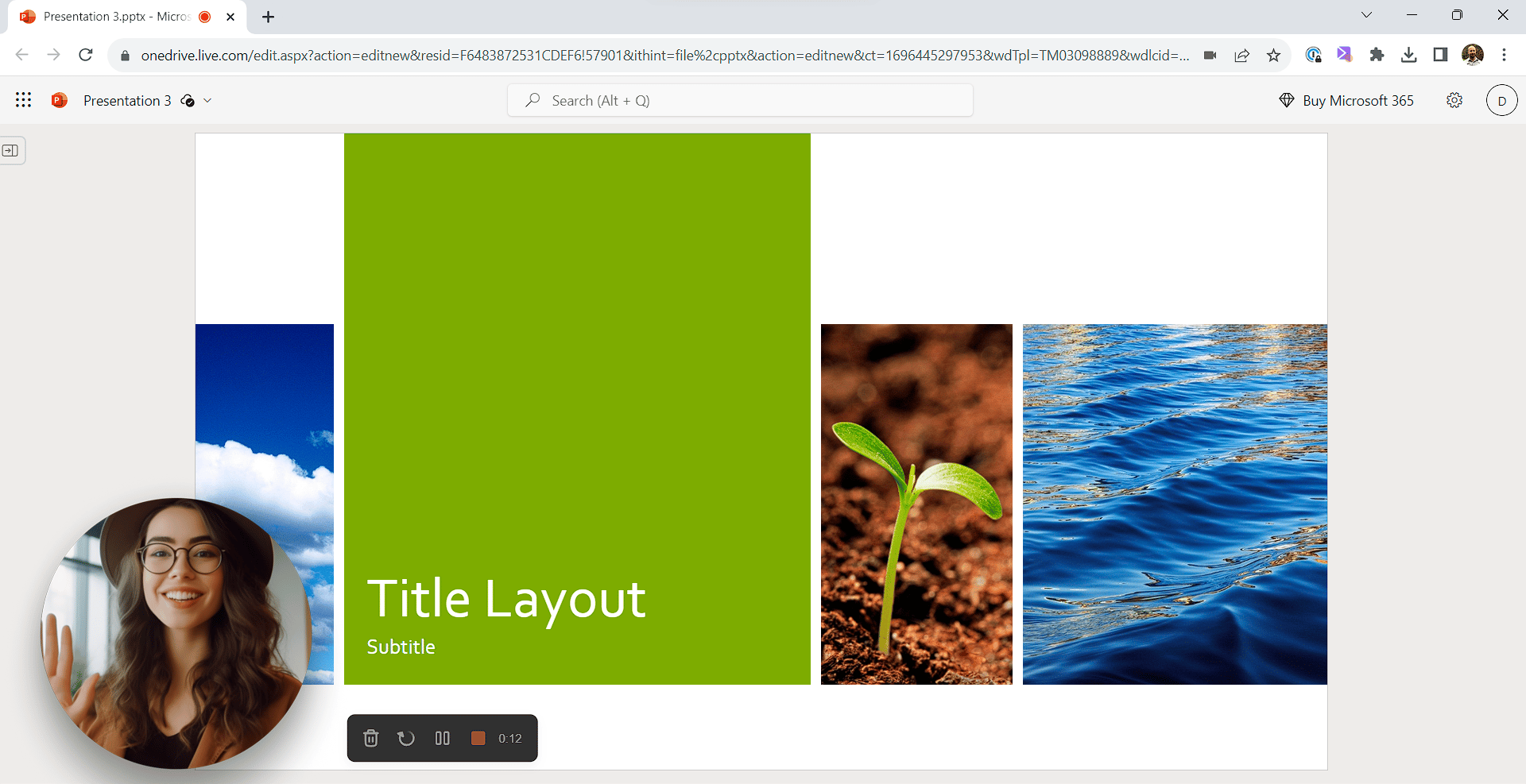
 3. You are now ready to record!
 ## Frequently asked questions
No. You only need a free Microsoft account and can log into OneDrive to access this version of PowerPoint.
Hide the image thumbnails on the left, then open the ribbon drop-down using the arrow in the right-hand corner and turn on both "Single Line Ribbon" and "Automatically Hide."
No. The Chrome Extension restricts your camera bubble to the Chrome browser, so it can't record over PowerPoint. Use the [Sendspark Desktop Recorder](/record-over-powerpoint-pdfs-applications) to record over PowerPoint, PDFs, and other applications in full screen.
*Updated July 2026.*
## Frequently asked questions
No. You only need a free Microsoft account and can log into OneDrive to access this version of PowerPoint.
Hide the image thumbnails on the left, then open the ribbon drop-down using the arrow in the right-hand corner and turn on both "Single Line Ribbon" and "Automatically Hide."
No. The Chrome Extension restricts your camera bubble to the Chrome browser, so it can't record over PowerPoint. Use the [Sendspark Desktop Recorder](/record-over-powerpoint-pdfs-applications) to record over PowerPoint, PDFs, and other applications in full screen.
*Updated July 2026.*