> ## Documentation Index
> Fetch the complete documentation index at: https://help.sendspark.com/llms.txt
> Use this file to discover all available pages before exploring further.
# How to Record a Video without Sound
> Learn how to record silent videos using Sendspark by disabling tab audio, system audio, and microphone settings in the extension.
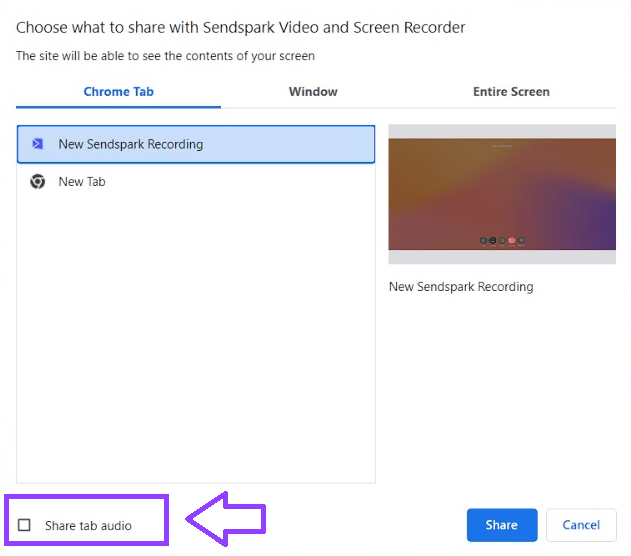
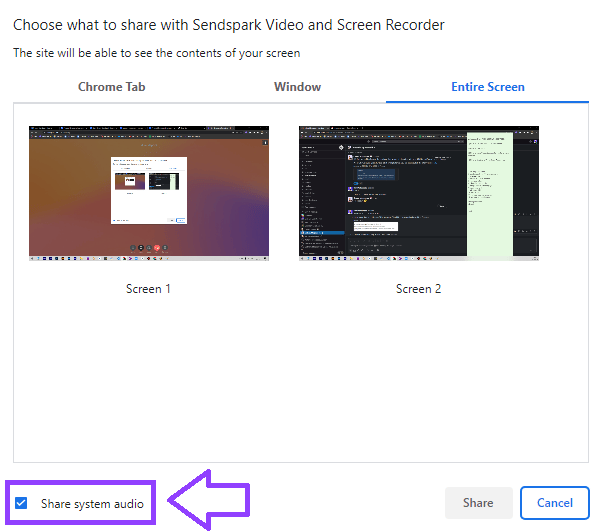
To record a video without sound in Sendspark, uncheck **"Share tab audio"** at the bottom left of the recording modal. If you're recording the **Entire Screen**, also disable **"Share system audio."** To remove your voice, open **Settings** and toggle the **Microphone** option off. Muting the mic only works when recording with **Screen** or **Both** — you cannot record a face-only video without sound.
## Key takeaways
* To silence a video, turn off each audio source you don't want: tab audio, system audio, and your microphone.
* Uncheck **"Share tab audio"** in the recording modal; if recording the Entire Screen, also disable **"Share system audio."**
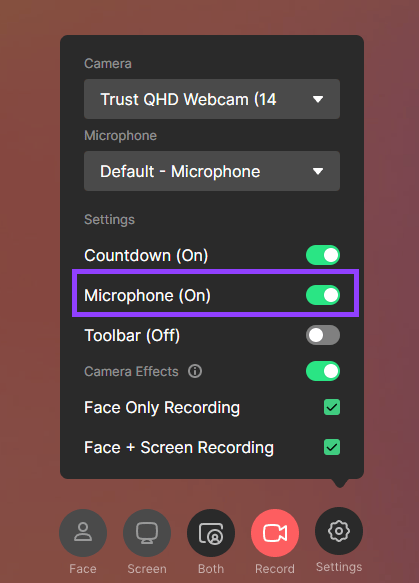
* Mute your voice by opening **Settings** and toggling the **Microphone** off. This works only with **Screen** or **Both** recordings, not face-only videos.
* The microphone setting saves to your defaults, so remember to toggle sound back on the next time you want to speak while recording.
## How to disable each audio source
| Audio source | How to turn it off |
| ----------------------- | ----------------------------------------------------------------------------- |
| Tab audio | Uncheck **"Share tab audio"** at the bottom left of the recording modal |
| System audio | Disable **"Share system audio"** (shown when recording the **Entire Screen**) |
| Microphone (your voice) | Open **Settings** and toggle the **Microphone** option off |
To record videos without sound from the Sendspark Chrome Extension, simply uncheck the "Share tab audio" at the bottom left of the **Recording**modal:
 If you chose **Entire Screen**,disable the option **Share system audio** as well:
 ***
You can also mute your microphone entirely when recording a video. Simply click on **Settings**and toggle the Microphone option off:
***
You can also mute your microphone entirely when recording a video. Simply click on **Settings**and toggle the Microphone option off:
 ## Please note:
* This will only work when recording with **Screen** or **Both**. You can NOT record a **face** video without sound.
* This setting will save to your defaults, so make sure to toggle the sound on again next time you would like to speak while recording! 🔇
***
## Frequently asked questions
Uncheck **"Share tab audio"** at the bottom left of the recording modal. If you're recording the Entire Screen, also disable **"Share system audio."** To remove your voice as well, mute the microphone in Settings.
Click **Settings** and toggle the **Microphone** option off before you record. This removes your voice from the video.
No. Muting the microphone only works when recording with **Screen** or **Both**. You cannot record a face (camera-only) video without sound.
Muting the mic only removes your voice. If your video still has audio, tab audio or system audio is likely still enabled — uncheck **"Share tab audio"** and, for Entire Screen recordings, **"Share system audio."**
Yes. These settings save to your defaults, so if you muted the microphone or disabled tab audio, toggle them back on the next time you want sound in your recording.
*Updated July 2026.*
## Please note:
* This will only work when recording with **Screen** or **Both**. You can NOT record a **face** video without sound.
* This setting will save to your defaults, so make sure to toggle the sound on again next time you would like to speak while recording! 🔇
***
## Frequently asked questions
Uncheck **"Share tab audio"** at the bottom left of the recording modal. If you're recording the Entire Screen, also disable **"Share system audio."** To remove your voice as well, mute the microphone in Settings.
Click **Settings** and toggle the **Microphone** option off before you record. This removes your voice from the video.
No. Muting the microphone only works when recording with **Screen** or **Both**. You cannot record a face (camera-only) video without sound.
Muting the mic only removes your voice. If your video still has audio, tab audio or system audio is likely still enabled — uncheck **"Share tab audio"** and, for Entire Screen recordings, **"Share system audio."**
Yes. These settings save to your defaults, so if you muted the microphone or disabled tab audio, toggle them back on the next time you want sound in your recording.
*Updated July 2026.*