> ## Documentation Index
> Fetch the complete documentation index at: https://help.sendspark.com/llms.txt
> Use this file to discover all available pages before exploring further.
# How to Pin a Chrome Extension
> Learn how to pin Chrome extensions to your browser toolbar for easy access and keep your favorite extensions visible at all times.
You can pin Chrome Extensions to keep them visible at all times on your Chrome browser. This makes it easy to see and use them in the future.
To pin a Chrome Extension, **click the puzzle piece** on the top right of your browser.
 This will open a drop-down of all your Chrome Extensions. From here, simply **click the little pin** next to the Chrome Extensions you want to pin to your browser.
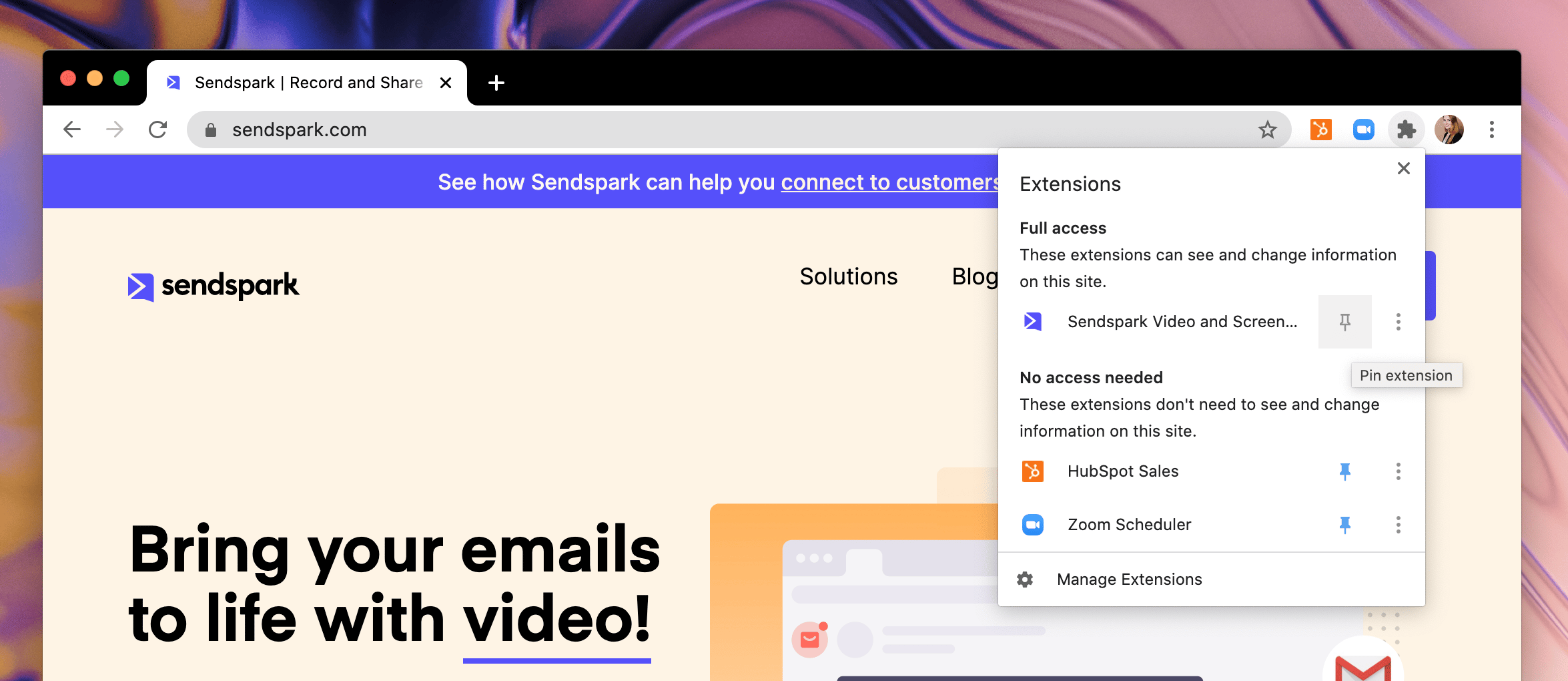 Now, your pinned icons will show up at the top of your Chrome browser, next to the puzzle piece. 🎊
