> ## Documentation Index
> Fetch the complete documentation index at: https://help.sendspark.com/llms.txt
> Use this file to discover all available pages before exploring further.
# How to Make an AI-Generated Video Script
> Learn how to create AI-generated video scripts with Sendspark's tool. Answer questions, click generate, and get custom scripts in
Sendspark's AI Video Script Generator, powered by OpenAI, creates a custom video script from a few questions. Choose your use case and tone of voice, add your product name, description, context, and call-to-action, then click generate. Use the script as a starting point and customize it with your own voice.
## Key takeaways
* Sendspark integrated OpenAI to power its AI Video Script Generator.
* You answer a few questions, choosing a use case, tone of voice, product name, description, context, and call-to-action, then click generate.
* The generated script is a starting block you should customize with your own voice, tone, and flavor.
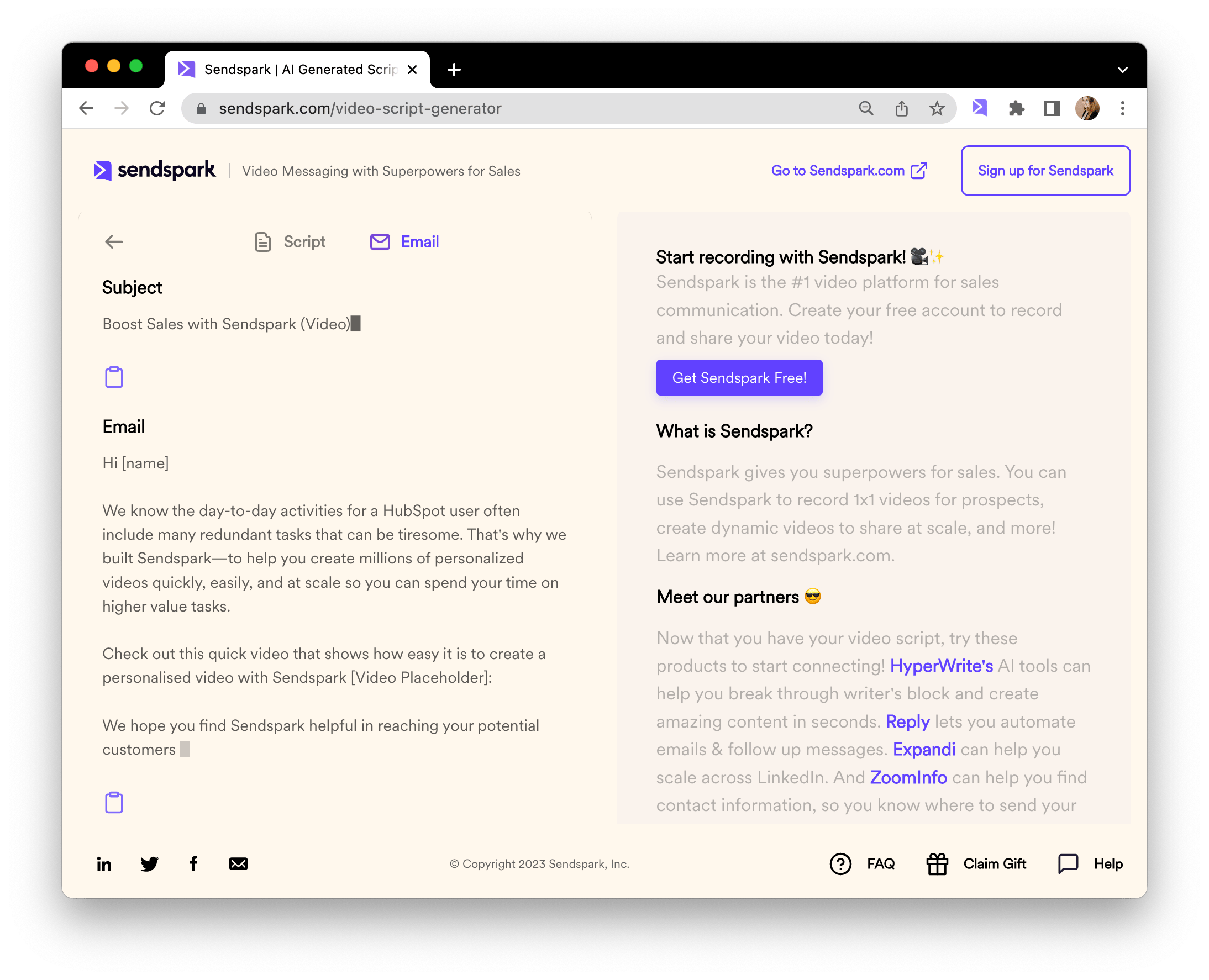
* You can also open the "email" tab to get a complimentary email subject line and email body content for sharing your video.
Sendspark video messages can increase engagement and replies 300%+ across your sales communication -- from prospecting to demos to follow-ups and more -- but you have to know what to say!
We integrated OpenAI to make an [AI-powered Video Script Generator](https://sendspark.com/video-script-generator). You can just answer a few questions, and then click "generate" to make your very own video script.
Think of this video script as a starting block. You'll want to customize it with your own voice, tone, and flavor.
## How to Use Sendspark's AI Video Script Generator
Watch the video here or follow the steps below!
1. Navigate to [Sendspark's AI Video Script Generator,](https://sendspark.com/video-script-generator) and click "Let's Get Started"
2. Select the use case for your video message.
3. Select the ton of voice you want to use for your video script.
4. Add the name of your product
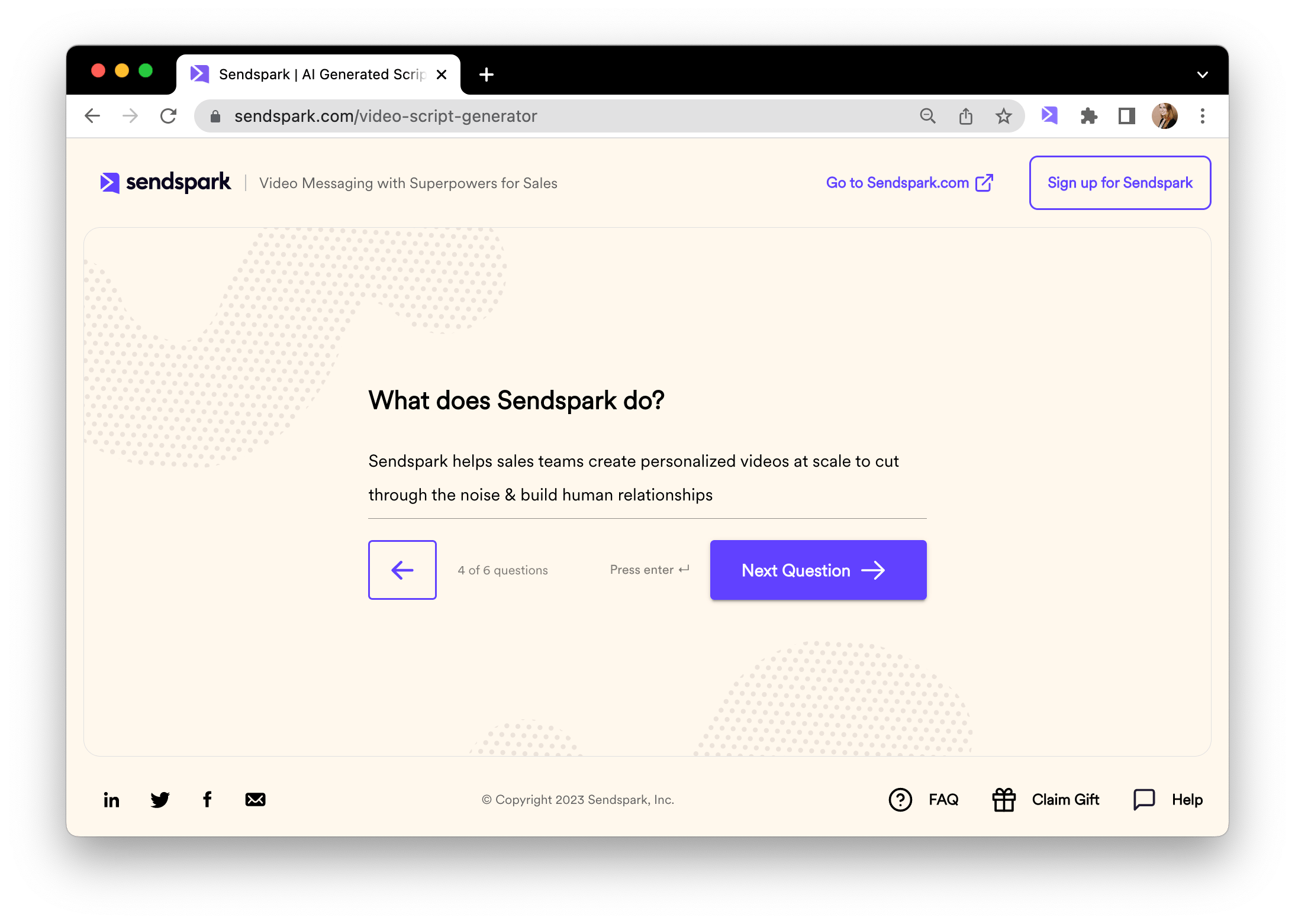
5. Add a short description of what your product does, and how it helps people.
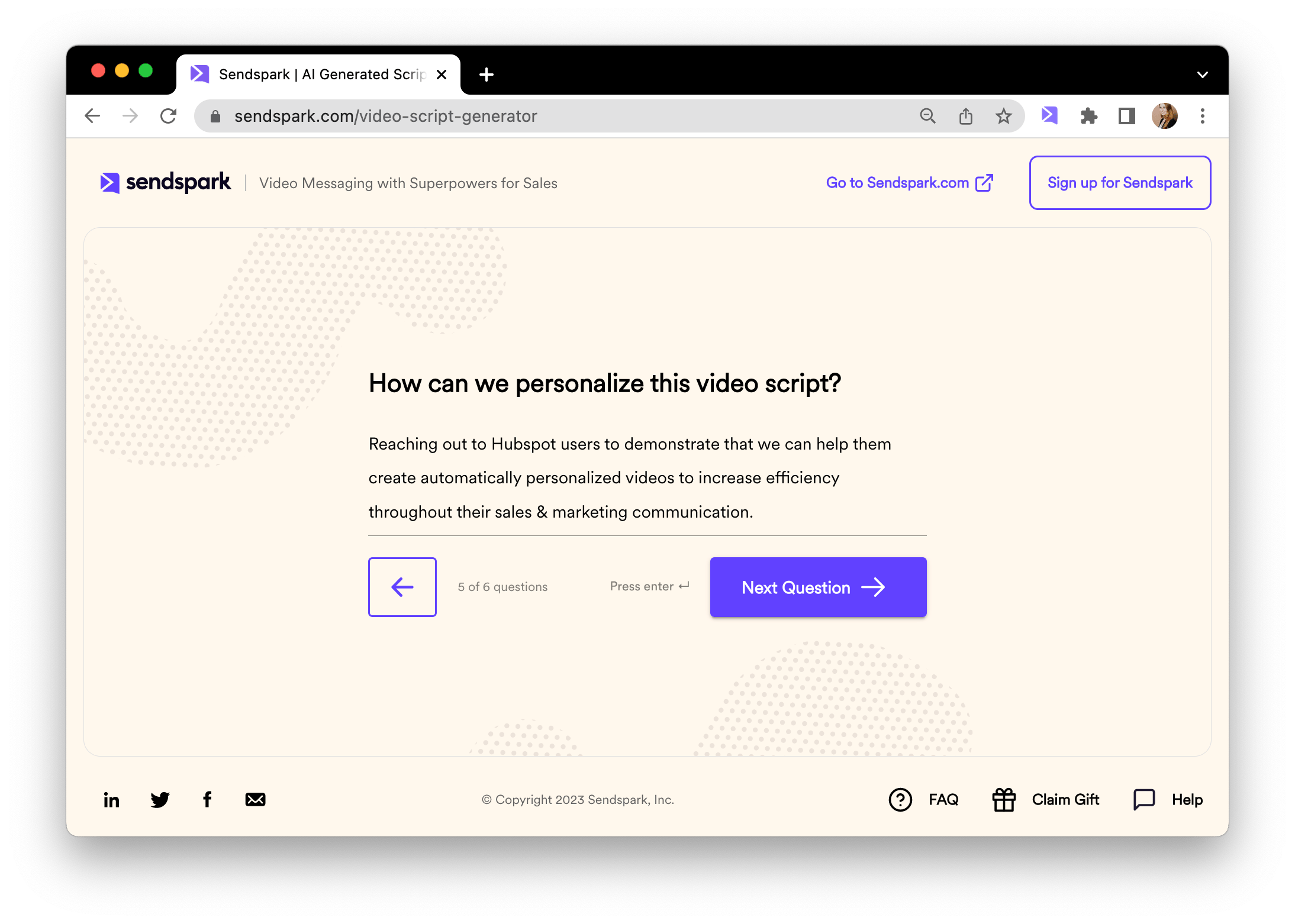
6. Add context that can help our AI make this video script more relevant for your intended viewer.
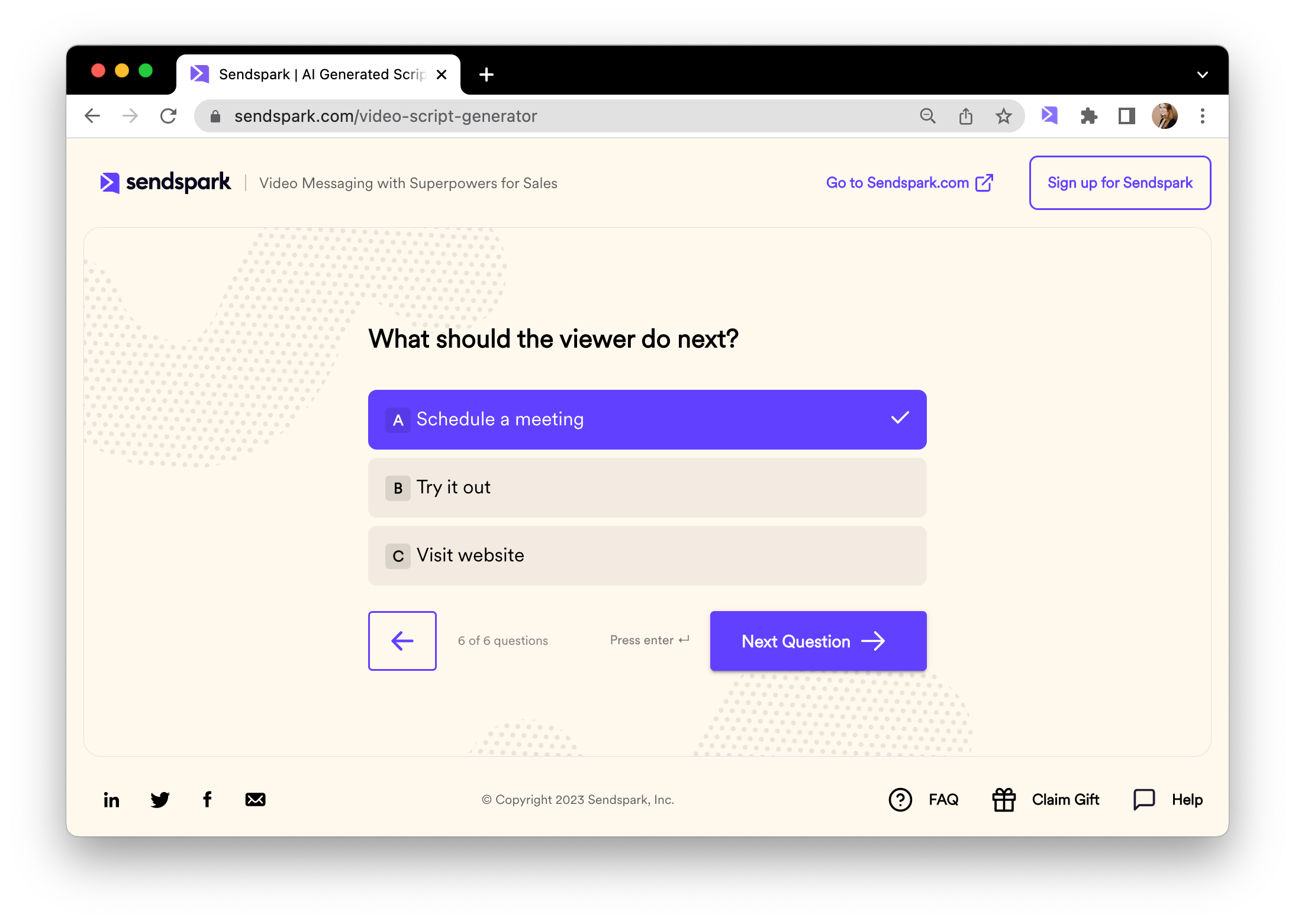
7. Add the call-to-action. This is what you want your viewer to do after viewing your video.
8. Generate your video script!
## How do I use my video script?
You'll now see your **video script**, ready to use! You can add this to your teleprompter to read from when you record your video.
Additionally, you can click into the "email" tab to see complimentary **email subject line** & **email body content** to use when sharing your video.
🎥✨ The only thing left to do is to record your video. [Create a free Sendspark account](https://sendspark.com/signup) to start recording today!
## Frequently asked questions
Sendspark integrated OpenAI to make the AI-powered Video Script Generator.
You select a use case and tone of voice, add your product name, a short product description, context for your intended viewer, and a call-to-action, then generate the script.
Think of the video script as a starting block. You'll want to customize it with your own voice, tone, and flavor.
You can add the script to your teleprompter to read from when you record your video.
Yes. Click into the "email" tab to see a complimentary email subject line and email body content to use when sharing your video.
*Updated July 2026.*
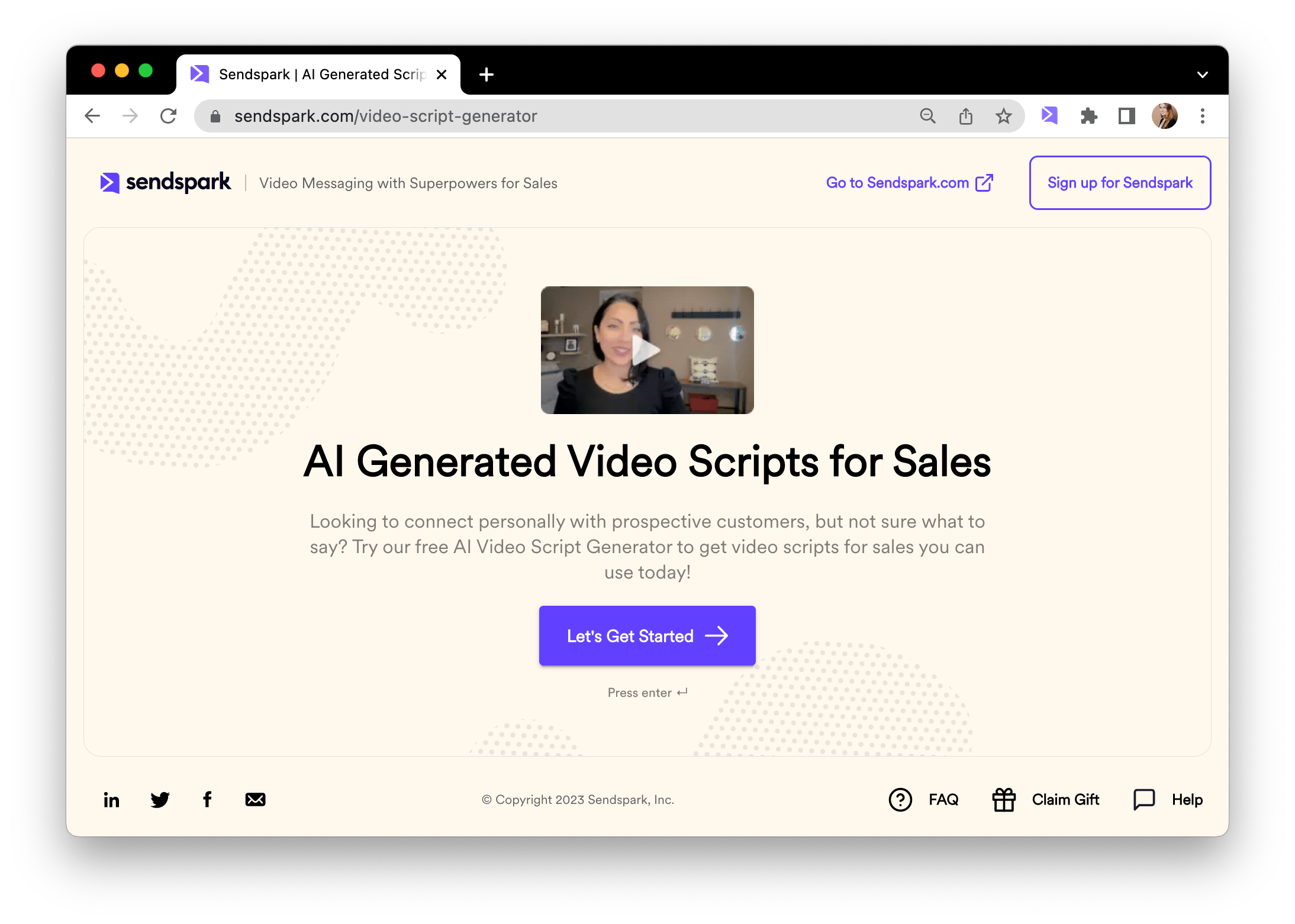 2. Select the use case for your video message.
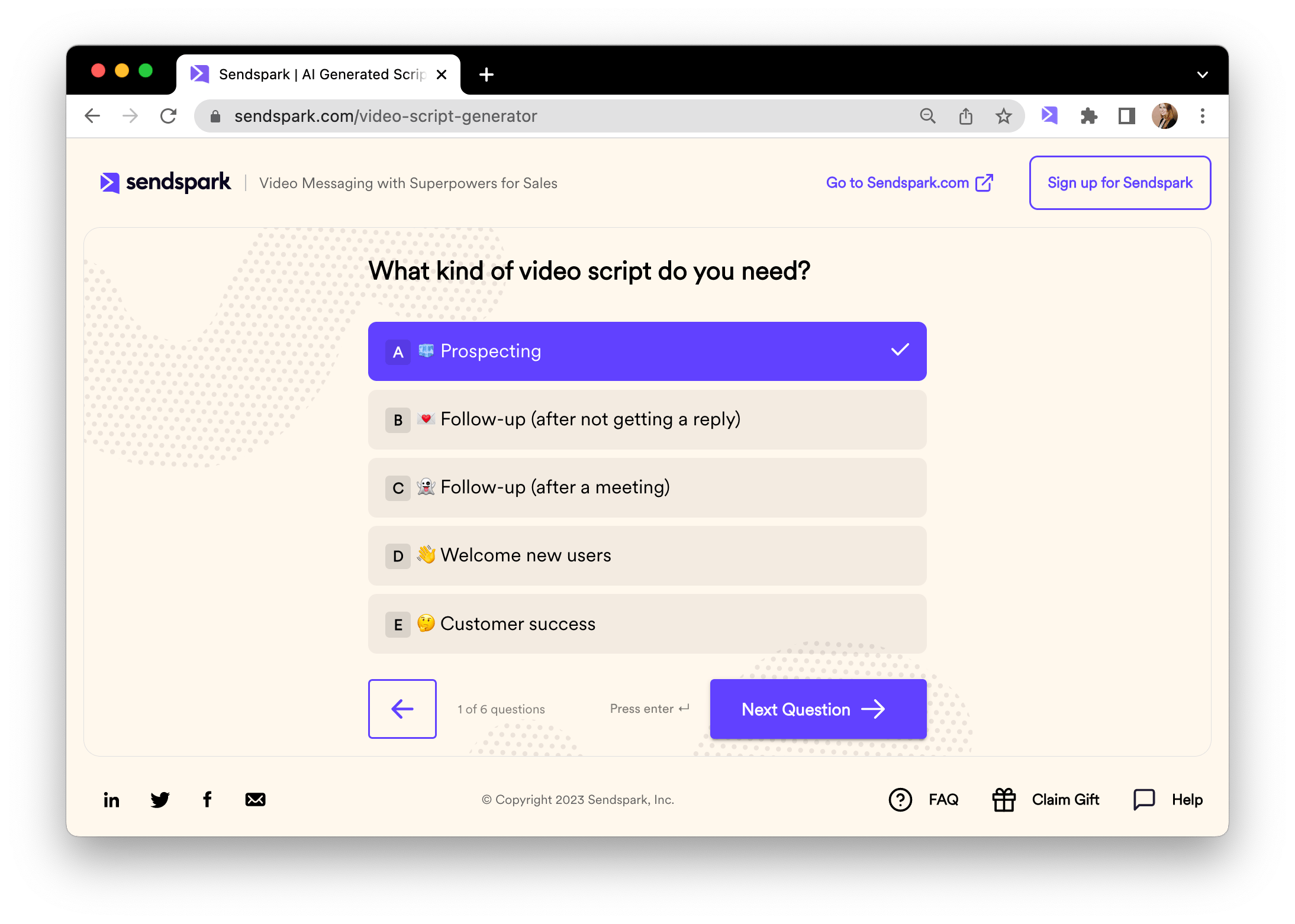 3. Select the ton of voice you want to use for your video script.
 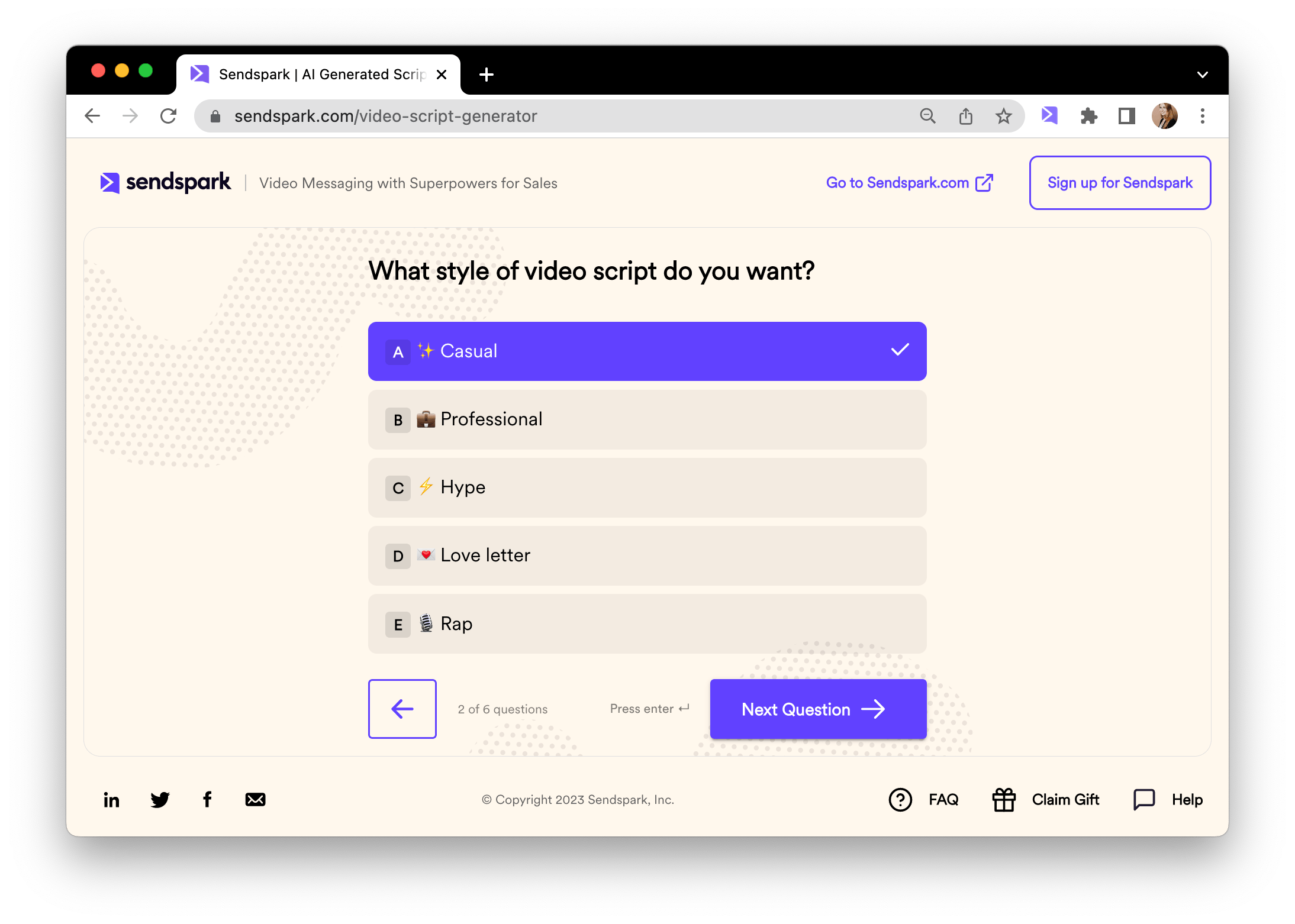 4. Add the name of your product
 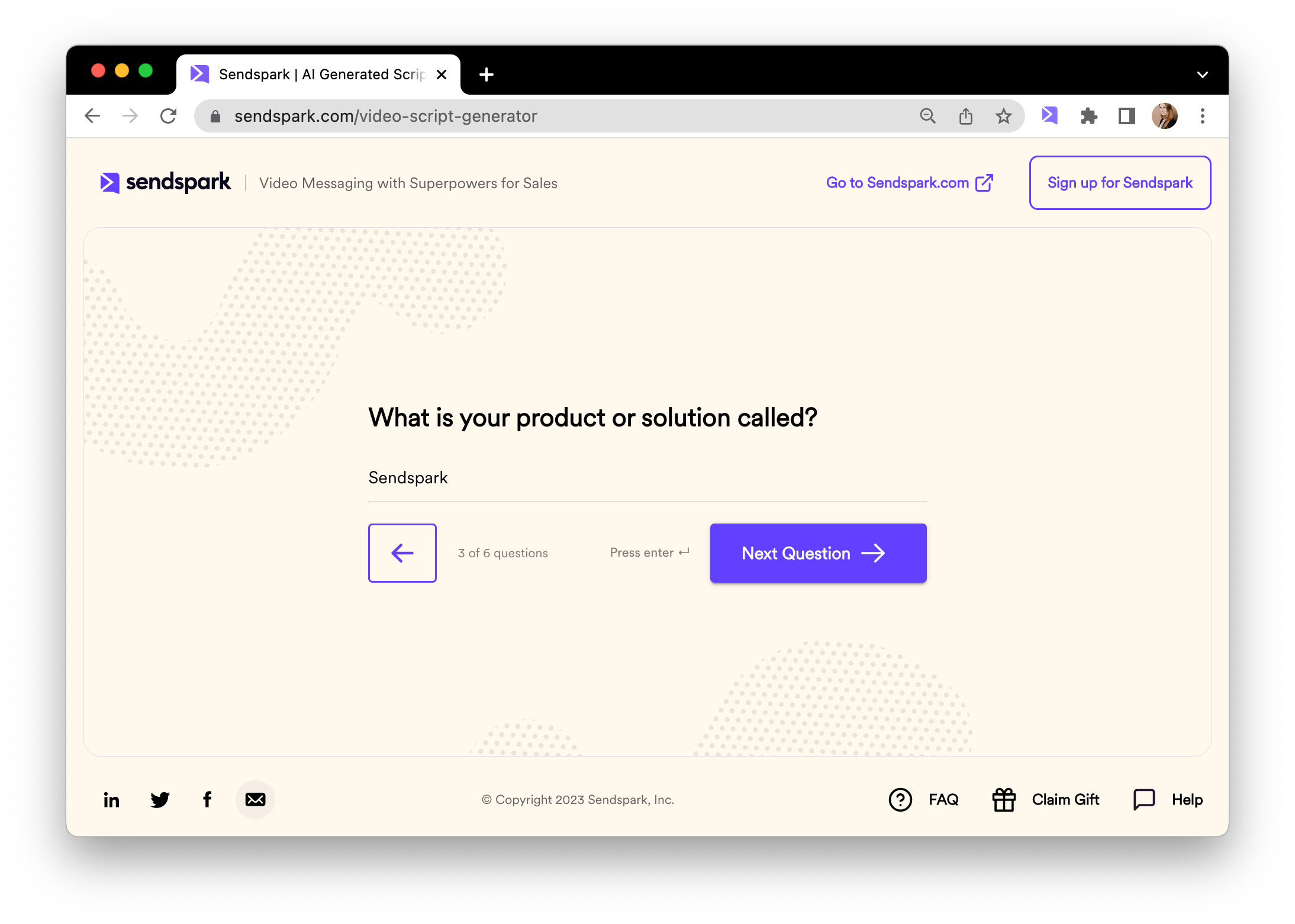 5. Add a short description of what your product does, and how it helps people.
  6. Add context that can help our AI make this video script more relevant for your intended viewer.
  7. Add the call-to-action. This is what you want your viewer to do after viewing your video.
  8. Generate your video script!
## How do I use my video script?
You'll now see your **video script**, ready to use! You can add this to your teleprompter to read from when you record your video.
8. Generate your video script!
## How do I use my video script?
You'll now see your **video script**, ready to use! You can add this to your teleprompter to read from when you record your video.
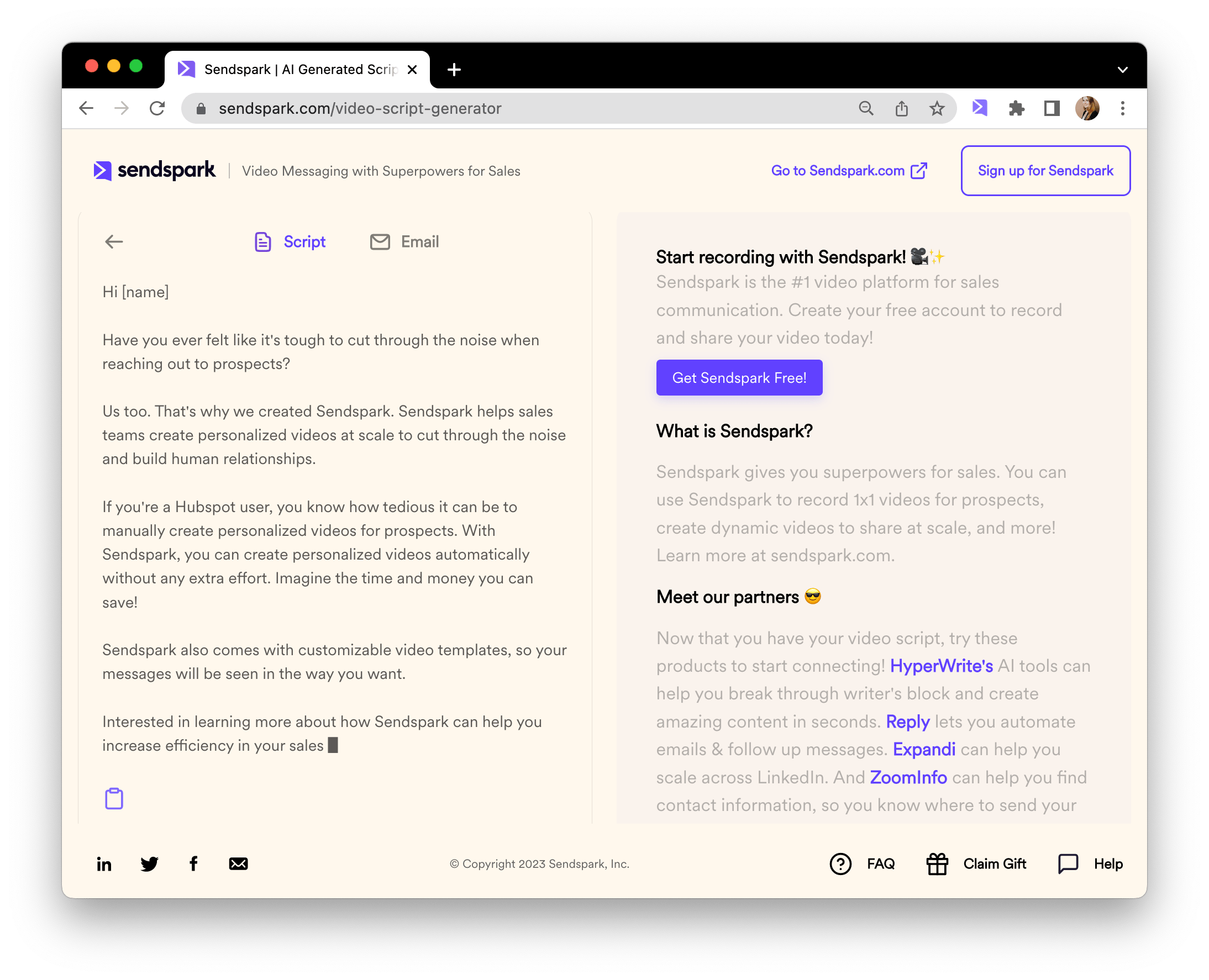 Additionally, you can click into the "email" tab to see complimentary **email subject line** & **email body content** to use when sharing your video.
 🎥✨ The only thing left to do is to record your video. [Create a free Sendspark account](https://sendspark.com/signup) to start recording today!
## Frequently asked questions
🎥✨ The only thing left to do is to record your video. [Create a free Sendspark account](https://sendspark.com/signup) to start recording today!
## Frequently asked questions