> ## Documentation Index
> Fetch the complete documentation index at: https://help.sendspark.com/llms.txt
> Use this file to discover all available pages before exploring further.
# How to fix black recording with Sendspark
> Fix black screen recording issues in Sendspark by disabling hardware acceleration and Camera Effects for clear video capture.
A black recording with audio usually means your browser had trouble processing the video encoder with your computer hardware. The most reliable fix is to disable "Use hardware acceleration when available" in Chrome (chrome://settings/system) and relaunch. If you use the Sendspark Chrome extension, also turn off Camera Effects, which can overload your computer and cause the same black screen.
## Key takeaways
* A black screen with working audio almost always points to a hardware-acceleration problem in your browser, not a lost recording.
* Fix it by disabling **Use hardware acceleration when available** at **chrome://settings/system**, then clicking **Relaunch**.
* If you use the Sendspark Chrome extension, turning off the resource-intensive **Camera Effects** feature can also resolve it.
* If you have a dedicated graphics card and the issue persists, try toggling hardware acceleration in the card's own settings.
You recorded an awesome video but when checking the preview you only get a black screen and audio? I am sorry for your loss, let's figure out why this happens so we can solve it.
There are a lot of things that can go wrong when recording a video but getting a black screen usually means one thing: **your browser had trouble processing the video encoder with your computer hardware.**
Additionally, if you are using the Sendspark Chrome extension, the "Camera Effects" feature might also cause this issue. Camera Effects can be resource-intensive and may lead to a black screen if the computer struggles with the processing demands.
The easiest fix is to **disable hardware acceleration** on the browser. Let's see how to do that.
Similarly, if you are using the Sendspark Chrome extension, consider disabling its Camera Effects feature as it may resolve the issue.
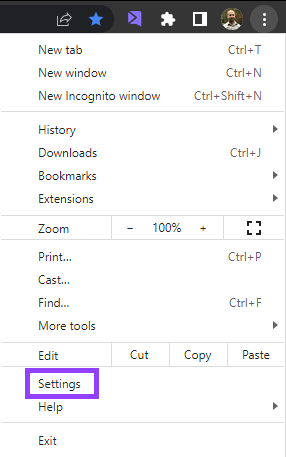
1. First, open your **Chrome settings** by clicking on the 3 dots located on the top right-hand side of the browser.
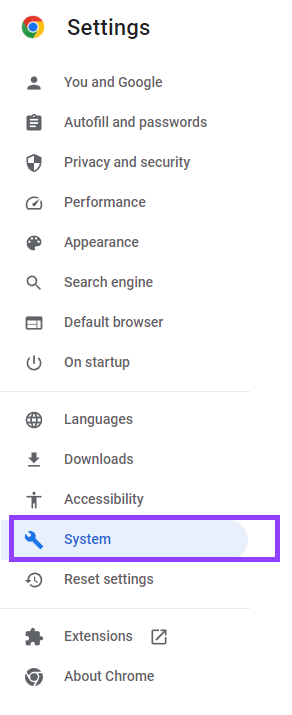
 2. Inside settings, click on the “System” tab on the left side of the screen. Or, you can navigate directly here by typing **chrome://settings/system** on the address bar.
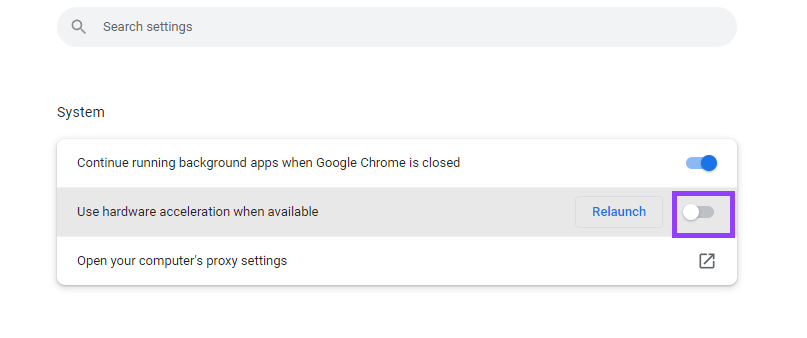
 3. Next, disable “Use hardware acceleration when available”, and click on ReLaunch to restart your browser. After that, you should be able to record with no problems.
 4. If your problem continues and you have a dedicated graphic card, go into its configuration and try to disable hardware acceleration (or enable it if it was disabled).
If you are using the Sendspark Chrome extension, follow these steps to disable Camera Effects:
1. **Access the Sendspark Chrome Extension**: Click the Sendspark icon in your Chrome toolbar.
2. **Disable Camera Effects**: Look for "Camera Effects" within the extension's settings or toolbar and toggle it off.
There is a lot that can go wrong from software to hardware, so there is not only one solution. I hope this helps you resolve your recording problems.
For users of the Sendspark Chrome extension, disabling Camera Effects could also be a helpful solution as it reduces the computational load of the extension and prevents the black screen issue.
If you need more help feel free to reach out and book a support session.
For Sendspark-specific issues, you can also reach out to Sendspark support for further assistance with the Chrome extension.
Happy recording!
## Why is my Sendspark recording a black screen?
A black screen with audio means the recording captured fine but your browser could not render the video, usually because it struggled to process the video encoder with your computer's hardware. This is why disabling hardware acceleration (which hands encoding back to software) resolves most cases.
## Frequently asked questions
This usually means your browser had trouble processing the video encoder with your computer hardware. The audio captures correctly, but the video track fails to render. Disabling hardware acceleration in your browser fixes most cases.
Open Chrome settings (the three dots at the top right), click the **System** tab (or go to **chrome://settings/system**), turn off **Use hardware acceleration when available**, and click **Relaunch** to restart the browser. Then try recording again.
Yes. In the Sendspark Chrome extension, Camera Effects can be resource-intensive and may cause a black screen if your computer struggles with the processing demands. Open the extension from your Chrome toolbar and toggle Camera Effects off to reduce the load.
If you have a dedicated graphics card, open its configuration and try disabling hardware acceleration there (or enabling it if it was already off). There is no single cause for black recordings, so if it continues, reach out to Sendspark support and book a session.
*Updated July 2026.*
4. If your problem continues and you have a dedicated graphic card, go into its configuration and try to disable hardware acceleration (or enable it if it was disabled).
If you are using the Sendspark Chrome extension, follow these steps to disable Camera Effects:
1. **Access the Sendspark Chrome Extension**: Click the Sendspark icon in your Chrome toolbar.
2. **Disable Camera Effects**: Look for "Camera Effects" within the extension's settings or toolbar and toggle it off.
There is a lot that can go wrong from software to hardware, so there is not only one solution. I hope this helps you resolve your recording problems.
For users of the Sendspark Chrome extension, disabling Camera Effects could also be a helpful solution as it reduces the computational load of the extension and prevents the black screen issue.
If you need more help feel free to reach out and book a support session.
For Sendspark-specific issues, you can also reach out to Sendspark support for further assistance with the Chrome extension.
Happy recording!
## Why is my Sendspark recording a black screen?
A black screen with audio means the recording captured fine but your browser could not render the video, usually because it struggled to process the video encoder with your computer's hardware. This is why disabling hardware acceleration (which hands encoding back to software) resolves most cases.
## Frequently asked questions
This usually means your browser had trouble processing the video encoder with your computer hardware. The audio captures correctly, but the video track fails to render. Disabling hardware acceleration in your browser fixes most cases.
Open Chrome settings (the three dots at the top right), click the **System** tab (or go to **chrome://settings/system**), turn off **Use hardware acceleration when available**, and click **Relaunch** to restart the browser. Then try recording again.
Yes. In the Sendspark Chrome extension, Camera Effects can be resource-intensive and may cause a black screen if your computer struggles with the processing demands. Open the extension from your Chrome toolbar and toggle Camera Effects off to reduce the load.
If you have a dedicated graphics card, open its configuration and try disabling hardware acceleration there (or enabling it if it was already off). There is no single cause for black recordings, so if it continues, reach out to Sendspark support and book a session.
*Updated July 2026.*