> ## Documentation Index
> Fetch the complete documentation index at: https://help.sendspark.com/llms.txt
> Use this file to discover all available pages before exploring further.
# How to find your Workspace ID
> Learn how to locate your Workspace ID in Sendspark settings to organize teams and get support. Find your unique workspace identifier in just a few clicks.
To find your Workspace ID in Sendspark, open [Workspace Settings](https://sendspark.com/settings/workspace), click the **Manage Workspace** tab at the top, then click the hidden Workspace ID on the right-hand side to copy it. This alphanumeric ID identifies your workspace and is sometimes needed by the support team.
## Key takeaways
* The Workspace ID is a unique alphanumeric identifier for the workspace you're working in.
* Support may request it for specific procedures, and it's also used with API credentials and agency workspace activation.
* Find it in three clicks: **Workspace Settings** → **Manage Workspace** tab → click the hidden Workspace ID to copy.
Sendspark allows you to create multiple workspaces to organize your teams and produce videos separately, all in a single account.
This alphanumeric ID is fundamental to identifying the workspace you are working on, and it can be required by the support team for specific procedures.
See the following steps:
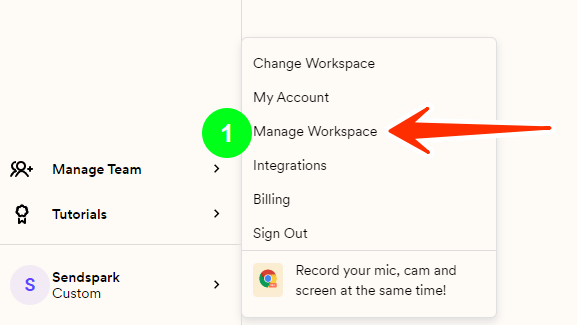
1. Click on your company and go to "Workspace Settings": [https://sendspark.com/settings/workspace](https://sendspark.com/settings/workspace)
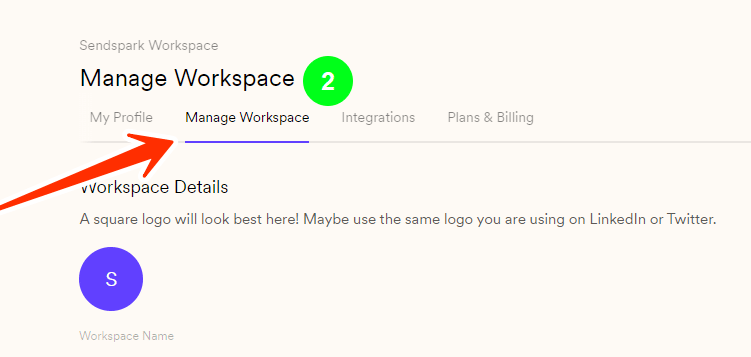
 2. Click on the Manage Workspace tab on the top
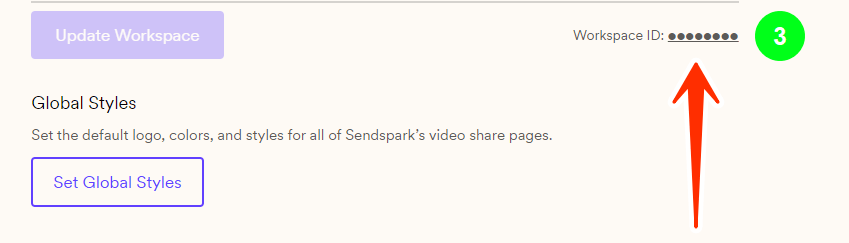
 3. Find and click on the hidden Workspace ID on the right-hand side, to copy it
 ## Frequently asked questions
Open [Workspace Settings](https://sendspark.com/settings/workspace), click the **Manage Workspace** tab at the top, then click the hidden Workspace ID on the right-hand side to copy it.
It's an alphanumeric ID that identifies the specific workspace you're working in. The support team can require it for certain procedures, and it's also used alongside your API credentials.
Yes. Each workspace you create has its own unique Workspace ID. If you manage multiple brands or clients, see [How to create and use multiple workspaces](/how-to-create-and-use-multiple-workspaces).
*Updated July 2026.*
## Frequently asked questions
Open [Workspace Settings](https://sendspark.com/settings/workspace), click the **Manage Workspace** tab at the top, then click the hidden Workspace ID on the right-hand side to copy it.
It's an alphanumeric ID that identifies the specific workspace you're working in. The support team can require it for certain procedures, and it's also used alongside your API credentials.
Yes. Each workspace you create has its own unique Workspace ID. If you manage multiple brands or clients, see [How to create and use multiple workspaces](/how-to-create-and-use-multiple-workspaces).
*Updated July 2026.*