> ## Documentation Index
> Fetch the complete documentation index at: https://help.sendspark.com/llms.txt
> Use this file to discover all available pages before exploring further.
# How to enable or disable Captions
> Toggle Sendspark video captions on or off for your workspace. The global setting applies only to future videos; existing captions cannot be edited.
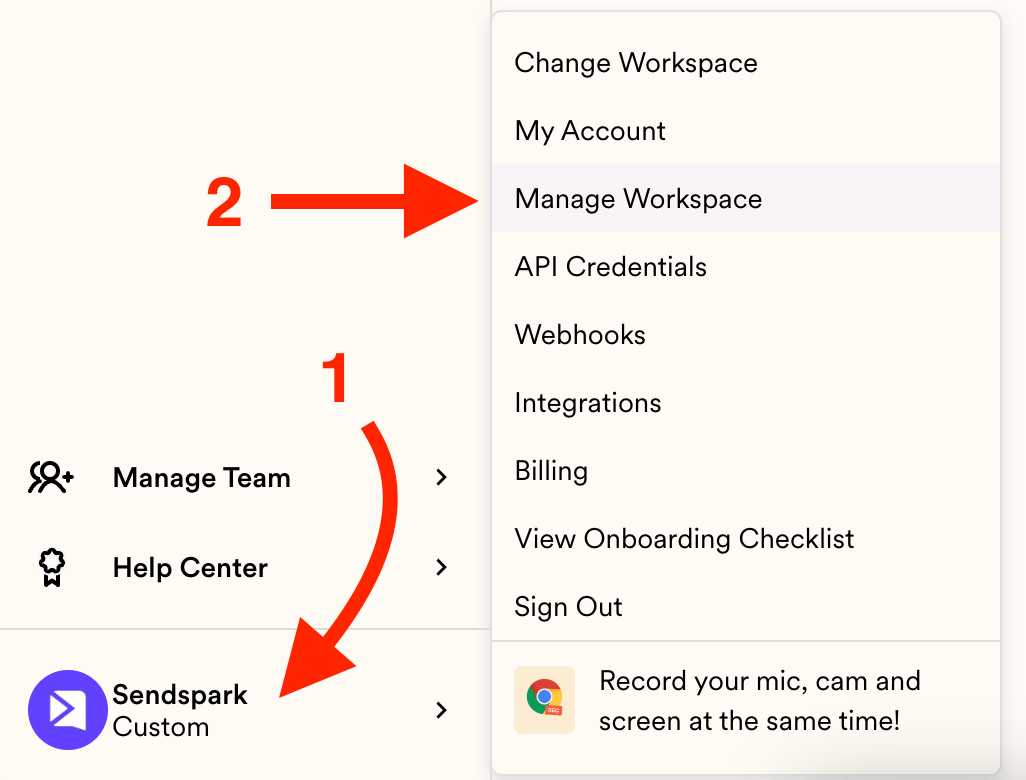
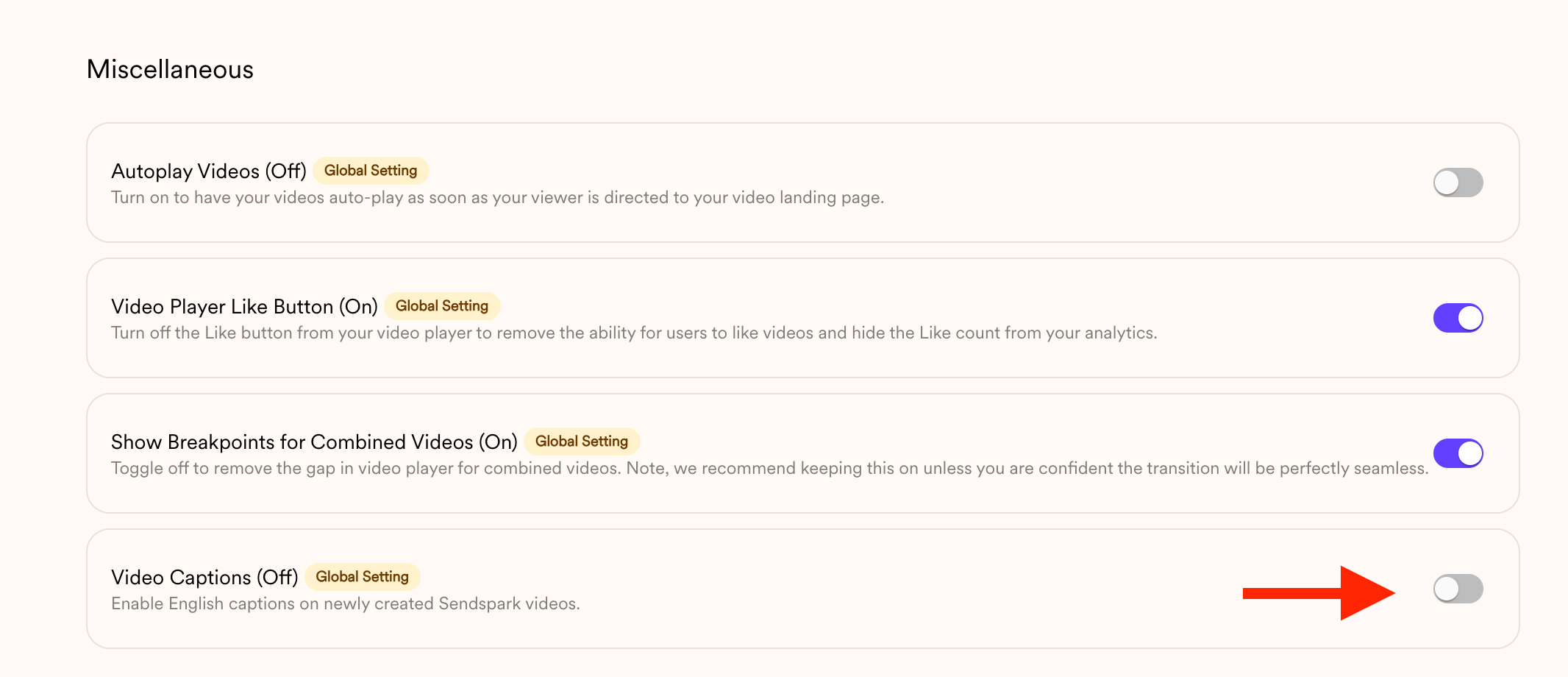
To turn captions on or off for your workspace, open **Manage Workspace** in your Sendspark menu and toggle the **Captions** setting at the bottom. This global setting applies only to future videos: existing videos won't change, and captions can only be switched on or off, not edited. For an older video, toggle captions individually from that video's edit page.
## Key takeaways
* The workspace **Captions** toggle (Manage Workspace) applies globally, but only to **future videos**.
* Captions can only be turned **on or off** — they cannot be edited.
* Videos created **before** the change won't update. A Dynamic Video Campaign launched with captions must be recreated to change them.
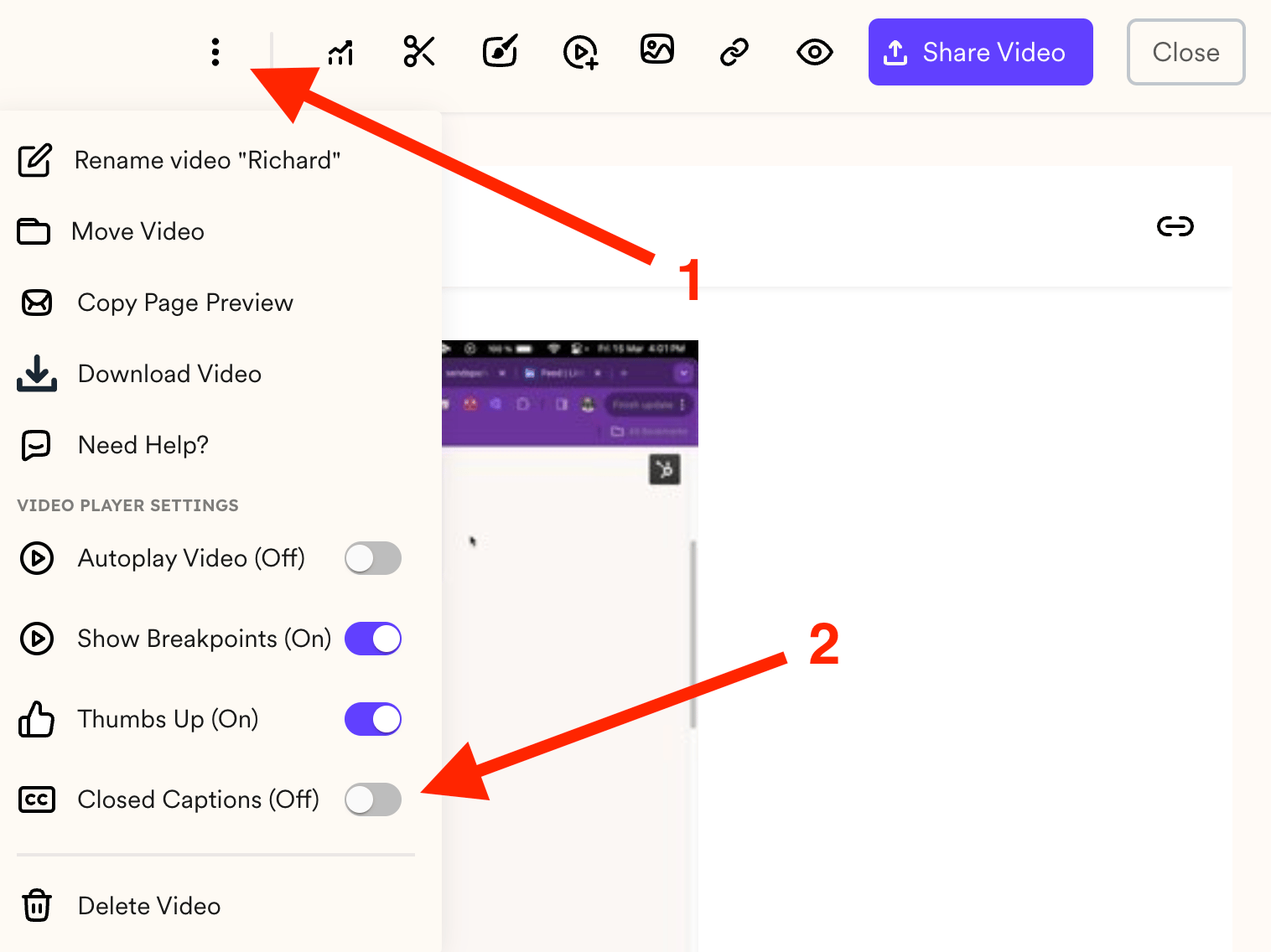
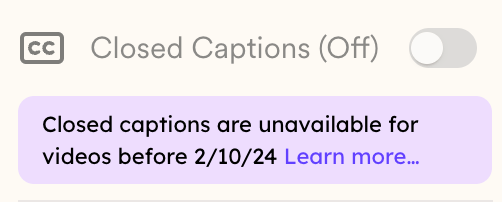
* To change captions on an older video, open it, click the three-dot menu on the edit page, and toggle **Captions** (videos recorded before 2/13/24 are unavailable).
## Important Notes
* **Applies globally**: This setting affects **all videos in your workspace**, but only for **future videos**.
* **Captions cannot be edited**: You can only turn them off or on.
* **Existing videos won’t change**: Any videos created **before** updating this setting will **not** be updated.
* **Dynamic Campaigns**: If you’ve already launched a Dynamic Video Campaign with captions enabled and later turn captions off, the old campaign will **not** update. You’ll need to create a **new campaign** for the change to apply.
1. Head to your menu and click on Manage Workspace: [https://sendspark.com/settings/workspace](https://sendspark.com/settings/workspace)
2. Scroll down and you'll find the Captions handle at the bottom:
Your viewers will now have the option to click \[c] to display captions on all new videos created from this point.
And, if you have autoplay enabled on your videos, captions will display automatically, so they can read your video even before they click for sound.
Note: The Global Settings Captions option only works on future videos. If you need to change this setting in older videos kindly follow the next steps
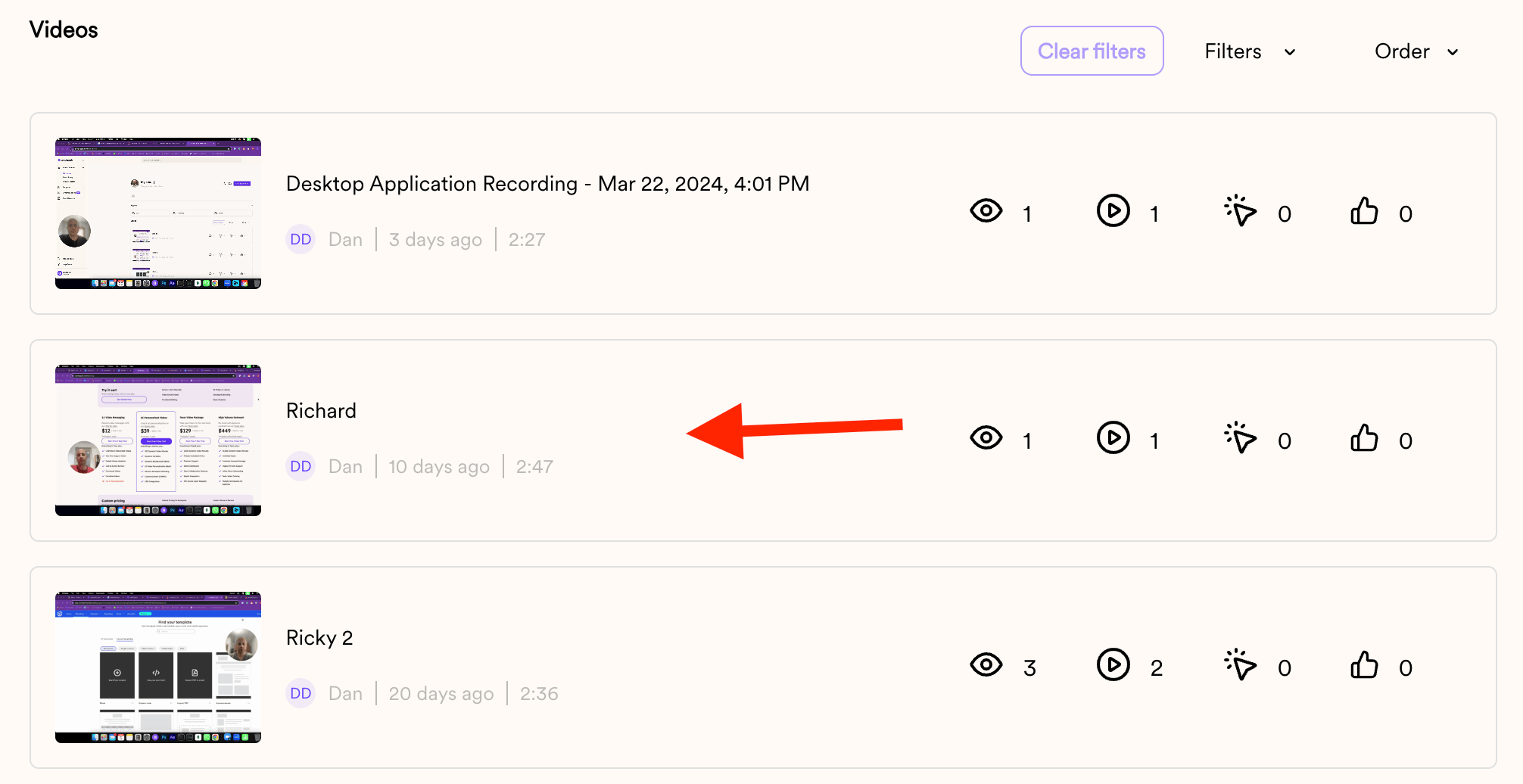
1. Click on the video you want to have the setting changed:
2. Once the EDIT page has loaded, click on the 3 dots on the top Navbar and then toggle the Captions setting as needed:
Videos recorded before 2/13/24 will be unavailable:\
## Frequently asked questions
No. The global Captions setting only affects future videos. Any videos created before you update the setting will not change.
No. You can only turn captions on or off — the captions themselves cannot be edited.
Viewers can click **\[c]** to display captions on new videos. If you have autoplay enabled, captions display automatically, so viewers can read your video even before they click for sound.
If you already launched a Dynamic Video Campaign with captions enabled and later turn captions off, the existing campaign won't update. Create a new campaign for the change to apply.
Open the video, click the three dots on the top navbar of the edit page, and toggle the Captions setting as needed. Note that videos recorded before 2/13/24 are unavailable.
*Updated July 2026.*
 2. Scroll down and you'll find the Captions handle at the bottom:
 Your viewers will now have the option to click \[c] to display captions on all new videos created from this point.
And, if you have autoplay enabled on your videos, captions will display automatically, so they can read your video even before they click for sound.
Note: The Global Settings Captions option only works on future videos. If you need to change this setting in older videos kindly follow the next steps
1. Click on the video you want to have the setting changed:
Your viewers will now have the option to click \[c] to display captions on all new videos created from this point.
And, if you have autoplay enabled on your videos, captions will display automatically, so they can read your video even before they click for sound.
Note: The Global Settings Captions option only works on future videos. If you need to change this setting in older videos kindly follow the next steps
1. Click on the video you want to have the setting changed:
 2. Once the EDIT page has loaded, click on the 3 dots on the top Navbar and then toggle the Captions setting as needed:
 Videos recorded before 2/13/24 will be unavailable:\
 ## Frequently asked questions