> ## Documentation Index
> Fetch the complete documentation index at: https://help.sendspark.com/llms.txt
> Use this file to discover all available pages before exploring further.
# How to Enable/Disable Hardware Acceleration
> Learn how to enable or disable hardware acceleration in Chrome through system settings to optimize browser performance and features.
## Disable hardware acceleration
Follow these steps to reach your hardware acceleration option in Chrome
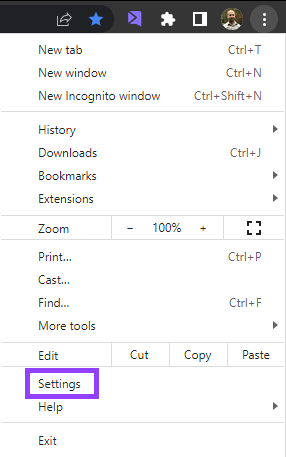
1. First, open your **Chrome settings** by clicking on the 3 dots located on the top right-hand side of the browser.
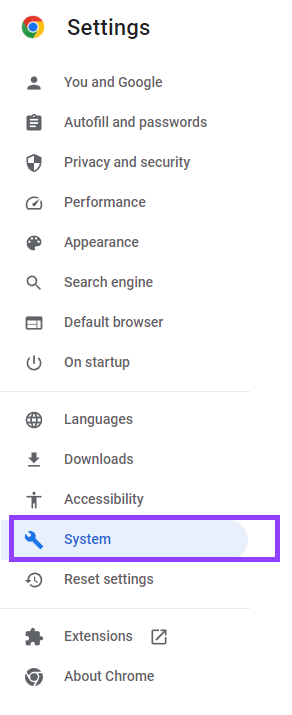
 2. Inside settings, click on the “System” tab on the left side of the screen. Or, you can navigate directly here by typing **chrome://settings/system** on the address bar.
 3. Next, toggle “hardware acceleration”, and click on Re-Launch to restart your browser.
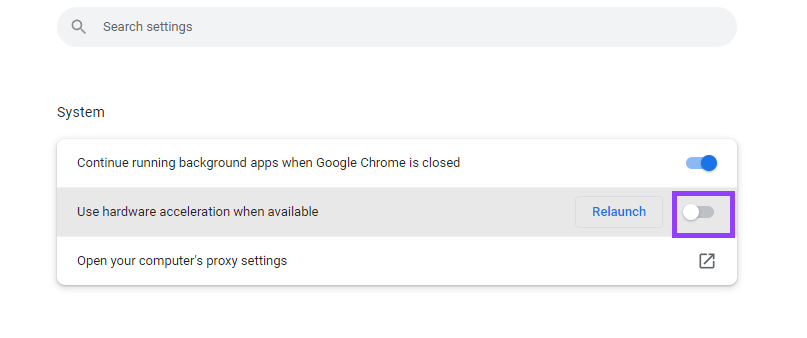 Note: Hardware Acceleration needs to be on for Camera Effects to work