> ## Documentation Index
> Fetch the complete documentation index at: https://help.sendspark.com/llms.txt
> Use this file to discover all available pages before exploring further.
# How to Edit your LinkedIn messages
> Edit and personalize your LinkedIn messages with custom headers, placeholders, and domains in Sendspark. Tailor your video outreach for each prospect.
A LinkedIn video message from Sendspark has two editable elements shown below the preview: the **Header** text and the **Domain**. Edit the Header on each video's EDIT page in your library (placeholders like the prospect's first name work well here), and change the Domain by adding a custom domain to your account.
## Key takeaways
* LinkedIn video messages show two elements below the preview you can personalize: the **Header** and the **Domain**.
* Edit the **Header** on the EDIT page of each video: open your library, click the video, and type your text.
* Use [placeholders](/use-merge-tags-to-personalize-videos-at-scale) such as the prospect's first name in the Header, and add [fallback text](/how-merge-tag-fallbacks-work) so it reads well when info is missing.
* To change the **Domain**, add a [custom domain](/use-a-custom-domain-for-videos) to your account; this requires at least a [Solo Plan](https://sendspark.com/settings/billing).
Now that you know how to send messages on LinkedIn, let's take a look at how to fully personalize them. If you haven't set it up yet, see the [LinkedIn integration guide](/instant-integration-linkedin).
Let's get started!
Once the message is sent, this is how it should look:
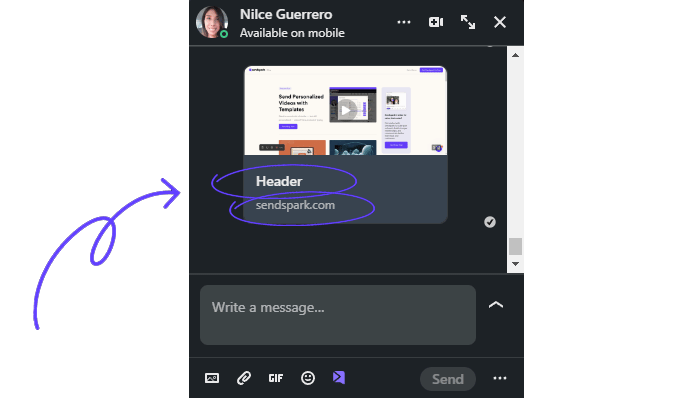 Notice there is a text section below the preview that includes two elements: **Header**and **Domain**.
***
## **Header**
This text can be updated on the EDIT page of each video. Simply go to your library, click on the video you are using, and type your desired text.\
Notice there is a text section below the preview that includes two elements: **Header**and **Domain**.
***
## **Header**
This text can be updated on the EDIT page of each video. Simply go to your library, click on the video you are using, and type your desired text.\
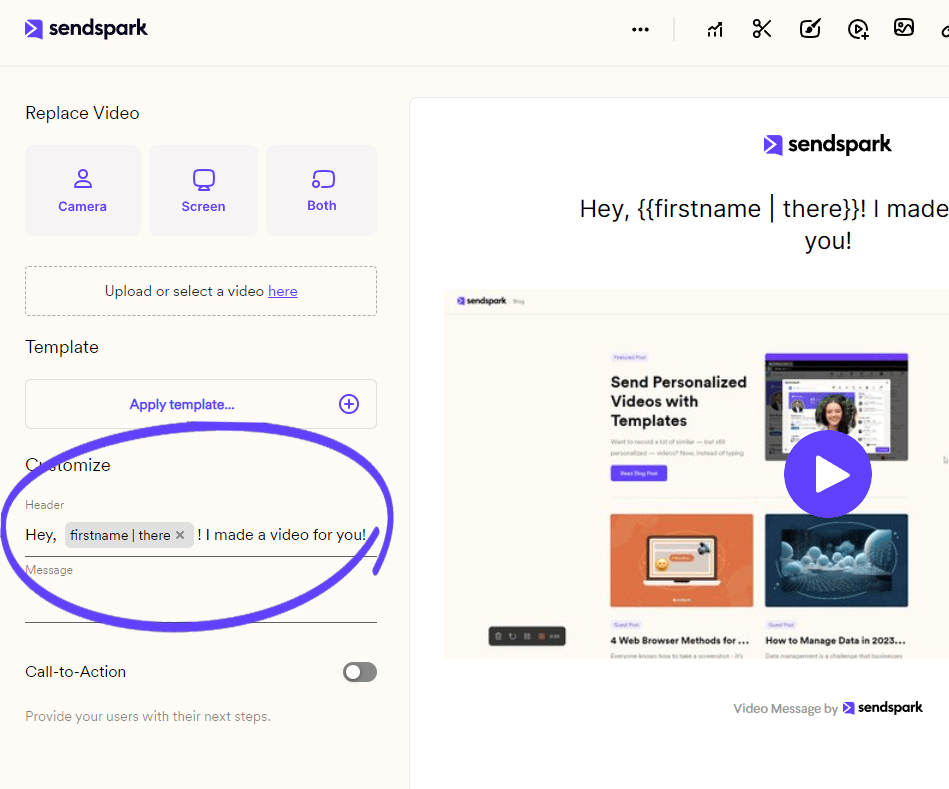 We suggest the use of [placeholders](/use-merge-tags-to-personalize-videos-at-scale) in that section. The most common case is to use your prospect's name: "Hey, \{First Name}, I made a video for you!"
Keep in mind the number of characters used to avoid extending the text area of the message, and don't forget to add [fallback text](/how-merge-tag-fallbacks-work).
***
## Domain
The last detail you'll find in the LinkedIn message is the domain. which is "sendspark.com" in our example.
To edit the domain, you must add a custom domain to your account and be at least a [Solo Plan](https://sendspark.com/settings/billing) user.
**Please refer to this article for full instructions on how to add a [Custom Domain](/use-a-custom-domain-for-videos)**
***
## Frequently asked questions
There are two elements below the message preview you can personalize: the **Header** text and the **Domain**. The Header is edited per video on its EDIT page, and the Domain is changed by adding a custom domain to your account.
Go to your library, click on the video you're using, and type your desired text on the EDIT page. We suggest using [placeholders](/use-merge-tags-to-personalize-videos-at-scale) here, most commonly the prospect's first name, for example: "Hey, \{First Name}, I made a video for you!"
Yes. Add [fallback text](/how-merge-tag-fallbacks-work) so the message still reads well when a viewer's information is unavailable. Also keep an eye on character count so the text doesn't extend the message area.
The domain (for example "sendspark.com") is changed by adding a [custom domain](/use-a-custom-domain-for-videos) to your account. To do this you must be at least a [Solo Plan](https://sendspark.com/settings/billing) user.
*Updated July 2026.*
We suggest the use of [placeholders](/use-merge-tags-to-personalize-videos-at-scale) in that section. The most common case is to use your prospect's name: "Hey, \{First Name}, I made a video for you!"
Keep in mind the number of characters used to avoid extending the text area of the message, and don't forget to add [fallback text](/how-merge-tag-fallbacks-work).
***
## Domain
The last detail you'll find in the LinkedIn message is the domain. which is "sendspark.com" in our example.
To edit the domain, you must add a custom domain to your account and be at least a [Solo Plan](https://sendspark.com/settings/billing) user.
**Please refer to this article for full instructions on how to add a [Custom Domain](/use-a-custom-domain-for-videos)**
***
## Frequently asked questions
There are two elements below the message preview you can personalize: the **Header** text and the **Domain**. The Header is edited per video on its EDIT page, and the Domain is changed by adding a custom domain to your account.
Go to your library, click on the video you're using, and type your desired text on the EDIT page. We suggest using [placeholders](/use-merge-tags-to-personalize-videos-at-scale) here, most commonly the prospect's first name, for example: "Hey, \{First Name}, I made a video for you!"
Yes. Add [fallback text](/how-merge-tag-fallbacks-work) so the message still reads well when a viewer's information is unavailable. Also keep an eye on character count so the text doesn't extend the message area.
The domain (for example "sendspark.com") is changed by adding a [custom domain](/use-a-custom-domain-for-videos) to your account. To do this you must be at least a [Solo Plan](https://sendspark.com/settings/billing) user.
*Updated July 2026.*