> ## Documentation Index
> Fetch the complete documentation index at: https://help.sendspark.com/llms.txt
> Use this file to discover all available pages before exploring further.
# How To Edit Video Thumbnails
> Learn how to edit video thumbnails with text overlays, custom frames, and personalization to boost email engagement and clicks.
To edit a video thumbnail in Sendspark, open the thumbnail editor from the video edit page (click "Edit thumbnail") or from the share modal (click "Customize"). From there you can add a text overlay, personalize it with dynamic variables, add the viewer's logo, select a different preview frame, toggle static vs. animated, and change the colors, timestamp, and play button.
## Key takeaways
* Thumbnails only show up in email, not on the video page, so any edits you make appear only when your video is shared in an email.
* You can launch the thumbnail editor two ways: click "Edit thumbnail" on the video edit page, or click "Customize" in the share modal.
* You can add a text overlay (keep it to \~5 words), personalize thumbnails with dynamic variables that map to your contacts (with editable fallback text), and add the viewer's company logo.
* The Edit Preview tab lets you pick a different frame and toggle static vs. animated; the Edit Styles tab controls colors, timestamp, and play button, and these changes affect only that specific video, not your workspace's global styles.
Congratulations on creating your video! Now let's make sure you make a great impression when you share it by customizing your video thumbnail!
## Video Thumbnail Overview
Video thumbnails are what **show up in emails.** They are extremely useful to cut through the noise and capture your viewer's attention!
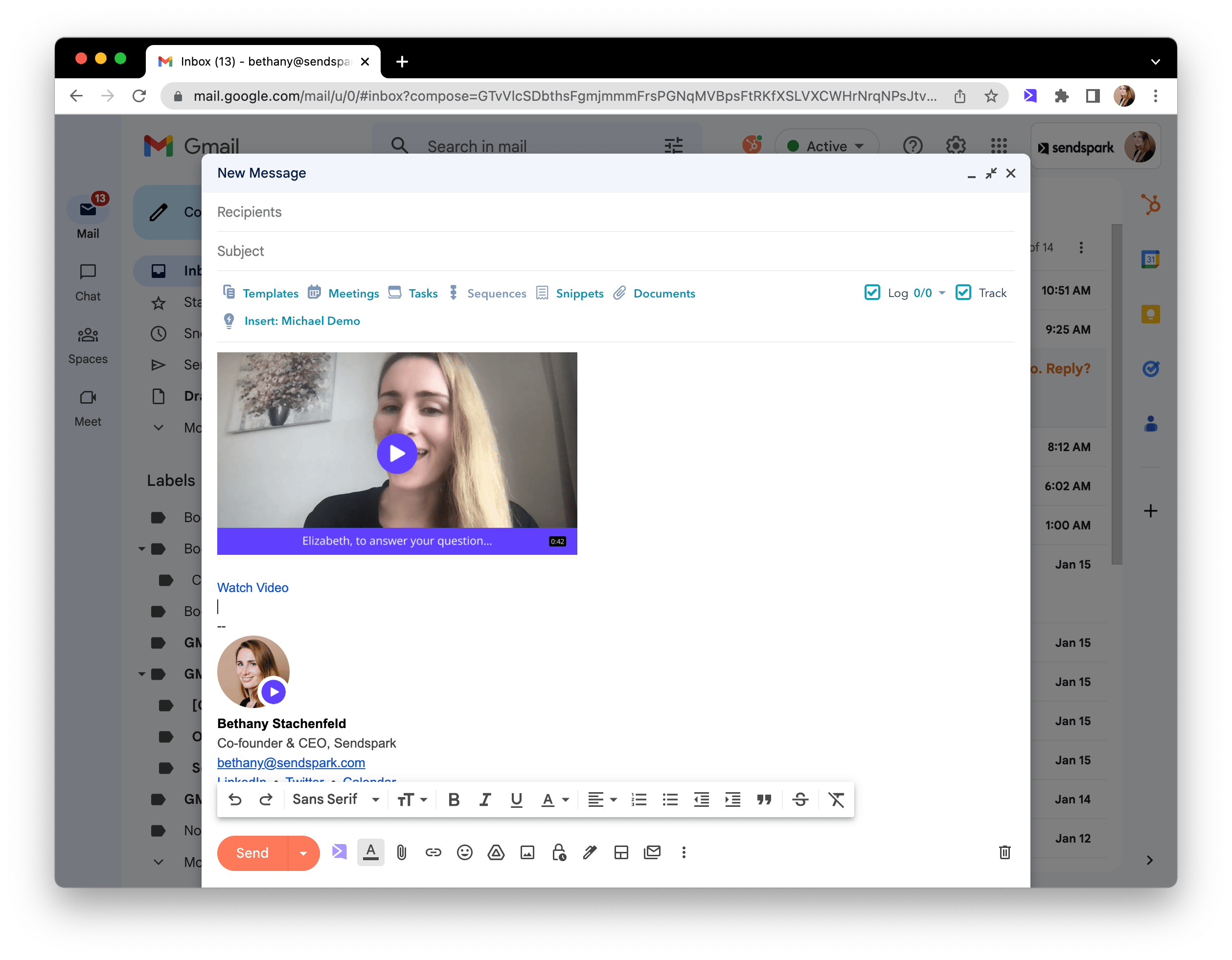 \*\*Note:\*\*Email is the ONLY place your video thumbnails will show up. So, when you edit your thumbnail, you will only see your edits when your video is shared in an email. (The edits do not display on the video page).
We highly recommend customizing video thumbnails because they provide a teaser for your video. You can let your viewer know what this video is about, and **why they should click "play!"**
## How to Edit Video Thumbnails
Scroll through all of the possibilities below, or skip ahead to learn how to make a specific edit:
* Launch video thumbnail editor
* Add text overlay
* [Dynamically personalize thumbnails](#dynamically-personalize-thumbnails)
* Add viewer's logo
* Select a different preview frame
* [Toggle between "static" or "animated" thumbnail](#toggle-between-static-or-animated-thumbnail)
* Change color theme
* Add/remove timestamp
* Add/remove play button
### Launch the thumbnail editor
There are a couple of places you can **launch the video thumbnail editor.** You can use either of these options. (The video thumbnail editor will be the same no matter where you launched it from).
#### Option A. Shortcut
* Click on the video edit page for the video you want to share
* On the top right, click the icon for **"Edit thumbnail"**
\*\*Note:\*\*Email is the ONLY place your video thumbnails will show up. So, when you edit your thumbnail, you will only see your edits when your video is shared in an email. (The edits do not display on the video page).
We highly recommend customizing video thumbnails because they provide a teaser for your video. You can let your viewer know what this video is about, and **why they should click "play!"**
## How to Edit Video Thumbnails
Scroll through all of the possibilities below, or skip ahead to learn how to make a specific edit:
* Launch video thumbnail editor
* Add text overlay
* [Dynamically personalize thumbnails](#dynamically-personalize-thumbnails)
* Add viewer's logo
* Select a different preview frame
* [Toggle between "static" or "animated" thumbnail](#toggle-between-static-or-animated-thumbnail)
* Change color theme
* Add/remove timestamp
* Add/remove play button
### Launch the thumbnail editor
There are a couple of places you can **launch the video thumbnail editor.** You can use either of these options. (The video thumbnail editor will be the same no matter where you launched it from).
#### Option A. Shortcut
* Click on the video edit page for the video you want to share
* On the top right, click the icon for **"Edit thumbnail"**
 #### Option B: From the share modal
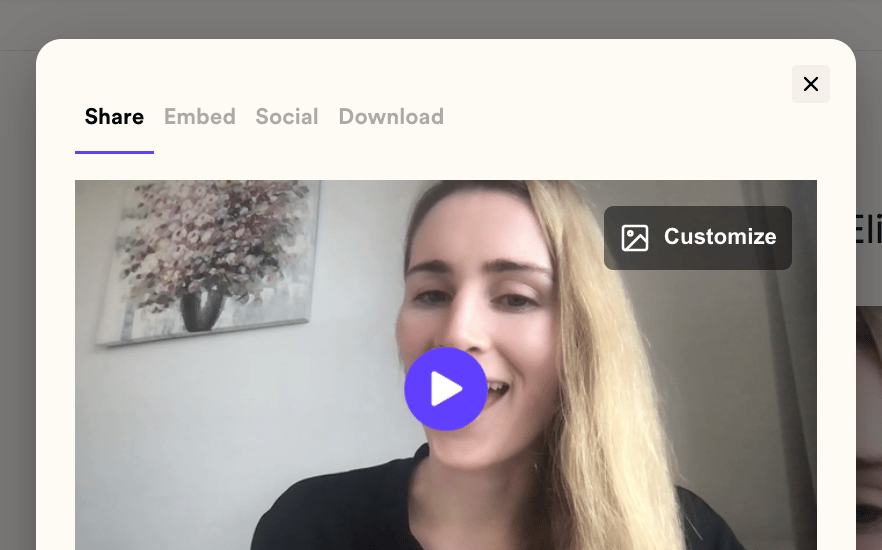
You can also get to the thumbnail editor from the video share modal. Simply click on the \*\*"Customize"\*\*button on the top right of the video preview in the share modal to launch the thumbnail editor.
#### Option B: From the share modal
You can also get to the thumbnail editor from the video share modal. Simply click on the \*\*"Customize"\*\*button on the top right of the video preview in the share modal to launch the thumbnail editor.
 ### Add a Text Overlay
Start typing right under **"text overlay"** to add text to your video thumbnail. We recommend keeping this to \~5 words to make it easy for your viewer to see the note in just one glance.
### Add a Text Overlay
Start typing right under **"text overlay"** to add text to your video thumbnail. We recommend keeping this to \~5 words to make it easy for your viewer to see the note in just one glance.
 Once you start typing, you'll see the words show up on the video thumbnail preview immediately.
If you don't like the text color or background color, no worries! You'll be able to change that later.
### Dynamically personalize thumbnails
Let's say you are sending one video to multiple people, and you want each video thumbnail to show the viewer's name.
You can automatically personalize videos using **dynamic variables**.
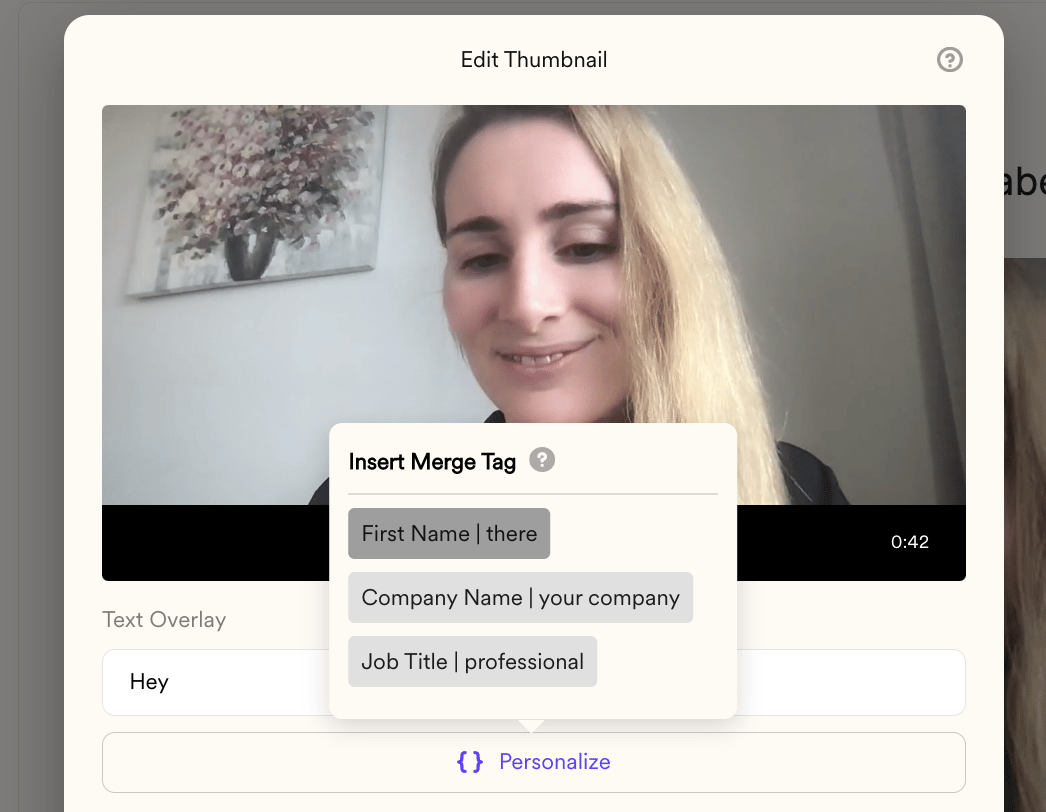
Simply select "personalize" and insert the variable that you want to use.
Once you start typing, you'll see the words show up on the video thumbnail preview immediately.
If you don't like the text color or background color, no worries! You'll be able to change that later.
### Dynamically personalize thumbnails
Let's say you are sending one video to multiple people, and you want each video thumbnail to show the viewer's name.
You can automatically personalize videos using **dynamic variables**.
Simply select "personalize" and insert the variable that you want to use.
 When you send your video through your email automation platform of choice, we will map the dynamic variable placeholder in Sendspark to the contact property in your sending platform, so **each viewer will see their own name.**
**([Learn how to share dynamic videos](/general-overview-how-to-share-sendspark-videos))**
If we can't get the contact variable for any reason, we will show a fallback variable. For example, "Hi #\{\{first name}}" would show "Hi there."
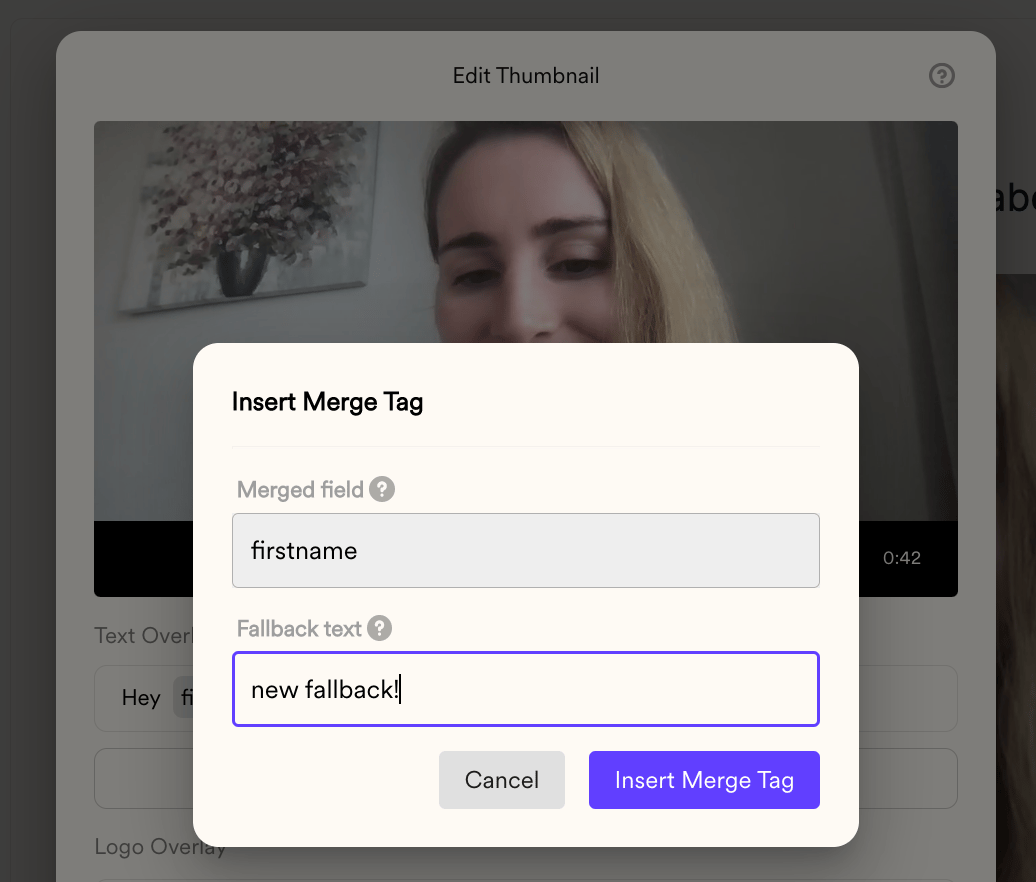
To change the fallback variable, simply click on the dynamic variable you've inserted, and write in new fallback text.
When you send your video through your email automation platform of choice, we will map the dynamic variable placeholder in Sendspark to the contact property in your sending platform, so **each viewer will see their own name.**
**([Learn how to share dynamic videos](/general-overview-how-to-share-sendspark-videos))**
If we can't get the contact variable for any reason, we will show a fallback variable. For example, "Hi #\{\{first name}}" would show "Hi there."
To change the fallback variable, simply click on the dynamic variable you've inserted, and write in new fallback text.
 ### Add your viewer's logo
Want to add your viewer's logo to the video to make it really pop? Simply search for their company name or domain under**Logo Overlay**.
### Add your viewer's logo
Want to add your viewer's logo to the video to make it really pop? Simply search for their company name or domain under**Logo Overlay**.
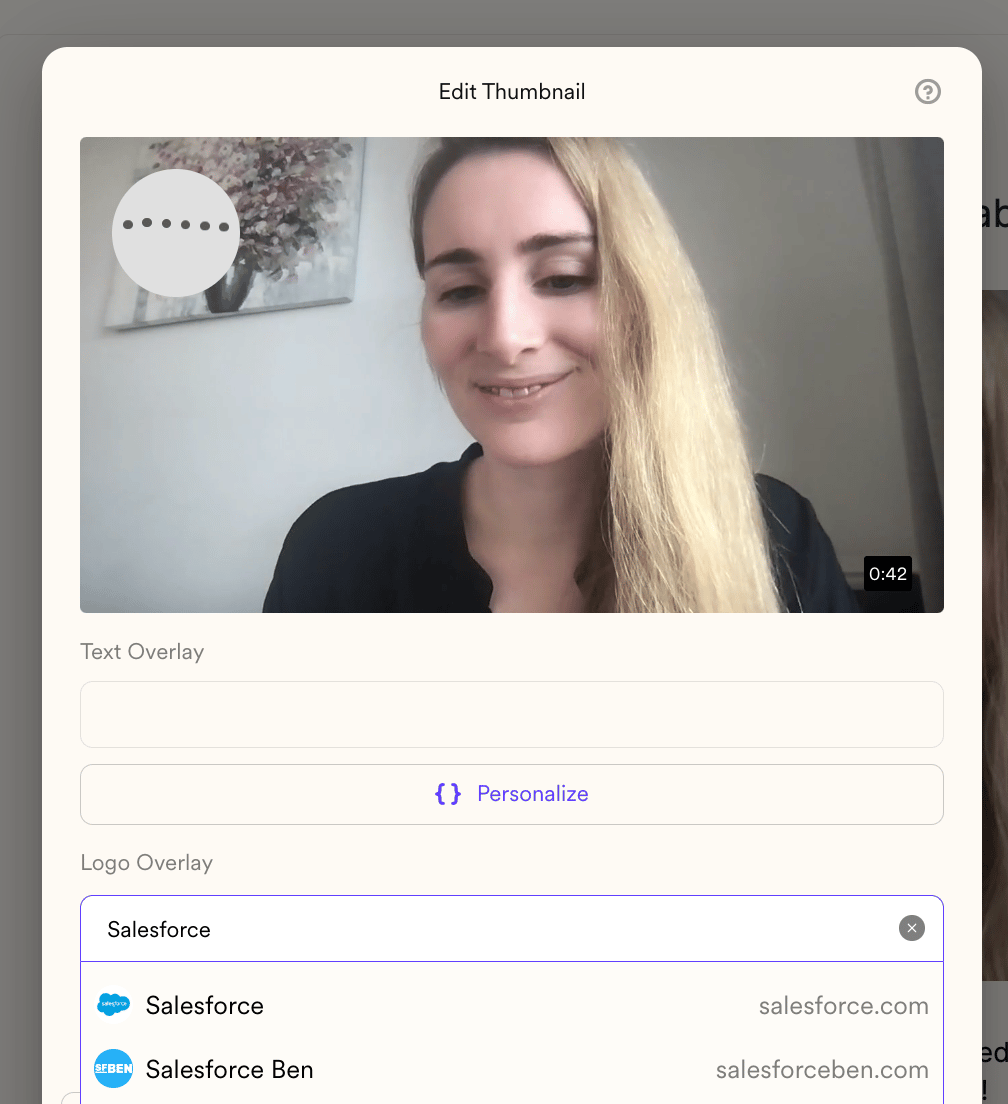 Once you see their logo, click on it, and it will appear in the top left of the video thumbnail.
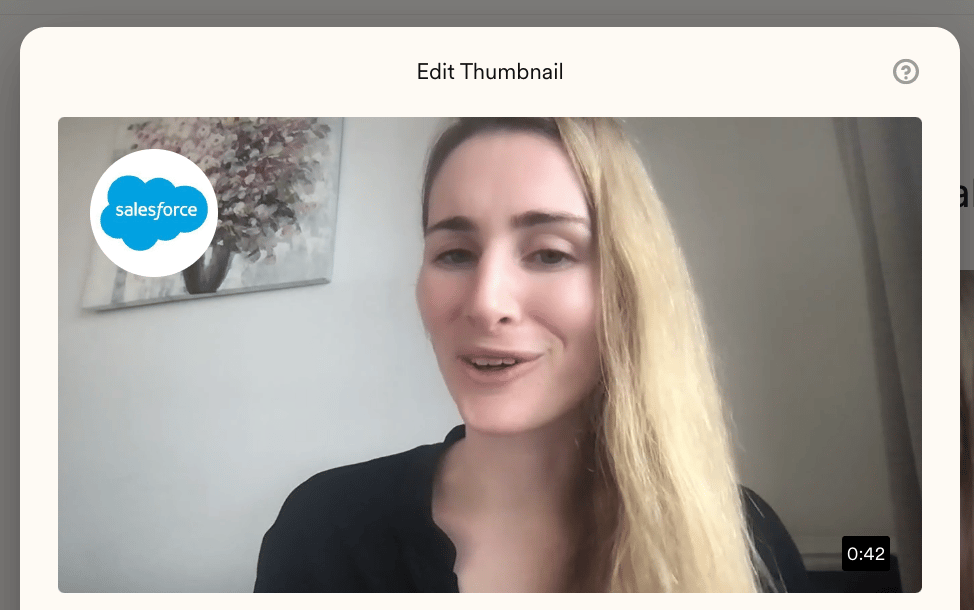 If you don't see the logo you're looking for, you can try to find it on your own through a Google search, or by going to their company's LinkedIn/Twitter/Facebook pages, and then uploading it to Sendspark via the \*\*"upload logo"\*\*button.
 ### Select a different frame
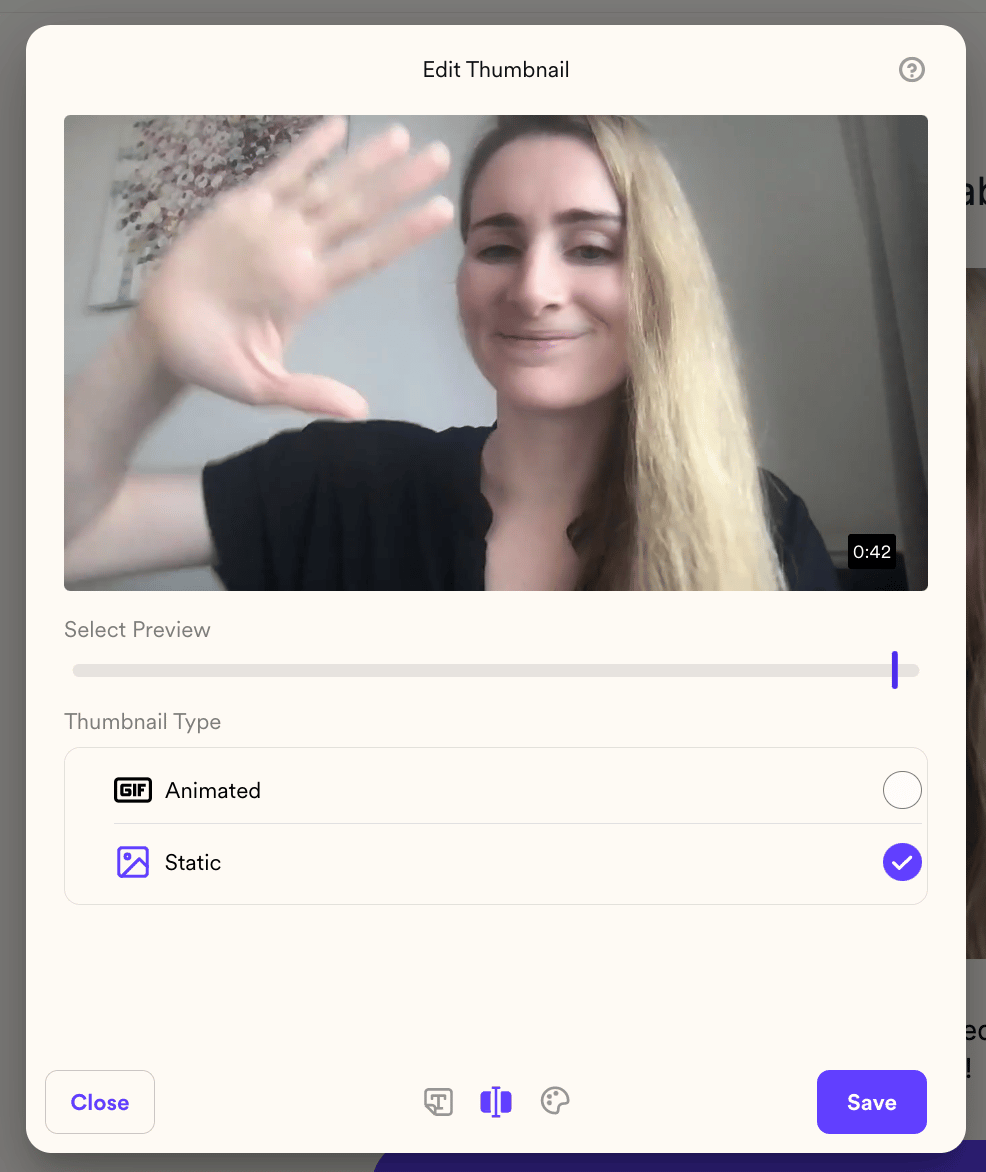
Making a weird face? No worries, you can use our slider to select a new frame for your video thumbnail.
* Click into the 2nd tab of the thumbnail editor **Edit Preview**
### Select a different frame
Making a weird face? No worries, you can use our slider to select a new frame for your video thumbnail.
* Click into the 2nd tab of the thumbnail editor **Edit Preview** * And then **drag the slider**to the right spot in your video
 You'll see the thumbnail preview change, so you can make sure things look right. 👍
 ### Toggle between "static" or "animated" thumbnail
Sometimes your might want to have an animated GIF thumbnail, and other times you might want to have a static image thumbnail. It's easy to switch between these options.
* Click into the 2nd tab of the thumbnail editor **Edit Preview**
* Under **Thumbnail Type,**select either **Animated**or**Static**
### Toggle between "static" or "animated" thumbnail
Sometimes your might want to have an animated GIF thumbnail, and other times you might want to have a static image thumbnail. It's easy to switch between these options.
* Click into the 2nd tab of the thumbnail editor **Edit Preview**
* Under **Thumbnail Type,**select either **Animated**or**Static**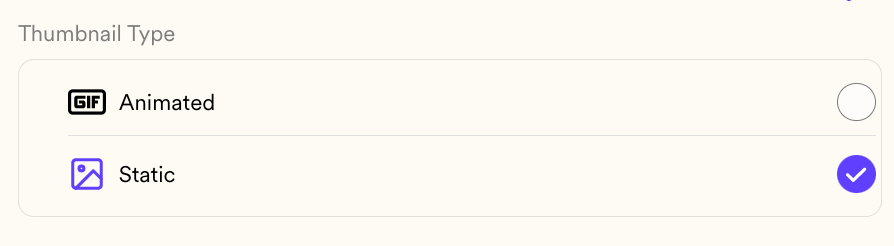 ### Change the colors
The right color theme is important to make sure you're delivering a polished, professional video. Click into the 3rd tab of the video thumbnail editor to modify your color theme.
### Change the colors
The right color theme is important to make sure you're delivering a polished, professional video. Click into the 3rd tab of the video thumbnail editor to modify your color theme.
 Here, you can edit colors for...
* The text overlay (both the text color and the background color)
* The video play button
* The video timestamp
For any of these, just click on the color wheel, and either **use the color selector or type the hex code**into the input field.
Here, you can edit colors for...
* The text overlay (both the text color and the background color)
* The video play button
* The video timestamp
For any of these, just click on the color wheel, and either **use the color selector or type the hex code**into the input field.
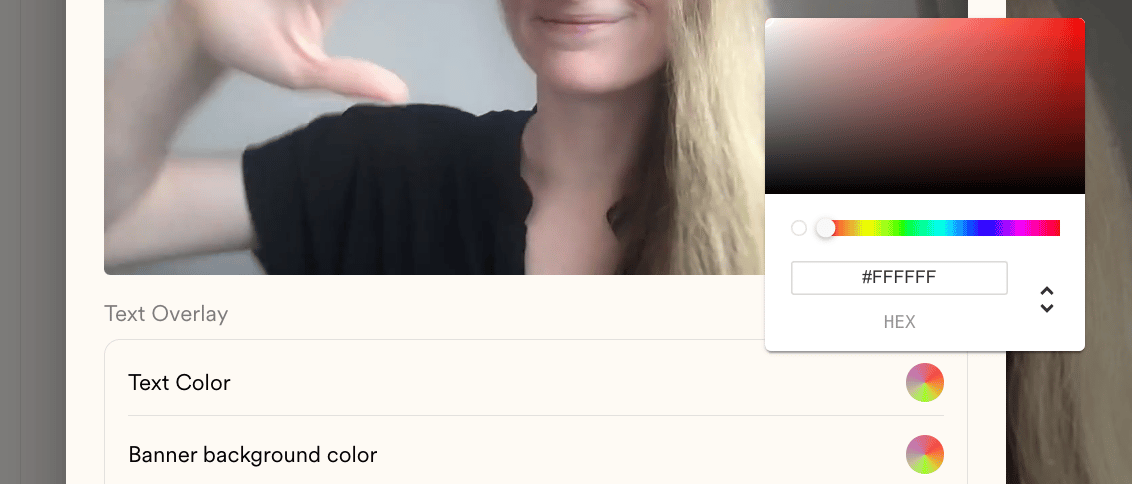 For some fields, like the video play button and video duration, you are able to modify the opacity as well. Spend some time clicking around on this page to see all that is possible!
 Note, editing these colors is different from editing your global styles. When you edit your global styles, they affect all videos in the workspace. However, when you edit your video thumbnail styles, **they only affect this specific video**.
To save you some time, we will automatically use the same color theme for your next video, but you never have to worry about affecting other videos in your workspace by modifying your thumbnail colors!
### Add/remove timestamp
Want to show viewers the duration of a video, so they know how long it is?
* Click into the 3rd tab of the video thumbnail editor
* Under **Duration** toggle "show duration" either on or off
Note, editing these colors is different from editing your global styles. When you edit your global styles, they affect all videos in the workspace. However, when you edit your video thumbnail styles, **they only affect this specific video**.
To save you some time, we will automatically use the same color theme for your next video, but you never have to worry about affecting other videos in your workspace by modifying your thumbnail colors!
### Add/remove timestamp
Want to show viewers the duration of a video, so they know how long it is?
* Click into the 3rd tab of the video thumbnail editor
* Under **Duration** toggle "show duration" either on or off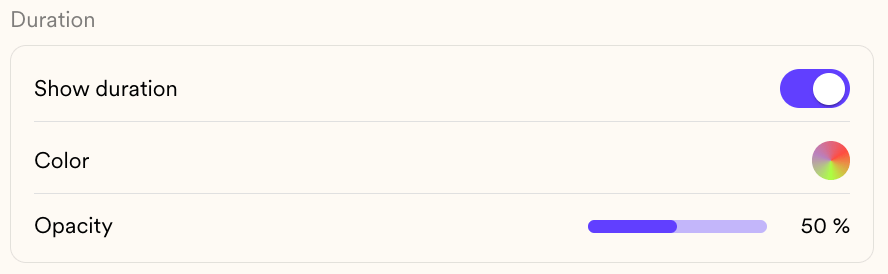 * Feel free to modify the timestamp color and opacity while you're here!
### Add/remove the play button
Sometimes the video play button can cover important parts of the thumbnail (like your face). In this case, you might want to toggle the play button on or off, change the shape, or modify the opacity.
* Click into the 3rd tab of the video thumbnail editor **Edit Styles**
* Under **Play Button**, modify the styles and settings that you would like to change
* Feel free to modify the timestamp color and opacity while you're here!
### Add/remove the play button
Sometimes the video play button can cover important parts of the thumbnail (like your face). In this case, you might want to toggle the play button on or off, change the shape, or modify the opacity.
* Click into the 3rd tab of the video thumbnail editor **Edit Styles**
* Under **Play Button**, modify the styles and settings that you would like to change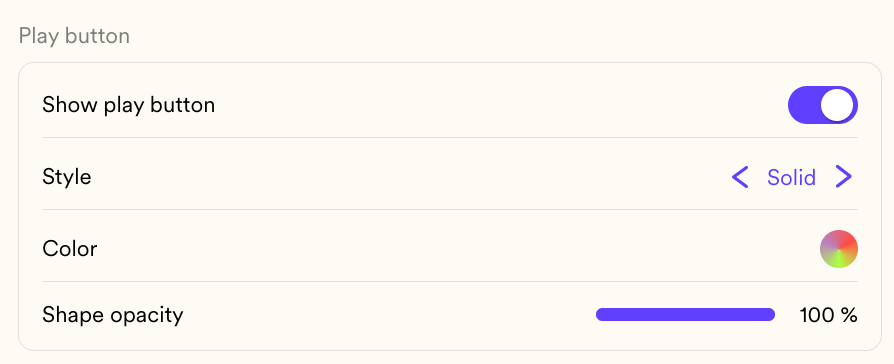 Let us know if there's anything else you would like to modify about your video thumbnail!
## Frequently asked questions
Email is the only place your video thumbnails show up. When you edit a thumbnail, you will only see your edits when the video is shared in an email; the edits do not display on the video page.
There are two ways. Click the "Edit thumbnail" icon on the top right of the video edit page, or click the "Customize" button on the top right of the video preview in the share modal. The editor is the same wherever you launch it from.
Yes. Select "personalize" and insert the dynamic variable you want to use. When you send the video through your email automation platform, Sendspark maps the variable to the contact property in your sending platform so each viewer sees their own name. If a value is missing, a fallback (which you can edit) is shown instead.
Click into the Edit Preview tab of the thumbnail editor and drag the slider to the frame you want. You can also switch between an animated GIF thumbnail and a static image thumbnail under Thumbnail Type in the same tab.
No. Editing thumbnail styles affects only that specific video. This is different from editing your global styles, which apply to all videos in the workspace. Sendspark reuses the same color theme on your next video for convenience, but it never changes other existing videos.
*Updated July 2026.*
Let us know if there's anything else you would like to modify about your video thumbnail!
## Frequently asked questions
Email is the only place your video thumbnails show up. When you edit a thumbnail, you will only see your edits when the video is shared in an email; the edits do not display on the video page.
There are two ways. Click the "Edit thumbnail" icon on the top right of the video edit page, or click the "Customize" button on the top right of the video preview in the share modal. The editor is the same wherever you launch it from.
Yes. Select "personalize" and insert the dynamic variable you want to use. When you send the video through your email automation platform, Sendspark maps the variable to the contact property in your sending platform so each viewer sees their own name. If a value is missing, a fallback (which you can edit) is shown instead.
Click into the Edit Preview tab of the thumbnail editor and drag the slider to the frame you want. You can also switch between an animated GIF thumbnail and a static image thumbnail under Thumbnail Type in the same tab.
No. Editing thumbnail styles affects only that specific video. This is different from editing your global styles, which apply to all videos in the workspace. Sendspark reuses the same color theme on your next video for convenience, but it never changes other existing videos.
*Updated July 2026.*