> ## Documentation Index
> Fetch the complete documentation index at: https://help.sendspark.com/llms.txt
> Use this file to discover all available pages before exploring further.
# How to Customize Your Request Video Pages
> Customize your Request Video pages in Sendspark with branding options, logos, colors, and custom domains for a professional branded recipient experience.
You can customize your Sendspark Request Video page in three ways: add your name and avatar so recipients know who's asking, set global styles to apply your company logo and brand colors, and use a custom domain to fully white-label the page. Most branding options require a Sendspark Growth, Plus, or Scale plan.
## Key takeaways
* There are three customization options: your name and avatar, global styles (logo and brand colors), and a custom domain.
* You must be on Sendspark Growth, Plus, or Scale to use most of the branding options.
* Your name and avatar come from your account settings; global styles are set from your workspace settings by selecting Set Global Styles.
* A custom domain 100% white-labels the page, replacing a Sendspark URL like request.sendspark.com/xyz with your own request.yoursite.com/xyz.
* Generate the link with the Copy Request Link button in your Requested Videos library, and you can edit the styles at any time, even after the link is sent.
Right now, there are a few ways you can customize your [Request Video](https://sendspark.com/requested-videos) page in Sendspark.
Note, you must be on Sendspark Growth, Plus, or Scale to use most of the branding options here.
***
## 1. Add Your Name & Avatar
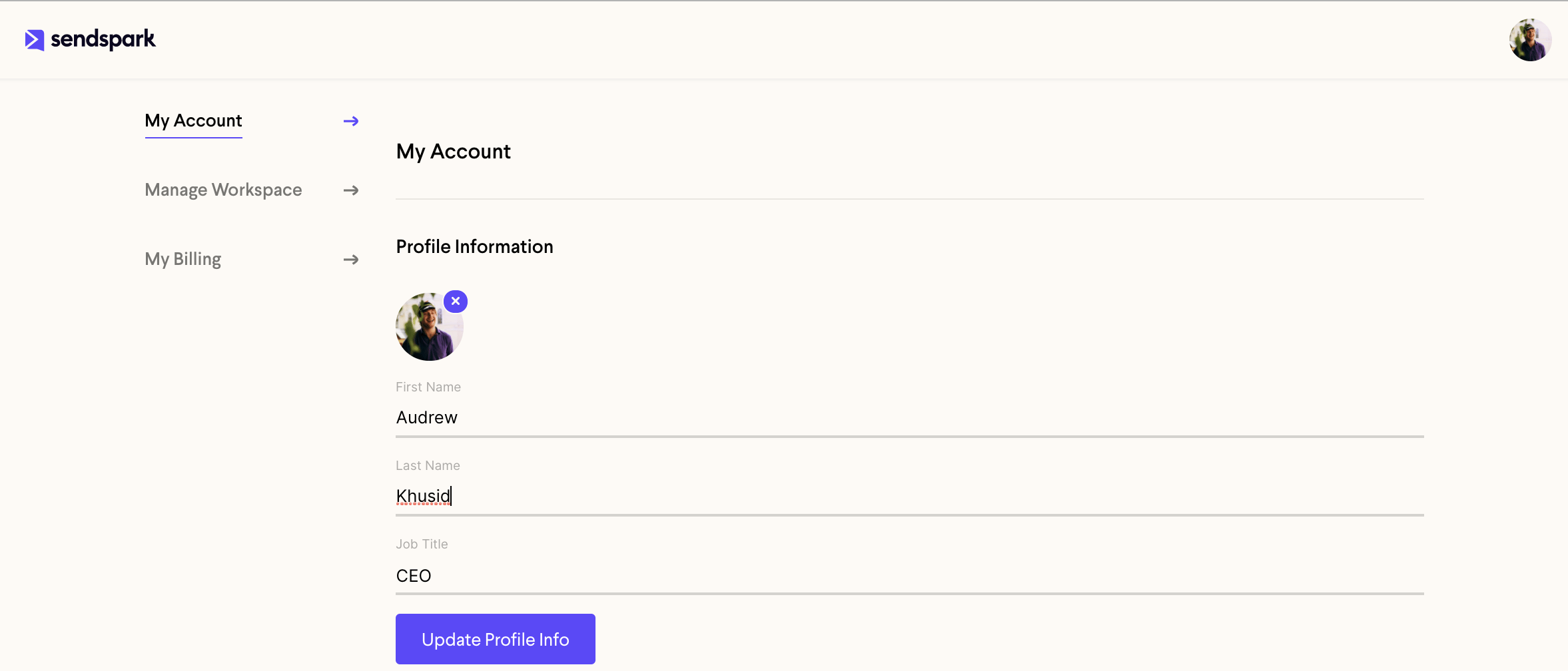
Update your name and avatar in your [account settings](https://app.sendspark.com/settings/account). This will show up on the video request page, so your customer will know who is asking for the video, and where it will send when they’re done recording.
 ## 2. Set Your Global Styles
Navigate to your [workspace settings](https://app.sendspark.com/settings/workspace), and then select Set Global Styles.
## 2. Set Your Global Styles
Navigate to your [workspace settings](https://app.sendspark.com/settings/workspace), and then select Set Global Styles.
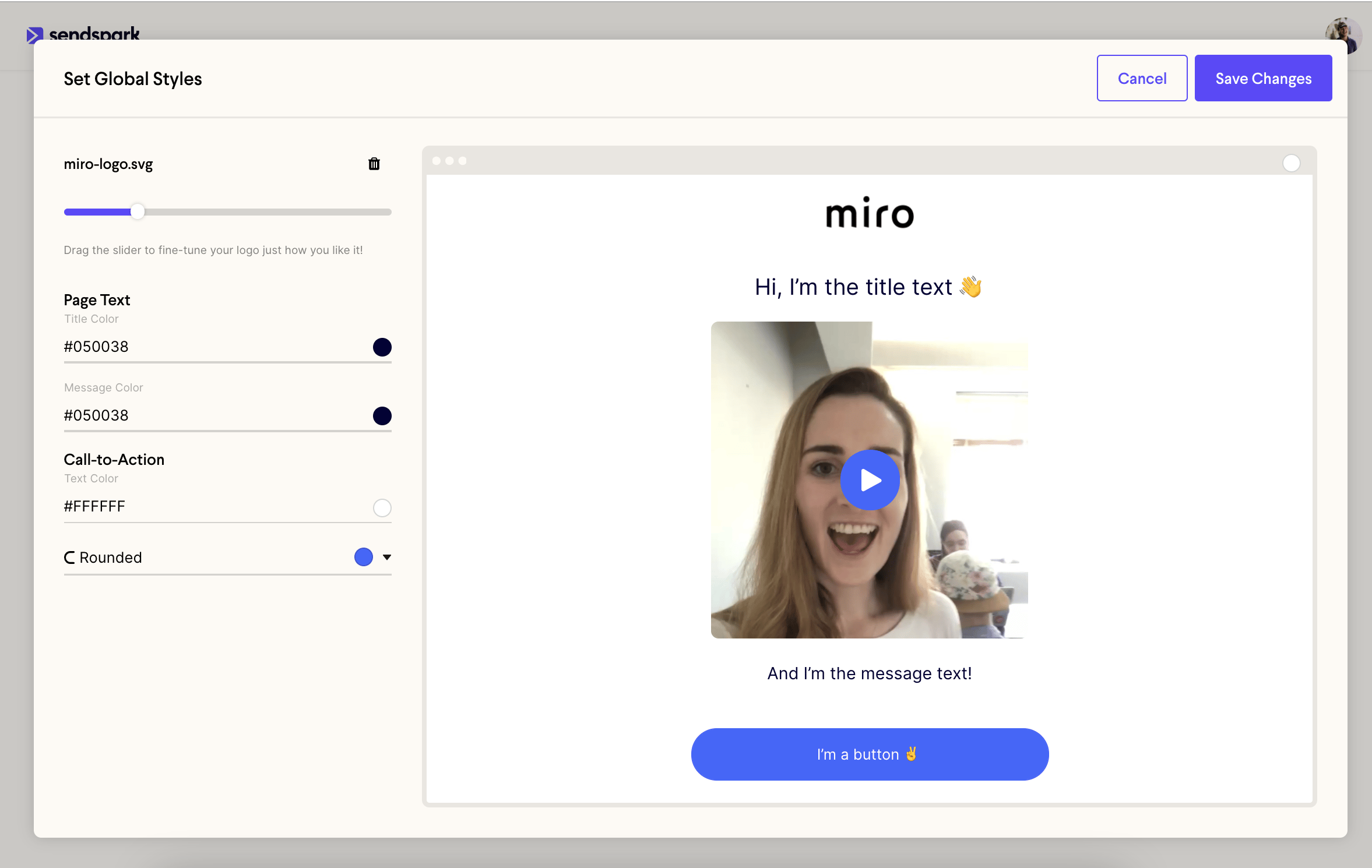
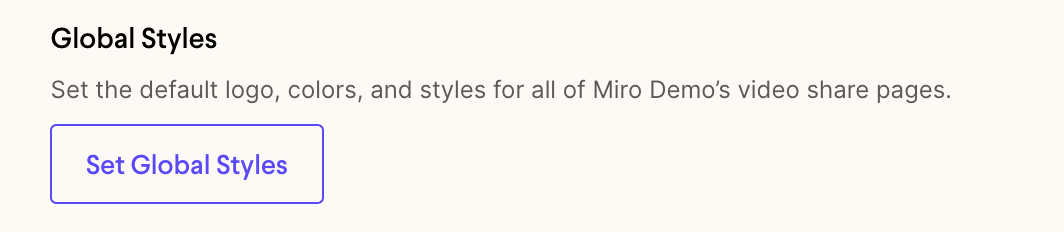 Here, you can add your company logo and brand colors. These will show up on your video request pages for a polished, branded experience.
 ## 3. Use a Custom Domain
[Use your custom domain](/use-a-custom-domain-for-videos) to 100% white-label your video request page. Instead of using a Sendspark URL (i.e. request.sendspark.com/xyz) you'll be able to use a custom branded url (like request.yoursite.com/xyz).
***
## Start Sharing!
To generate the Request Video link, click the **Copy Request Link** button from your [Requested Videos](https://sendspark.com/requested-videos) library.
## 3. Use a Custom Domain
[Use your custom domain](/use-a-custom-domain-for-videos) to 100% white-label your video request page. Instead of using a Sendspark URL (i.e. request.sendspark.com/xyz) you'll be able to use a custom branded url (like request.yoursite.com/xyz).
***
## Start Sharing!
To generate the Request Video link, click the **Copy Request Link** button from your [Requested Videos](https://sendspark.com/requested-videos) library.
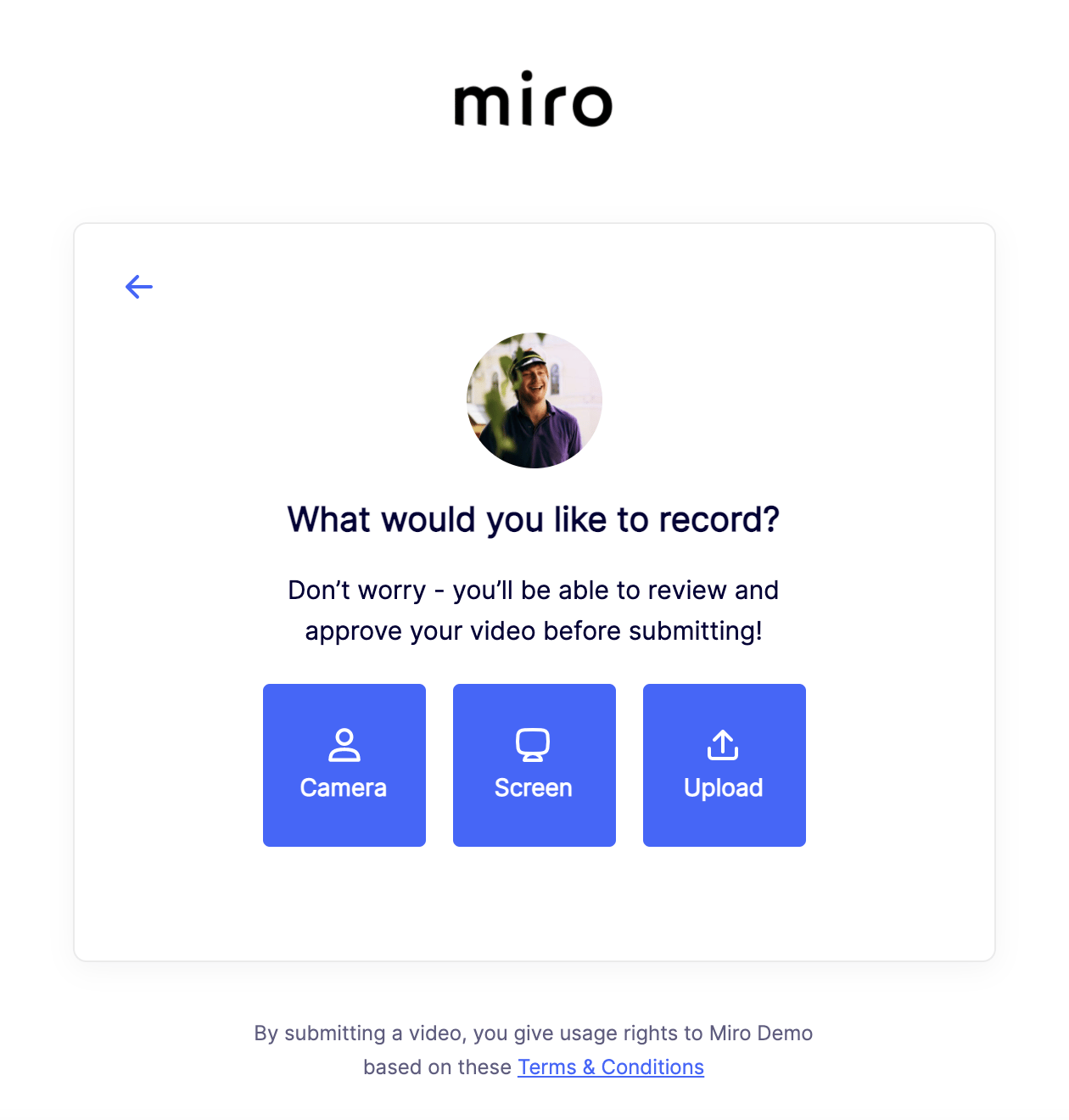
 Make sure you're happy with your Video Request page before you start sharing. Depending on your brand, it might look something like this:
 **You can edit the styles at any time if you want to make changes -- even after you've sent out the link.**
## Frequently asked questions
Three things: your name and avatar (so recipients know who is asking and where the video sends when they finish recording), your global styles (your company logo and brand colors), and a custom domain to fully white-label the page.
You must be on Sendspark Growth, Plus, or Scale to use most of the branding options described here.
Go to your workspace settings and select Set Global Styles. There you can add your company logo and brand colors, which then show up on your video request pages for a polished, branded experience.
Set up a custom domain to 100% white-label the page. Instead of a Sendspark URL like request.sendspark.com/xyz, you'll use a custom branded URL like request.yoursite.com/xyz.
Yes. You can edit the styles at any time to make changes, even after you've sent out the link.
*Updated July 2026.*
**You can edit the styles at any time if you want to make changes -- even after you've sent out the link.**
## Frequently asked questions
Three things: your name and avatar (so recipients know who is asking and where the video sends when they finish recording), your global styles (your company logo and brand colors), and a custom domain to fully white-label the page.
You must be on Sendspark Growth, Plus, or Scale to use most of the branding options described here.
Go to your workspace settings and select Set Global Styles. There you can add your company logo and brand colors, which then show up on your video request pages for a polished, branded experience.
Set up a custom domain to 100% white-label the page. Instead of a Sendspark URL like request.sendspark.com/xyz, you'll use a custom branded URL like request.yoursite.com/xyz.
Yes. You can edit the styles at any time to make changes, even after you've sent out the link.
*Updated July 2026.*