> ## Documentation Index
> Fetch the complete documentation index at: https://help.sendspark.com/llms.txt
> Use this file to discover all available pages before exploring further.
# How To Create and Use Multiple Workspaces
> Learn how to create and manage multiple Sendspark workspaces for different brands, teams, and clients with easy workspace switching.
To create a new workspace in Sendspark, click your avatar in the bottom-left corner, choose **Change Workspace**, click **Create Workspace**, and enter your company name. Each workspace is fully independent — with its own brand styles, team members, and videos — and you can toggle between them anytime from the same menu.
## Key takeaways
* Workspaces work like Slack workspaces: each is completely independent (brand styles, team members, video content), but easy to switch between.
* They're useful for managing multiple brands within one company, running Sendspark for 2+ companies, or helping clients use Sendspark.
* Create one via avatar → **Change Workspace** → **Create Workspace** → add your **Company Name**.
* Toggle back anytime with **Change Workspace**, then select the workspace you want.
## How Workspaces Work
Sendspark workspaces are a great way to manage multiple brands or teams. They are similar to Slack workspaces -- every workspace is completely independent of another (with unique brand styles, team members, video content, etc.), but it's easy for you to toggle between them.
You might enjoy using multiple workspaces if you work with multiple brands within your company, want to use Sendspark for 2+ companies, or are helping your clients use Sendspark.
## How to Create a New Workspace
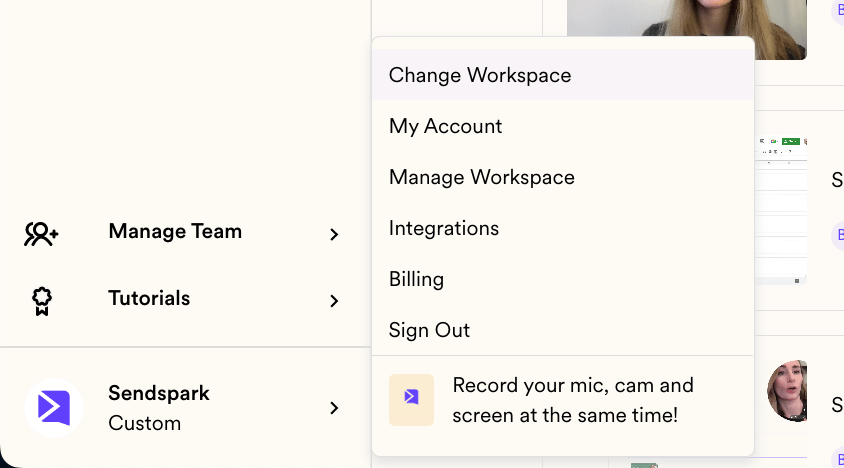
To create a new workspace simply click on the avatar in the bottom left corner of your account and then click on **Change Workspace**
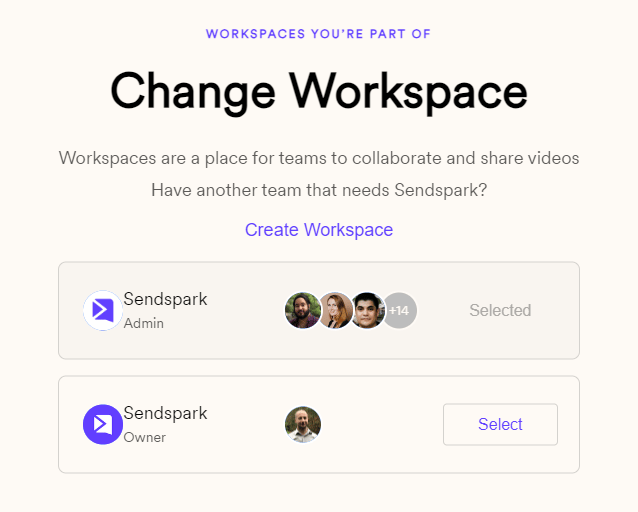
 Now click **Create Workspace:**
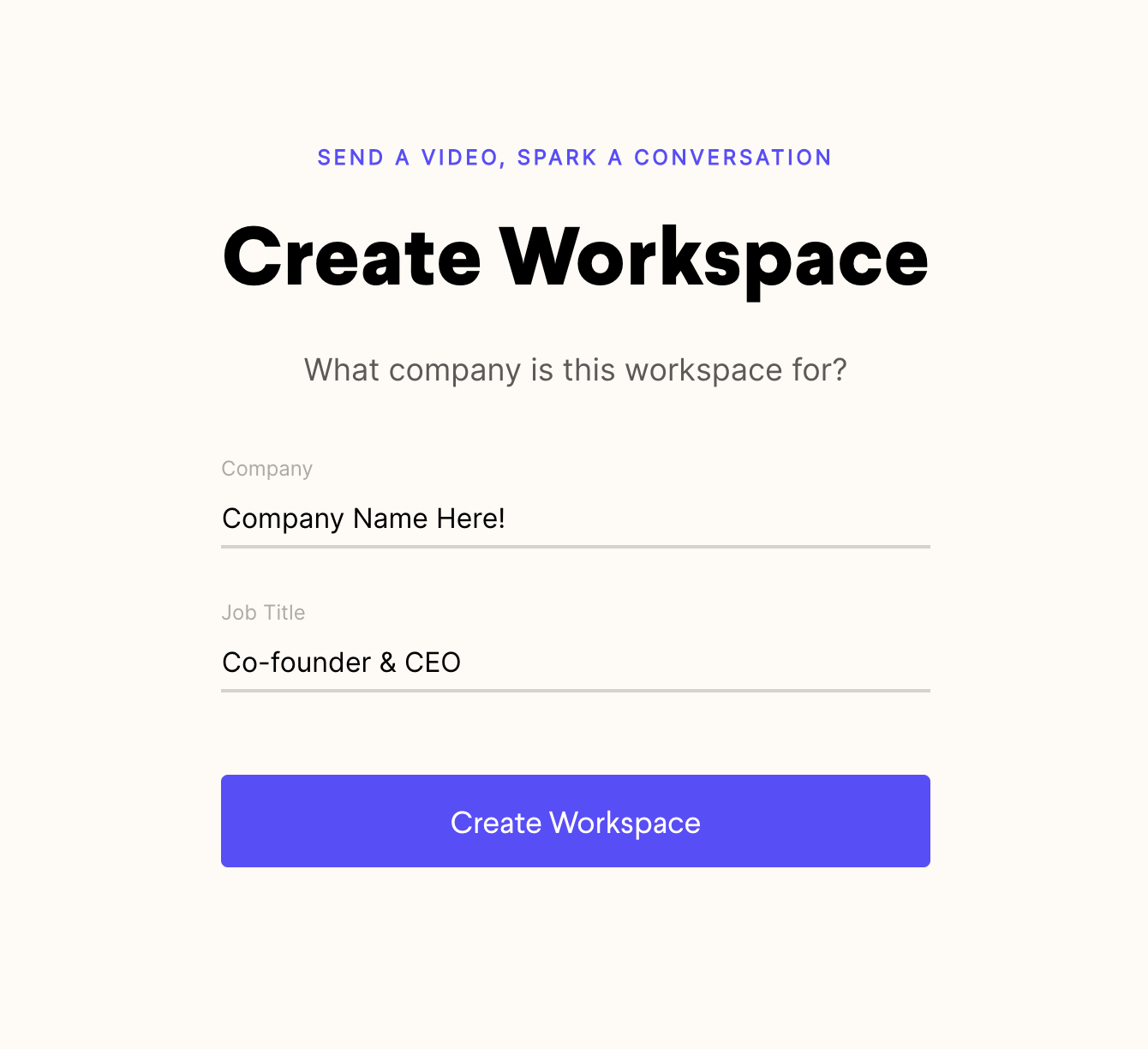
 Add your **Company Name** and you're all set!
 ## How to Toggle Between Workspaces
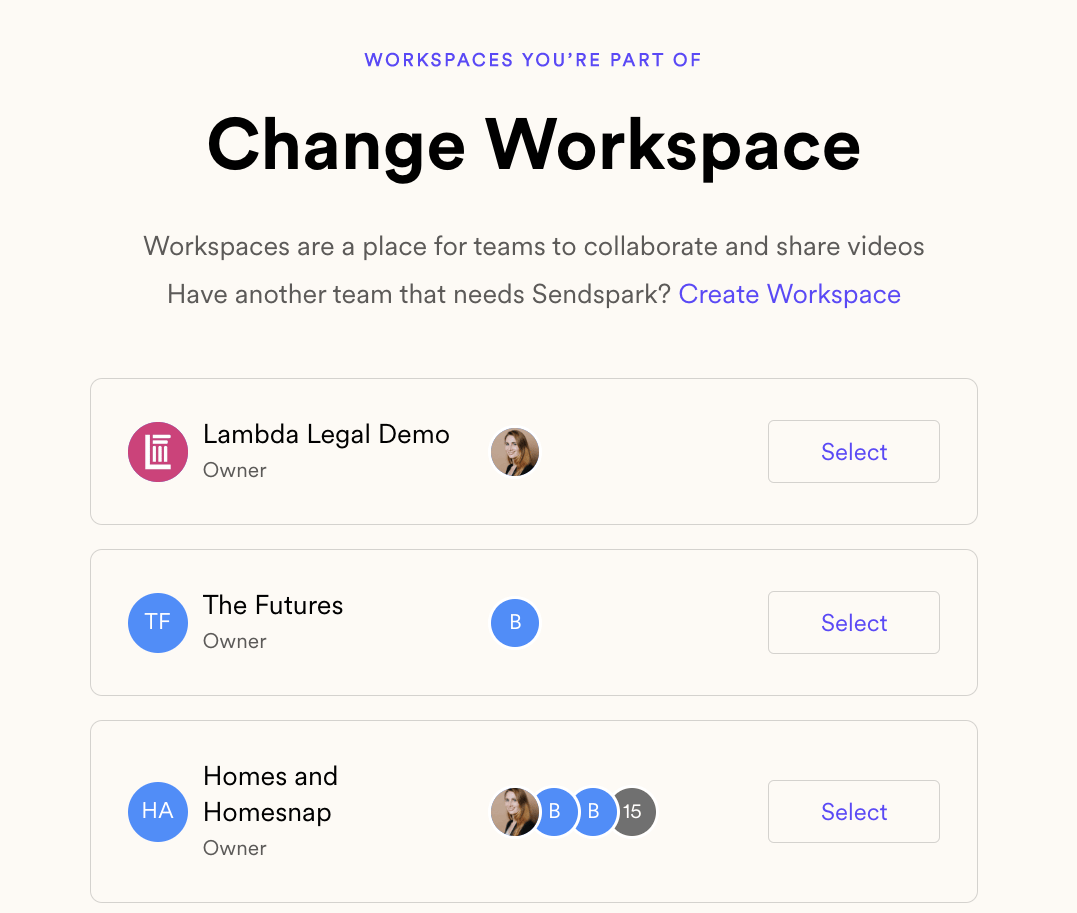
You can get back to your original workspace the same way: just click **Change Workspace**, and then select the workspace you want to be in.
## How to Toggle Between Workspaces
You can get back to your original workspace the same way: just click **Change Workspace**, and then select the workspace you want to be in.
 ## Frequently asked questions
Yes. Like Slack workspaces, every Sendspark workspace is completely independent — each has its own brand styles, team members, and video content — while still being easy to toggle between from one account.
Click your avatar in the bottom-left corner, choose **Change Workspace**, and select the workspace you want to be in. You use the same menu to switch back.
Multiple workspaces are helpful if you manage multiple brands within your company, use Sendspark for two or more companies, or help your clients use Sendspark.
Open [Workspace Settings](https://sendspark.com/settings/workspace), click the Manage Workspace tab, and click the hidden Workspace ID on the right-hand side to copy it. See [How to find your Workspace ID](/how-to-find-your-workspace-id) for details.
Create the workspace, then copy its Workspace ID and share it with Tech Support so they can allocate minutes to it. See [How to create and activate a new workspace](/how-to-create-and-activate-a-new-workspace).
*Updated July 2026.*
## Frequently asked questions
Yes. Like Slack workspaces, every Sendspark workspace is completely independent — each has its own brand styles, team members, and video content — while still being easy to toggle between from one account.
Click your avatar in the bottom-left corner, choose **Change Workspace**, and select the workspace you want to be in. You use the same menu to switch back.
Multiple workspaces are helpful if you manage multiple brands within your company, use Sendspark for two or more companies, or help your clients use Sendspark.
Open [Workspace Settings](https://sendspark.com/settings/workspace), click the Manage Workspace tab, and click the hidden Workspace ID on the right-hand side to copy it. See [How to find your Workspace ID](/how-to-find-your-workspace-id) for details.
Create the workspace, then copy its Workspace ID and share it with Tech Support so they can allocate minutes to it. See [How to create and activate a new workspace](/how-to-create-and-activate-a-new-workspace).
*Updated July 2026.*