> ## Documentation Index
> Fetch the complete documentation index at: https://help.sendspark.com/llms.txt
> Use this file to discover all available pages before exploring further.
# How to Create and Activate a New Workspace
> Learn how to create and activate a new workspace for agencies with step-by-step setup instructions and Tech Support guidance.
If you're on a Sendspark agency plan and want to run multiple workspaces, open the menu and choose **Change Workspace**, then click **Create Workspace**. After finishing setup, copy the new Workspace ID and share it with Tech Support in the chat, tell them how many minutes to allocate to the workspace, and they'll transfer them for you.
## Key takeaways
* These steps are for agencies that plan to run multiple workspaces and have subscribed to an agency plan.
* Create a workspace via the menu → **Change Workspace** → **Create Workspace**.
* After setup, copy the **Workspace ID** and share it with Tech Support through the chat system to activate it.
* If you're on an agency plan, let Tech Support know how many minutes you'd like allocated to the workspace and they'll transfer them.
If you are an agency planning to run multiple workspaces and you've subscribed to an agency plan, follow these steps to activate a new workspace:
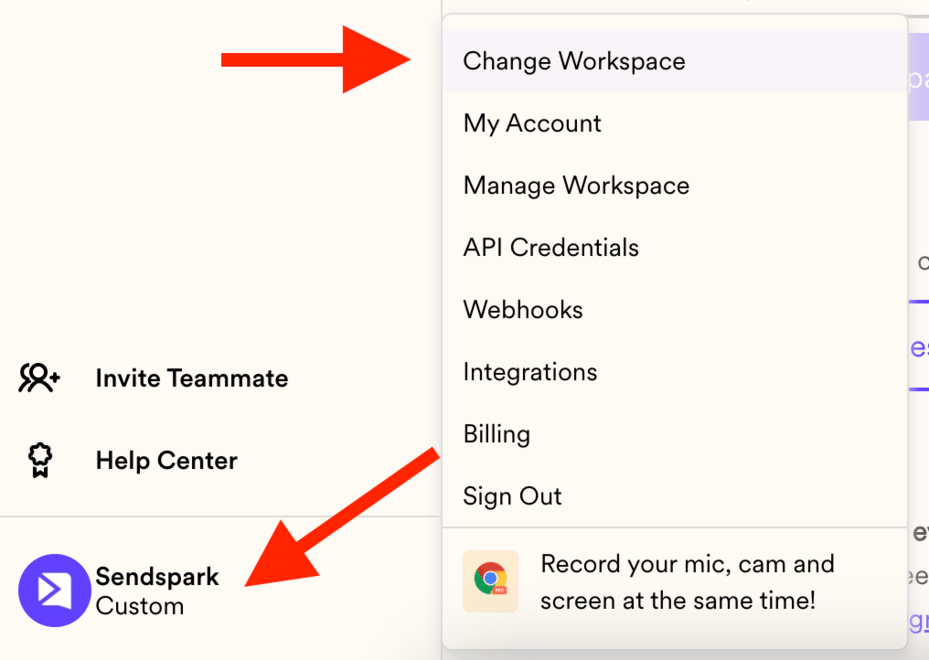
1- Head to your menu button and hit CHANGE WORKSPACE
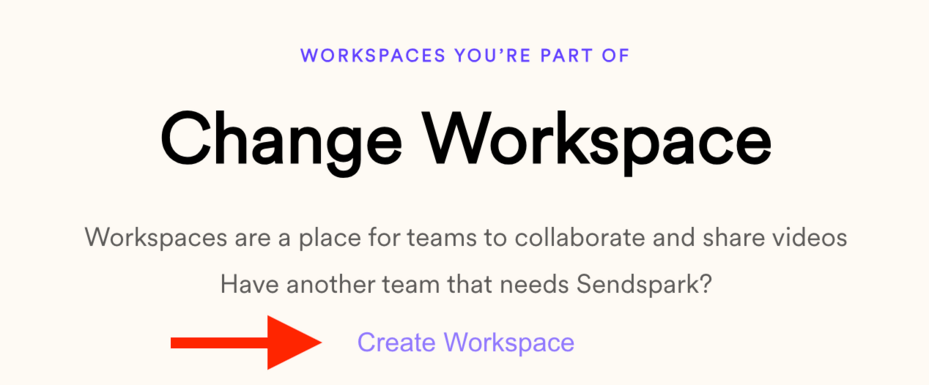
 2- Click on CREATE WORKSPACE
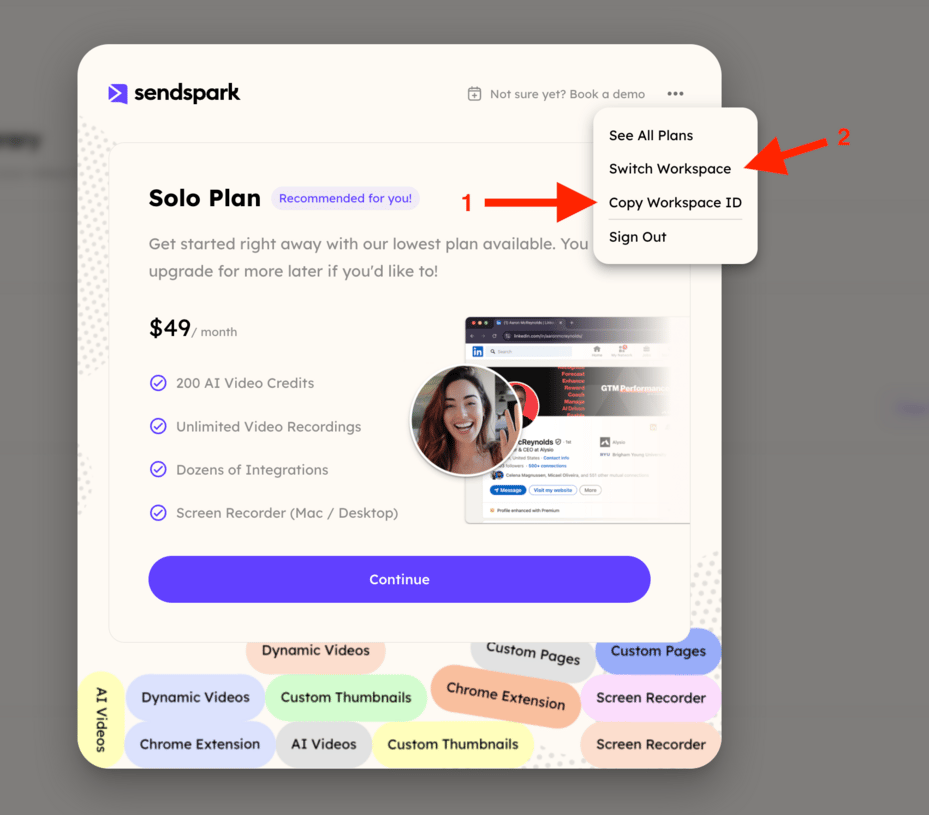
 3- Once you finish the required steps, you'll get the following window. Please copy the Workspace ID and share it with Tech Support through the chat system. If you need to head back, click Switch Workspace to go back to your previous workspace:
 If you currently have an agency plan, please let us know how many minutes you’d like to allocate to that workspace, and we’ll transfer them for you
## Frequently asked questions
These steps are for agencies that plan to run multiple workspaces and have subscribed to an agency plan.
Go to your menu and hit **Change Workspace**, click **Create Workspace**, and finish the required steps. Then copy the Workspace ID and share it with Tech Support through the chat system.
If you have an agency plan, let Tech Support know how many minutes you'd like to allocate to that workspace and they'll transfer them for you.
Open [Workspace Settings](https://sendspark.com/settings/workspace), click the **Manage Workspace** tab, then click the hidden Workspace ID on the right-hand side to copy it. See [How to find your Workspace ID](/how-to-find-your-workspace-id) for details.
*Updated July 2026.*
If you currently have an agency plan, please let us know how many minutes you’d like to allocate to that workspace, and we’ll transfer them for you
## Frequently asked questions
These steps are for agencies that plan to run multiple workspaces and have subscribed to an agency plan.
Go to your menu and hit **Change Workspace**, click **Create Workspace**, and finish the required steps. Then copy the Workspace ID and share it with Tech Support through the chat system.
If you have an agency plan, let Tech Support know how many minutes you'd like to allocate to that workspace and they'll transfer them for you.
Open [Workspace Settings](https://sendspark.com/settings/workspace), click the **Manage Workspace** tab, then click the hidden Workspace ID on the right-hand side to copy it. See [How to find your Workspace ID](/how-to-find-your-workspace-id) for details.
*Updated July 2026.*