> ## Documentation Index
> Fetch the complete documentation index at: https://help.sendspark.com/llms.txt
> Use this file to discover all available pages before exploring further.
# How to Connect LinkedIn and Sendspark
> Learn how to connect your LinkedIn account to Sendspark by adding your li_at cookie value, plus daily video generation limits and troubleshooting tips.
To generate dynamic videos over LinkedIn profiles, connect your LinkedIn account in your Dynamic Video campaign by clicking Connect Social Account and pasting your LinkedIn li\_at cookie value. Because LinkedIn can throttle rapid profile fetches, keep generation to 20 to 30 videos per day and avoid sending large batches all at once.
## Key takeaways
* Connect LinkedIn by pasting your li\_at cookie value into Sendspark via the Connect Social Account button.
* Find the li\_at value in Chrome Developer Tools under Application → Cookies → linkedin.com → li\_at.
* Limit LinkedIn-background video generation to 20 to 30 videos per day to prevent temporary blocks.
* If videos fail or are rejected, wait 24 to 48 hours and reset your cookie/session before retrying.
Sendspark makes it easy to generate dynamic videos of you speaking over LinkedIn profiles.
This can save you a lot of time. Instead of manually recording thousands of videos, you can just shoot one video of yourself, and automatically place it over each of your prospects' LinkedIn profiles by adding the LinkedIn URL in the Background URL field
## How to Add LinkedIn Credentials to Sendspark
In your Dynamic Video campaign, go to the area where you add contacts. Then click the **Connect Social Account**button\*\*.\*\*
In the popup that appears, next to LinkedIn, click **Connect**and add your **LinkedIn Cookie li\_at value** into the input field.
To find your **LinkedIn Cookie li\_at value**, head to your LinkedIn profile and access your inspect tools:
* Open LinkedIn in a Chrome Browser
* Right click on the page and then select**Inspect** in Chrome Developer Tools
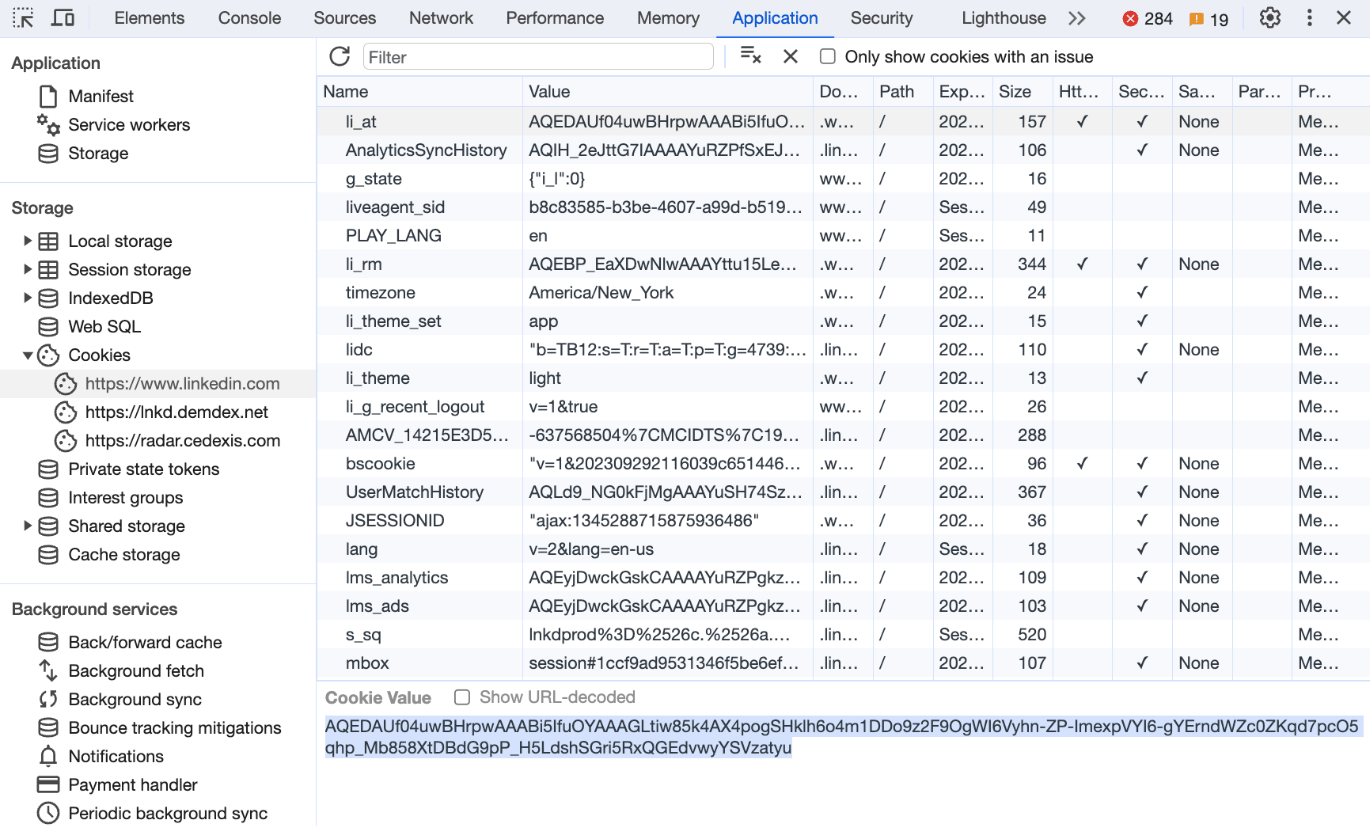
* In the Dev tools, click into **Application >> Cookies >> [https://www.linkedin.com](https://www.linkedin.com/) >> li\_at**
* If you don't see "Application" right away, click the\*\*>>\*\* on the top menu to see more options:
* Copy your**li\_at value**, and paste it into Sendspark.
**This is the expanded view of what you should be seeing:**
## LinkedIn Background Video Generation Limits
When generating videos using LinkedIn profile backgrounds, there are important limits to be aware of.
LinkedIn may temporarily block requests if too many profile fetches are made in a short period of time. This can cause video generation attempts to fail or be rejected.
**Best practices:**
* Limit video generation to **20–30 videos per day** when using LinkedIn profile backgrounds.
* Avoid sending large batches all at once.
**If videos fail or are rejected:**
* Wait **24–48 hours** before attempting again.
* After this waiting period, **reset your cookie/session** before retrying.
Following these guidelines helps ensure consistent video generation and prevents temporary blocks from LinkedIn.
For more information, check this help article.
[LinkedIn profile background won't create video](/linkedin-profile-background-won-t-create-video)
***
## Frequently asked questions
Open LinkedIn in Chrome, right-click the page and choose Inspect, then in Developer Tools go to Application → Cookies → [https://www.linkedin.com](https://www.linkedin.com) → li\_at. Copy the li\_at value and paste it into Sendspark. If you don't see "Application," click the >> on the top menu to reveal more options.
Limit generation to 20 to 30 videos per day when using LinkedIn profile backgrounds, and avoid sending large batches all at once. LinkedIn may temporarily block requests if too many profile fetches happen in a short period.
LinkedIn can temporarily block requests when too many profile fetches are made in a short time, which causes video generation attempts to fail or be rejected.
Wait 24 to 48 hours before trying again, then reset your cookie/session before retrying. This helps ensure consistent generation and prevents temporary blocks.
*Updated July 2026.*
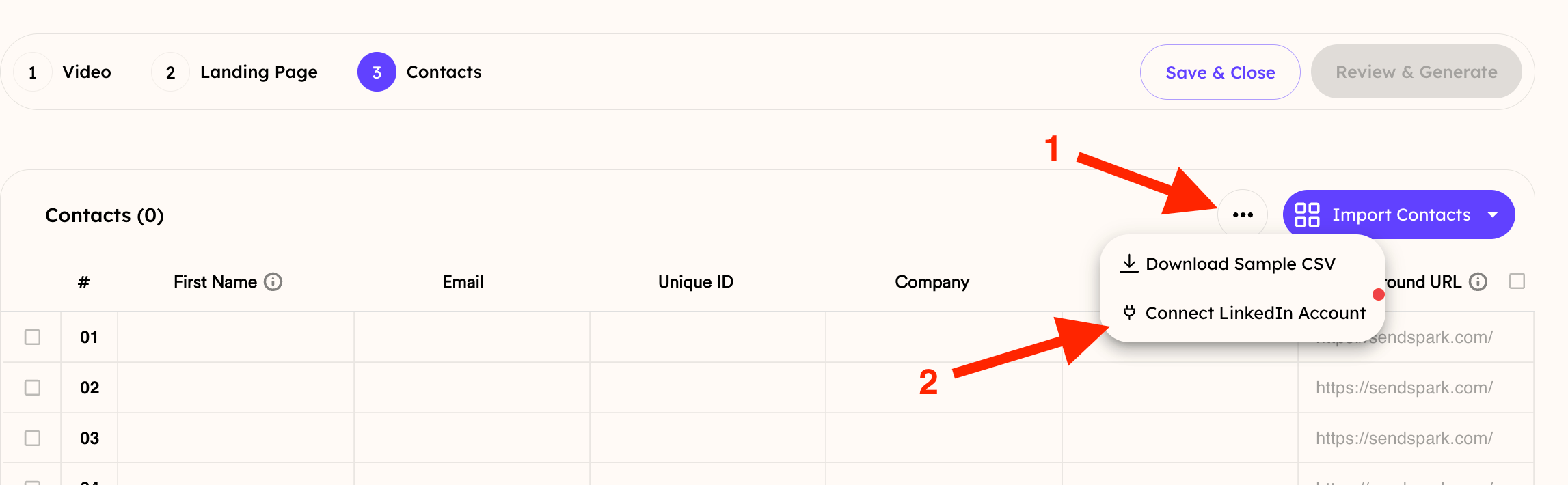 In the popup that appears, next to LinkedIn, click **Connect**and add your **LinkedIn Cookie li\_at value** into the input field.
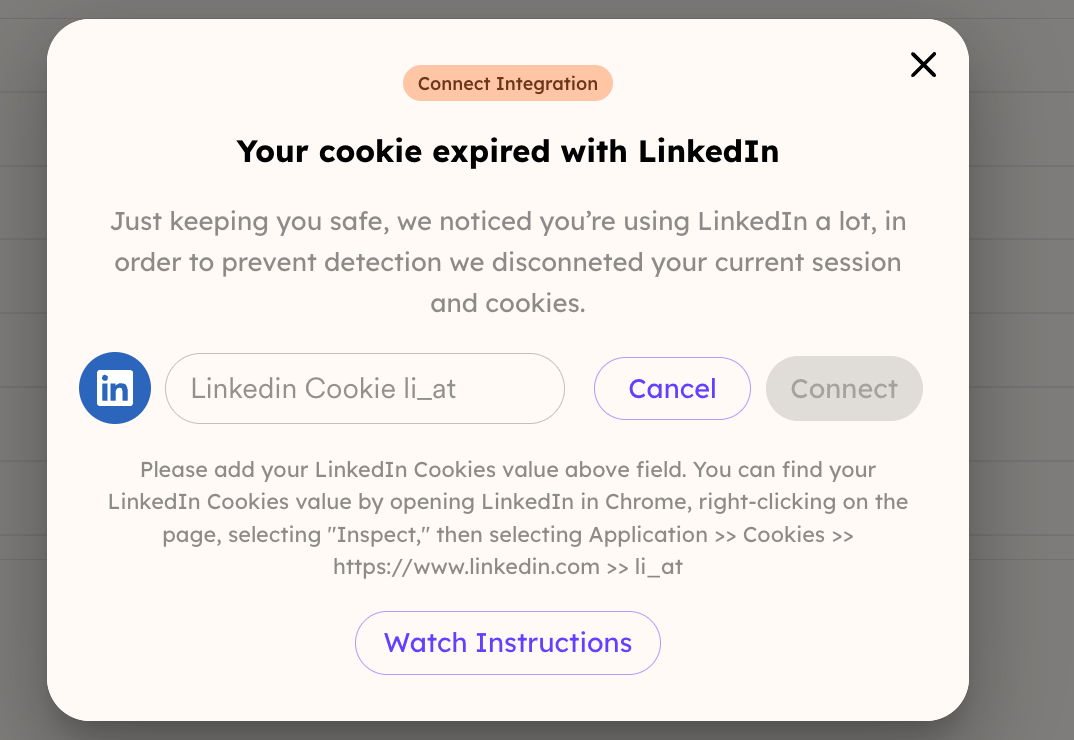 To find your **LinkedIn Cookie li\_at value**, head to your LinkedIn profile and access your inspect tools:
* Open LinkedIn in a Chrome Browser
* Right click on the page and then select**Inspect** in Chrome Developer Tools
To find your **LinkedIn Cookie li\_at value**, head to your LinkedIn profile and access your inspect tools:
* Open LinkedIn in a Chrome Browser
* Right click on the page and then select**Inspect** in Chrome Developer Tools
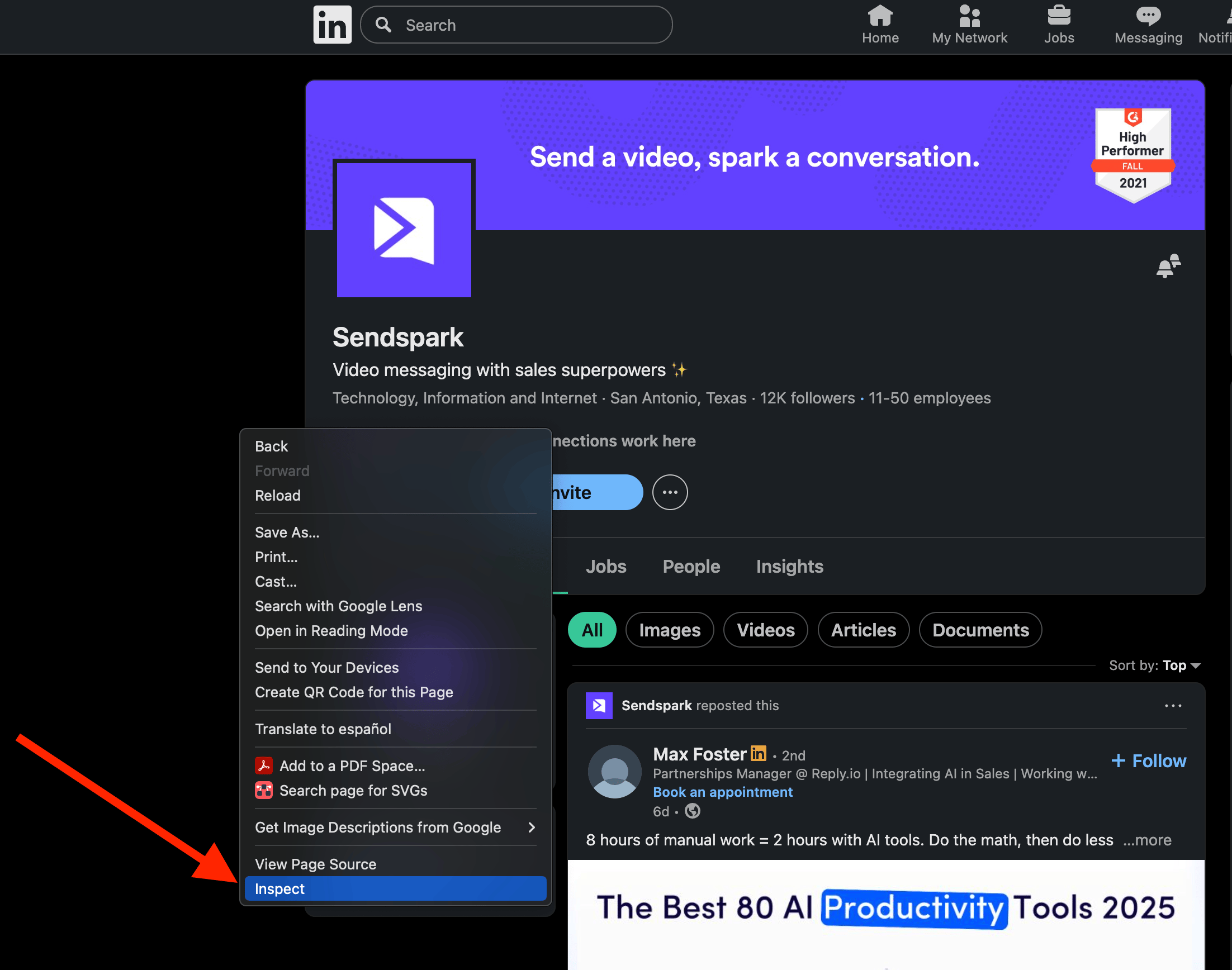 * In the Dev tools, click into **Application >> Cookies >> [https://www.linkedin.com](https://www.linkedin.com/) >> li\_at**
* If you don't see "Application" right away, click the\*\*>>\*\* on the top menu to see more options:
* In the Dev tools, click into **Application >> Cookies >> [https://www.linkedin.com](https://www.linkedin.com/) >> li\_at**
* If you don't see "Application" right away, click the\*\*>>\*\* on the top menu to see more options: 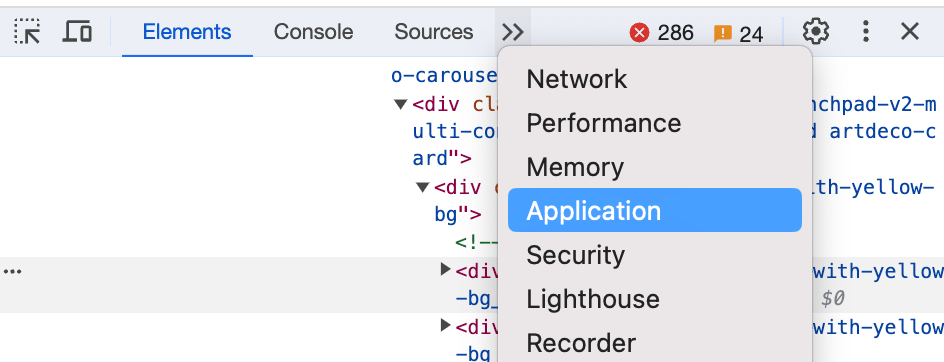 * Copy your**li\_at value**, and paste it into Sendspark.
**This is the expanded view of what you should be seeing:**
* Copy your**li\_at value**, and paste it into Sendspark.
**This is the expanded view of what you should be seeing:**
 ## LinkedIn Background Video Generation Limits
When generating videos using LinkedIn profile backgrounds, there are important limits to be aware of.
LinkedIn may temporarily block requests if too many profile fetches are made in a short period of time. This can cause video generation attempts to fail or be rejected.
**Best practices:**
* Limit video generation to **20–30 videos per day** when using LinkedIn profile backgrounds.
* Avoid sending large batches all at once.
**If videos fail or are rejected:**
* Wait **24–48 hours** before attempting again.
* After this waiting period, **reset your cookie/session** before retrying.
Following these guidelines helps ensure consistent video generation and prevents temporary blocks from LinkedIn.
For more information, check this help article.
[LinkedIn profile background won't create video](/linkedin-profile-background-won-t-create-video)
***
## Frequently asked questions
## LinkedIn Background Video Generation Limits
When generating videos using LinkedIn profile backgrounds, there are important limits to be aware of.
LinkedIn may temporarily block requests if too many profile fetches are made in a short period of time. This can cause video generation attempts to fail or be rejected.
**Best practices:**
* Limit video generation to **20–30 videos per day** when using LinkedIn profile backgrounds.
* Avoid sending large batches all at once.
**If videos fail or are rejected:**
* Wait **24–48 hours** before attempting again.
* After this waiting period, **reset your cookie/session** before retrying.
Following these guidelines helps ensure consistent video generation and prevents temporary blocks from LinkedIn.
For more information, check this help article.
[LinkedIn profile background won't create video](/linkedin-profile-background-won-t-create-video)
***
## Frequently asked questions