> ## Documentation Index
> Fetch the complete documentation index at: https://help.sendspark.com/llms.txt
> Use this file to discover all available pages before exploring further.
# How Enable/Disable the "Like" Button
> Learn how to enable or disable the Like button on shared videos in Sendspark using global settings or individual video controls.
Sendspark lets you turn the video player's "Like" button on or off in two ways: globally for every shared video from Manage Workspace, or individually for a single video from its Edit menu. Disabling it stops viewers from publicly reacting to your content, giving you full control over how prospects engage.
## Key takeaways
* There are two ways to control the "Like" button: a global workspace setting and a per-video toggle.
* Set it for all shared videos under **Your Company → Manage Workspace**, then toggle **Video Player Like Button** on or off.
* Toggle a single video from its **Edit** section using the three-dots menu, where you'll find the **Thumb Up** option.
* Disabling the "Like" button prevents viewers from publicly reacting to your content.
Now you have the power to disable the "Like" button on shared videos, giving you full control over how your prospects engage with your content. Let's explore how this customization option can take your communication strategy to the next level.
***
You have 2 ways to toggle this feature On or Off:
**1) Global Settings** option: It allows users to set their preferences for all shared videos. This is perfect for those who want a consistent approach across their entire Sendspark account.
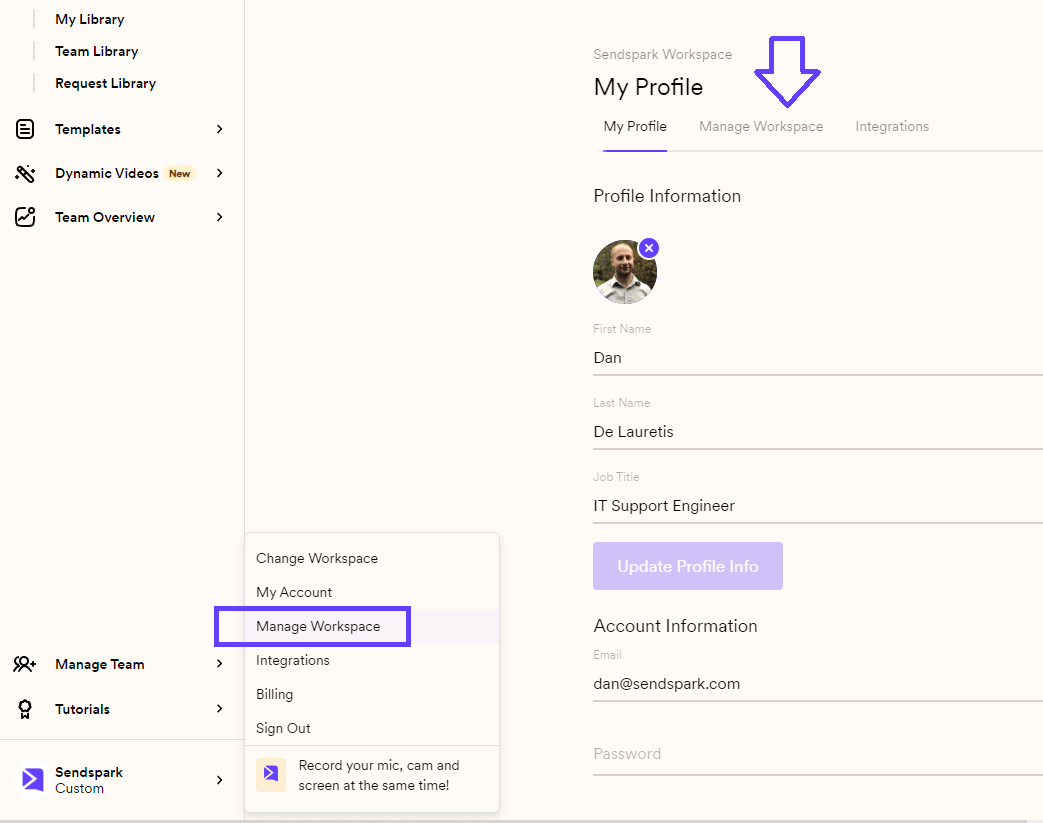
Simply go to **Your Company** --> **Manage Workspace**and click on the **Manage Workspace** Tab. Here's a link for quick access: [https://sendspark.com/settings/workspace](https://sendspark.com/settings/workspace)
 Scroll down to the bottom and you'll find these two options:
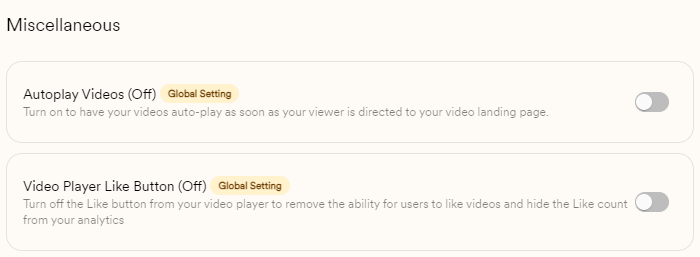 Now, you can choose to toggle **Video Player Like Button** Off or On.
***
**2)** Alternatively, you can also toggle the "Like" button for individual videos.
Click on the video you want to customize, and once you are in the **Edit** section click on the three dots located above your video:
Now, you can choose to toggle **Video Player Like Button** Off or On.
***
**2)** Alternatively, you can also toggle the "Like" button for individual videos.
Click on the video you want to customize, and once you are in the **Edit** section click on the three dots located above your video:
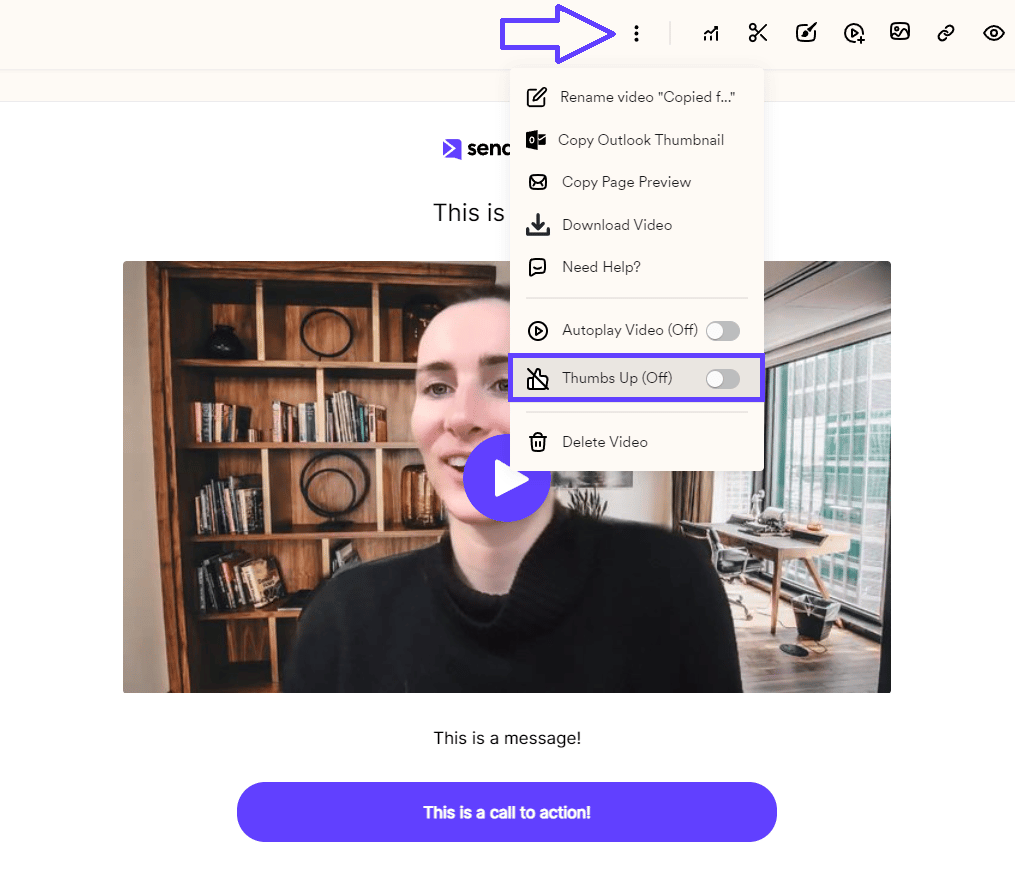 You'll notice the **Thumb Up**on the dropdown menu at your disposal
By disabling the "Like" button, you're adding an extra layer of control and ensuring that viewers can't publicly react to your content.
## Frequently asked questions
Use the global setting. Go to **Your Company → Manage Workspace**, open the **Manage Workspace** tab ([sendspark.com/settings/workspace](https://sendspark.com/settings/workspace)), scroll to the bottom, and toggle **Video Player Like Button** on or off. This applies the same preference across your entire Sendspark account.
Yes. Open the video you want to customize, go into the **Edit** section, and click the three dots located above your video. In the dropdown menu you'll find the **Thumb Up** option to toggle the "Like" button for that individual video.
Viewers can no longer publicly react to your video with a like. It adds an extra layer of control over how prospects engage with your content while they watch.
No. If you want a consistent approach across your whole account, use the Global Settings option so the preference applies to all shared videos. The per-video toggle is there for when you want to override the setting on a single video.
*Updated July 2026.*
You'll notice the **Thumb Up**on the dropdown menu at your disposal
By disabling the "Like" button, you're adding an extra layer of control and ensuring that viewers can't publicly react to your content.
## Frequently asked questions
Use the global setting. Go to **Your Company → Manage Workspace**, open the **Manage Workspace** tab ([sendspark.com/settings/workspace](https://sendspark.com/settings/workspace)), scroll to the bottom, and toggle **Video Player Like Button** on or off. This applies the same preference across your entire Sendspark account.
Yes. Open the video you want to customize, go into the **Edit** section, and click the three dots located above your video. In the dropdown menu you'll find the **Thumb Up** option to toggle the "Like" button for that individual video.
Viewers can no longer publicly react to your video with a like. It adds an extra layer of control over how prospects engage with your content while they watch.
No. If you want a consistent approach across your whole account, use the Global Settings option so the preference applies to all shared videos. The per-video toggle is there for when you want to override the setting on a single video.
*Updated July 2026.*