> ## Documentation Index
> Fetch the complete documentation index at: https://help.sendspark.com/llms.txt
> Use this file to discover all available pages before exploring further.
# HighLevel (GHL) - Using Tags to Trigger Actions
> Learn how to use HighLevel tags to trigger automations and create workflows that update or create contacts with proper tagging.
In GoHighLevel, applying a tag to a contact can trigger automations like campaigns, emails, and SMS. To tag contacts from Sendspark, build an Agentic Workflow that triggers on Video Created, searches for the contact by email or phone, updates and tags them if they exist, and — using the Error Handler — creates and tags them if they don't. A Tool Break between the two paths prevents duplicate contacts.
## Key takeaways
* Tags are one of the most effective ways to trigger automations in GoHighLevel — applying a tag can launch campaigns, send emails, send SMS, and more.
* The workflow triggers on **Dynamic Video Campaign → Video Created**, then searches for the contact by email or phone number.
* **If the contact exists**, it's updated and tagged; a **Tool Break** then stops the flow to prevent a duplicate.
* **If the contact doesn't exist**, the **Error Handler** passes control to a Create Contact step that creates and tags the new contact.
Tags are one of the most effective ways to trigger automations in GoHighLevel. When a tag is applied to a contact, you can use it to launch campaigns, send emails, send SMS messages, and more.
Here’s how it works with Sendspark:
* When a video is generated in Sendspark, we want to either **create a new contact** in GoHighLevel or **update an existing contact**.
* In both cases, we’ll apply a tag (for example, the name of the campaign) so the contact is added to the right automation sequence.
Because sometimes the contact already exists and sometimes it doesn’t, we use the **Error Handler tool** in Agentic Workflows:
* **If the contact exists** → update the contact and apply the tag.
* **If the contact doesn’t exist** → create the contact and apply the tag.
This setup ensures that every contact receives the correct tag and is automatically placed into the right automation.
## In the following example, you'll notice the steps required to build this:
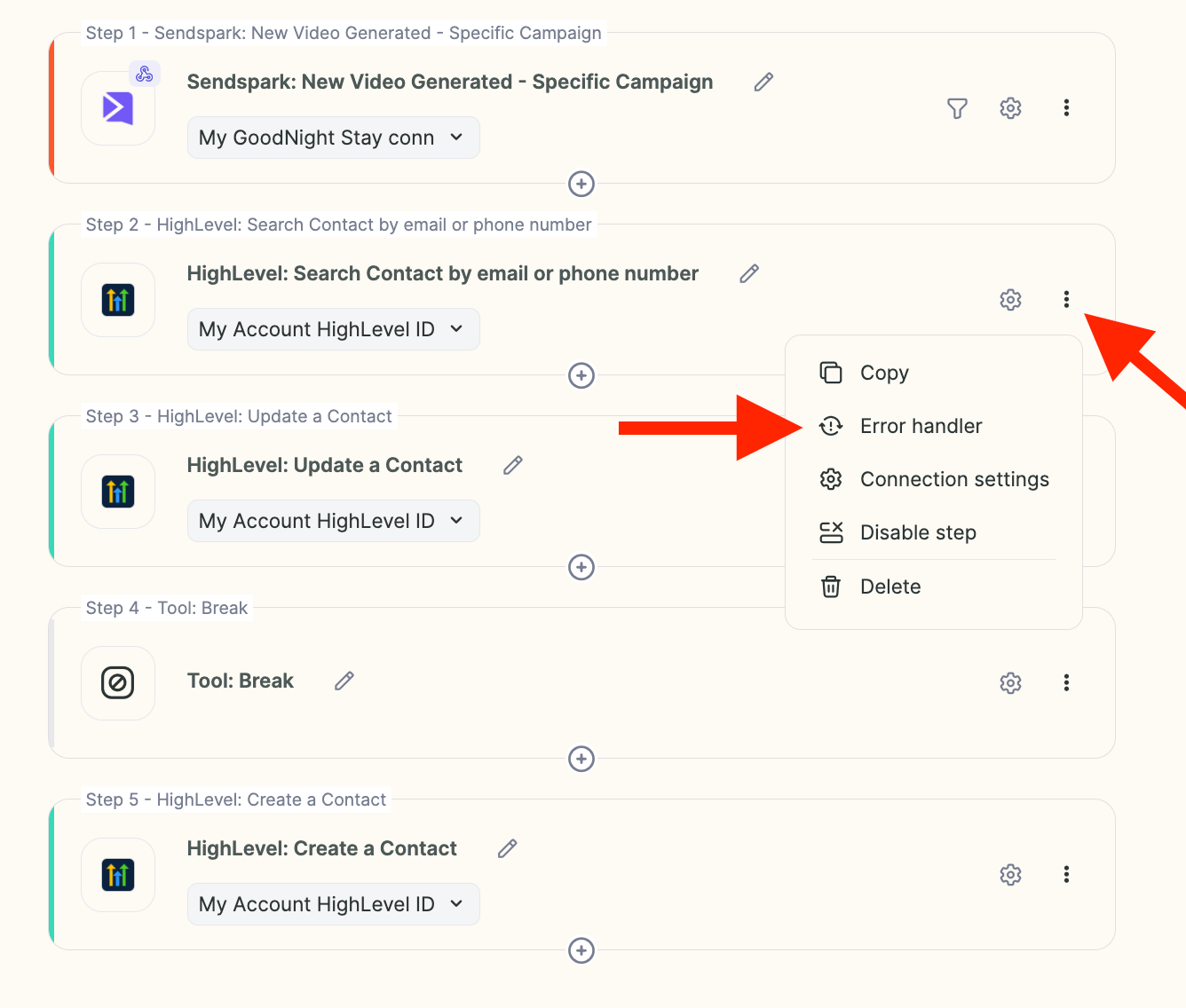 ## Workflow Example: Updating or Creating a Contact with Tags
Here’s how to build a workflow that ensures every contact gets the correct tag—whether the contact already exists or not.
| Step | Action | Purpose |
| ---- | ----------------------------------------------- | ------------------------------------------------------------------------ |
| 1 | Trigger: Dynamic Video Campaign → Video Created | Start the workflow when a video is generated |
| 2 | Hubato: Search Contact by Email or Phone Number | Check whether the contact already exists |
| 3 | Hubato: Update Contact | Apply the tag to the existing contact (uses the Contact ID from Step 2) |
| 4 | Tool Break | Stop here if the contact was found and updated, preventing a duplicate |
| 5 | Create Contact (Error Handler) | Runs only if no contact was found — create the contact and apply the tag |
## Step 1: Trigger
Start with the trigger: **Dynamic Video Campaign → Video Created**.
## Step 2: Search for Contact
Add the action **Hubato: Search Contact by Email or Phone Number**.
* This checks if the contact already exists in GoHighLevel.
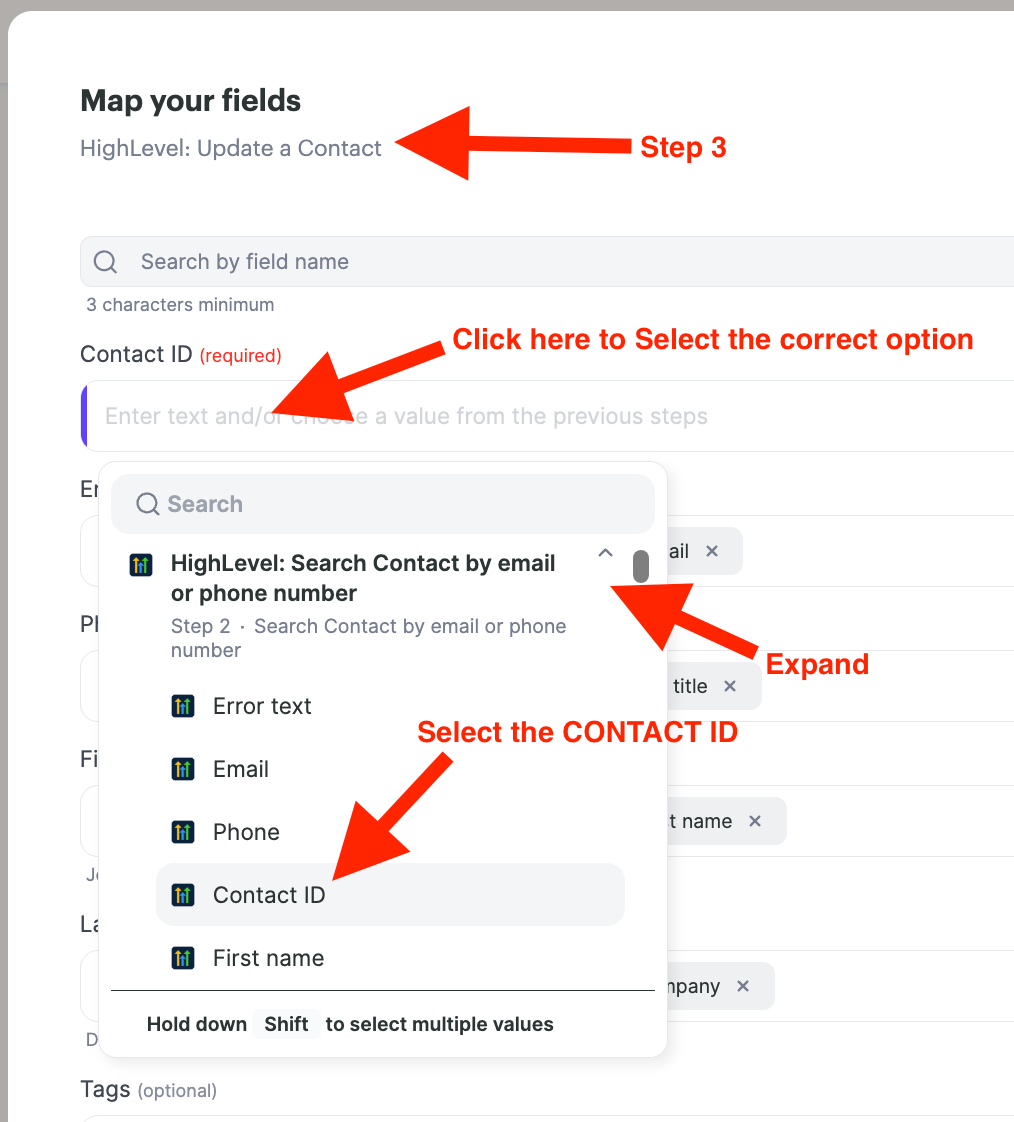
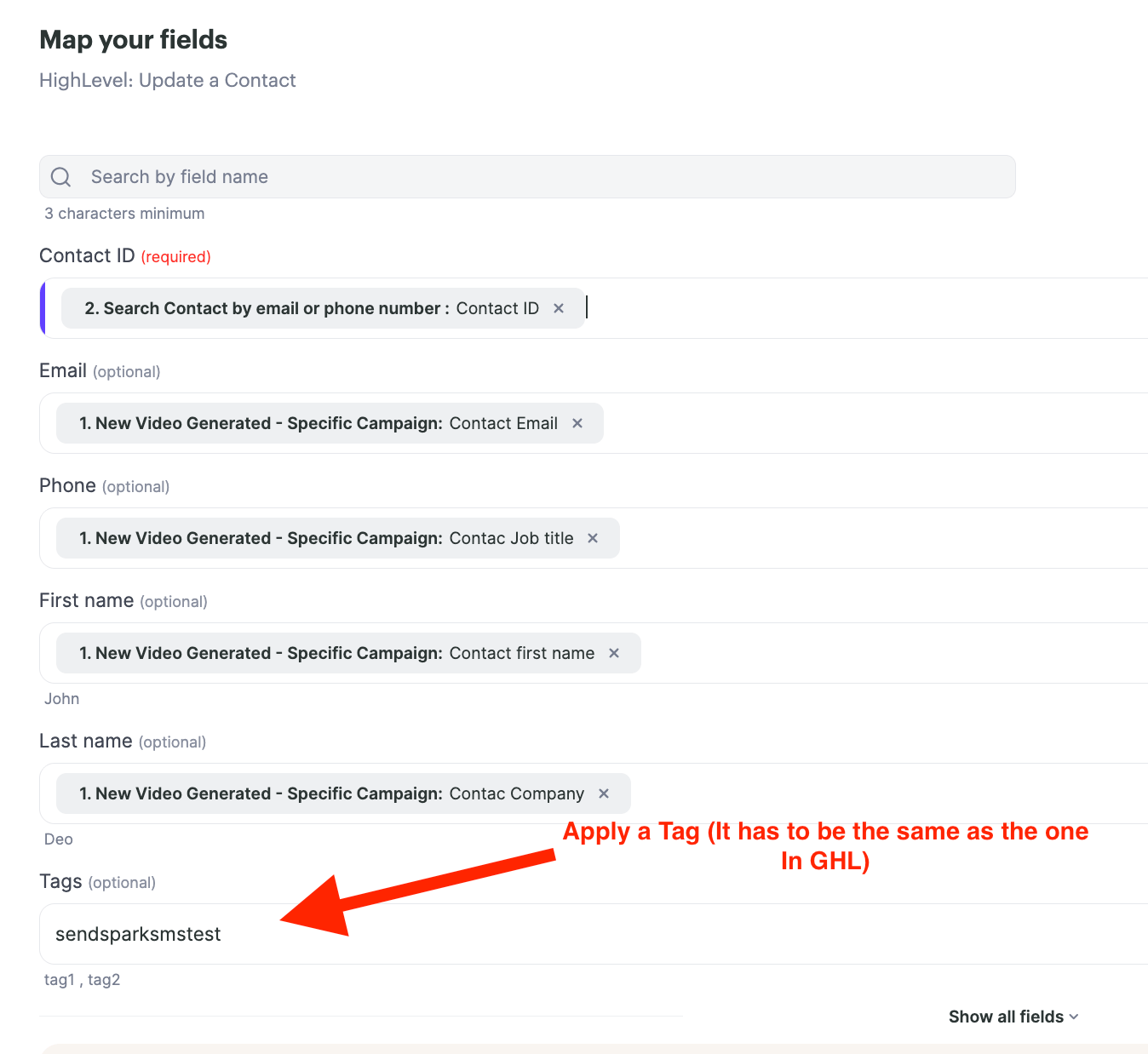
## Step 3: Update Contact
Add the action **Hubato: Update Contact**.
* This step requires a **Contact ID**, which is provided by the search in Step 2.
* The update is used to apply a tag to the existing contact.
## Workflow Example: Updating or Creating a Contact with Tags
Here’s how to build a workflow that ensures every contact gets the correct tag—whether the contact already exists or not.
| Step | Action | Purpose |
| ---- | ----------------------------------------------- | ------------------------------------------------------------------------ |
| 1 | Trigger: Dynamic Video Campaign → Video Created | Start the workflow when a video is generated |
| 2 | Hubato: Search Contact by Email or Phone Number | Check whether the contact already exists |
| 3 | Hubato: Update Contact | Apply the tag to the existing contact (uses the Contact ID from Step 2) |
| 4 | Tool Break | Stop here if the contact was found and updated, preventing a duplicate |
| 5 | Create Contact (Error Handler) | Runs only if no contact was found — create the contact and apply the tag |
## Step 1: Trigger
Start with the trigger: **Dynamic Video Campaign → Video Created**.
## Step 2: Search for Contact
Add the action **Hubato: Search Contact by Email or Phone Number**.
* This checks if the contact already exists in GoHighLevel.
## Step 3: Update Contact
Add the action **Hubato: Update Contact**.
* This step requires a **Contact ID**, which is provided by the search in Step 2.
* The update is used to apply a tag to the existing contact.
 ## Step 4: Tool Break
Insert a **Tool Break**.
* Purpose: If a contact was found and updated in Step 3, the workflow stops here.
* This prevents creating a duplicate contact.
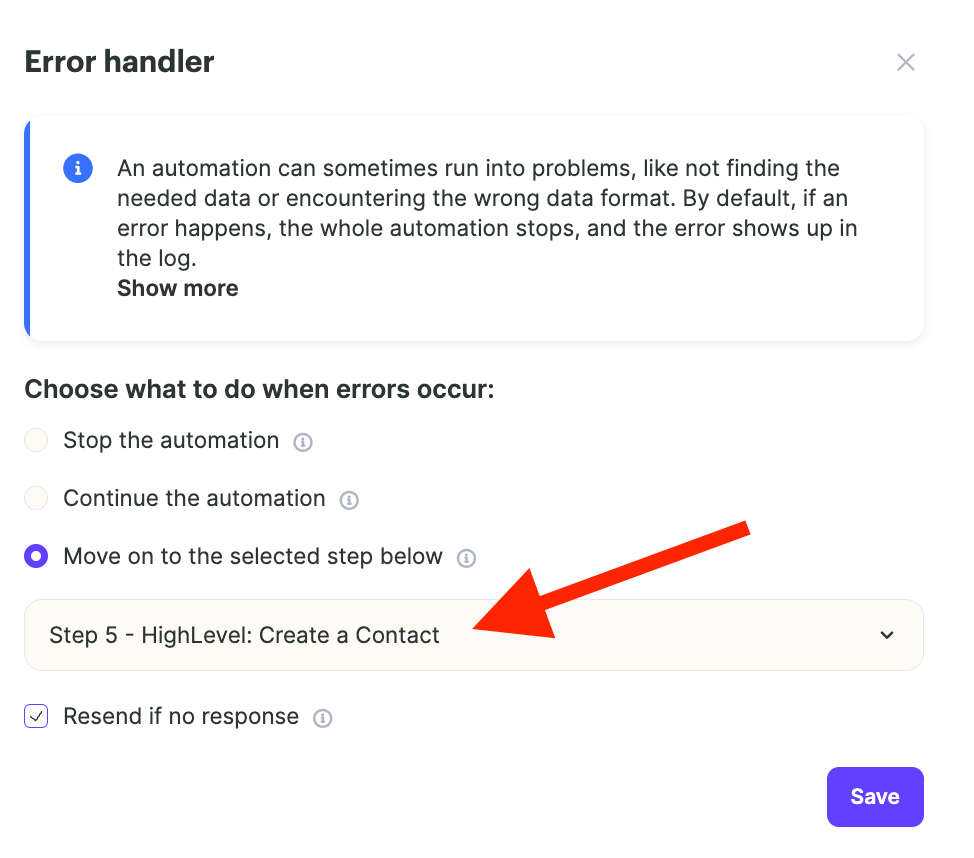
## Step 5: Create Contact (Error Handler)
After the Tool Break, add the action **Create Contact**.
* This step only runs if the contact was **not found** in Step 2 (Search for a Contact)
* The Error Handler ensures that when the search fails (no contact exists), the workflow continues here to create a new contact and apply the tag.
## Step 4: Tool Break
Insert a **Tool Break**.
* Purpose: If a contact was found and updated in Step 3, the workflow stops here.
* This prevents creating a duplicate contact.
## Step 5: Create Contact (Error Handler)
After the Tool Break, add the action **Create Contact**.
* This step only runs if the contact was **not found** in Step 2 (Search for a Contact)
* The Error Handler ensures that when the search fails (no contact exists), the workflow continues here to create a new contact and apply the tag.
## How It Works
* **If the contact exists** → Search succeeds → Update the contact → Apply tag → Stop.
* **If the contact doesn’t exist** → Search fails → Error Handler passes control → Create the contact → Apply tag.
This setup guarantees that every video-triggered workflow results in a properly tagged contact, without duplicates.
## Frequently asked questions
When a tag is applied to a contact, GoHighLevel can use it to launch campaigns, send emails, send SMS messages, and more — placing the contact into the right automation sequence.
Build an Agentic Workflow that triggers on Dynamic Video Campaign → Video Created, searches for the contact by email or phone, and then updates and tags the contact (if they exist) or creates and tags them (if they don't).
Add a Tool Break after the Update Contact step. If the contact was found and updated, the Tool Break stops the workflow so it doesn't continue to the Create Contact step and make a duplicate.
The Error Handler handles the case where the search finds no existing contact. When the search fails, it passes control to the Create Contact step, which creates the new contact and applies the tag.
*Updated July 2026.*
## How It Works
* **If the contact exists** → Search succeeds → Update the contact → Apply tag → Stop.
* **If the contact doesn’t exist** → Search fails → Error Handler passes control → Create the contact → Apply tag.
This setup guarantees that every video-triggered workflow results in a properly tagged contact, without duplicates.
## Frequently asked questions
When a tag is applied to a contact, GoHighLevel can use it to launch campaigns, send emails, send SMS messages, and more — placing the contact into the right automation sequence.
Build an Agentic Workflow that triggers on Dynamic Video Campaign → Video Created, searches for the contact by email or phone, and then updates and tags the contact (if they exist) or creates and tags them (if they don't).
Add a Tool Break after the Update Contact step. If the contact was found and updated, the Tool Break stops the workflow so it doesn't continue to the Create Contact step and make a duplicate.
The Error Handler handles the case where the search finds no existing contact. When the search fails, it passes control to the Create Contact step, which creates the new contact and applies the tag.
*Updated July 2026.*