> ## Documentation Index
> Fetch the complete documentation index at: https://help.sendspark.com/llms.txt
> Use this file to discover all available pages before exploring further.
# HeyReach - Send Dynamic Videos
> Learn how to send AI personalized videos in HeyReach using Sendspark integration for dynamic LinkedIn outreach campaigns.
To send AI personalized videos in HeyReach, create your dynamic videos in Sendspark, download the campaign CSV, and upload it to HeyReach. Map Sendspark's **Video Link** column to a HeyReach custom variable, then insert that variable into your LinkedIn connection requests or messages so each prospect receives their own personalized video.
## Key takeaways
* The flow is: create AI personalized videos in Sendspark → download the CSV → upload to HeyReach → map **Video Link** → use it in your LinkedIn outreach.
* HeyReach is a LinkedIn automation tool, so the personalized video goes into **connection requests or LinkedIn messages**, not email.
* The key field to map is **Video Link**, the unique link to each prospect's generated video, mapped to a HeyReach **custom variable**.
* When the video link is sent in a LinkedIn message, it unfurls into an animated preview that recipients can click to watch.
## How to Send AI Personalized Videos in HeyReach
1. Create AI Personalized Videos in Sendspark
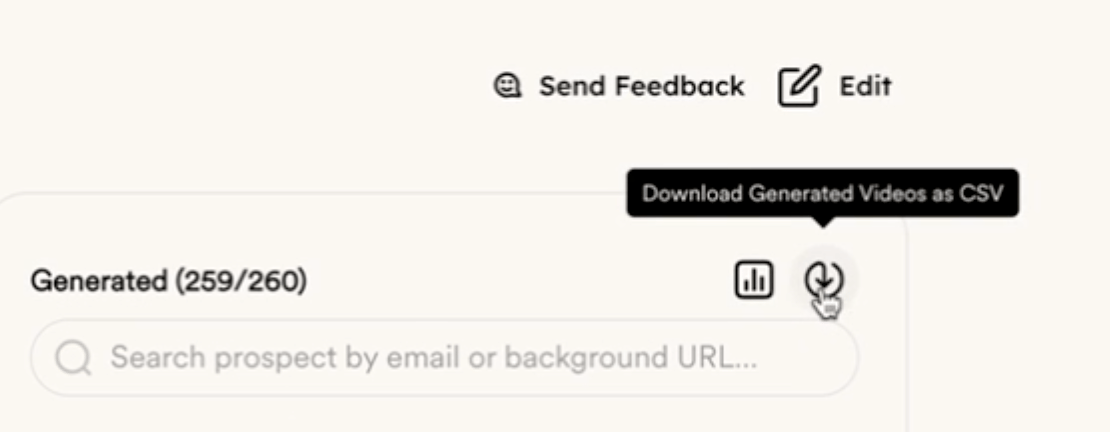
2. Download CSV from Sendspark
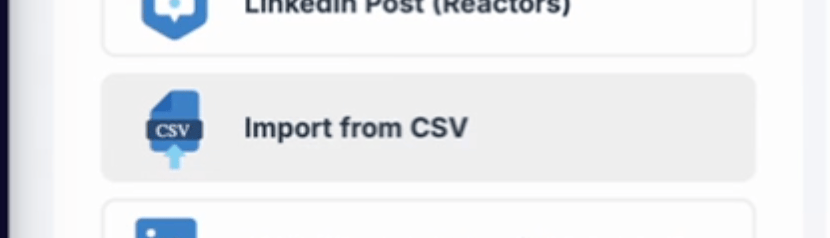
3. Upload CSV to HeyReach
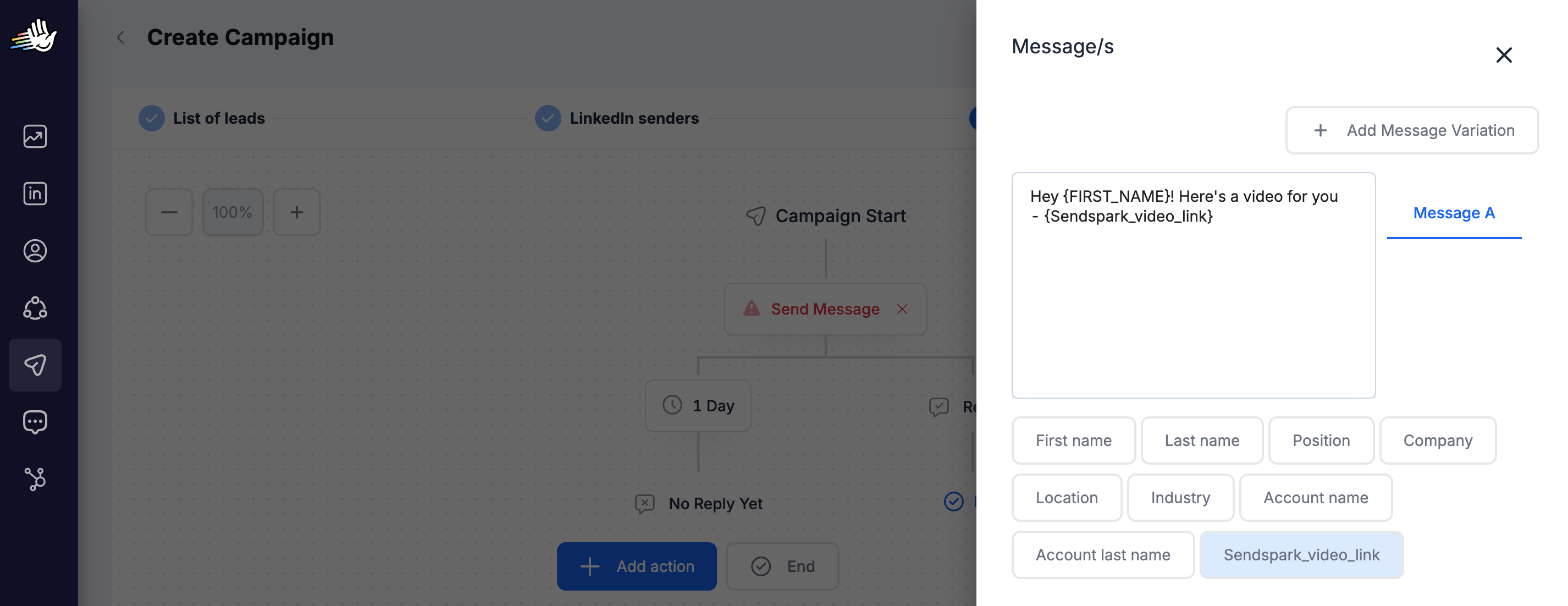
4. Map "Video Link" variable from Sendspark to a Custom Variable in HeyReach
5. Use the "Video Link" variable where you want your personalized video to appear in LinkedIn Connection Requests or LinkedIn Messages
Let us know if you need any help!
## Frequently asked questions
Map the **Video Link** column from Sendspark's CSV to a custom variable in HeyReach. Video Link is the unique link to the dynamic video generated for each contact, and it's what you insert into your LinkedIn outreach.
Use the mapped Video Link variable wherever you want the personalized video to appear in your LinkedIn connection requests or LinkedIn messages. HeyReach is a LinkedIn automation platform, so videos go into LinkedIn outreach rather than email.
Create an AI personalized (dynamic) video campaign in Sendspark first, generate a video for each contact, then download the CSV. That CSV includes the Video Link column you'll upload and map in HeyReach.
When you send the video link in a LinkedIn message, it unfurls into an animated preview that the recipient can click to watch the full personalized video.
*Updated July 2026.*
 3. Upload CSV to HeyReach
  4. Map "Video Link" variable from Sendspark to a Custom Variable in HeyReach
  5. Use the "Video Link" variable where you want your personalized video to appear in LinkedIn Connection Requests or LinkedIn Messages
  Let us know if you need any help!
## Frequently asked questions
Let us know if you need any help!
## Frequently asked questions