> ## Documentation Index
> Fetch the complete documentation index at: https://help.sendspark.com/llms.txt
> Use this file to discover all available pages before exploring further.
# Gmass- Send Dynamic Videos
> Learn how to send dynamic videos through Gmass by connecting your video campaign with Google Sheets and Gmail in simple steps.
To send dynamic videos with GMass, generate your videos in a Dynamic Video Campaign and export the campaign CSV. Copy at least the First Name and Email columns into a Google Sheet, connect GMass to that sheet in Gmail, then click Share Campaign in Sendspark and select GMass. Compose a new email, paste the snippet, and send a test to see it come to life.
## Key takeaways
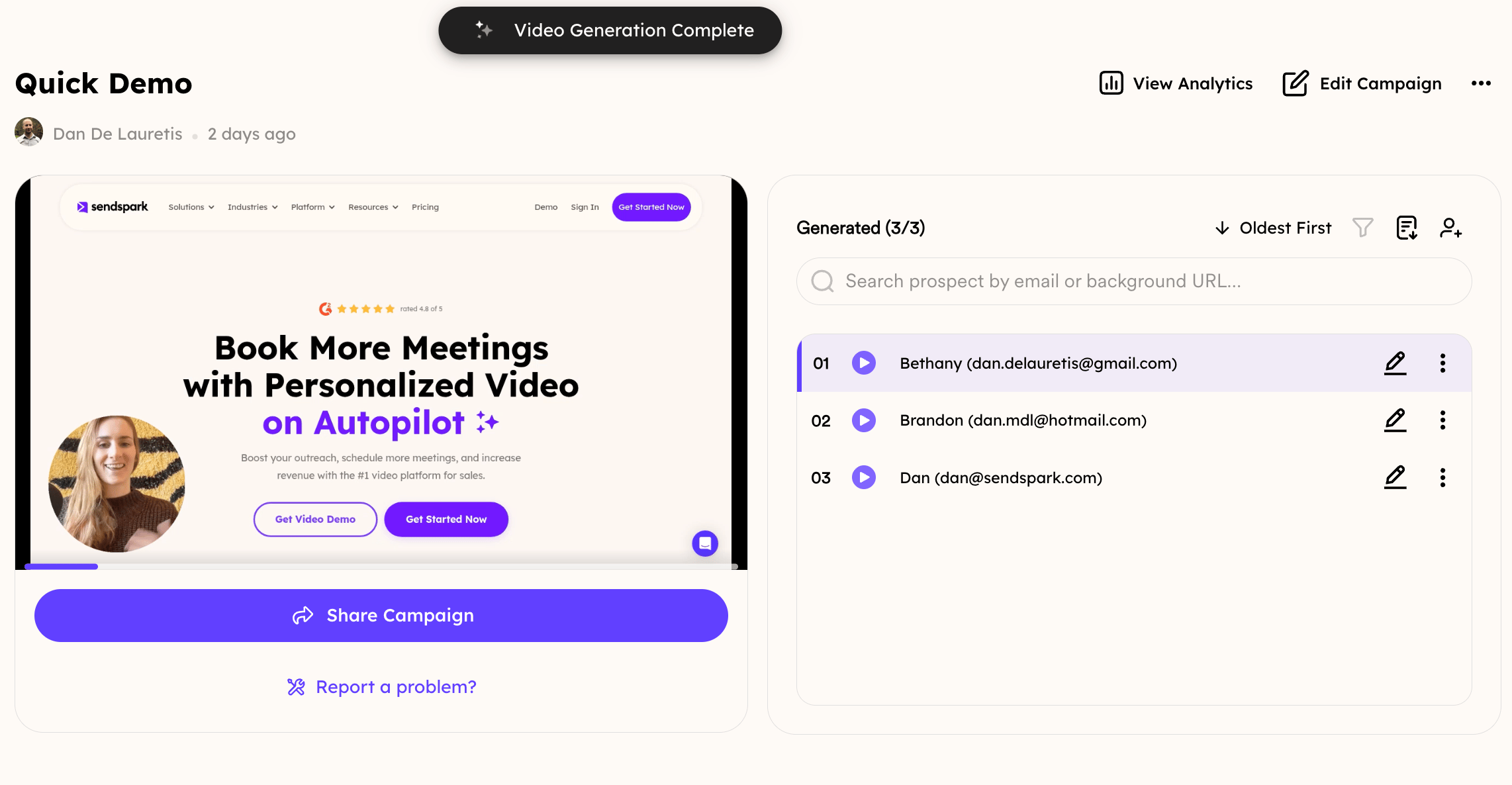
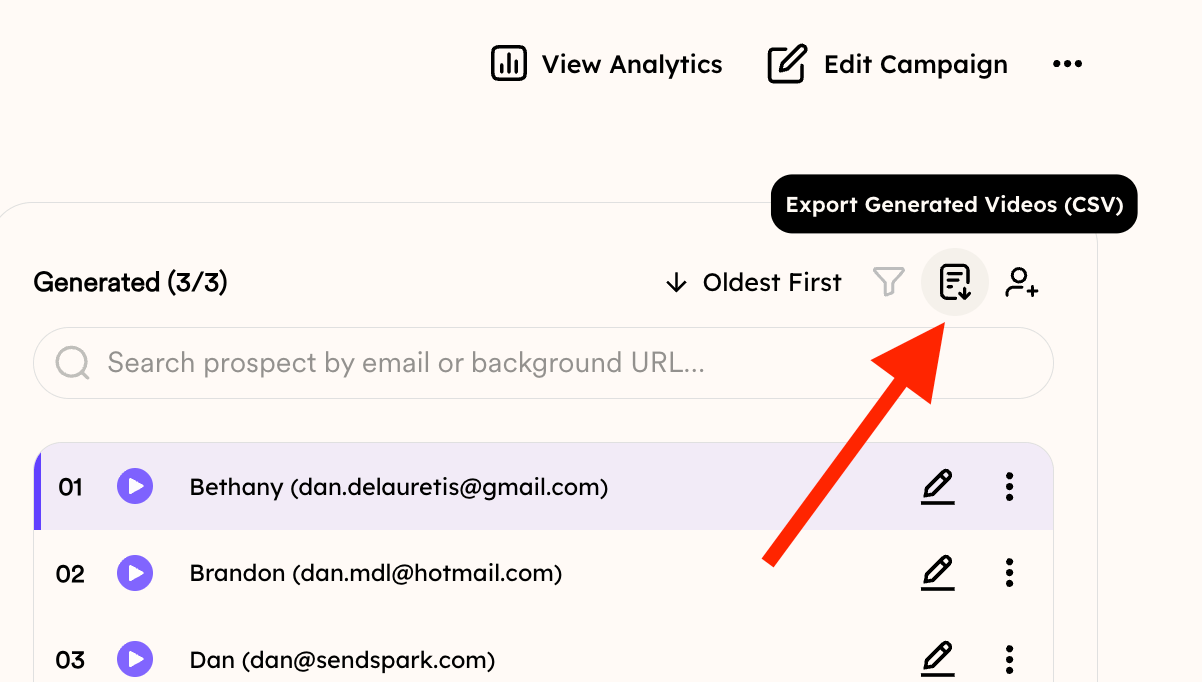
* Generate your videos in a Dynamic Video Campaign, then export the CSV from the campaign.
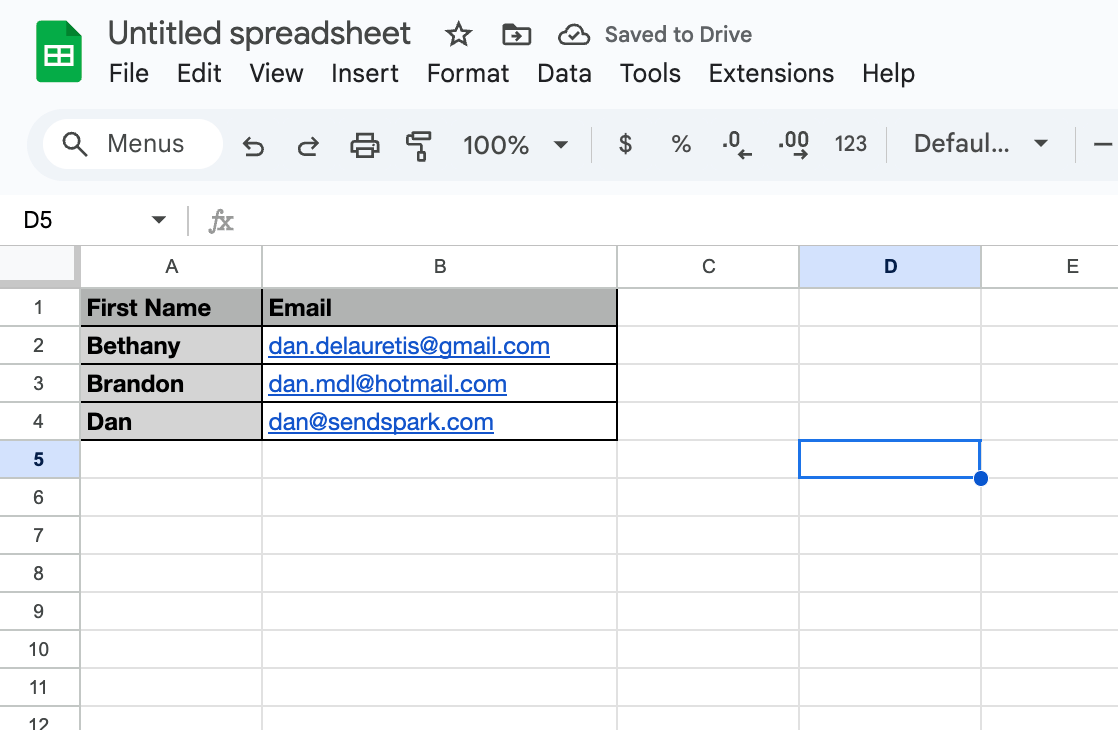
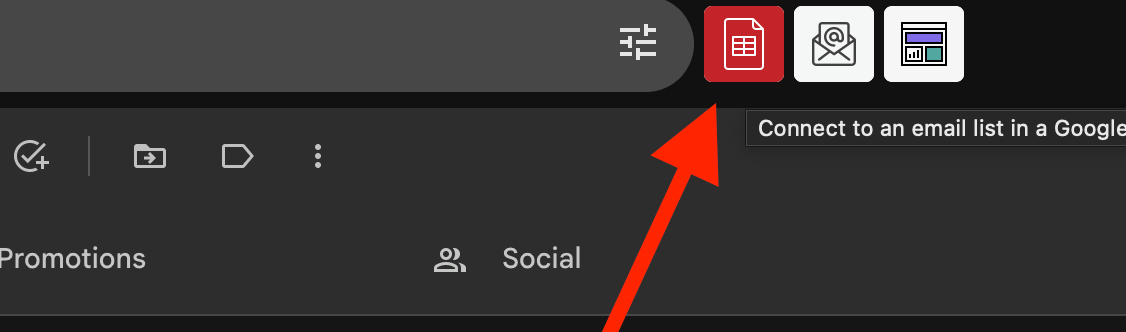
* Create a Google Sheet and copy at least the **First Name** and **Email** fields from that CSV into it, then connect GMass to the sheet from Gmail.
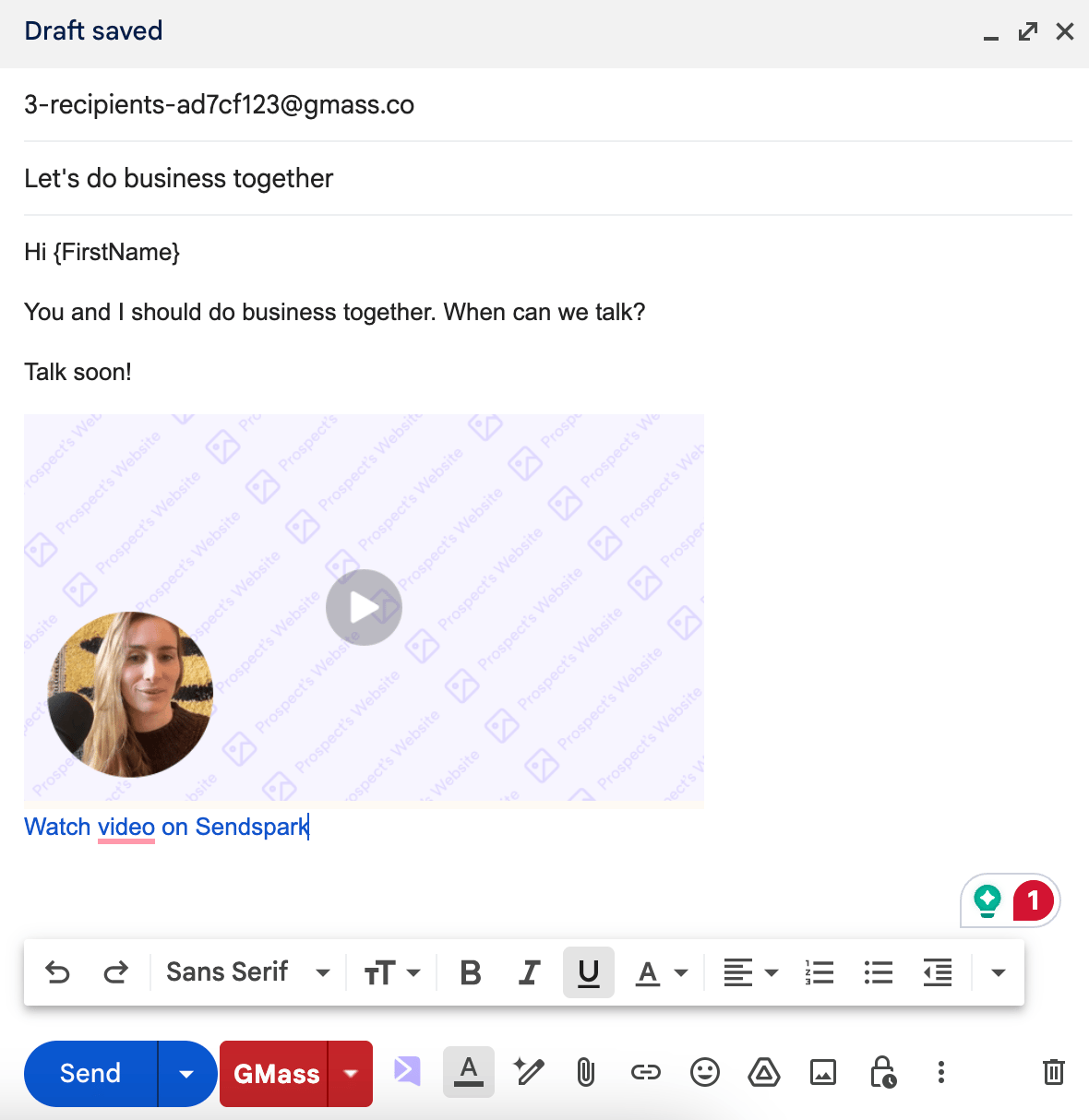
* In Sendspark, click **Share Campaign** and select **GMass**, then compose a new email in Gmail and paste the snippet code, which shows as an empty placeholder.
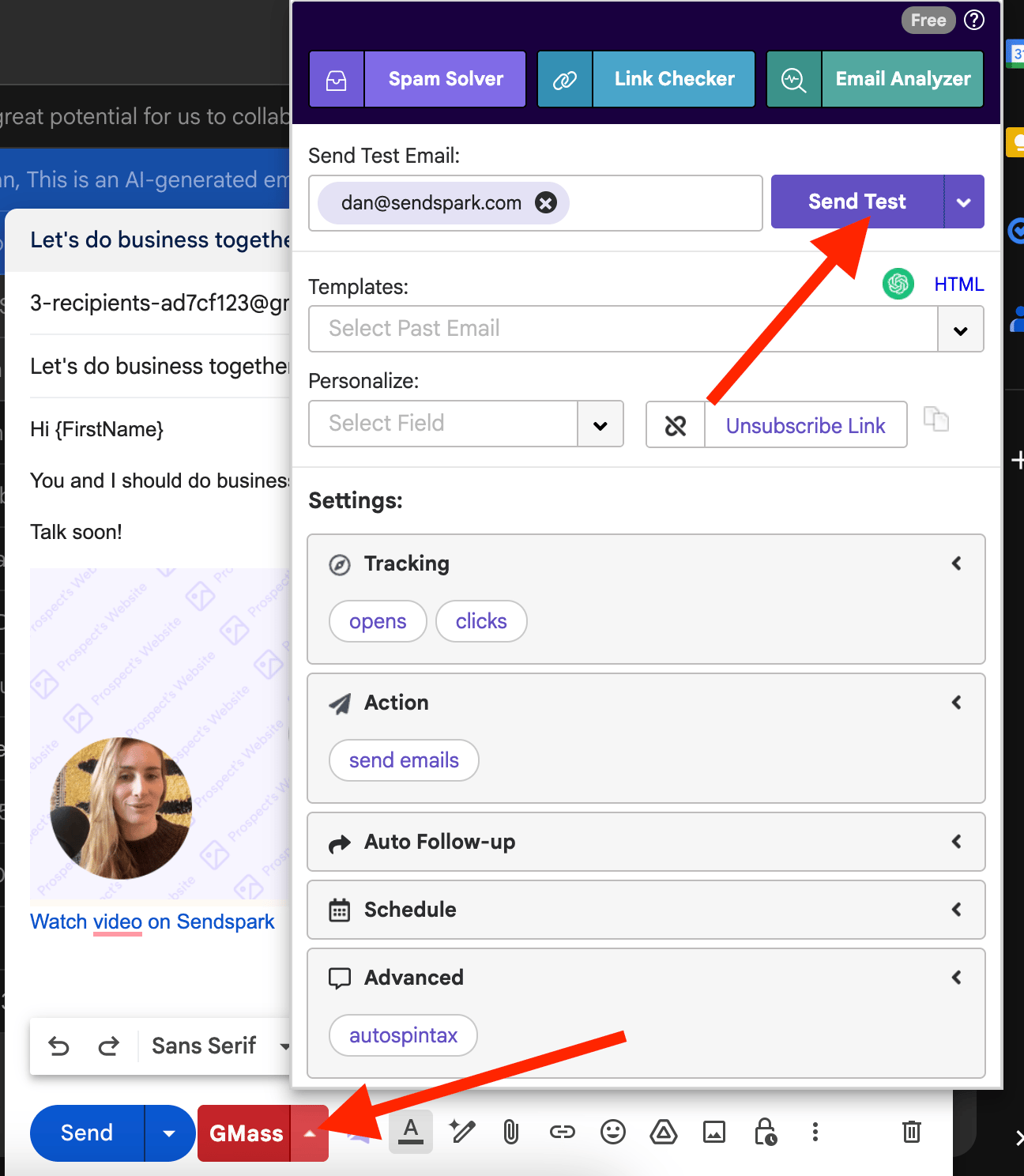
* Use the GMass drop-down menu to send a test email and confirm the dynamic video renders with personalized content before your full send.
Sending Dynamic Video campaigns over Gmass is very simple
1. Generate your videos in a Dynamic Video Campaign:
 2. Export the CSV from the Campaign:
 3. Create a Google Sheet and copy there, at least, the First Name and Email fields of that CSV file into that new Google Sheet:
 4. Head to Gmail to connect Gmass with that Sheet:
 5. Select it:
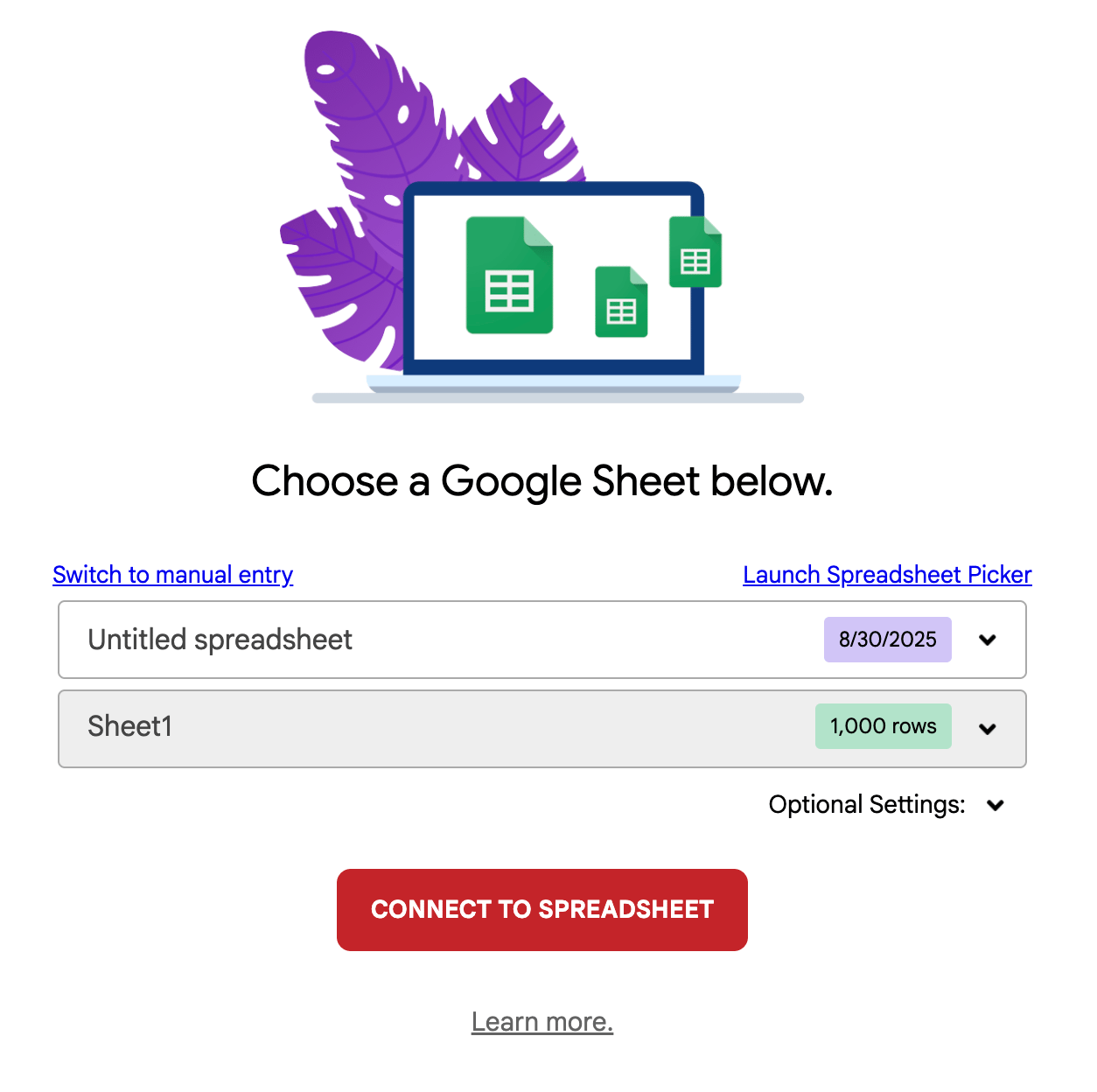 6. Head back to your Dynamic Video Campaign and click "Share Campaign"
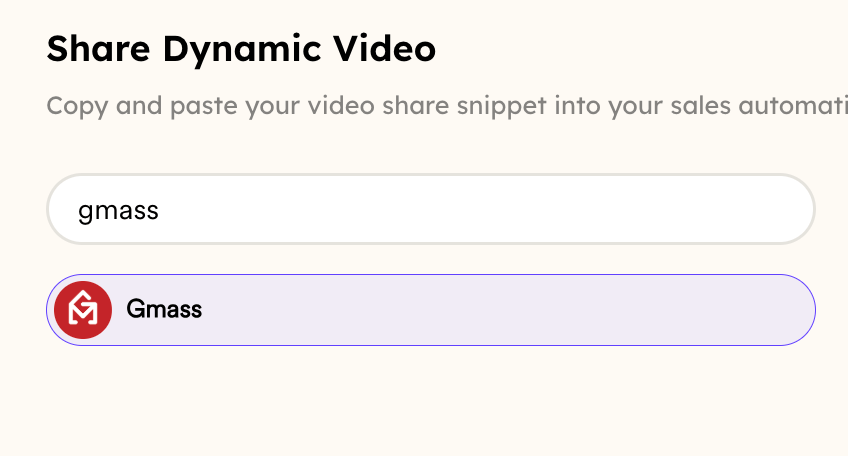
 7. Select "Gmass"
 8. Go to your Gmail account and hit COMPOSE to start a new email:
 9. Paste the snippet code you copied from the Share campaign button and you'll see this empty placeholder:
 10. Click on the Gmass drop-down menu and click on send test email to try it out
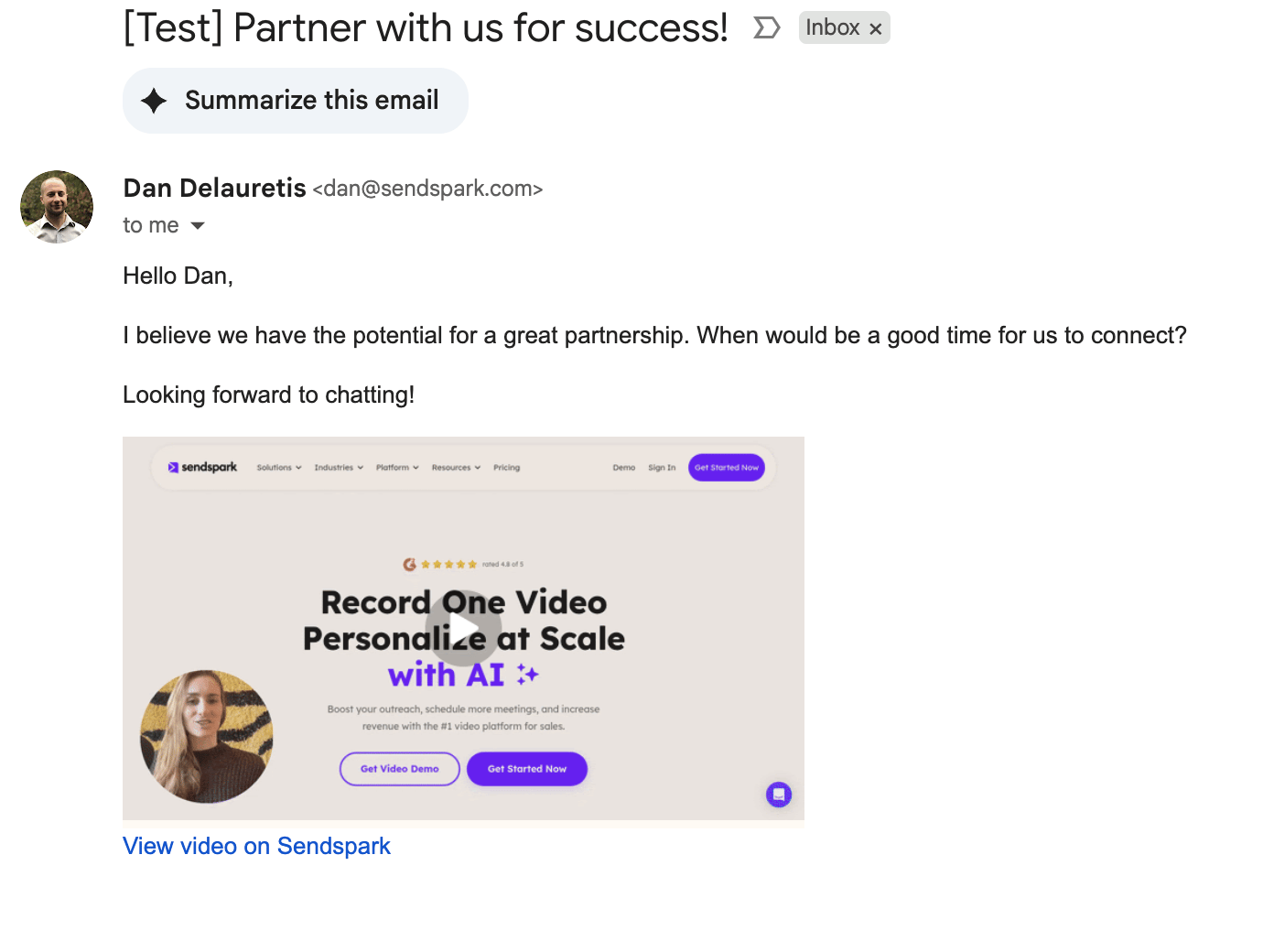
 11. See how it comes to life:
 And that's it!
## Frequently asked questions
GMass sends from a Google Sheet, so you export the CSV from your Dynamic Video Campaign and copy at least the First Name and Email fields into a new Google Sheet, then connect GMass to that sheet from Gmail.
At minimum, copy the First Name and Email columns from the exported campaign CSV into the Google Sheet you connect to GMass.
That's expected. When you paste the snippet code into a new Gmail compose window, you'll see an empty placeholder. It fills in with the personalized video when the email is sent through GMass.
Click the GMass drop-down menu in Gmail and choose Send Test Email. The test email preview shows the dynamic video rendering with personalized content, so you can confirm it comes to life before your full send.
*Updated July 2026.*
And that's it!
## Frequently asked questions
GMass sends from a Google Sheet, so you export the CSV from your Dynamic Video Campaign and copy at least the First Name and Email fields into a new Google Sheet, then connect GMass to that sheet from Gmail.
At minimum, copy the First Name and Email columns from the exported campaign CSV into the Google Sheet you connect to GMass.
That's expected. When you paste the snippet code into a new Gmail compose window, you'll see an empty placeholder. It fills in with the personalized video when the email is sent through GMass.
Click the GMass drop-down menu in Gmail and choose Send Test Email. The test email preview shows the dynamic video rendering with personalized content, so you can confirm it comes to life before your full send.
*Updated July 2026.*