> ## Documentation Index
> Fetch the complete documentation index at: https://help.sendspark.com/llms.txt
> Use this file to discover all available pages before exploring further.
# Giveffect — Send Video Emails
> Learn how to send video emails in Giveffect to boost engagement 2-3x with step-by-step setup using Sendspark embed codes.
Giveffect lets you send video emails by pasting a Sendspark embed code into the email's source code editor. Record in Sendspark, click Share Video then Embed, copy the code, open your Giveffect email's source code editor, paste it in, and send. Recipients on video-capable email clients see the video play in-email; everyone else sees a clickable animated GIF preview.
## Key takeaways
* Giveffect supports video emails through Sendspark's embed code, which you paste into the email's source code editor.
* The setup is: Share Video → Embed → copy the code → paste into Giveffect's source code editor → send.
* Recipients whose email client supports video see it play in-email; everyone else sees an animated GIF preview that opens the full video in their browser.
* Video emails get 2-3x the engagement of text-and-image emails.
## Why Send Videos In Giveffect Emails
Video is the best way to connect with your community from home. Video emails get 2-3x the increase in engagement as text + images emails — and it's easy to see why! Whether you're sharing videos of yourself, board members, or beneficiaries, videos go above and beyond to deliver a human touch and connect authentically.
## Will Embedded Videos Play In-Email for Recipients?
Embedded videos play in-email for recipients who are using email clients that support video. ([See an up-to-date list of email clients that support video](https://blog.sendspark.com/which-email-clients-support-embedded-videos)).
If your recipient's email client does not support video, instead of the embedded video, they will see an animated GIF preview of your video, and be able to watch the full video in their browser. Still a great user experience!
## How To Send Videos in Giveffect
1. Create your video in [Sendspark](https://sendspark.com/my-videos)
2. Click **Share Video**  3. Click **Embed**, and then **copy the embed code** to your clipboard
 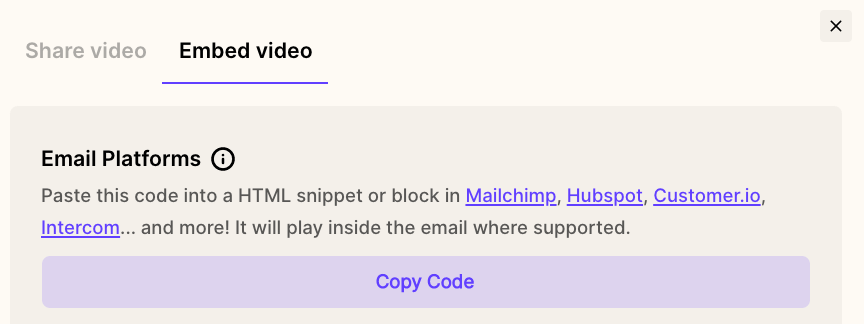 4. Open your email draft in [Giveffect](https://www.giveffect.com/)
5. From the text editor, click to edit the **source code**
4. Open your email draft in [Giveffect](https://www.giveffect.com/)
5. From the text editor, click to edit the **source code**  6. **Paste** your email embed code into the source code editor
 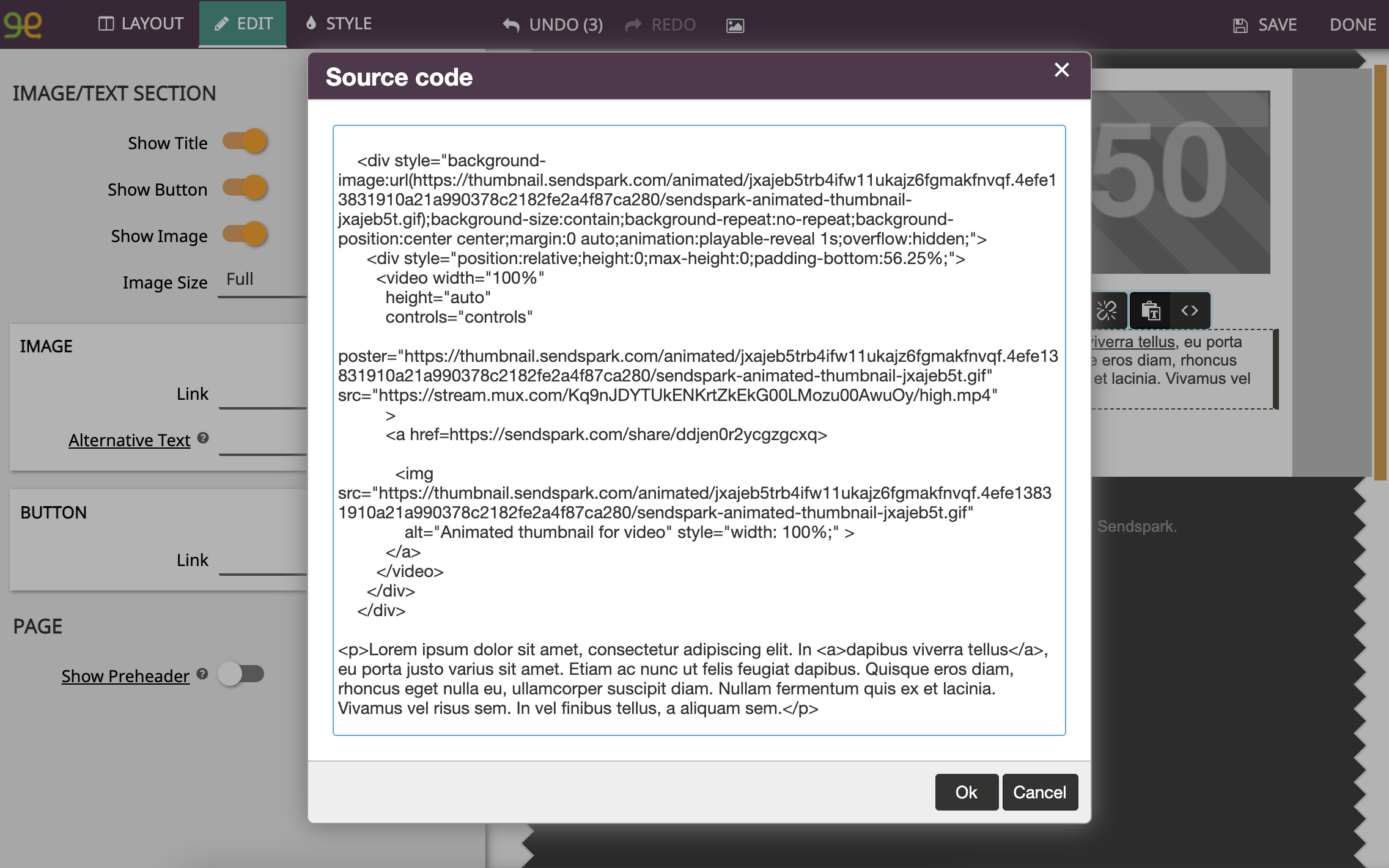 7. Click **Ok**
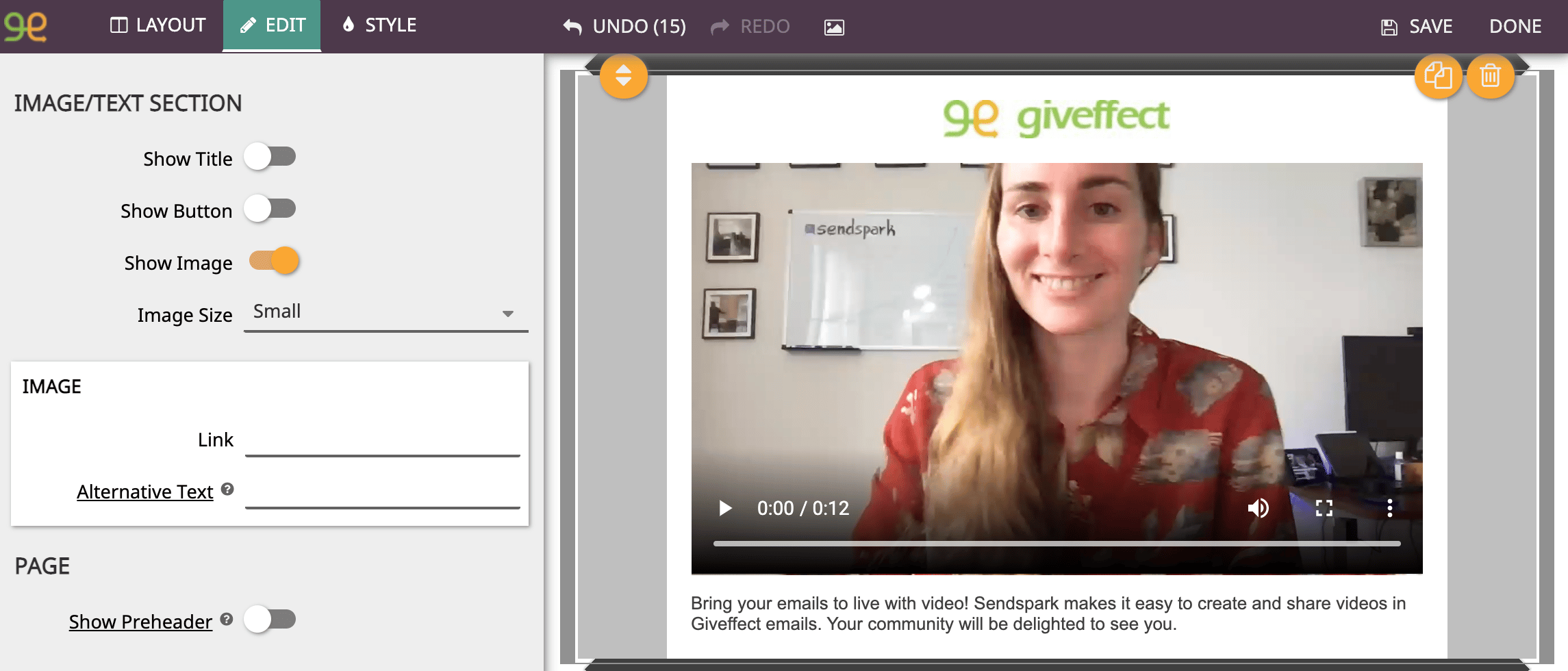
8. Preview and **send your video email**!
7. Click **Ok**
8. Preview and **send your video email**!
 ## Questions about sending videos in Giveffect?
Let us know and we're happy to help!
## Frequently asked questions
It depends on the recipient's email client. Embedded videos play in-email for recipients using email clients that support video. If their client does not support video, they instead see an animated GIF preview and can watch the full video in their browser.
In Sendspark, click Share Video, click Embed, and copy the embed code. In Giveffect, open your email draft, use the text editor to edit the source code, paste the embed code into the source code editor, click Ok, then preview and send.
They see an animated GIF preview of your video instead of the embedded player, and they can click it to watch the full video in their browser. It's still a great viewer experience.
Video emails get 2-3x the increase in engagement of text-and-image emails, and video delivers a human touch that helps you connect authentically with your community, whether you're sharing yourself, board members, or beneficiaries.
*Updated July 2026.*
## Questions about sending videos in Giveffect?
Let us know and we're happy to help!
## Frequently asked questions
It depends on the recipient's email client. Embedded videos play in-email for recipients using email clients that support video. If their client does not support video, they instead see an animated GIF preview and can watch the full video in their browser.
In Sendspark, click Share Video, click Embed, and copy the embed code. In Giveffect, open your email draft, use the text editor to edit the source code, paste the embed code into the source code editor, click Ok, then preview and send.
They see an animated GIF preview of your video instead of the embedded player, and they can click it to watch the full video in their browser. It's still a great viewer experience.
Video emails get 2-3x the increase in engagement of text-and-image emails, and video delivers a human touch that helps you connect authentically with your community, whether you're sharing yourself, board members, or beneficiaries.
*Updated July 2026.*