> ## Documentation Index
> Fetch the complete documentation index at: https://help.sendspark.com/llms.txt
> Use this file to discover all available pages before exploring further.
# Getting Started with Sendspark Starter
> Learn how to set up Sendspark Starter with global styles, call-to-actions, video downloads, and unlimited recording features.
On the Sendspark Starter plan, get set up by doing four things: set your Global Styles with your logo and brand colors, turn on a video Call-to-Action, download videos as .MP4 files, and record unlimited videos. Each is configured from your workspace settings or the video share modal.
## Key takeaways
* **Set Global Styles** in your [workspace settings](https://app.sendspark.com/settings/workspace) to apply your logo and brand colors across every video.
* **Use a Call-to-Action** to convert viewers: add a [calendar link](/use-a-call-to-action-calendar-link), [phone number](/use-a-call-to-action-phone-number), [text message](/use-a-call-to-action-text-message), or [URL link](/use-a-call-to-action-url-link).
* **Download videos** as .MP4 files from the share modal to edit or share them anywhere.
* **Record unlimited videos** on Starter, and [invite team members](/invite-team-members) to record more.
Thank you for upgrading to Sendspark Starter Plan! To get started, you can read this article or watch the video below.
## 1. Set Global Styles
Use your own logo and brand colors to make videos look polished and professional.
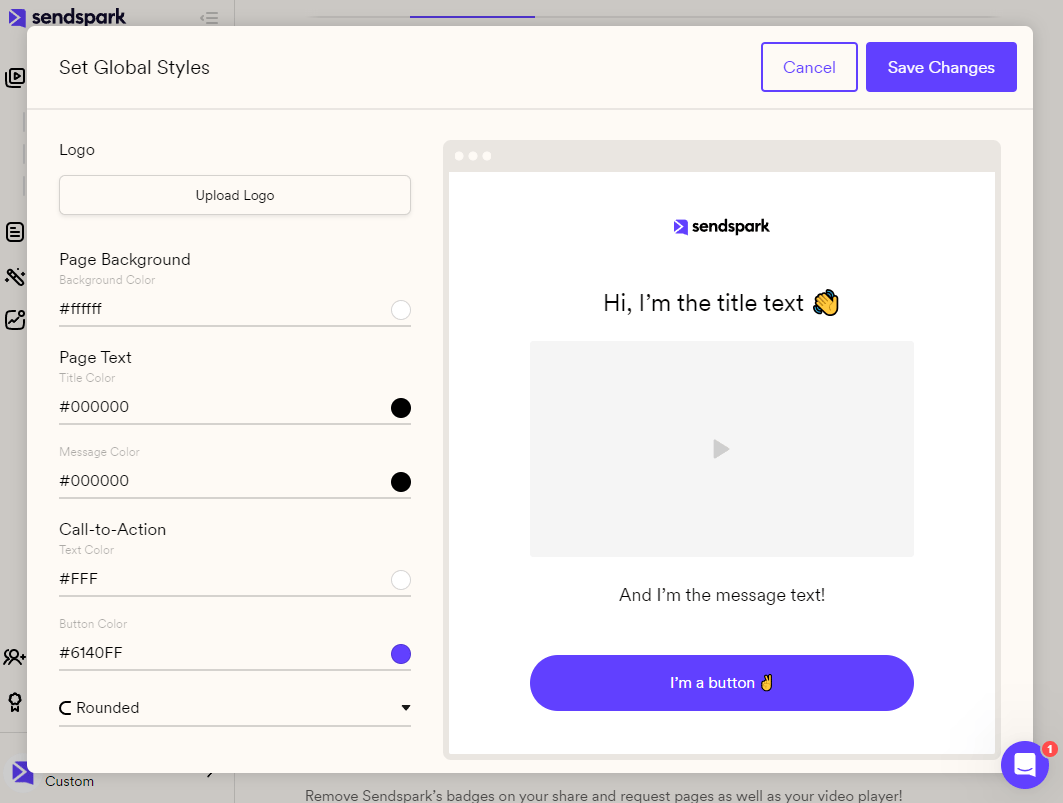
Go to your [workspace settings](https://app.sendspark.com/settings/workspace), and click **Set Global Styles.**
Here, you can upload your logo, and change all of the color fields.
**Save changes** to see your new styles appear for all videos in your workspace.
## 2. Use Video Call-To-Action
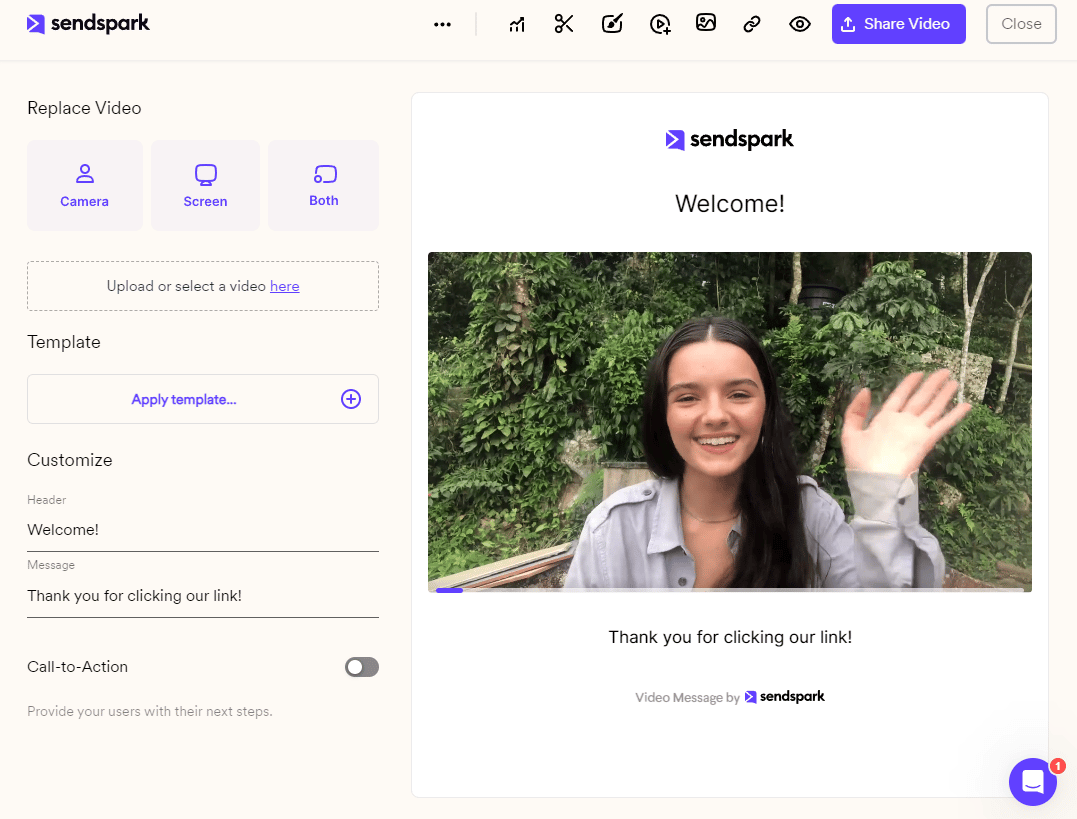
Toggle on the Call-to-Action feature to convert viewers after they watch your video. Here, you can add a [calendar link](/use-a-call-to-action-calendar-link), [phone number](/use-a-call-to-action-phone-number), [text message](/use-a-call-to-action-text-message), or [URL link](/use-a-call-to-action-url-link).
## 3. Download Videos
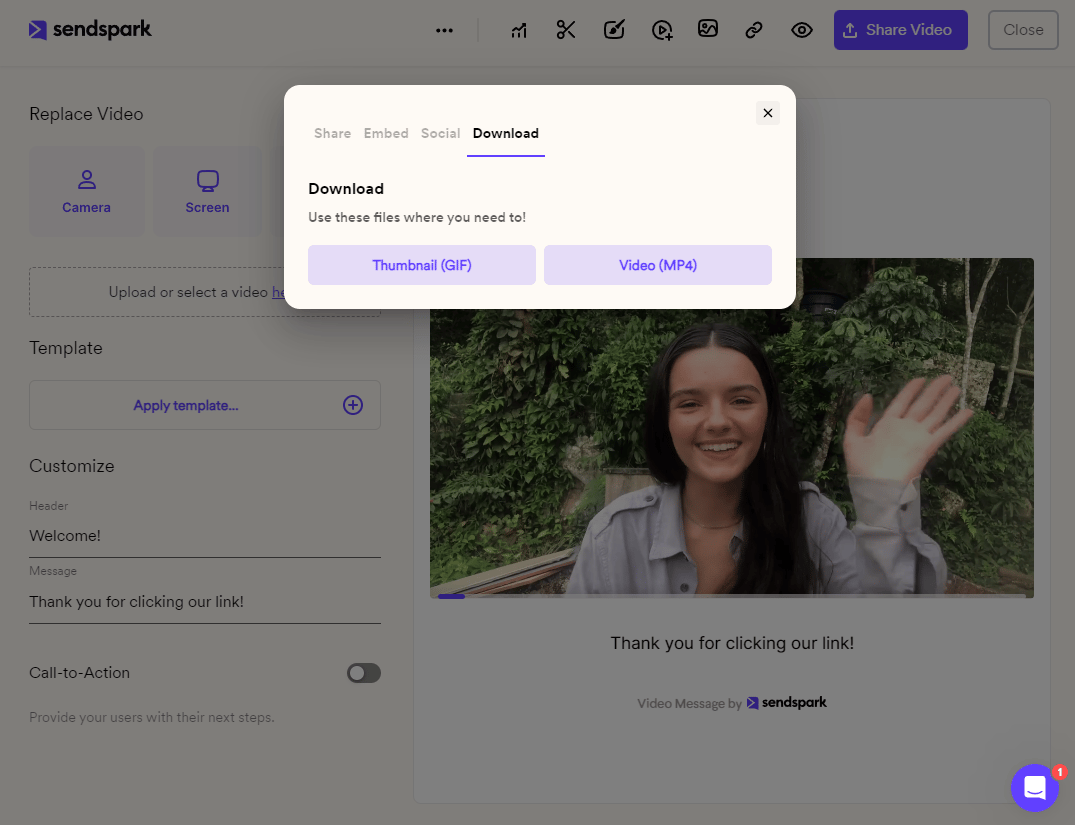
Download your videos as .MP4 files to edit or share them anywhere. Just launch the share modal, and then **Download**
## 4. Unlimited Videos
Nothing can stop you now -- certainly not a 30-video limit! Record unlimited videos, and [invite team members](/invite-team-members) to record even more 🙌
## Frequently asked questions
Go to your [workspace settings](https://app.sendspark.com/settings/workspace) and click **Set Global Styles**. Upload your logo and change the color fields, then save changes to see your new styles appear across all videos in your workspace.
You can toggle on a Call-to-Action and add a [calendar link](/use-a-call-to-action-calendar-link), a [phone number](/use-a-call-to-action-phone-number), a [text message](/use-a-call-to-action-text-message), or a [URL link](/use-a-call-to-action-url-link) to convert viewers after they watch.
Yes. Launch the share modal and click **Download** to save your video as an .MP4 file, so you can edit or share it anywhere.
No. The Starter plan lets you record unlimited videos, and you can [invite team members](/invite-team-members) to record even more.
*Updated July 2026.*
 **Save changes** to see your new styles appear for all videos in your workspace.
## 2. Use Video Call-To-Action
Toggle on the Call-to-Action feature to convert viewers after they watch your video. Here, you can add a [calendar link](/use-a-call-to-action-calendar-link), [phone number](/use-a-call-to-action-phone-number), [text message](/use-a-call-to-action-text-message), or [URL link](/use-a-call-to-action-url-link).
**Save changes** to see your new styles appear for all videos in your workspace.
## 2. Use Video Call-To-Action
Toggle on the Call-to-Action feature to convert viewers after they watch your video. Here, you can add a [calendar link](/use-a-call-to-action-calendar-link), [phone number](/use-a-call-to-action-phone-number), [text message](/use-a-call-to-action-text-message), or [URL link](/use-a-call-to-action-url-link).
 ## 3. Download Videos
Download your videos as .MP4 files to edit or share them anywhere. Just launch the share modal, and then **Download**
## 3. Download Videos
Download your videos as .MP4 files to edit or share them anywhere. Just launch the share modal, and then **Download**
 ## 4. Unlimited Videos
Nothing can stop you now -- certainly not a 30-video limit! Record unlimited videos, and [invite team members](/invite-team-members) to record even more 🙌
## Frequently asked questions
## 4. Unlimited Videos
Nothing can stop you now -- certainly not a 30-video limit! Record unlimited videos, and [invite team members](/invite-team-members) to record even more 🙌
## Frequently asked questions