> ## Documentation Index
> Fetch the complete documentation index at: https://help.sendspark.com/llms.txt
> Use this file to discover all available pages before exploring further.
# General Overview: How to Share Sendspark Videos
> Learn how to share Sendspark videos via email, social media, messaging platforms, and website embeds with step-by-step instructions.
Sendspark gives you several ways to share a video: paste a thumbnail into an email, embed the video so it plays in-email, share a direct link on messaging platforms, post the MP4 file on social media, or embed it on any webpage. This overview walks through each method and when to use it.
## Key takeaways
* Sendspark supports five sharing methods: paste in email, embed in email, share a direct link, post on social, and embed on a website.
* For 1x1 email and sales automation platforms, copy an animated (GIF) or static thumbnail and paste it into your email draft.
* Embedding a video so it plays in-email requires an email marketing platform that lets you edit the HTML of your email.
* There are no limits to the number of website embeds you can do.
Sendspark offers several ways to share videos.
How do you want to share your video?
* Paste in email
* Embed in email
* Share in a direct message
* Post on social
* Embed on website
***
## How do you paste videos in emails?
Note: Use static thumbnails for Outlook, please.
 ## Use for:
* \*\*1x1 email platforms:\*\*Gmail, Outlook, Apple Mail, Superhuman, etc.
* **Sales automation platforms**: SalesLoft, Outreach, Hubspot Sales, etc.
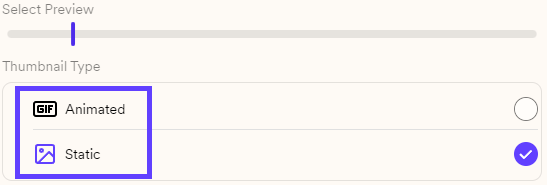
Sendspark makes it easy to copy and paste videos right into your email draft. After recording your video, just select **Copy Animated Thumbnail** or **Copy Static Thumbnail**, and paste it right into your email.
**Copy Animated Thumbnail** will paste a GIF preview of your video + a link to your video in the body of your email. Your recipients will see this eye catching GIF, and be able to click to watch the full video in their browser.
## Use for:
* \*\*1x1 email platforms:\*\*Gmail, Outlook, Apple Mail, Superhuman, etc.
* **Sales automation platforms**: SalesLoft, Outreach, Hubspot Sales, etc.
Sendspark makes it easy to copy and paste videos right into your email draft. After recording your video, just select **Copy Animated Thumbnail** or **Copy Static Thumbnail**, and paste it right into your email.
**Copy Animated Thumbnail** will paste a GIF preview of your video + a link to your video in the body of your email. Your recipients will see this eye catching GIF, and be able to click to watch the full video in their browser.
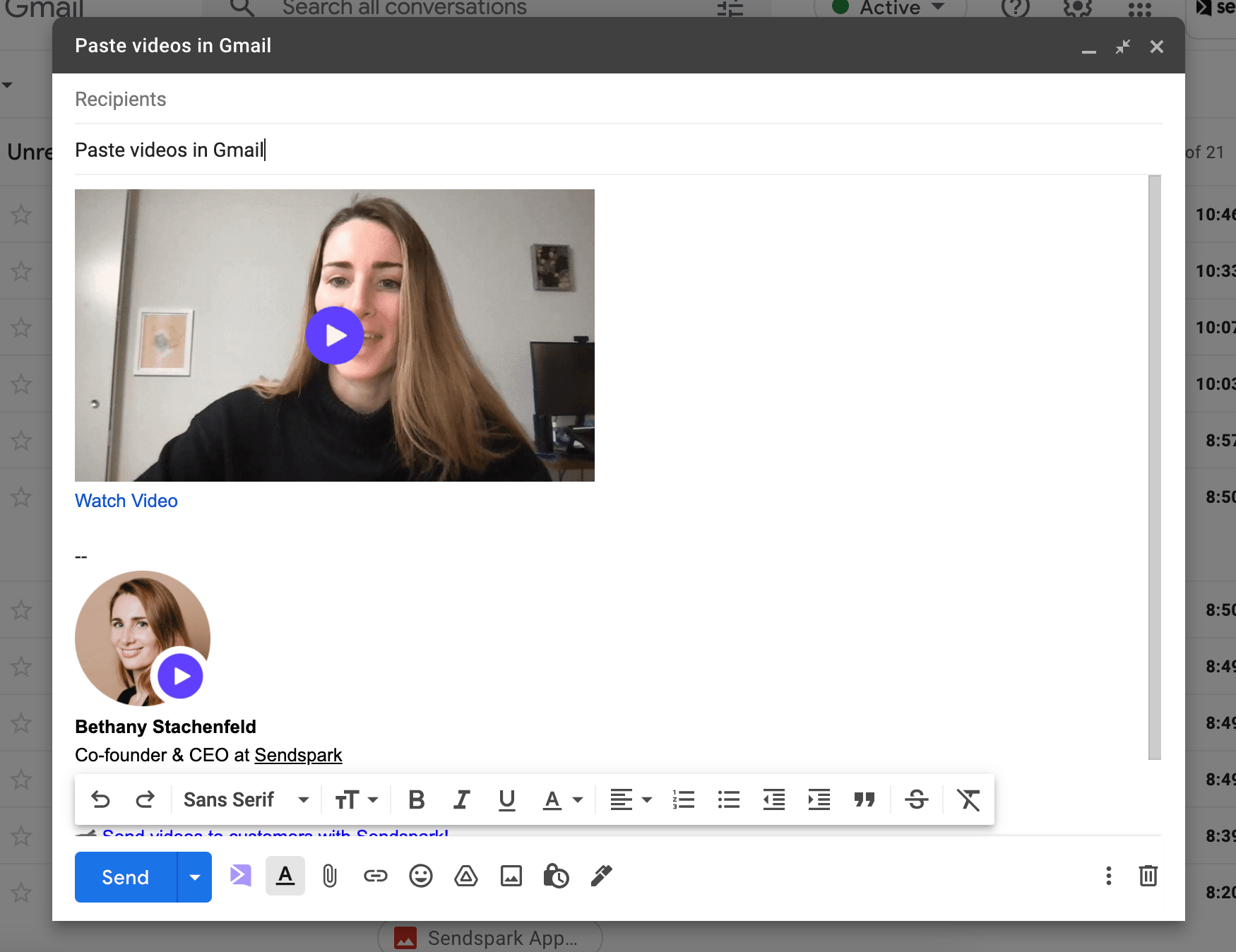 **Copy Static Thumbnail**will paste a static image + a link to your video in your email. We recommend using the still thumbnail when sending videos to email clients that do not support GIFs (like some versions of Outlook).
***
## How do you embed videos in email?
**Copy Static Thumbnail**will paste a static image + a link to your video in your email. We recommend using the still thumbnail when sending videos to email clients that do not support GIFs (like some versions of Outlook).
***
## How do you embed videos in email?
 ## Use for:
* **Marketing email platforms**: Mailchimp, Hubspot, ActiveCampaign, etc.
To embed the video so it plays in-email, you must use an email marketing platform that lets you **edit the HTML of your email.**
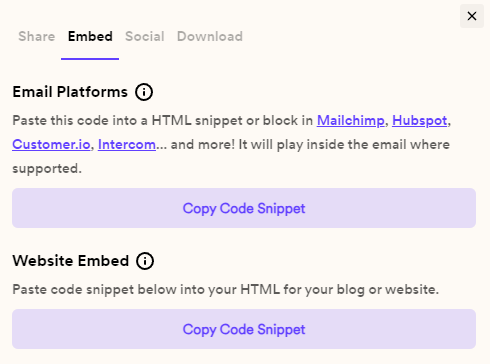
Sendspark gives you the email embed code, and then you can just paste it directly into the email HTML to embed your email.
## Use for:
* **Marketing email platforms**: Mailchimp, Hubspot, ActiveCampaign, etc.
To embed the video so it plays in-email, you must use an email marketing platform that lets you **edit the HTML of your email.**
Sendspark gives you the email embed code, and then you can just paste it directly into the email HTML to embed your email.
 Please note: even if you embed your video with HTML, **your recipient must be using an email client that supports video to watch their videos in email**. If their email client does not support video, they will see the GIF preview instead, and be able to click to watch the full video in their browser.
***
## How do you share a video link?
## Use for
* **Messaging platforms:** LinkedIn InMail, Slack, WhatsApp, Messenger
Please note: even if you embed your video with HTML, **your recipient must be using an email client that supports video to watch their videos in email**. If their email client does not support video, they will see the GIF preview instead, and be able to click to watch the full video in their browser.
***
## How do you share a video link?
## Use for
* **Messaging platforms:** LinkedIn InMail, Slack, WhatsApp, Messenger
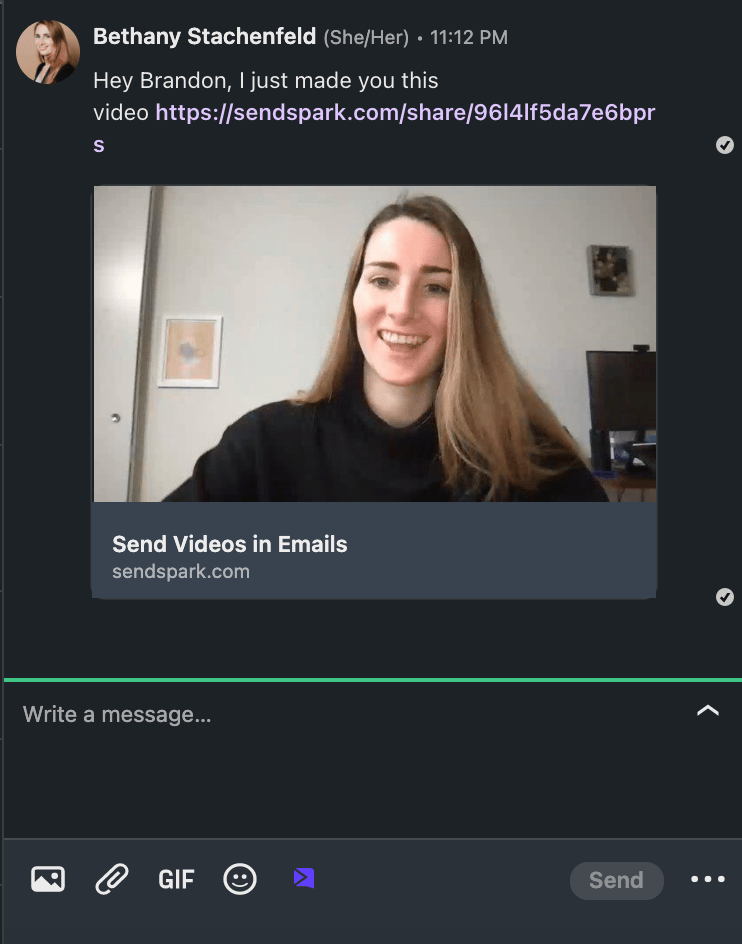
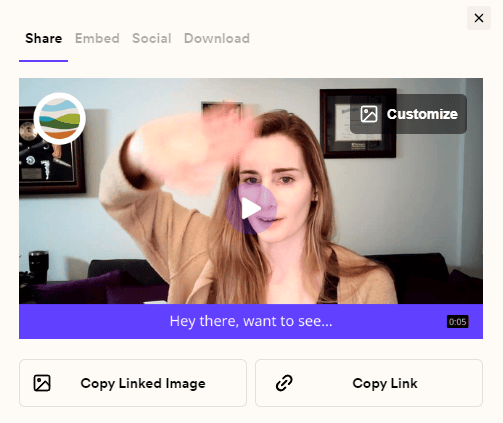 When sending a video in any messaging platform that's NOT email, you can just send the link to your video. In most cases, the link will automatically unfurl to show a preview.
 ***
## How do you share videos on social media?
## Use for:
* **Posting**: Facebook, LinkedIn, Twitter, YouTube, etc.
Generally, when you post to a social media platform, you want to post the actual .MP4 video file to optimize the newsfeed algorithm.
***
## How do you share videos on social media?
## Use for:
* **Posting**: Facebook, LinkedIn, Twitter, YouTube, etc.
Generally, when you post to a social media platform, you want to post the actual .MP4 video file to optimize the newsfeed algorithm.
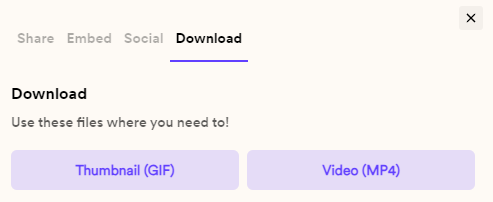 In Sendspark, just download the video (MP4) and upload it for your social media post.
***
## How do you embed a video on your website?
## Use for:
* \*\*Webpages:\*\*websites, blog posts, landing pages, etc.
Sendspark provides website embed code if you want to embed your video on the web. Just copy the code here, and paste it into any HTML editor. There are no limits to the number of embeds you can do.
## Frequently asked questions
Use static thumbnails for Outlook. The still thumbnail is recommended when sending videos to email clients that do not support GIFs, like some versions of Outlook.
Copy Animated Thumbnail pastes a GIF preview of your video plus a link in the body of your email, while Copy Static Thumbnail pastes a static image plus a link. In both cases recipients click to watch the full video in their browser.
You must use an email marketing platform that lets you edit the HTML of your email. Sendspark gives you the email embed code, which you paste directly into the email HTML. Even then, the recipient's email client must support video, or they will see the GIF preview instead.
Post the actual .MP4 video file to optimize the newsfeed algorithm. In Sendspark, download the video (MP4) and upload it for your social media post.
No. There are no limits to the number of embeds you can do. Copy the website embed code and paste it into any HTML editor.
*Updated July 2026.*
In Sendspark, just download the video (MP4) and upload it for your social media post.
***
## How do you embed a video on your website?
## Use for:
* \*\*Webpages:\*\*websites, blog posts, landing pages, etc.
Sendspark provides website embed code if you want to embed your video on the web. Just copy the code here, and paste it into any HTML editor. There are no limits to the number of embeds you can do.
## Frequently asked questions
Use static thumbnails for Outlook. The still thumbnail is recommended when sending videos to email clients that do not support GIFs, like some versions of Outlook.
Copy Animated Thumbnail pastes a GIF preview of your video plus a link in the body of your email, while Copy Static Thumbnail pastes a static image plus a link. In both cases recipients click to watch the full video in their browser.
You must use an email marketing platform that lets you edit the HTML of your email. Sendspark gives you the email embed code, which you paste directly into the email HTML. Even then, the recipient's email client must support video, or they will see the GIF preview instead.
Post the actual .MP4 video file to optimize the newsfeed algorithm. In Sendspark, download the video (MP4) and upload it for your social media post.
No. There are no limits to the number of embeds you can do. Copy the website embed code and paste it into any HTML editor.
*Updated July 2026.*