> ## Documentation Index
> Fetch the complete documentation index at: https://help.sendspark.com/llms.txt
> Use this file to discover all available pages before exploring further.
# Expandi Integration: AI-Personalized Videos
> Learn how to integrate Sendspark with Expandi to send AI-personalized videos in LinkedIn automation campaigns for better outreach.
Sendspark has a native integration in Expandi, so you can send AI-personalized videos inside your LinkedIn outreach. Create a dynamic video campaign in Sendspark, then in your Expandi campaign select that Sendspark video below the message editor. A \{sendspark\_video} placeholder is added automatically — position it where you want, save, and each enrolled contact gets their own video.
## Key takeaways
* Expandi has a native Sendspark integration for sending AI-personalized videos in LinkedIn outreach.
* First-time users must install the Sendspark integration in Expandi before starting.
* Create your dynamic video campaign in Sendspark up to (but not including) adding contacts — you enroll contacts in Expandi instead.
* Selecting your Sendspark campaign in Expandi auto-adds a \{sendspark\_video} placeholder; reposition it, hit Save messages, and each enrolled contact gets a personalized video.
Sendspark has a native integration in [Expandi](https://expandi.io), so you can easily send AI-personalized videos as part of your LinkedIn Outreach.
## How to Send Sendspark Videos in Expandi LinkedIn Automation
## Prepare: Connect Sendspark and Expandi
If this is your first time using Sendspark and Expandi together, please [install the Sendspark integration in Expandi](/connect-expandi-with-sendspark-for-the-first-time).
Once you have that setup, you can follow the steps below!
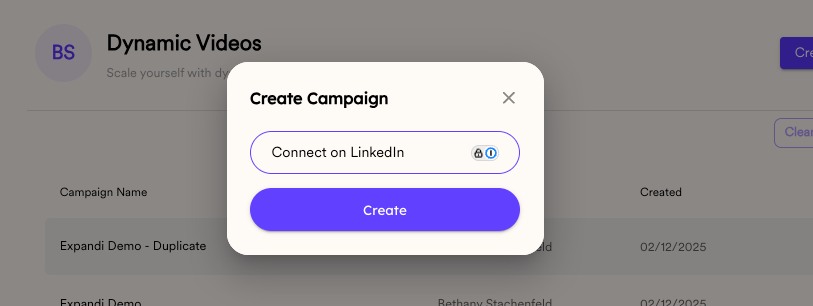
## 1. Create dynamic video campaign in Sendspark
Head over to the [dynamic video section](https://sendspark.com/dynamic-videos) in Sendspark, and click to\*\*"Create Dynamic Video."\*\*
Give you campaign a name, and go through the steps to create a dynamic video campaign, all up to the last step where you add contacts (you will do this part in Expandi).
If you don't know how to create a dynamic video campaign, please start with this article on [creating AI personalized videos in Sendspark](/dynamic-videos-make-videos-with-ai-introductions).
## 2. Create LinkedIn automation campaign in Expandi
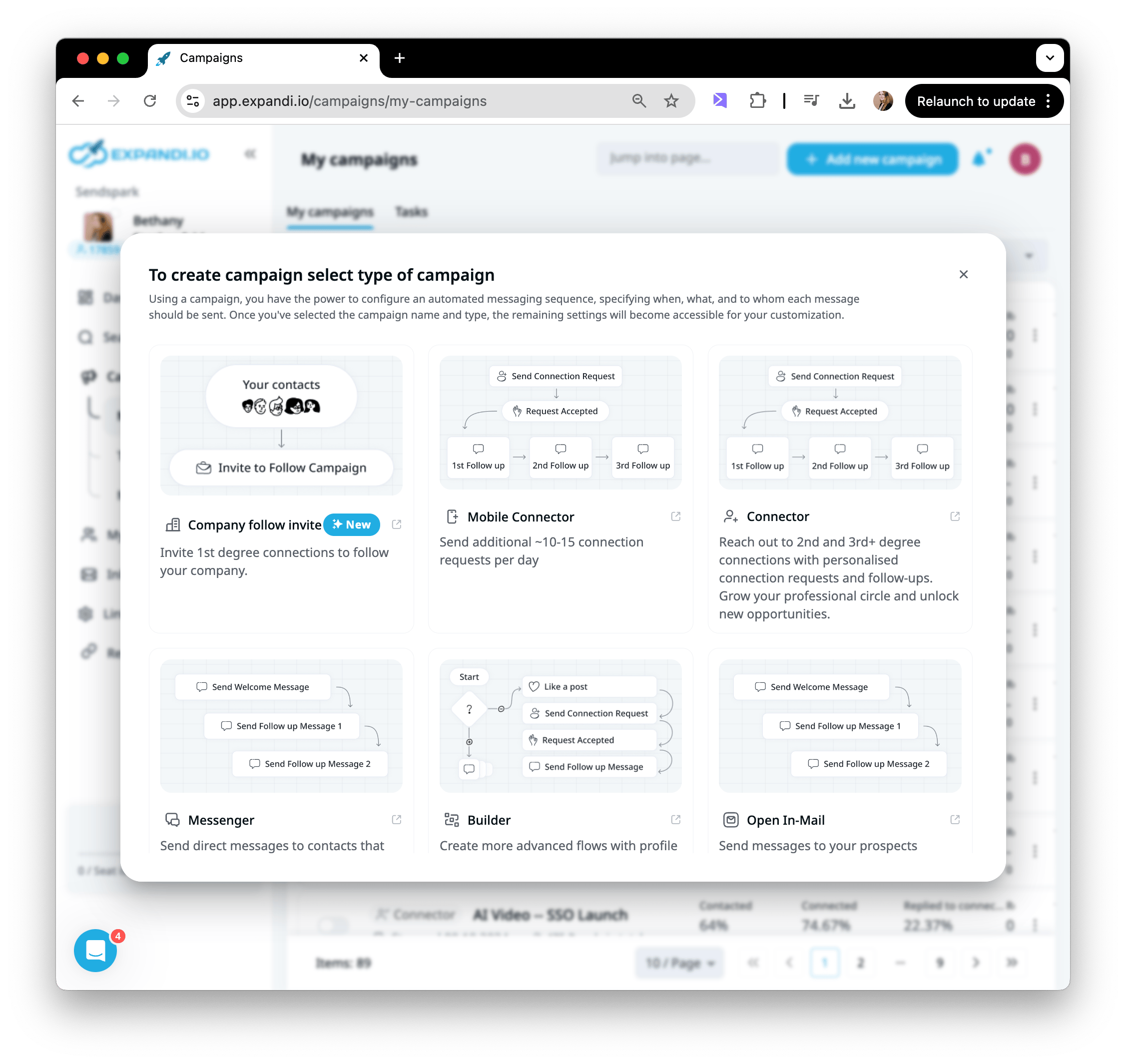
Log into your Expandi account, go to the Campaigns section, and select "Add New Campaign."
This integration will work with any type of Expandi campaign.
## 3. Select Sendspark Campaign in Expandi
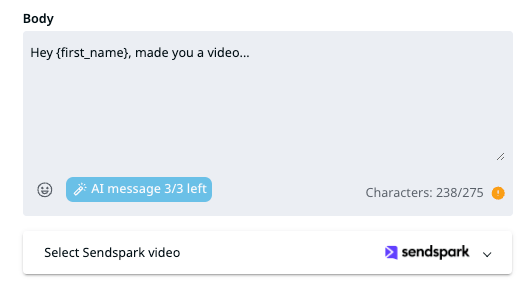
Right below where you edit your message in Expandi, you will see the option to select a Sendspark video.
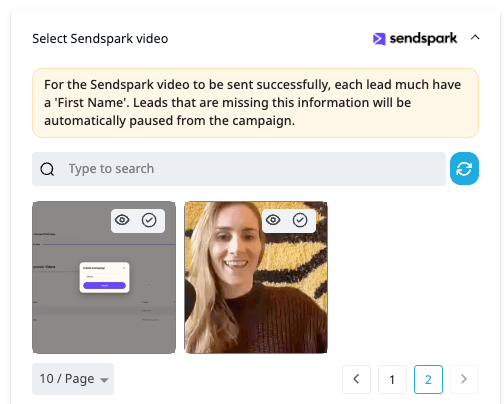
Click on this to see all of your Sendspark dynamic video campaigns. Then, select the Sendspark Dynamic Video Campaign that you want to use for this campaign.
## 4. Position the \{sendspark\_video} placeholder correctly
When you select you Sendspark video, you'll see a \{sendspark\_video} placeholder variable get automatically added to your message.
Feel free to move this around so the Sendspark video link will be exactly where you want this when you send it out.
Make sure to hit **"Save messages"** when you're done editing! :)
## 5. Enroll contacts and turn on campaign!
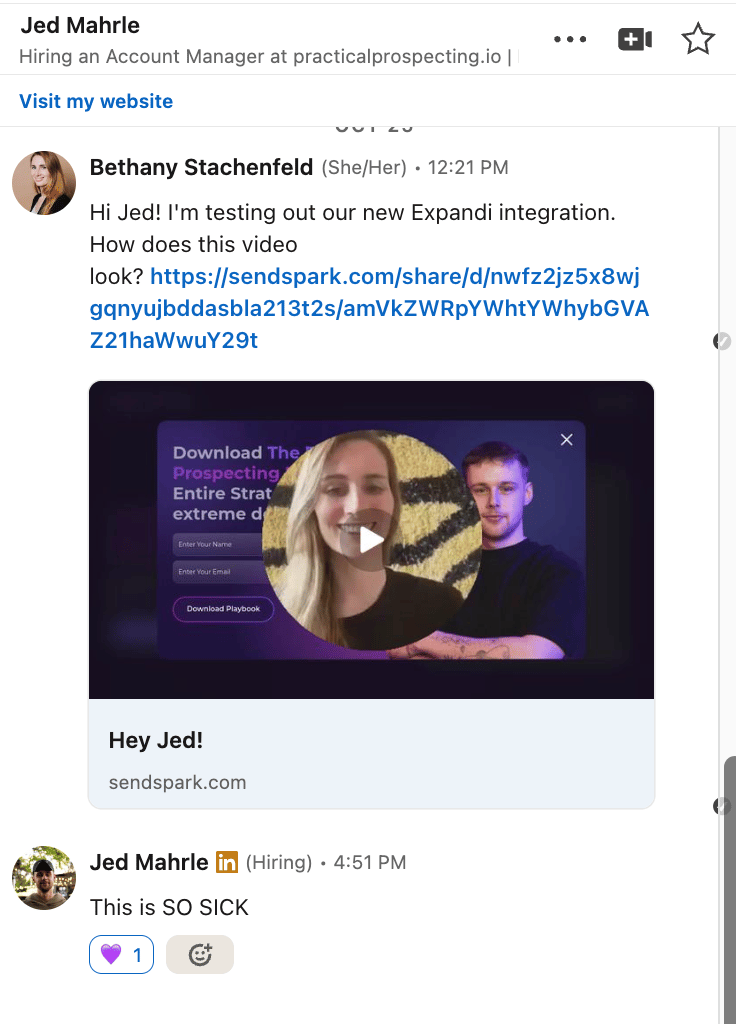
Now, when you enroll contacts to this campaign, each one will automatically get an AI personalized video created for them. It will look like this when it sends out:
Happy connecting! :)
## Frequently asked questions
Yes. If this is your first time using Sendspark and Expandi together, install the Sendspark integration in Expandi first. After that's set up, you can follow the campaign steps.
You build the dynamic video campaign in Sendspark up to the last step, but you add and enroll contacts in Expandi. When you enroll contacts to the Expandi campaign, each one automatically gets an AI-personalized video created for them.
When you select your Sendspark video in Expandi, a \{sendspark\_video} placeholder variable is automatically added to your message. You can move it around so the video link appears exactly where you want it, then hit "Save messages."
The integration works with any type of Expandi campaign. Just add a new campaign, and you'll see the option to select a Sendspark video right below where you edit your message.
*Updated July 2026.*
 If you don't know how to create a dynamic video campaign, please start with this article on [creating AI personalized videos in Sendspark](/dynamic-videos-make-videos-with-ai-introductions).
## 2. Create LinkedIn automation campaign in Expandi
Log into your Expandi account, go to the Campaigns section, and select "Add New Campaign."
If you don't know how to create a dynamic video campaign, please start with this article on [creating AI personalized videos in Sendspark](/dynamic-videos-make-videos-with-ai-introductions).
## 2. Create LinkedIn automation campaign in Expandi
Log into your Expandi account, go to the Campaigns section, and select "Add New Campaign."
 This integration will work with any type of Expandi campaign.
## 3. Select Sendspark Campaign in Expandi
Right below where you edit your message in Expandi, you will see the option to select a Sendspark video.
This integration will work with any type of Expandi campaign.
## 3. Select Sendspark Campaign in Expandi
Right below where you edit your message in Expandi, you will see the option to select a Sendspark video.
 Click on this to see all of your Sendspark dynamic video campaigns. Then, select the Sendspark Dynamic Video Campaign that you want to use for this campaign.
 ## 4. Position the \{sendspark\_video} placeholder correctly
When you select you Sendspark video, you'll see a \{sendspark\_video} placeholder variable get automatically added to your message.
## 4. Position the \{sendspark\_video} placeholder correctly
When you select you Sendspark video, you'll see a \{sendspark\_video} placeholder variable get automatically added to your message.
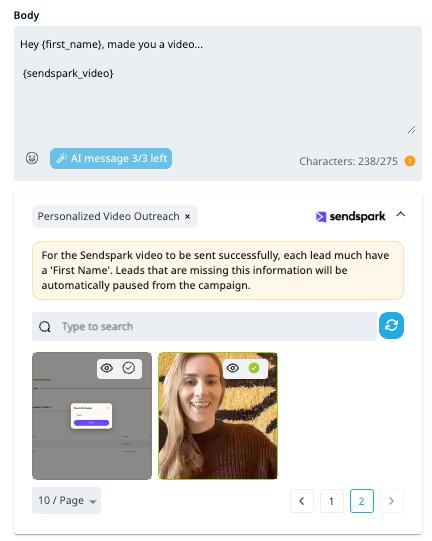 Feel free to move this around so the Sendspark video link will be exactly where you want this when you send it out.
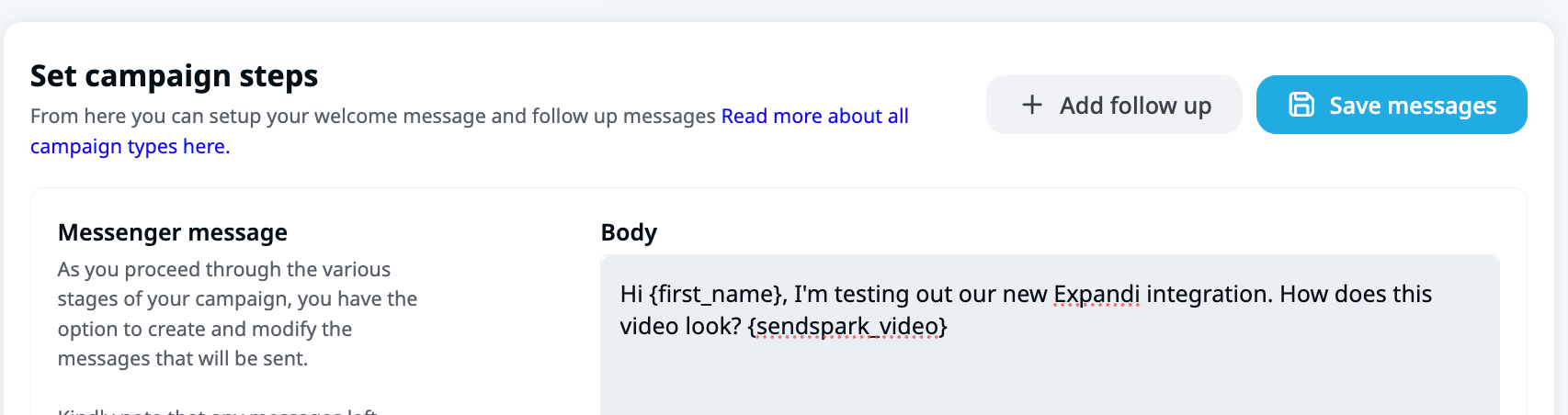 Make sure to hit **"Save messages"** when you're done editing! :)
## 5. Enroll contacts and turn on campaign!
Now, when you enroll contacts to this campaign, each one will automatically get an AI personalized video created for them. It will look like this when it sends out:
Make sure to hit **"Save messages"** when you're done editing! :)
## 5. Enroll contacts and turn on campaign!
Now, when you enroll contacts to this campaign, each one will automatically get an AI personalized video created for them. It will look like this when it sends out:
 Happy connecting! :)
## Frequently asked questions
Happy connecting! :)
## Frequently asked questions