

Key takeaways
- The integration sends Sendspark page visits to Zoho so you can track engagement with contacts and visualize video data in dashboards.
- Requirements are an active Sendspark account on the Growth plan or above, since CRM tracking integrations start there, plus an active Zoho SalesIQ account.
- To connect, go to your Sendspark integrations tab, click Connect next to Zoho, enter your SalesIQ widget code, and save.
- Find your widget code in Zoho under SalesIQ → Live View → Brands → Installation → Website, in the code block labeled widgetcode.
Requirements
- An active Sendspark account on the Growth plan or above, since CRM tracking integrations start there (see plan features)
- An active Zoho SalesIQ account
Integrate Sendspark with Zoho
- Go to your Sendspark integrations tab
- Next to Zoho, click Connect

- Enter yourSalesIQ widget code

- Save changes

- You should see that Zoho is enabled now 🎉
Where to find your SalesIQ widget code
- Navigate to SalesIQ > Live View> Brands, choose your brand, or create one.
- In your brand page, choose your brand, click Installation > Website
- In your block of code, look for your widgetcode
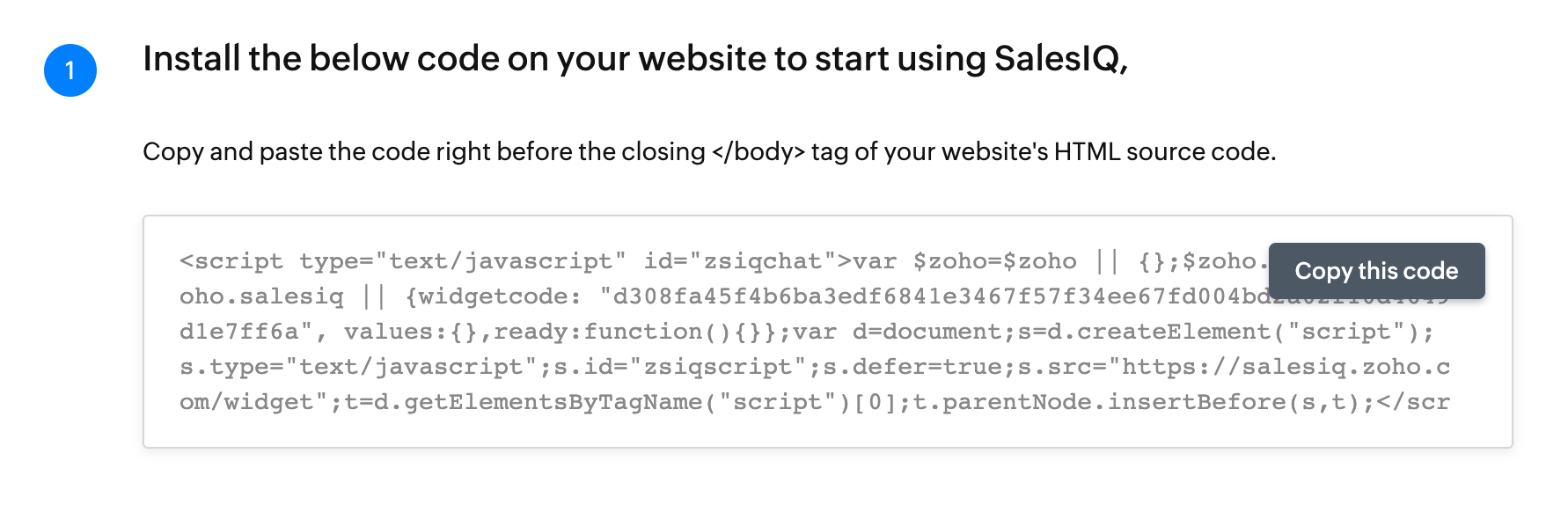
- In this example, the widgetcode is d308fa45f4b6ba3edf6841e3467f57f34ee67fd004bd2a02f10d4649d1e7ff6a
- That is the value you want to paste into Sendspark
Video tutorial:
Frequently asked questions
What does the Sendspark for Zoho integration do?
What does the Sendspark for Zoho integration do?
It sends Sendspark page visits to Zoho, letting you track engagement with your contacts and visualize video engagement data in Zoho dashboards, so you can measure the impact video is having on your business.
What do I need to use this integration?
What do I need to use this integration?
You need an active Sendspark account on the Growth plan or above, since CRM tracking integrations start there, plus an active Zoho SalesIQ account.
How do I connect Sendspark to Zoho?
How do I connect Sendspark to Zoho?
Go to your Sendspark integrations tab, click Connect next to Zoho, enter your SalesIQ widget code, and save your changes. You should then see that Zoho is enabled.
Where do I find my SalesIQ widget code?
Where do I find my SalesIQ widget code?
In Zoho, navigate to SalesIQ → Live View → Brands and choose (or create) your brand. On the brand page, click Installation → Website and look for the widgetcode value in the block of code. That value is what you paste into Sendspark.