> ## Documentation Index
> Fetch the complete documentation index at: https://help.sendspark.com/llms.txt
> Use this file to discover all available pages before exploring further.
# Embed Youcanbookme Calendar with Videos
> Learn how to embed Youcanbookme calendars with Sendspark videos to boost meeting bookings through video prospecting campaigns.
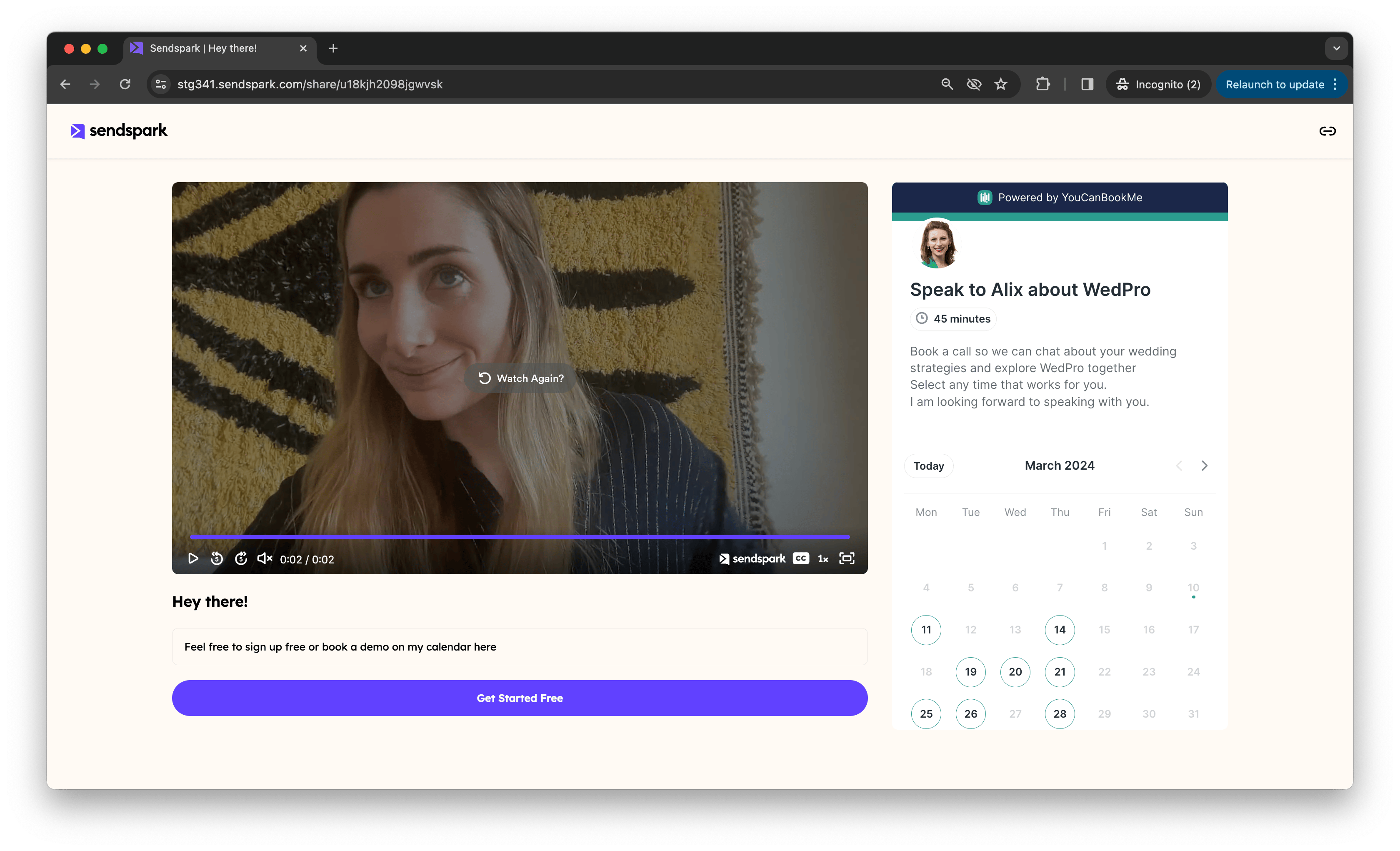
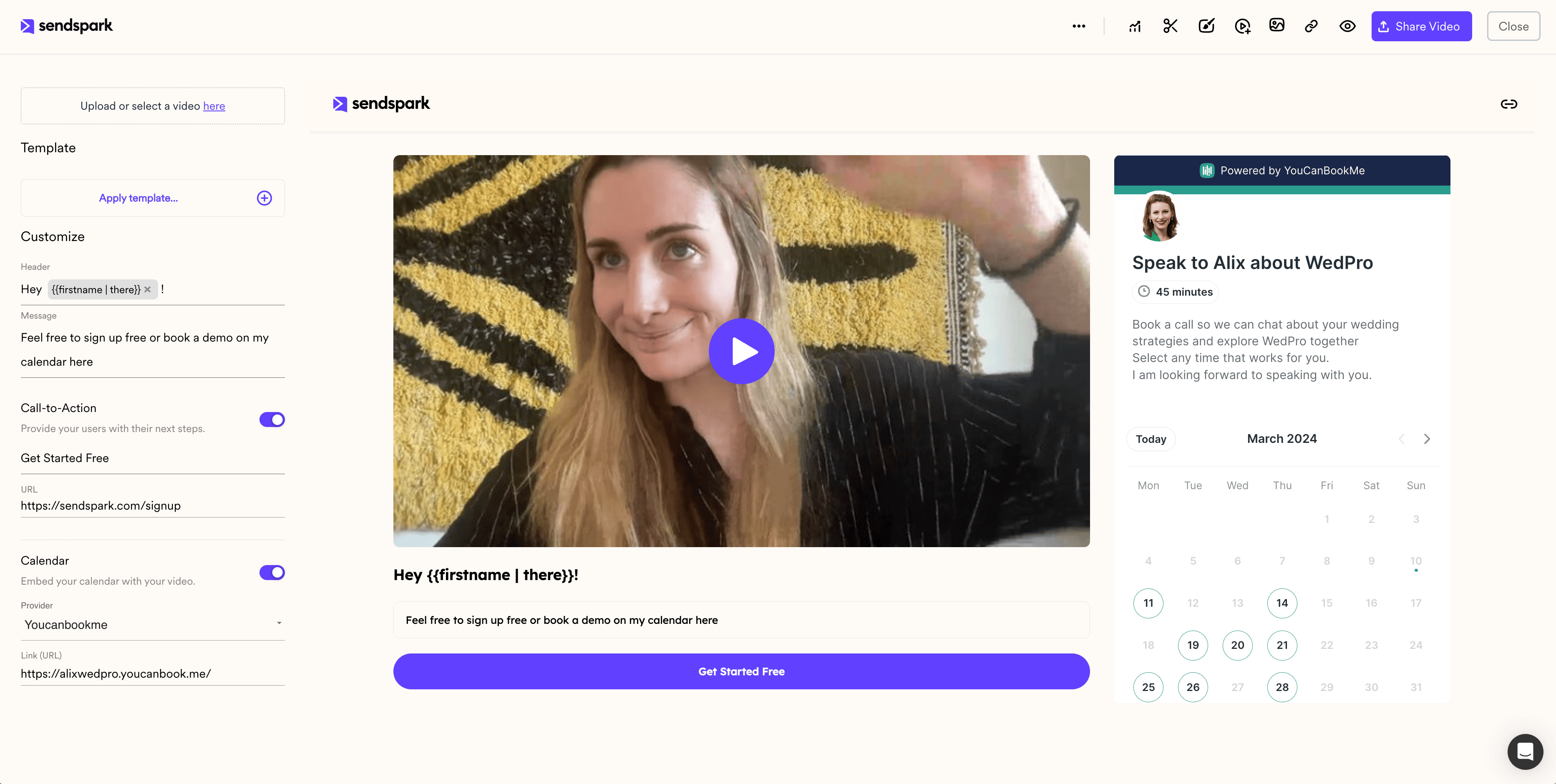
To embed your YouCanBookMe calendar on a Sendspark video, open your video page, toggle the **Calendar** option **On**, select **YouCanBookMe** from the bottom of the provider dropdown, and add the link to your calendar. It appears in the preview on the right, so right after watching your video, viewers can book a meeting on your calendar.
## Key takeaways
* Embedding your calendar takes three steps: toggle **Calendar** on, choose **YouCanBookMe**, and paste your calendar link.
* YouCanBookMe sits at the bottom of the provider dropdown list.
* Add the **link** to your calendar. Sendspark builds the embed for you, so no embed code is needed.
* The calendar appears in the preview on the right, letting viewers book a meeting right after watching.
Easily embed your Youcanbook.me calendar next to your Sendspark videos to book more meetings with video prospecting.
## **How to Embed Youcanbookme Calendars Link Next To Videos**
1. Open your Sendspark video page.
2. Toggle **"Calendar"** to **"On"**.
3. Select **"Youcanbookme"** from the provider dropdown list (it's near the bottom of the list).
4. **Add the link** to the Youcanbookme calendar you want to use.
Once you add the link, your embedded calendar appears in the preview area on the right. Right after watching your video, viewers can book a meeting on your calendar.
## Frequently asked questions
YouCanBookMe sits near the bottom of the provider dropdown list. Scroll down and select it, then paste your calendar link.
Paste the link to your YouCanBookMe calendar. Sendspark builds the embed from the link automatically, so you don't need any embed code.
Yes. The calendar appears next to your video, so right after watching, viewers can book a meeting on your calendar without leaving the page.
Sendspark supports several calendar providers. See [How to Embed Calendars with Videos](/how-to-embed-calendars-with-videos) for the full list and setup steps.
*Updated July 2026.*
 ## **How to Embed Youcanbookme Calendars Link Next To Videos**
1. Open your Sendspark video page.
2. Toggle **"Calendar"** to **"On"**.
3. Select **"Youcanbookme"** from the provider dropdown list (it's near the bottom of the list).
4. **Add the link** to the Youcanbookme calendar you want to use.
## **How to Embed Youcanbookme Calendars Link Next To Videos**
1. Open your Sendspark video page.
2. Toggle **"Calendar"** to **"On"**.
3. Select **"Youcanbookme"** from the provider dropdown list (it's near the bottom of the list).
4. **Add the link** to the Youcanbookme calendar you want to use.
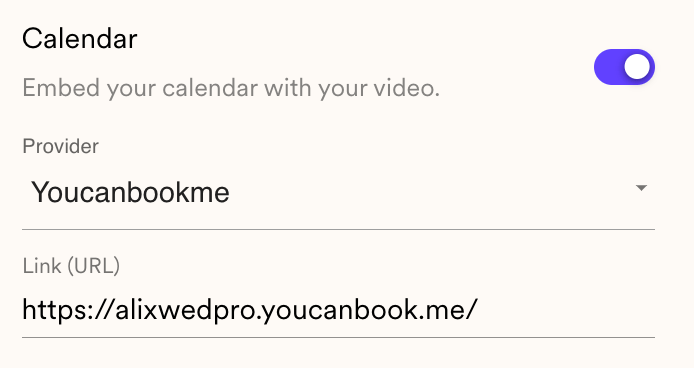 Once you add the link, your embedded calendar appears in the preview area on the right. Right after watching your video, viewers can book a meeting on your calendar.
 ## Frequently asked questions