> ## Documentation Index
> Fetch the complete documentation index at: https://help.sendspark.com/llms.txt
> Use this file to discover all available pages before exploring further.
# Embed Videos in Email That Play In Email
> Learn how to embed videos in email so they play directly in recipients' inboxes. Includes HTML code, fallback options, and platform compatibility tips.
To embed a video that plays right in email, add Sendspark's HTML snippet to your email's HTML and make sure recipients use an email client that supports video, such as Apple Mail, Superhuman, or Outlook for Mac. Because clients like Gmail don't support native video, always include a GIF fallback that opens the video in a browser.
## Key takeaways
* A video plays in-email only when it is embedded in your email's HTML and viewed on a client that supports video, such as Apple Mail, Superhuman, or Outlook for Mac.
* Gmail and Outlook for Windows do not support native video, so it's important to provide a GIF fallback that opens the video in a browser.
* Videos cannot autoplay with sound because email clients block it, so an animated GIF cover is used to capture attention instead.
* To embed, create your video, then copy the email embed code snippet from the Share > Embed tab and paste it into an HTML block in your email platform.
In this article, we'll cover how to embed videos in emails so they play right in email.
Before we dive in, it's important to understand the nuances of video email. Here are the most frequently asked questions about embedding video emails.
## Will Embedded Videos Always Play In Email?
Even if you embed a video ***perfectly*** in email, it still might not play in email depending on the email client it is being viewed on.
To play in email, a video must (1) be embedded in the HTML of your email (we'll cover how to do this), and (2) must be viewed on an email client that supports video.
Apple Mail, Superhuman, and Outlook for Mac support video in email, but many popular email clients, like Gmail and Outlook for Windows do not support native video. ([See all email clients that support video](https://blog.sendspark.com/which-email-clients-support-embedded-videos)).
For this reason, it's important to provide a "fallback" option for recipients who receive your video, but cannot view it natively in their email client. We will also cover how to do this here.
If your recipients are unable to see the video embed working as intended, troubleshoot by ensuring the email snippet and URL parameters are correctly matched to prevent viewing issues.
## Can Video Emails Autoplay with Sound?
No, you cannot make your videos autoplay with sound.
Email clients block this — for a good reason! Imagine you are checking your email from the library, a public location, or a meeting you are supposed to be paying attention in, and all of the sudden a video starts playing out loud. This would be embarrassing!
That being said, you can get the desired effect of standing out & capturing attention by using an animated GIF as the cover for your video in email.
This way, your viewer opens the email, sees something moving (exciting!), and can click to watch the full video.
## How do I embed a video in email using Sendspark?
Below, we are going to go through the steps to embed a video in email. This will work in nearly all email marketing platforms, as long as they have a way to add HTML snippets into your email.
Be mindful of troubleshooting steps for different email platforms, as configurations and compatibility might vary.
***
\*\*Note:\*\*Sendspark also supports direct integrations with popular platforms such as Mailchimp, Hubspot, Klaviyo, and more. The benefits of using the direct integrations are...
* **[Detailed Analytics](/how-to-understand-sendspark-video-analytics)**— you'll be able to see exactly who is watching your videos and what percentage of the video they have watched.
* **[Personalization at Scale](/use-merge-tags-to-personalize-videos-at-scale)**— you'll be able to customize your video thumbnails & landing pages with contact properties from your email sending platform. For example, you can add their name to the video thumbnail to increase engagement.
We recommend using these integrations when possible, although you will need to be on an [Active Subscription](https://www.sendspark.com/pricing) to use them.
**👉 [How to Embed Videos in Specific Email Platforms](/general-overview-how-to-share-sendspark-videos) 👈**
***
In the cases that either we do not have a direct integration with your email platform or you are on a Sendspark Free or Starter plan, please follow the steps below to embed your video in email.
### 1. Create Video in Sendspark
You can either [record](/record-yourself) a new video, [upload](/upload-a-video-to-sendspark) an existing video, or [request](https://sendspark.com/requested-videos) a video from someone else using a video request link.
### 2. Customize Video Landing Page (Optional)
The video landing page is important only for the cases when your video does NOT play in email. In these situations, when viewers click to play the video, instead of playing in email, the video will open into a "landing page" on their web browser.
You can further optimize the landing page by including a call-to-action (CTA) button and a calendar link, providing viewers a seamless way to take action or schedule follow-up meetings.
You can customize this in a few ways to make sure your viewer has an awesome experience:
* **[Edit page content](/customize-your-video-landing-page)**— Add text and a call-to-action to ensure your viewer takes the desired action after watching your video
* **[Set global styles](/set-global-styles)** — Upload your logo and set a color theme to ensure you're deliverable a cohesive brand experience
* **[Use a custom domain](/use-a-custom-domain-for-videos)** — Take your branding to the next level with whitelabel and a custom domain.
### 3. Customize Video Thumbnail (Optional)
The video thumbnail is important for maximizing engagement in email. You can use this as a hook to entice viewers to watch your video.
* Select **"Share"**
* On the top left of your view thumbnail, click **"Customize"**
* Enjoy all of the options to edit your video thumbnailto make it stand out and capture viewer attention.
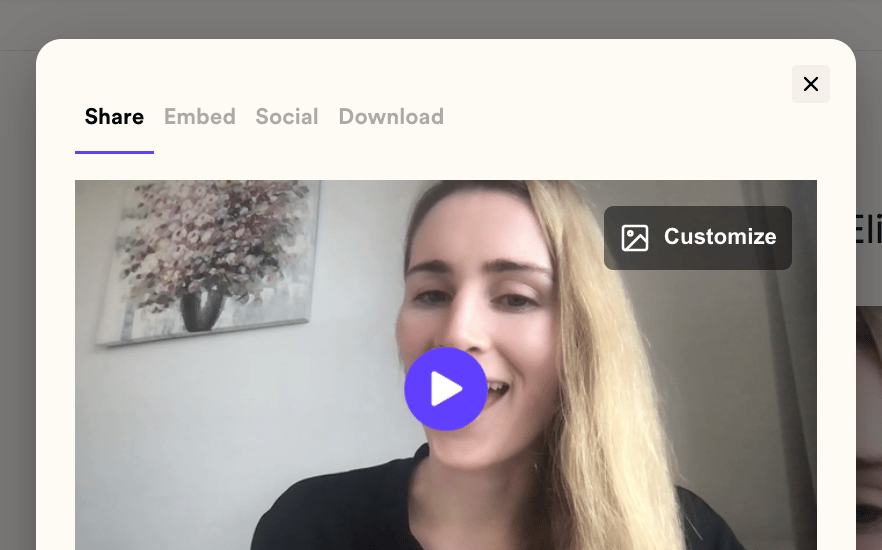
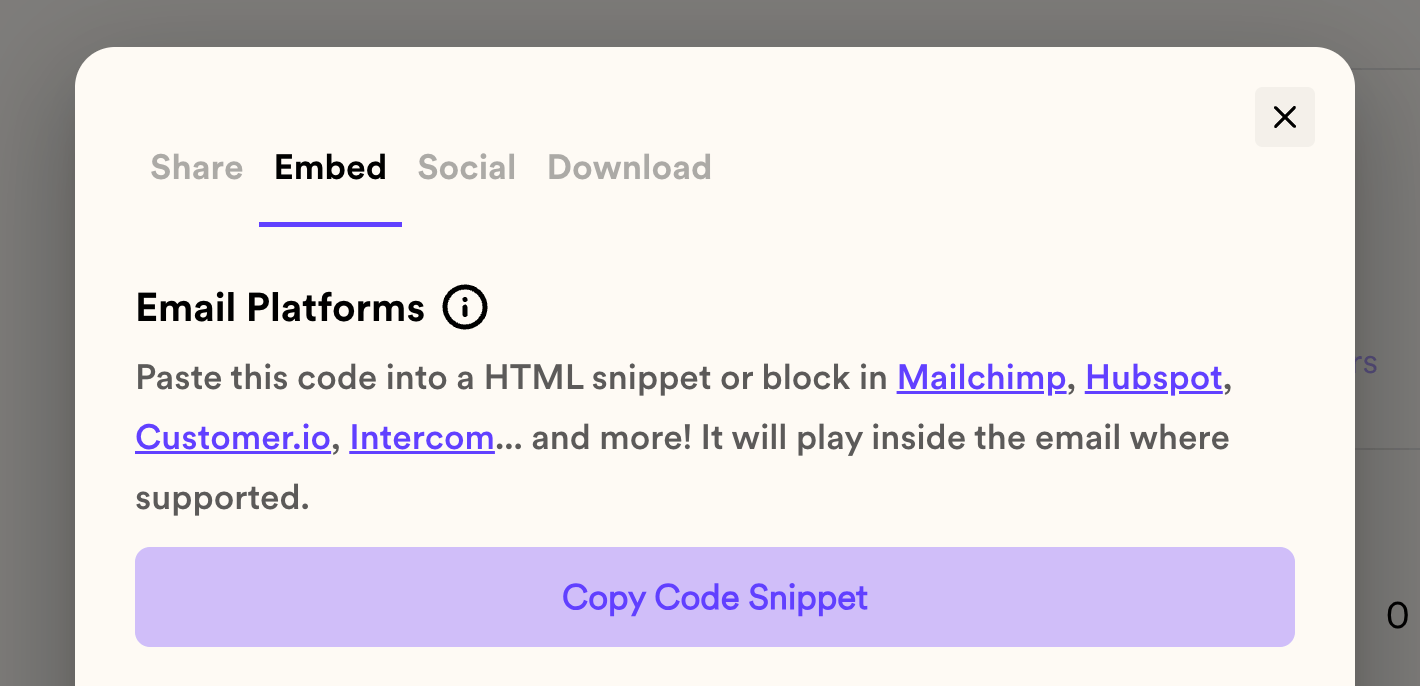
### 4. Copy Email Embed Code From Sendspark
From your video in Sendspark...
* Select\*\*"Share"\*\*
* Click into the \*\*"Embed"\*\*tab
* Under \*\*"Email Platforms,"\*\*click **"Copy Code Snippet"**
This will copy an HTML snippet to your clipboard that you can use in the next step.
### 5. Paste Into Your Email
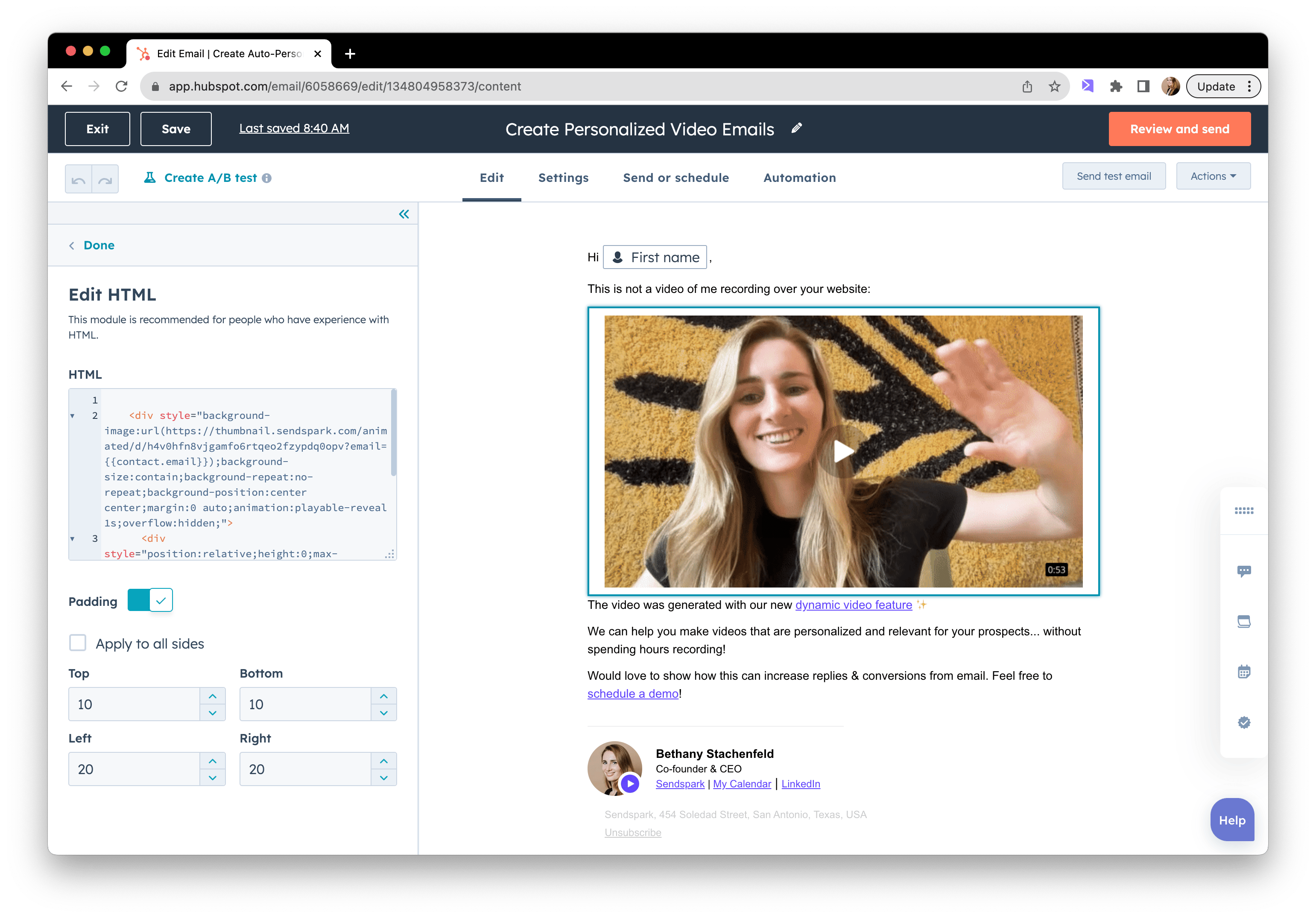
In your email sending platform, get to a spot where you are able to edit the HTML of your email. In some email platforms, you can add an "HTML block" into your emails, and in other platforms you will be clicking a "HTML" or "Source" button to switch your editor into HTML mode.
Before pasting the HTML, double-check the URL and email snippet configuration to ensure everything is correctly matched for proper functionality.
Once you are able to edit the HTML, **simply paste the snippet copied to your clipboard into your email.**
That's it! You can send yourself a sample of your video email and open it on a few email clients to see how it
## Troubleshooting Common Issues with Personalized Video Embedding
## Problem: Recipients are not seeing the personalized video despite using the email snippet and parameter.
This issue might occur due to:
* Incorrect or mismatched URL and email parameters.
* Improper linking of the personalized video to your campaign.
* Missing or incorrect usage of the video snippet.
## Resolution:
1. Double-check the URL and email parameter to ensure they are correctly matched.
2. Verify that the video is properly linked in your campaign.
3. Ensure the snippet is correctly configured for when the recipient’s email is unavailable.
Following these steps can help ensure videos are displayed as intended, creating a smooth viewing experience for recipients.
***
## Frequently asked questions
No. Even a perfectly embedded video only plays on email clients that support video, such as Apple Mail, Superhuman, and Outlook for Mac. Because many clients don't support native video, it's important to provide a fallback.
No. Email clients block autoplay with sound, but you can get a similar attention-grabbing effect by using an animated GIF as the cover for your video.
From your video, select "Share," click into the "Embed" tab, and under "Email Platforms" click "Copy Code Snippet." This copies an HTML snippet you can paste into your email.
They'll see the animated GIF and can click to open the video in their browser, which is still a great user experience.
*Updated July 2026.*
 ### 4. Copy Email Embed Code From Sendspark
From your video in Sendspark...
* Select\*\*"Share"\*\*
* Click into the \*\*"Embed"\*\*tab
* Under \*\*"Email Platforms,"\*\*click **"Copy Code Snippet"**
### 4. Copy Email Embed Code From Sendspark
From your video in Sendspark...
* Select\*\*"Share"\*\*
* Click into the \*\*"Embed"\*\*tab
* Under \*\*"Email Platforms,"\*\*click **"Copy Code Snippet"**
 This will copy an HTML snippet to your clipboard that you can use in the next step.
### 5. Paste Into Your Email
In your email sending platform, get to a spot where you are able to edit the HTML of your email. In some email platforms, you can add an "HTML block" into your emails, and in other platforms you will be clicking a "HTML" or "Source" button to switch your editor into HTML mode.
Before pasting the HTML, double-check the URL and email snippet configuration to ensure everything is correctly matched for proper functionality.
Once you are able to edit the HTML, **simply paste the snippet copied to your clipboard into your email.**
This will copy an HTML snippet to your clipboard that you can use in the next step.
### 5. Paste Into Your Email
In your email sending platform, get to a spot where you are able to edit the HTML of your email. In some email platforms, you can add an "HTML block" into your emails, and in other platforms you will be clicking a "HTML" or "Source" button to switch your editor into HTML mode.
Before pasting the HTML, double-check the URL and email snippet configuration to ensure everything is correctly matched for proper functionality.
Once you are able to edit the HTML, **simply paste the snippet copied to your clipboard into your email.**
 That's it! You can send yourself a sample of your video email and open it on a few email clients to see how it
## Troubleshooting Common Issues with Personalized Video Embedding
## Problem: Recipients are not seeing the personalized video despite using the email snippet and parameter.
This issue might occur due to:
* Incorrect or mismatched URL and email parameters.
* Improper linking of the personalized video to your campaign.
* Missing or incorrect usage of the video snippet.
## Resolution:
1. Double-check the URL and email parameter to ensure they are correctly matched.
2. Verify that the video is properly linked in your campaign.
3. Ensure the snippet is correctly configured for when the recipient’s email is unavailable.
Following these steps can help ensure videos are displayed as intended, creating a smooth viewing experience for recipients.
***
## Frequently asked questions
That's it! You can send yourself a sample of your video email and open it on a few email clients to see how it
## Troubleshooting Common Issues with Personalized Video Embedding
## Problem: Recipients are not seeing the personalized video despite using the email snippet and parameter.
This issue might occur due to:
* Incorrect or mismatched URL and email parameters.
* Improper linking of the personalized video to your campaign.
* Missing or incorrect usage of the video snippet.
## Resolution:
1. Double-check the URL and email parameter to ensure they are correctly matched.
2. Verify that the video is properly linked in your campaign.
3. Ensure the snippet is correctly configured for when the recipient’s email is unavailable.
Following these steps can help ensure videos are displayed as intended, creating a smooth viewing experience for recipients.
***
## Frequently asked questions