> ## Documentation Index
> Fetch the complete documentation index at: https://help.sendspark.com/llms.txt
> Use this file to discover all available pages before exploring further.
# Embed LemCal Calendar with Videos
> Learn how to embed your LemCal calendar alongside Sendspark videos so prospects can instantly book meetings after watching your
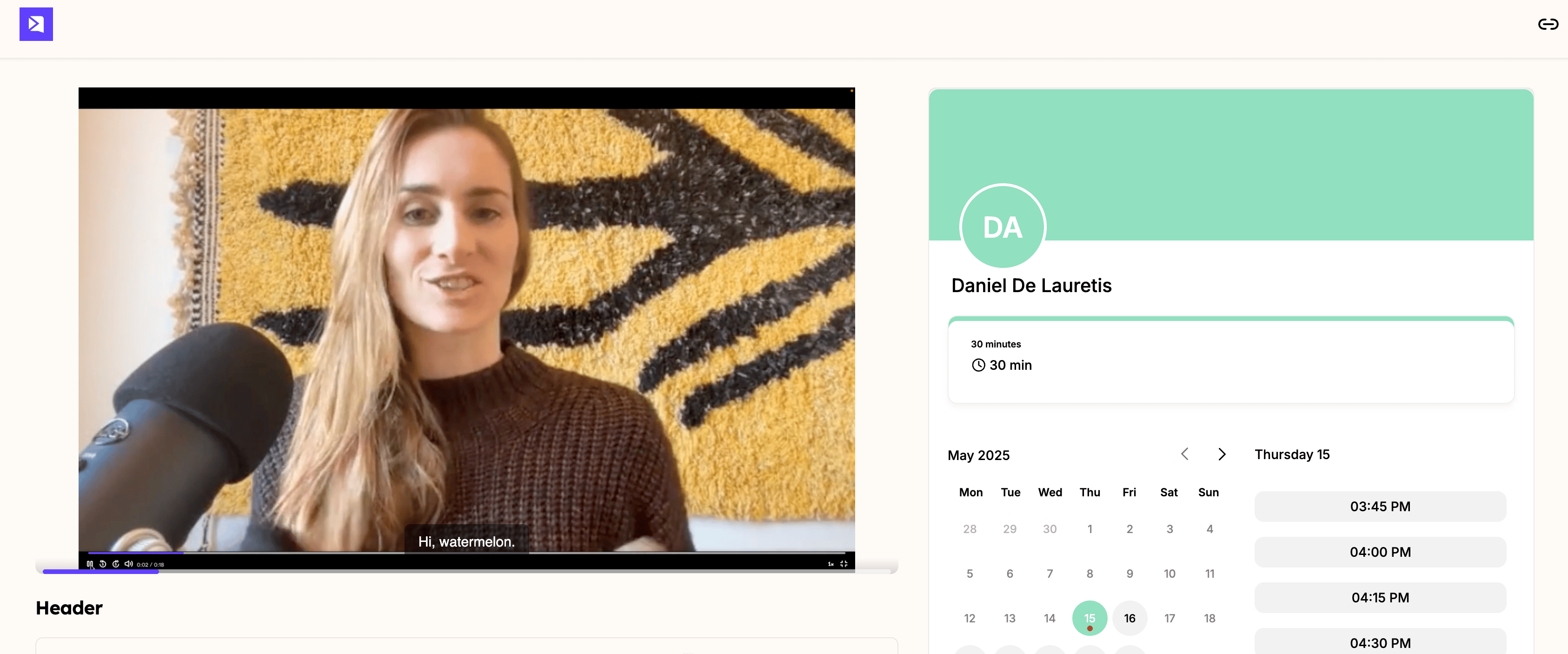
Embed your [LemCal](https://www.lemcal.com/) calendar next to your Sendspark videos to help prospects book meetings right after watching.
To connect it, open your meeting type in LemCal, go to the **Embed** section, and copy the two values shown there. In Sendspark, select **LemCal** as the calendar provider, paste the first value (your user ID) and the second value (the meeting), then save. Your calendar appears next to the video.
## Key takeaways
* LemCal's **Embed** tab (inside your meeting type) provides the two values Sendspark needs.
* Set **LemCal** as the provider in Sendspark, then paste the **user ID** and the **meeting** value into their fields.
* When copying each value, do not include the surrounding quotation marks.
* After saving, the LemCal calendar appears beside your video so prospects can book without leaving the page.
## Check out this quick video to see the required steps:
## How to embed a LemCal calendar with your video
1. In LemCal, go to **Meetings**, then click the meeting type you created.
2. Open the **Embed** section. You'll see two pieces of data that Sendspark needs.
3. Copy the first value — your **user ID** — making sure not to include the quotation marks.
4. In Sendspark, select **LemCal** as the provider and paste the user ID into its field.
5. Copy the second value (the **meeting**) the same way and paste it into its field.
6. Click **Save**. Your LemCal calendar now appears next to your video.
## Frequently asked questions
Open your meeting type in LemCal and go to the Embed section. It shows two pieces of data: the first is your user ID and the second is the meeting. You paste both into Sendspark.
No. When you copy each value from LemCal, leave out the surrounding quotation marks — paste only the value itself into Sendspark.
Choose LemCal as the calendar provider before pasting the user ID and meeting values, so Sendspark embeds the calendar correctly.
*Updated July 2026.*
 ## Check out this quick video to see the required steps:
## How to embed a LemCal calendar with your video
1. In LemCal, go to **Meetings**, then click the meeting type you created.
2. Open the **Embed** section. You'll see two pieces of data that Sendspark needs.
3. Copy the first value — your **user ID** — making sure not to include the quotation marks.
4. In Sendspark, select **LemCal** as the provider and paste the user ID into its field.
5. Copy the second value (the **meeting**) the same way and paste it into its field.
6. Click **Save**. Your LemCal calendar now appears next to your video.
## Frequently asked questions
## Check out this quick video to see the required steps:
## How to embed a LemCal calendar with your video
1. In LemCal, go to **Meetings**, then click the meeting type you created.
2. Open the **Embed** section. You'll see two pieces of data that Sendspark needs.
3. Copy the first value — your **user ID** — making sure not to include the quotation marks.
4. In Sendspark, select **LemCal** as the provider and paste the user ID into its field.
5. Copy the second value (the **meeting**) the same way and paste it into its field.
6. Click **Save**. Your LemCal calendar now appears next to your video.
## Frequently asked questions