> ## Documentation Index
> Fetch the complete documentation index at: https://help.sendspark.com/llms.txt
> Use this file to discover all available pages before exploring further.
# Download Videos as .MP4 Files
> Learn how to download your Sendspark videos as MP4 files from your dashboard or Chrome Extension for Starter plan users and above.
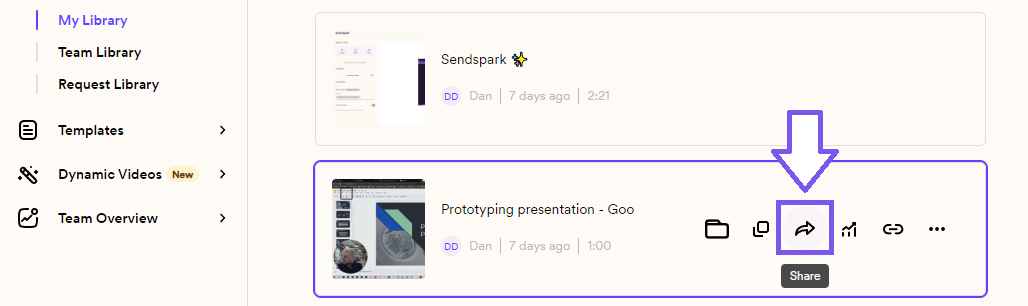
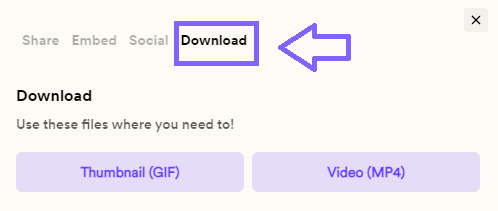
To download a Sendspark video as an .mp4 file, hover over the video in your dashboard, click **Share**, then **Download → Video (MP4)**. Requested videos can be downloaded straight from your Video Requests folder using the ellipses on the video. Downloading is available on the Starter plan and above.
## Key takeaways
* Downloading videos as .mp4 is available for **Starter** plan users and above (see [Sendspark pricing](https://www.sendspark.com/pricing)).
* For recorded videos: hover over the video, click **Share**, then **Download → Video (MP4)**.
* For requested videos: open your **Video Requests** folder, hover the video, and use the ellipses (top right) to select **download**.
* Downloads land in your browser's Downloads folder (shown at the bottom-left of Chrome).
Sendspark makes it easy to record and download videos in .mp4 format.
\*\*Please note:\*\*Download is only available for Starter users and above. Learn more about Sendspark plans [Sendspark pricing](https://www.sendspark.com/pricing)!
***
## Download Recorded Videos
You can download any videos you record through the Sendspark web application or Chrome Extension from your Sendspark dashboard.
Simply hover over your video, and click on **Share**.
 Then simply click on the **Download** and continue to **Video (MP4)**
 ## Download Requested Videos
You can download requested videos right from your Video Requests folder. In this case, you can hover the video and see the download option directly over it.
## Download Requested Videos
You can download requested videos right from your Video Requests folder. In this case, you can hover the video and see the download option directly over it.
 Simply click the ellipses on the top right of your video, and select the “download” option.
Similarly, you will see the video download immediately on the bottom left of your Chrome Browser, and can find it directly in your Downloads folder.
## Frequently asked questions
From your Sendspark dashboard, hover over the video and click **Share**, then click **Download** and continue to **Video (MP4)**. This works for videos recorded through the web application or the Chrome Extension.
No. Download is only available for **Starter** plan users and above. You can compare plans on the [Sendspark pricing page](https://www.sendspark.com/pricing).
Open your **Video Requests** folder, hover over the video, and click the ellipses on the top right of the video, then select **download**. The download option appears directly over requested videos.
The video downloads to your browser's Downloads folder. In Chrome you'll see it appear at the bottom-left of the browser as it finishes, and it will be saved in your Downloads folder.
*Updated July 2026.*
Simply click the ellipses on the top right of your video, and select the “download” option.
Similarly, you will see the video download immediately on the bottom left of your Chrome Browser, and can find it directly in your Downloads folder.
## Frequently asked questions
From your Sendspark dashboard, hover over the video and click **Share**, then click **Download** and continue to **Video (MP4)**. This works for videos recorded through the web application or the Chrome Extension.
No. Download is only available for **Starter** plan users and above. You can compare plans on the [Sendspark pricing page](https://www.sendspark.com/pricing).
Open your **Video Requests** folder, hover over the video, and click the ellipses on the top right of the video, then select **download**. The download option appears directly over requested videos.
The video downloads to your browser's Downloads folder. In Chrome you'll see it appear at the bottom-left of the browser as it finishes, and it will be saved in your Downloads folder.
*Updated July 2026.*