> ## Documentation Index
> Fetch the complete documentation index at: https://help.sendspark.com/llms.txt
> Use this file to discover all available pages before exploring further.
# Customize Your Video Landing Page
> Learn how to customize your video landing page with titles, messages, call-to-action buttons, and brand styles to boost engagement.
After recording, you can customize your Sendspark video landing page in four ways: write a title above the video, add a message below it, turn on a call-to-action button, and set brand styles with your logo and colors. Using any of these features requires at least the Starter plan.
## Key takeaways
* Four customization options: a header title, a message, a call-to-action button, and brand styles.
* The title appears directly above the video, and the message appears right below it.
* The CTA button can link to a calendar link, phone number, text message, or URL link.
* Brand styles (logo and colors) are set once and apply to all video messages and requests in your workspace.
* You need at least the Starter plan to use these features.
After recording your video, you can edit your video's landing page in these ways:
1. Write a title above your video
2. Add a message below your video
3. Use the **Call-To-Action**button
4. Set **Brand Styles**
**Note that to use any of these features you need to be at least under the Starter Plan.**
To get started using video landing pages, read the article or watch the video!
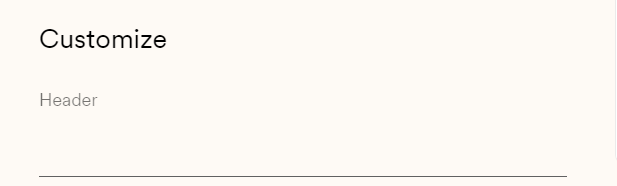
## 1. Write a Header above your video
Write a title to set the scene for your video. This will appear directly above your video.
## 2. Add a Message below your video
Add a message to drive home key points in your message. This will appear right below your video.
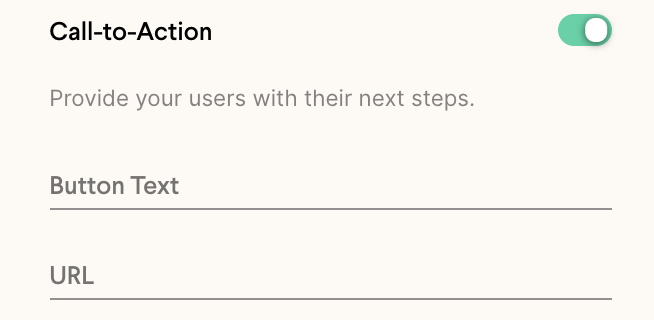
## 3. Use a call-to-action button
Toggle on the **Call-To-Action** button to add a button below your video. Refer to these guides for using a [calendar link](/use-a-call-to-action-calendar-link), [phone number,](/use-a-call-to-action-phone-number) [text message](/use-a-call-to-action-text-message), or [URL link](/use-a-call-to-action-url-link).
## 4. Set Brand Styles
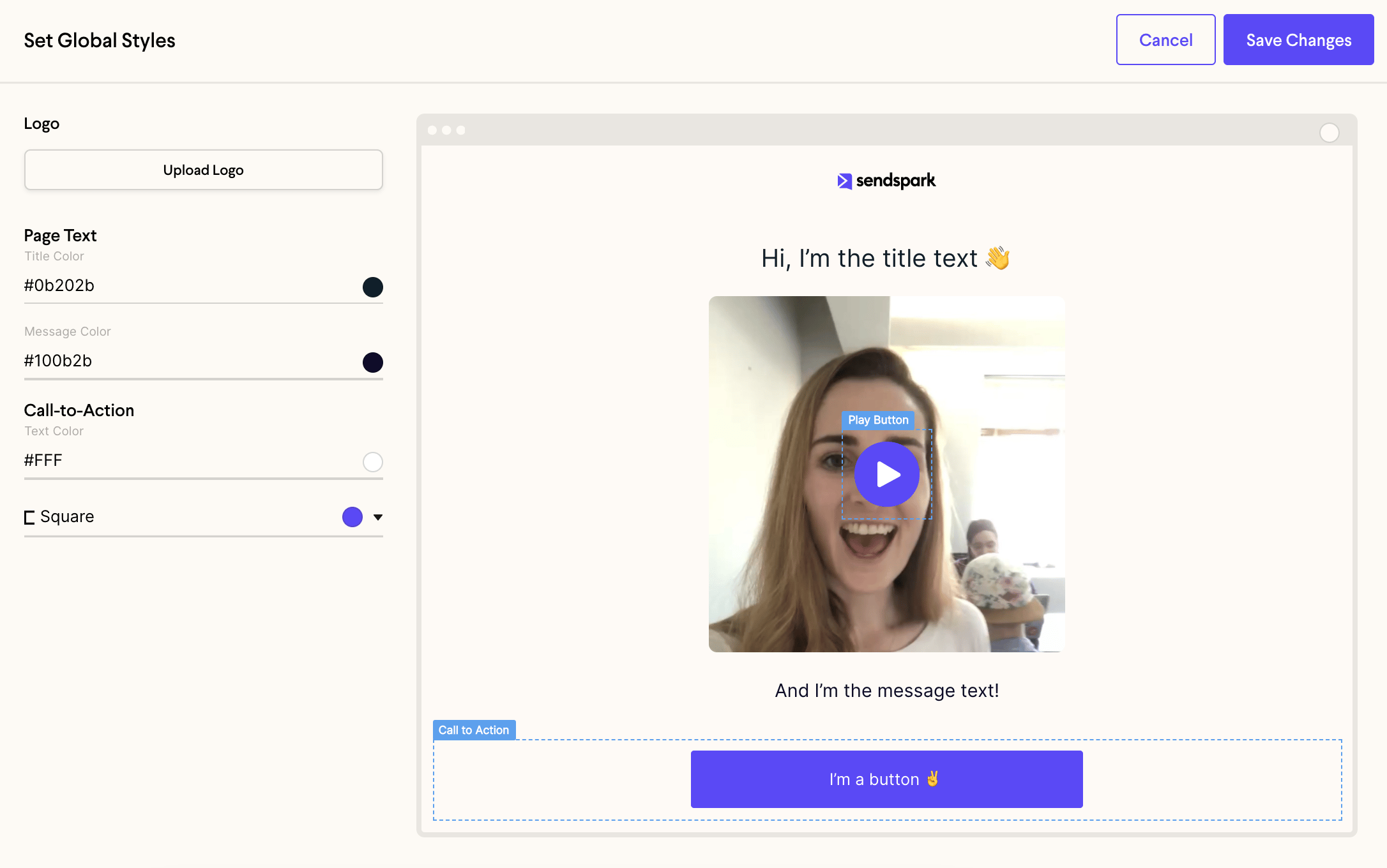
Add your own logo and brand colors to customize the look and feel of your Sendspark videos.
You will only have to set your styles once to have them appear on all video messages and requests in your workspace. [Learn more about setting global styles here](/set-global-styles).
## Frequently asked questions
You need to be on at least the Starter plan to use the title, message, call-to-action, and brand style features.
The title appears directly above your video to set the scene, and the message appears right below your video to drive home key points.
Toggle on the Call-To-Action button to add a button below your video. It can link to a [calendar link](/use-a-call-to-action-calendar-link), [phone number](/use-a-call-to-action-phone-number), [text message](/use-a-call-to-action-text-message), or [URL link](/use-a-call-to-action-url-link).
No. You set your logo and brand colors once, and they apply to all video messages and requests in your workspace. See [setting global styles](/set-global-styles) for more.
*Updated July 2026.*
 ## 2. Add a Message below your video
Add a message to drive home key points in your message. This will appear right below your video.
## 2. Add a Message below your video
Add a message to drive home key points in your message. This will appear right below your video.
 ## 3. Use a call-to-action button
Toggle on the **Call-To-Action** button to add a button below your video. Refer to these guides for using a [calendar link](/use-a-call-to-action-calendar-link), [phone number,](/use-a-call-to-action-phone-number) [text message](/use-a-call-to-action-text-message), or [URL link](/use-a-call-to-action-url-link).
## 3. Use a call-to-action button
Toggle on the **Call-To-Action** button to add a button below your video. Refer to these guides for using a [calendar link](/use-a-call-to-action-calendar-link), [phone number,](/use-a-call-to-action-phone-number) [text message](/use-a-call-to-action-text-message), or [URL link](/use-a-call-to-action-url-link).
 ## 4. Set Brand Styles
Add your own logo and brand colors to customize the look and feel of your Sendspark videos.
## 4. Set Brand Styles
Add your own logo and brand colors to customize the look and feel of your Sendspark videos.
 You will only have to set your styles once to have them appear on all video messages and requests in your workspace. [Learn more about setting global styles here](/set-global-styles).
## Frequently asked questions
You will only have to set your styles once to have them appear on all video messages and requests in your workspace. [Learn more about setting global styles here](/set-global-styles).
## Frequently asked questions