> ## Documentation Index
> Fetch the complete documentation index at: https://help.sendspark.com/llms.txt
> Use this file to discover all available pages before exploring further.
# Connect Instantly.ai with Sendspark Agentic
> Learn how to connect Instantly.ai with Sendspark Agentic Workflows using API keys and webhooks for automated email campaigns.
To connect Instantly.ai with Sendspark Agentic Workflows, add your Instantly API key in Sendspark (Agentic Workflows → Apps → Add Connection → Instantly), then copy the webhook URL Sendspark provides and add it in Instantly under Settings → Integrations → Webhooks with All Events and All Campaigns selected. Instantly events can then trigger Sendspark automations.
## Key takeaways
* Two setup steps: add the **Instantly API key** in Sendspark, then add Sendspark's **webhook URL** in Instantly.
* Generate the API key in Instantly under **Settings → Integrations → API Keys** with **All scopes** recommended.
* When adding the webhook in Instantly, select **All Events** and **All Campaigns** so every event reaches Sendspark.
* If you lose the webhook URL, reopen the Instantly **Connection Settings** in Sendspark to copy it again.
## 🔑 Step 1: Add the Instantly API Key
1. Go to **[Agentic Workflows](https://sendspark.com/agentic-workflows)** → **Apps** → **Add Connection**.
2. Select **Instantly**.
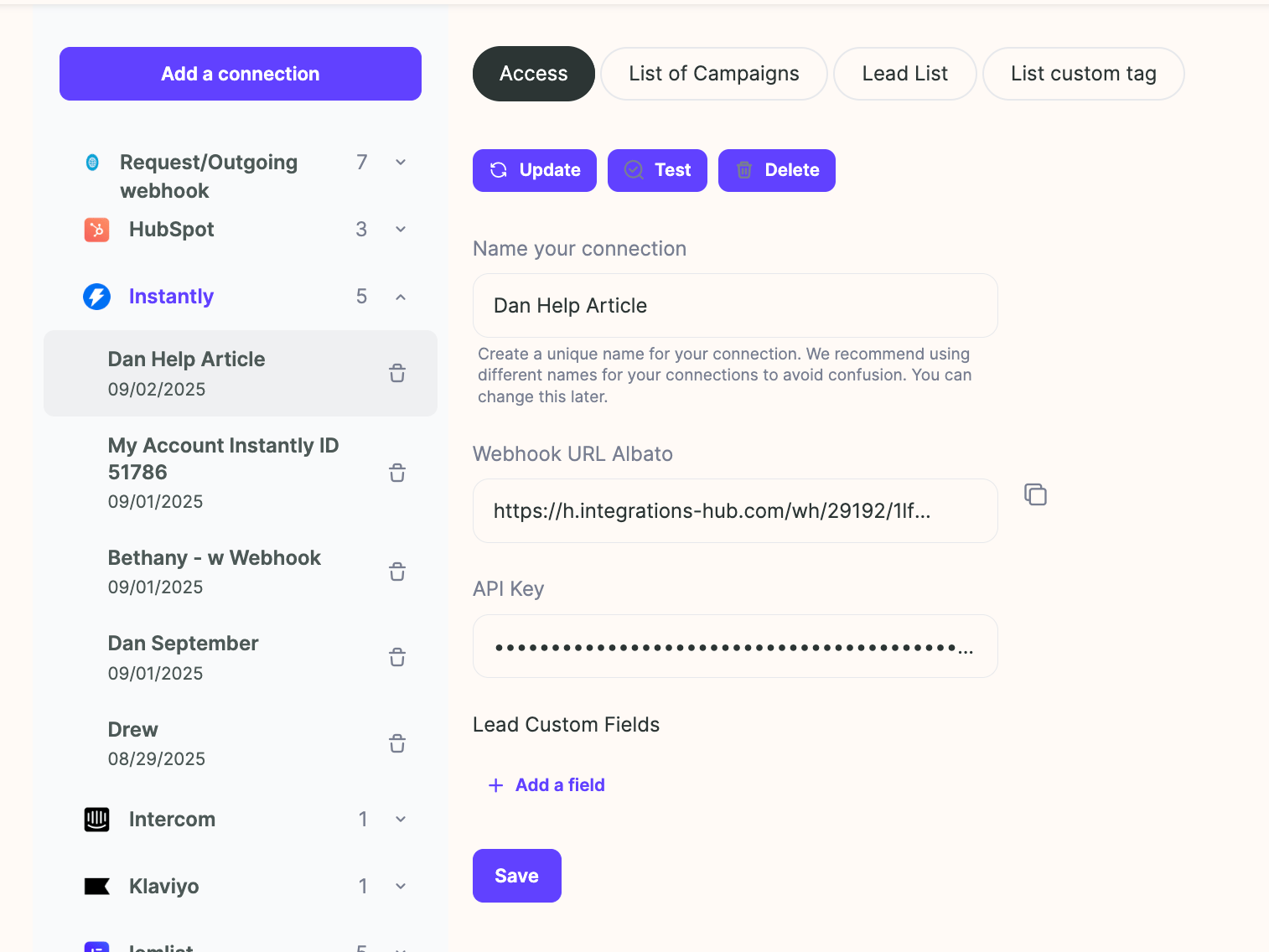
3. Enter a connection name (e.g. *"Dan Help Article"*) or leave description blank if not needed.
4. You’ll be prompted for an **API key**. To get it:
* Log in to **[Instantly](https://instantly.ai)**.
* Go to **Settings** → **Integrations** → **API Keys**.
* Click **Create API Key** → name it → select **All scopes** (recommended).
* Click **Create** → copy the generated key.
5. Return to Sendspark and paste the API key.
6. Save the connection.
👉 At this point, the connection will process and link Instantly to Sendspark.
***
## 🌐 Step 2: Configure the Instantly Webhook
1. After the connection is created, Sendspark will display a **Webhook URL**.
2. Copy the URL.
3. In Instantly, go to **Settings → Integrations → Webhooks**
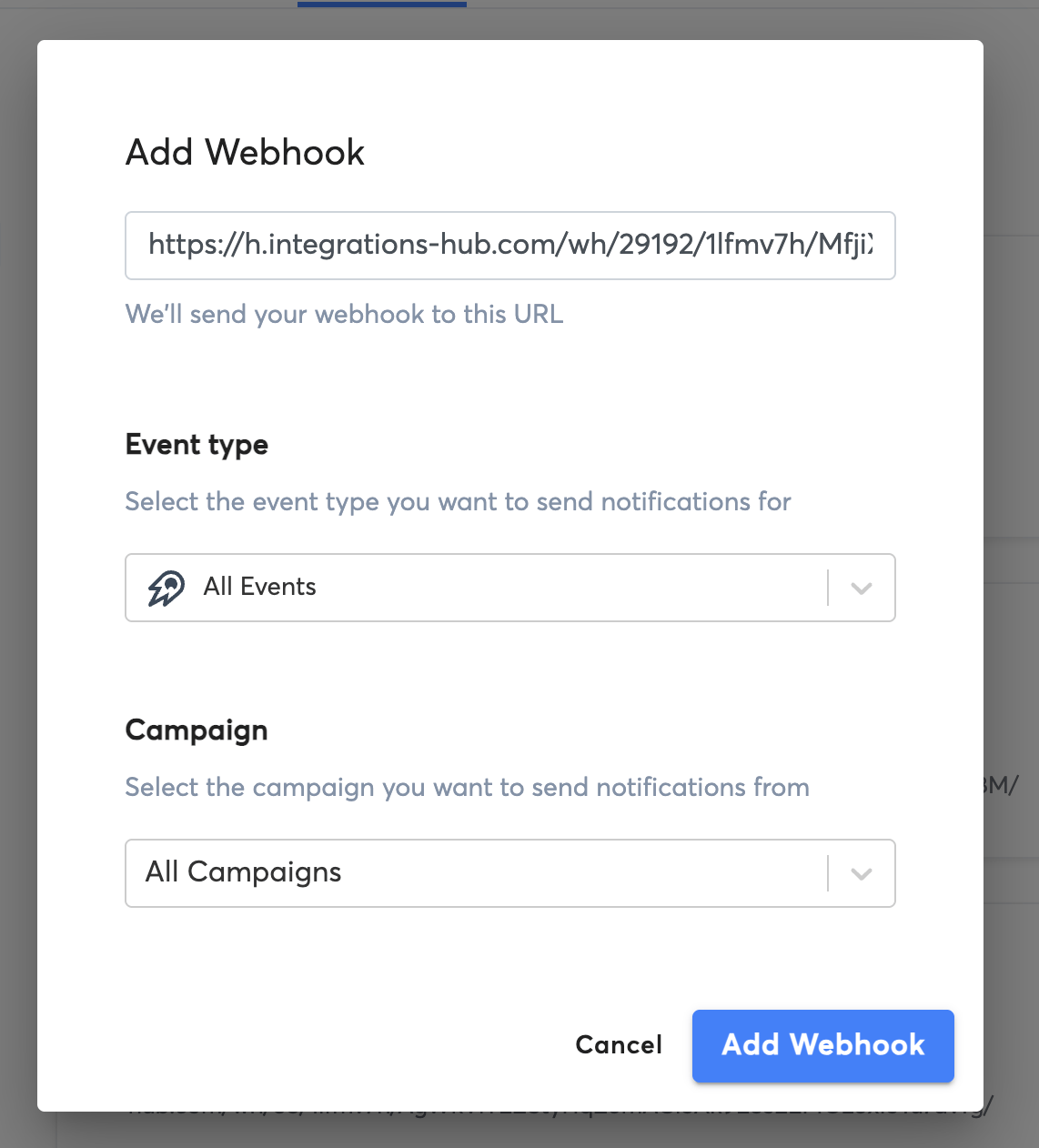
4. Click **Add Webhook** → paste the URL.
5. Under **Event Types**, select **All Events**to send all possible webhook events to Sendspark.
6. Select **All Campaigns** to ensure that this connection will work for all campaigns in your Instantly account
7. Click **Save**.
***
## 🤔 Can't Find your Webhook URL?
If your webhook URL does not show up right away when connecting Instantly, or if you've already closed that screen, find this URL by...
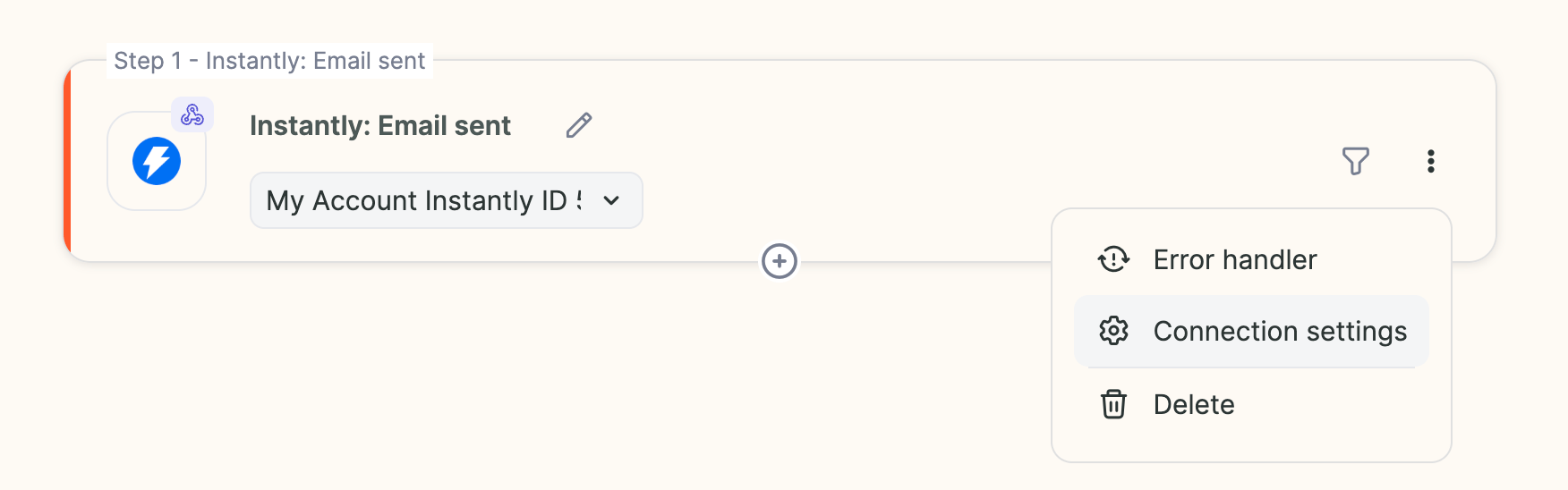
* Click on **Instantly** **Connection Settings.**
* Copy the Webhook URL from here
* Paste it into Instantly webhook as described in the step above
***
## ⚡ Using Instantly in Automations
Once connected, you can:
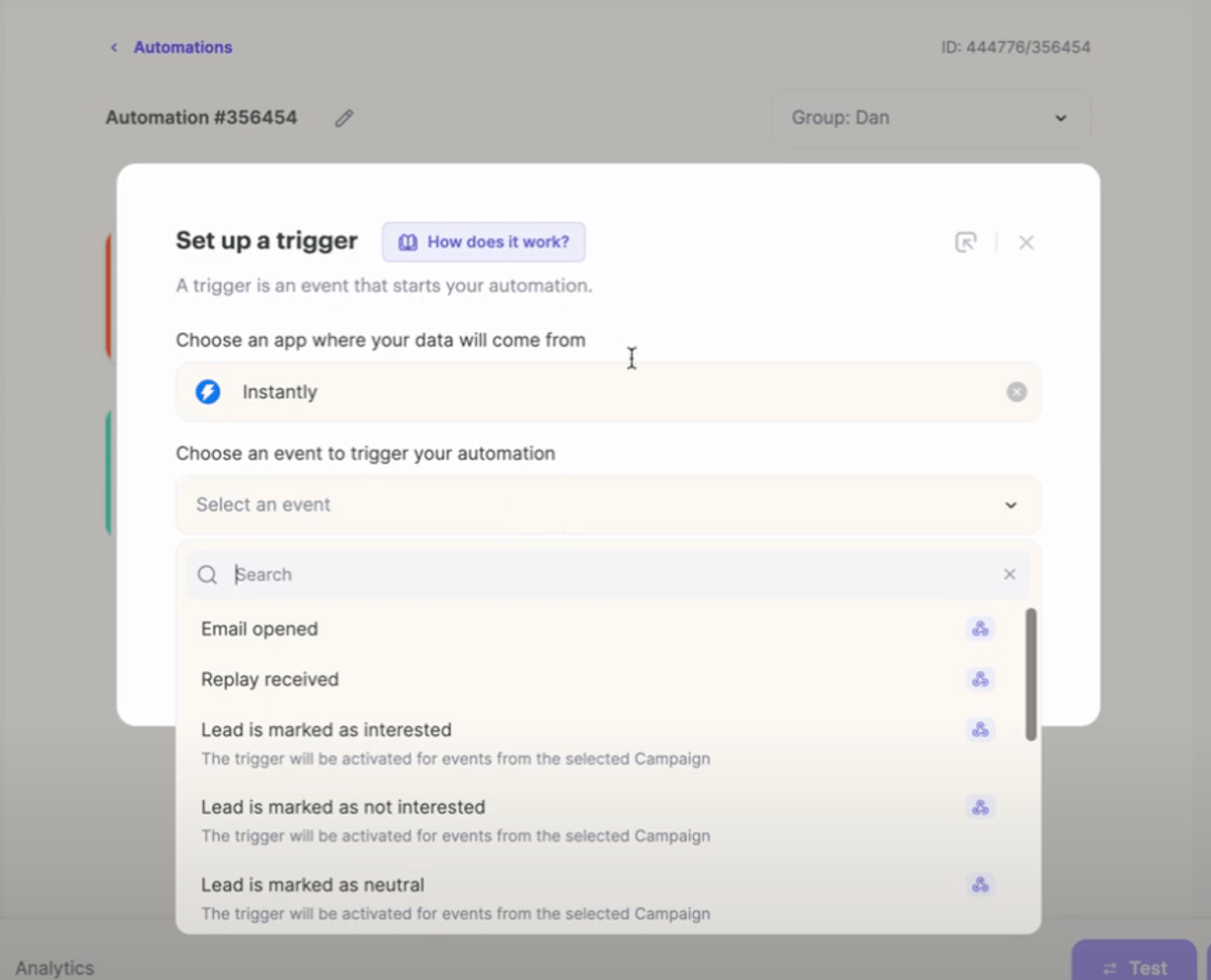
* Go to **Agentic Workflows** → **New Automation**.
* Select **Instantly** as the trigger.
* Choose an event (e.g., *Email Sent*).
* Add actions in Sendspark or other connected apps.
Your automations will now run automatically based on Instantly events. 🚀
## Frequently asked questions
Log in to Instantly and go to **Settings → Integrations → API Keys**. Click **Create API Key**, name it, and select **All scopes** (recommended). Copy the generated key and paste it into Sendspark's Add Connection dialog.
In Instantly's webhook setup, choose **All Events** to send every possible webhook event to Sendspark, and **All Campaigns** so the connection works across all campaigns in your Instantly account.
Open the **Instantly Connection Settings** in Sendspark. The webhook URL is displayed there so you can copy it and paste it into Instantly's webhook configuration.
Go to **Agentic Workflows → New Automation**, select **Instantly** as the trigger, choose an event (such as *Email Sent*), and add actions in Sendspark or other connected apps. Automations then run automatically based on those Instantly events.
*Updated July 2026.*
 👉 At this point, the connection will process and link Instantly to Sendspark.
***
## 🌐 Step 2: Configure the Instantly Webhook
1. After the connection is created, Sendspark will display a **Webhook URL**.
2. Copy the URL.
3. In Instantly, go to **Settings → Integrations → Webhooks**
4. Click **Add Webhook** → paste the URL.
5. Under **Event Types**, select **All Events**to send all possible webhook events to Sendspark.
6. Select **All Campaigns** to ensure that this connection will work for all campaigns in your Instantly account
7. Click **Save**.
👉 At this point, the connection will process and link Instantly to Sendspark.
***
## 🌐 Step 2: Configure the Instantly Webhook
1. After the connection is created, Sendspark will display a **Webhook URL**.
2. Copy the URL.
3. In Instantly, go to **Settings → Integrations → Webhooks**
4. Click **Add Webhook** → paste the URL.
5. Under **Event Types**, select **All Events**to send all possible webhook events to Sendspark.
6. Select **All Campaigns** to ensure that this connection will work for all campaigns in your Instantly account
7. Click **Save**.
 ***
## 🤔 Can't Find your Webhook URL?
If your webhook URL does not show up right away when connecting Instantly, or if you've already closed that screen, find this URL by...
* Click on **Instantly** **Connection Settings.**
***
## 🤔 Can't Find your Webhook URL?
If your webhook URL does not show up right away when connecting Instantly, or if you've already closed that screen, find this URL by...
* Click on **Instantly** **Connection Settings.**
 * Copy the Webhook URL from here
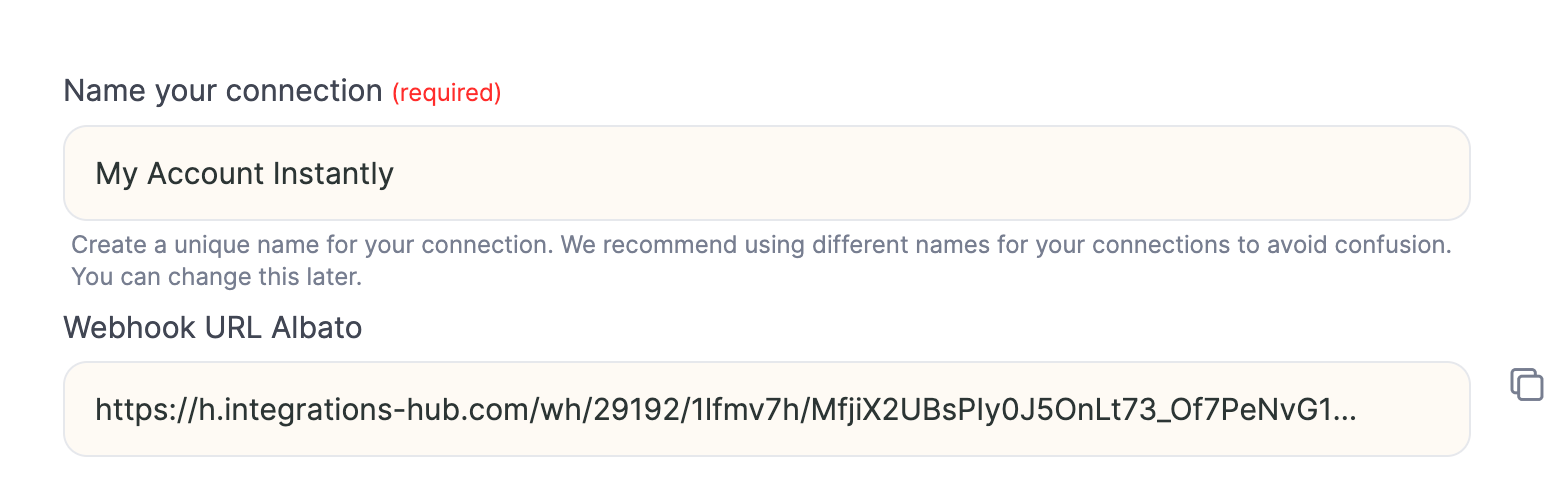 * Paste it into Instantly webhook as described in the step above
***
## ⚡ Using Instantly in Automations
Once connected, you can:
* Go to **Agentic Workflows** → **New Automation**.
* Select **Instantly** as the trigger.
* Choose an event (e.g., *Email Sent*).
* Add actions in Sendspark or other connected apps.
* Paste it into Instantly webhook as described in the step above
***
## ⚡ Using Instantly in Automations
Once connected, you can:
* Go to **Agentic Workflows** → **New Automation**.
* Select **Instantly** as the trigger.
* Choose an event (e.g., *Email Sent*).
* Add actions in Sendspark or other connected apps.
 Your automations will now run automatically based on Instantly events. 🚀
## Frequently asked questions
Your automations will now run automatically based on Instantly events. 🚀
## Frequently asked questions