> ## Documentation Index
> Fetch the complete documentation index at: https://help.sendspark.com/llms.txt
> Use this file to discover all available pages before exploring further.
# Campaign Monitor — Send Video Emails
> Learn how to send video emails in Campaign Monitor using Sendspark in under 2 minutes with our step-by-step integration guide.
Sendspark makes it easy to send video emails in Campaign Monitor in under two minutes. Record or upload a video, click Share Video, download the GIF thumbnail and copy your video link, then add an image block in Campaign Monitor with the thumbnail linked to your video. Recipients click the preview to watch.
## Key takeaways
* Create a video in Sendspark from your video dashboard, then click Share Video.
* Download the GIF thumbnail to use as the clickable preview inside Campaign Monitor.
* Copy your Sendspark video link so you can attach it to the preview image.
* In Campaign Monitor, add an image block, upload the thumbnail, and link it to your video URL.
* Send yourself a test to preview the recipient experience before sending to your list.
Sendspark makes it easy to send video emails in Campaign Monitor email campaigns. Follow the steps below to send your first video email in less than 2 minutes:
1. Create a new video campaign in Sendspark, by clicking "New Video" from the top right of your [video dashboard](https://app.sendspark.com).
 2. Record yourself or screen, or upload an existing video
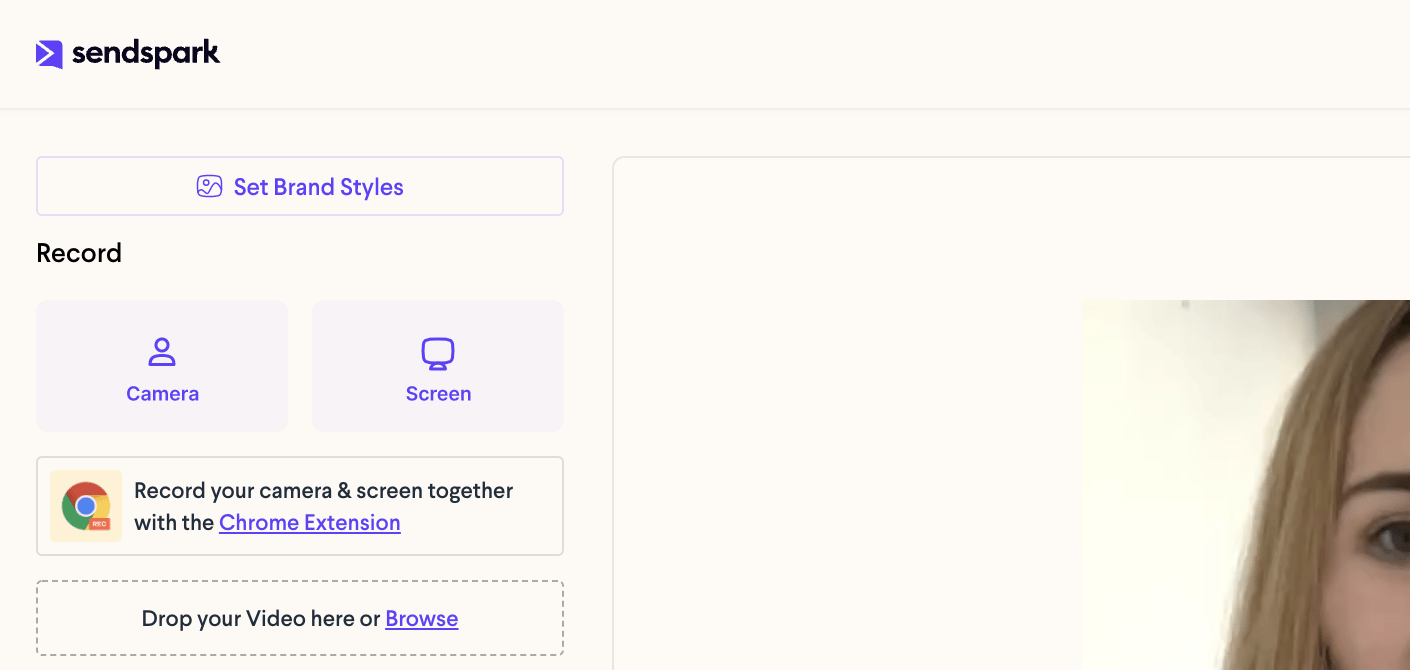 3. Click "Share Video"
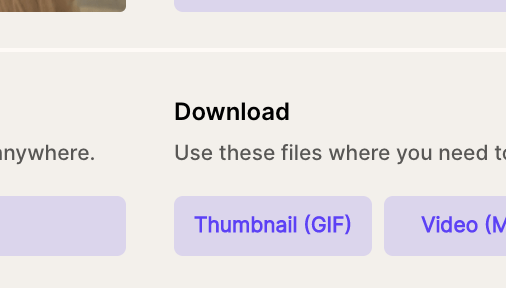
 3. Click to Download Thumbnail (GIF). You'll use this as the preview to your video in Campaign Monitor.
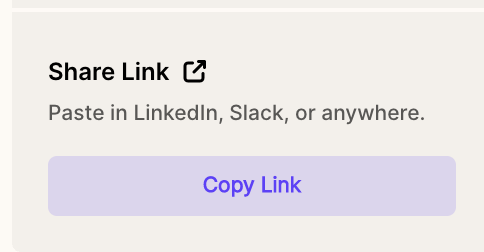
 4. Copy the link your video to your clipboard. You'll use this to link the video preview to your video for viewer's to watch.
 5. Add an image block to your email on Campaign Monitor
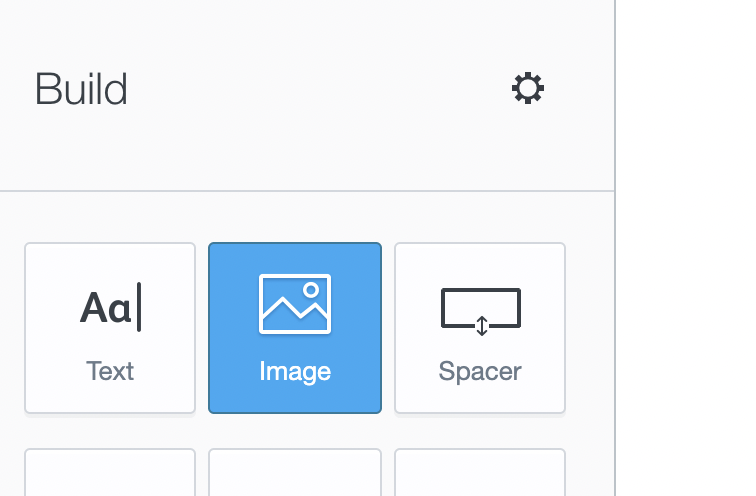 6. Upload the Sendspark video preview to Campaign Monitor in an image block and paste the link to your video in Campaign Monitor
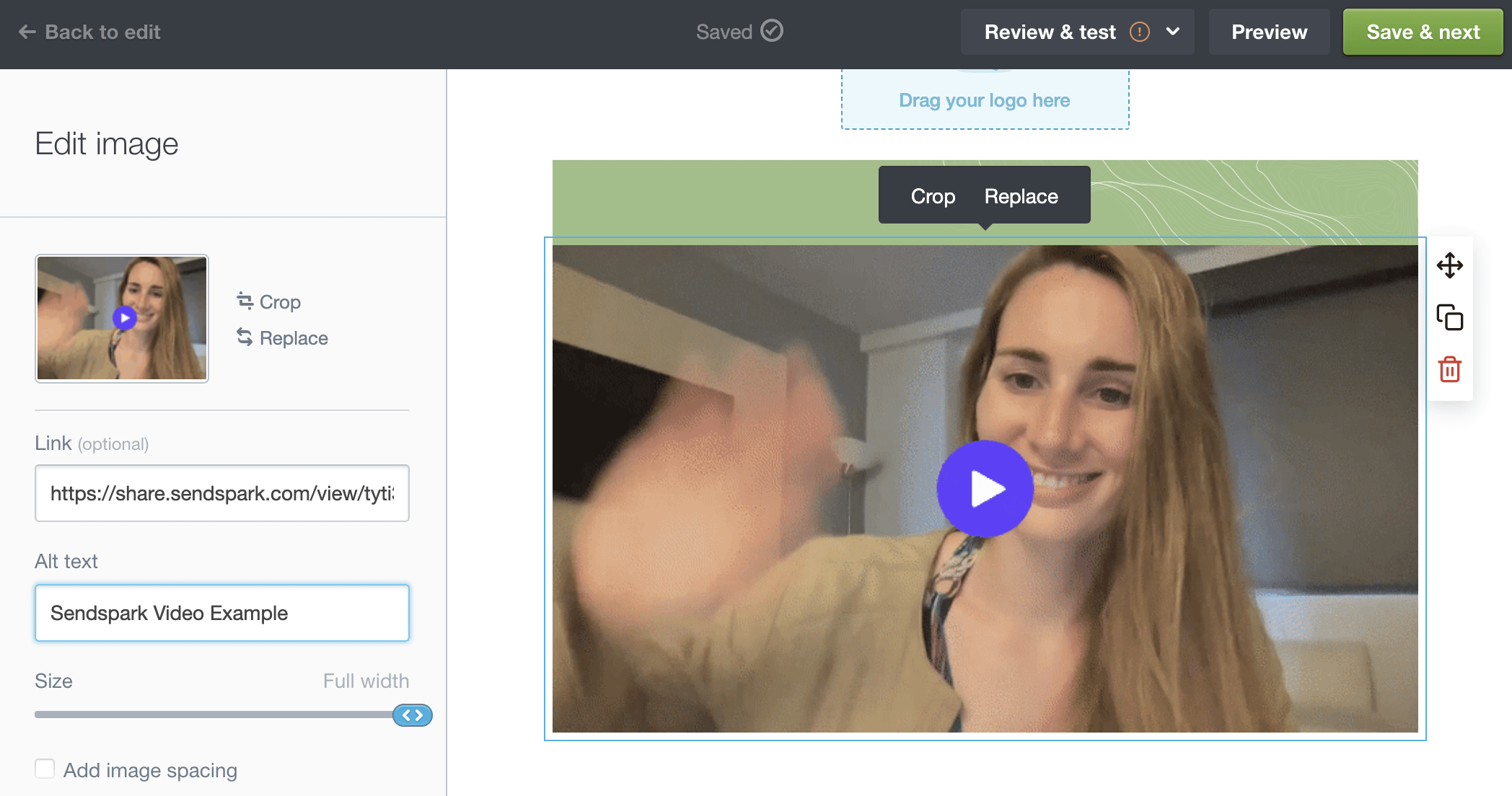 7. That's it! Send yourself a test video to see how recipients will experience your video before sending it off.
Let us know if you have any questions about sending video emails in Campaign Monitor. We're happy to help!
## Frequently asked questions
You can send your first video email in Campaign Monitor in less than 2 minutes.
Add an image block to your email, upload the Sendspark GIF thumbnail into it, and paste your Sendspark video link so the preview links to the full video.
The GIF thumbnail is the animated preview recipients see in the email. When they click it, they're taken to your full Sendspark video to watch.
Yes. Send yourself a test video to see exactly how recipients will experience your video before sending it to your list.
*Updated July 2026.*
7. That's it! Send yourself a test video to see how recipients will experience your video before sending it off.
Let us know if you have any questions about sending video emails in Campaign Monitor. We're happy to help!
## Frequently asked questions
You can send your first video email in Campaign Monitor in less than 2 minutes.
Add an image block to your email, upload the Sendspark GIF thumbnail into it, and paste your Sendspark video link so the preview links to the full video.
The GIF thumbnail is the animated preview recipients see in the email. When they click it, they're taken to your full Sendspark video to watch.
Yes. Send yourself a test video to see exactly how recipients will experience your video before sending it to your list.
*Updated July 2026.*