> ## Documentation Index
> Fetch the complete documentation index at: https://help.sendspark.com/llms.txt
> Use this file to discover all available pages before exploring further.
# Brevo - Send Personalized Videos at Scale
> Learn how to create and send AI personalized videos at scale using Brevo and Sendspark for dynamic email marketing campaigns.
To send personalized videos at scale in Brevo, first create a dynamic video campaign in Sendspark and generate videos for your contact list. Then click **Share Campaign**, copy the **Brevo** snippet, and paste it into an HTML snippet block in your Brevo email template. Preview for a contact to confirm the right video loads, then send — each recipient receives their own personalized video.
## Key takeaways
* A **dynamic video campaign** is a Sendspark campaign that generates a unique personalized video for each contact in your list, so you can send them at scale through Brevo.
* Generate the videos in Sendspark first, then click **Share Campaign** and copy the **Brevo** snippet.
* Paste the snippet into an **HTML snippet block** in your Brevo email template — it renders each contact's own personalized video thumbnail.
* Always **preview for a contact** before sending to confirm the correct personalized video loads.
## At a glance
| Step | Where | Action |
| ---- | --------- | ----------------------------------------------------------------- |
| 1 | Sendspark | Create a dynamic video campaign and generate videos for your list |
| 2 | Sendspark | Click Share Campaign and copy the Brevo snippet |
| 3 | Brevo | Paste the snippet into an HTML snippet in your email template |
| 4 | Brevo | Preview for a contact to confirm it works, then send |
## How to Create and Share AI Personalized Videos in Brevo
1. Create a [dynamic video campaign in Sendspark](/dynamic-videos-make-videos-with-ai-introductions) & generate videos for your list of contacts
2. Click **"Share Campaign"**
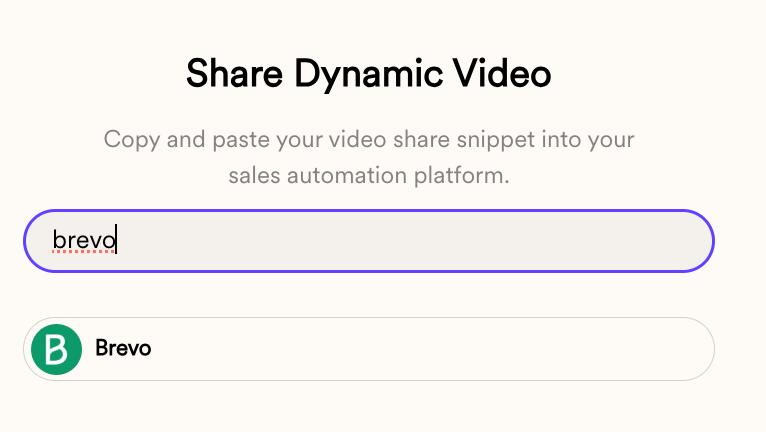
3. Copy the snippet for **Brevo**
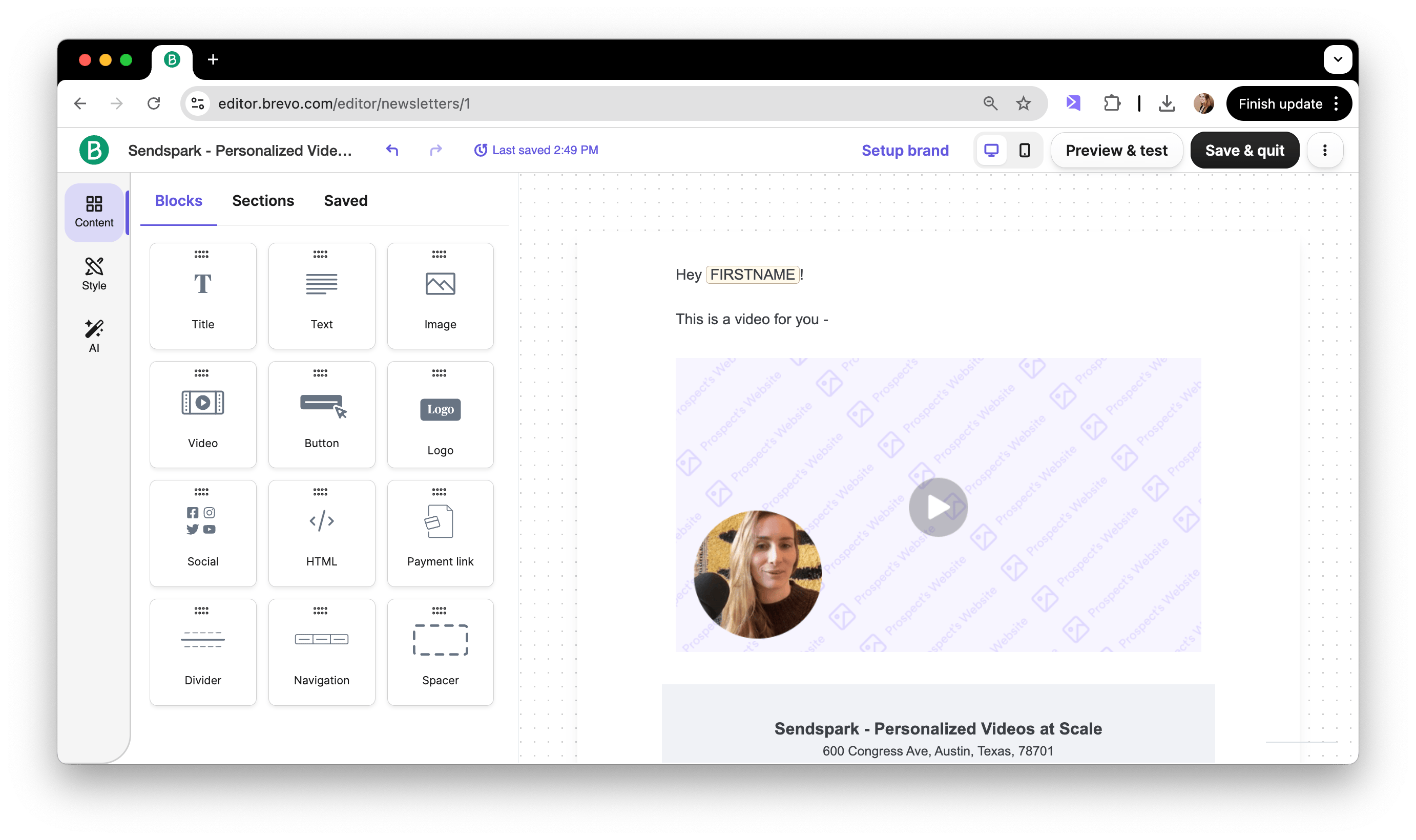
4. Paste into an HTML snippet in your Brevo email template
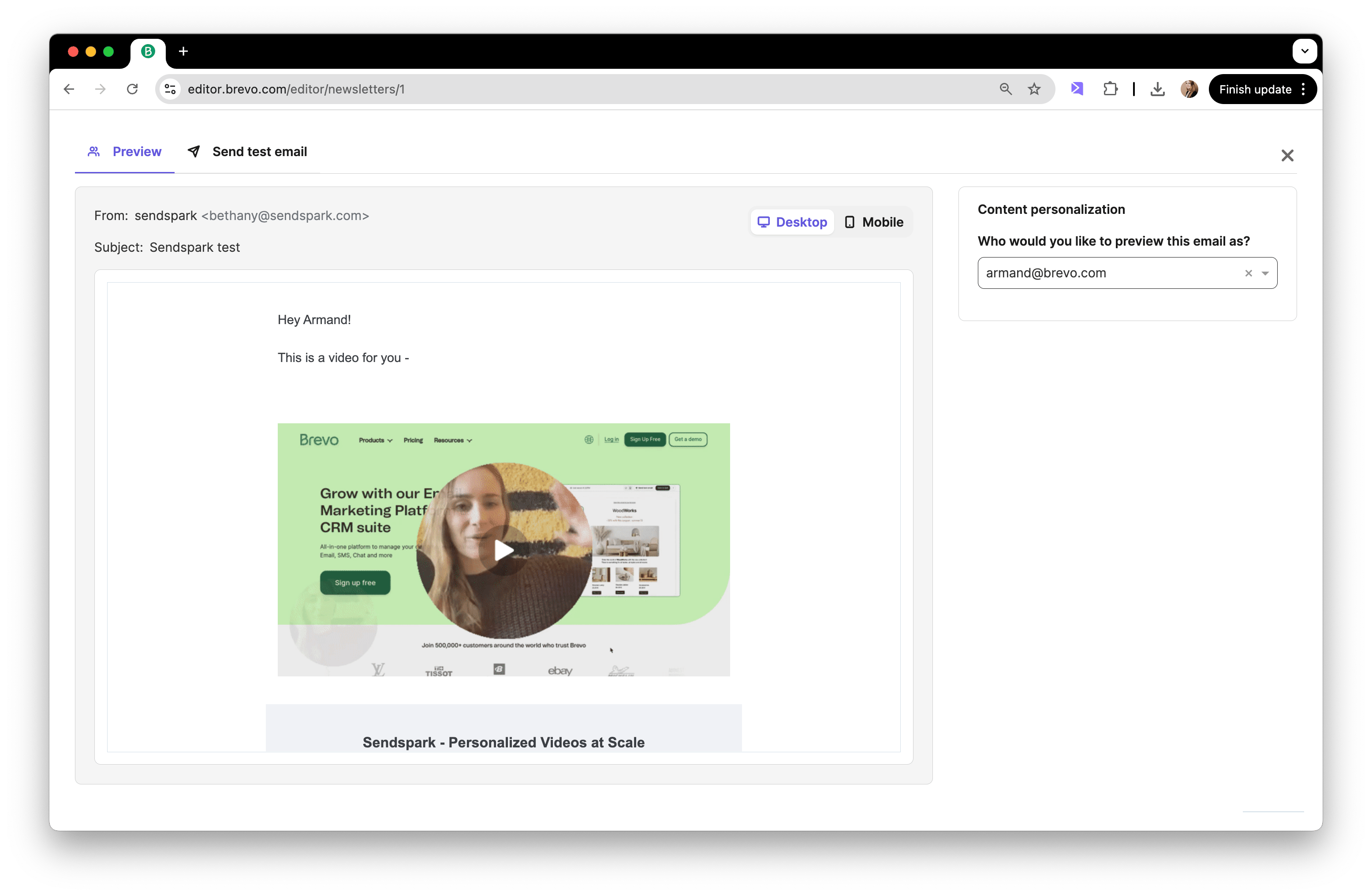
5. Preview for a contact to make sure everything is working
And that's it! You're ready to send!
## Frequently asked questions
Create a dynamic video campaign in Sendspark and generate videos for your contact list, click Share Campaign and copy the Brevo snippet, paste it into an HTML snippet in your Brevo email template, preview for a contact, and send.
In your dynamic video campaign, click Share Campaign and copy the snippet listed for Brevo.
Paste the Brevo snippet into an HTML snippet block inside your Brevo email template. It renders as a personalized video thumbnail for each contact.
Use Brevo's preview to view the email as a specific contact and confirm that their personalized video loads correctly.
*Updated July 2026.*
 3. Copy the snippet for **Brevo**
  4. Paste into an HTML snippet in your Brevo email template
  5. Preview for a contact to make sure everything is working
  And that's it! You're ready to send!
## Frequently asked questions
And that's it! You're ready to send!
## Frequently asked questions