> ## Documentation Index
> Fetch the complete documentation index at: https://help.sendspark.com/llms.txt
> Use this file to discover all available pages before exploring further.
# Automate video sharing through Zapier
> Connect Sendspark with Zapier to automate video sharing. Set up webhooks to trigger CRM or email actions every time a video is created.
Connect Sendspark to Zapier with a webhook so every new video automatically triggers an action in your platform of choice. Create a "Webhooks by Zapier" Catch Hook trigger, copy its webhook URL into Sendspark's Webhooks menu, connect it to your Dynamic Video Campaign on the Video Created event, then build any Zapier action you like.
## Key takeaways
* Start the Zap with a "Webhooks by Zapier" trigger using the Catch Hook event, then copy the webhook URL from the Test step.
* Create your Dynamic Video Campaign in Sendspark first, but do not generate any videos until the webhook is connected.
* In Sendspark's Webhooks menu, create a webhook with the Zapier URL, select the Video Created event, and connect it to your campaign.
* Once connected, the webhook fires with all of the video's information, letting you trigger actions in thousands of Zapier apps.
## Sendspark + Zapier + Your Platform
### This article will help you set up a Webhook for the first time so that every time a video is created, you can automate the process of sharing it through your platform of choice. Let's begin :)
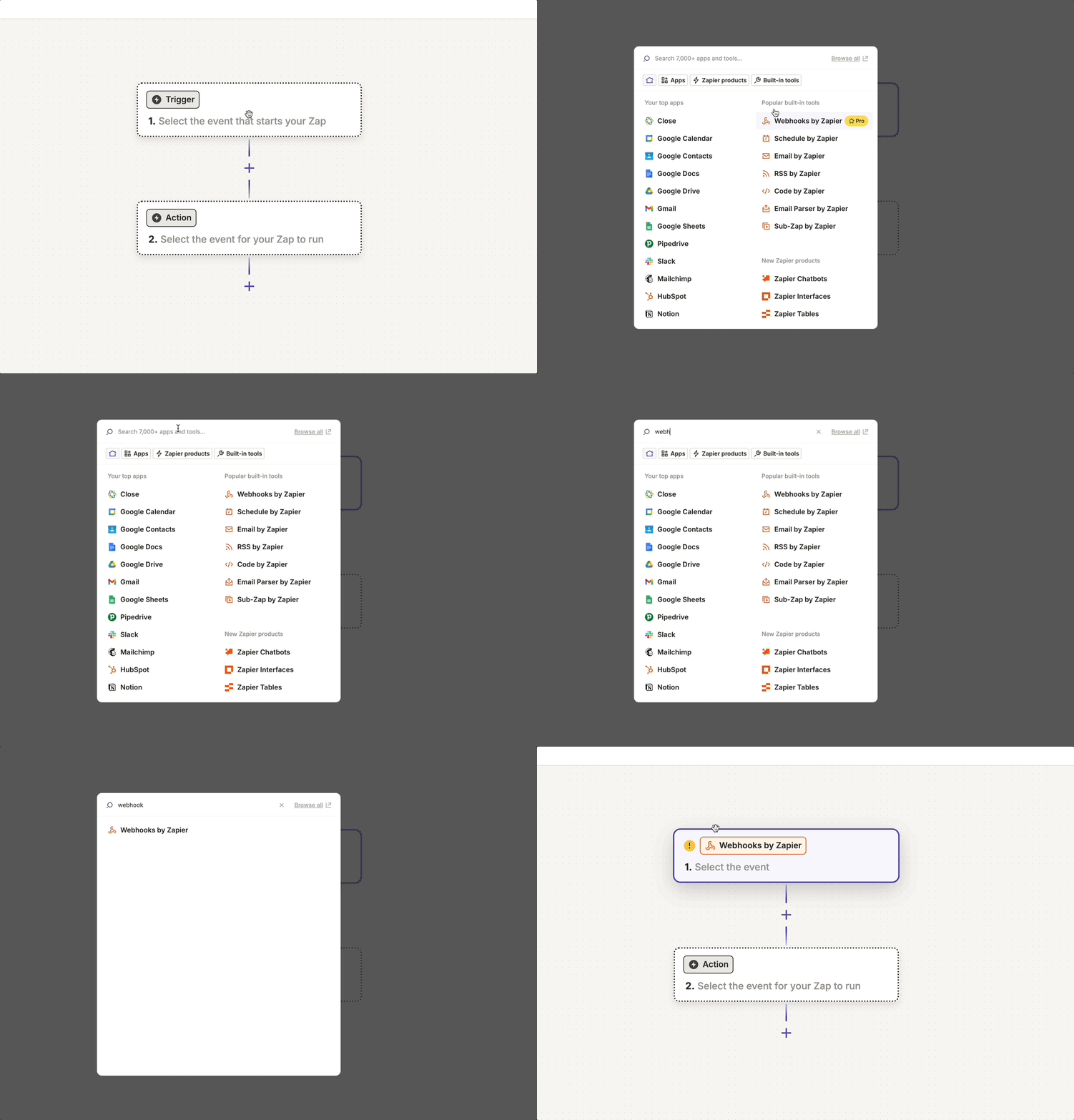
## 1. You can start your new Zap by adding the "Webhook By Zapier" trigger
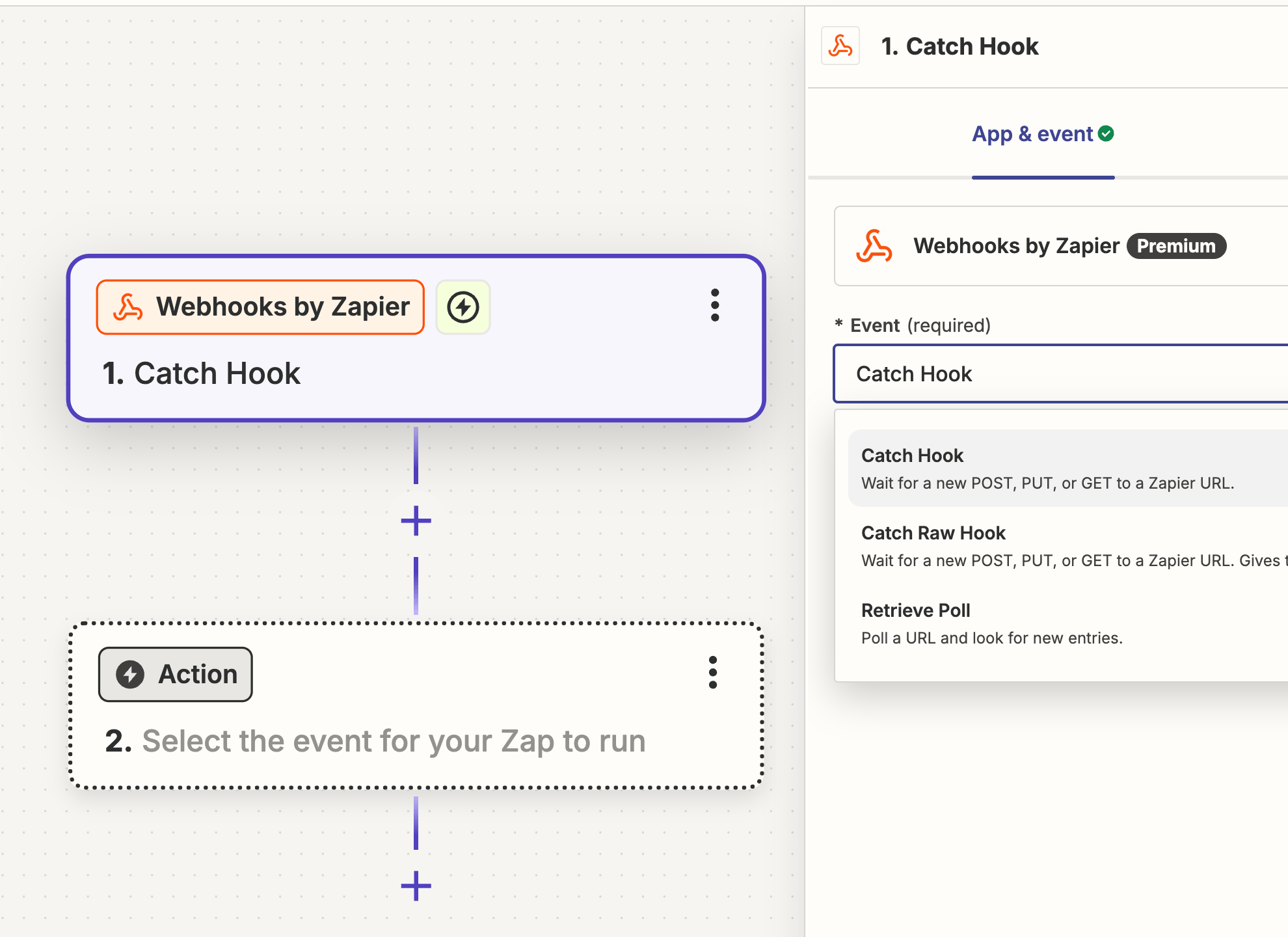
 ## 2. From the Event drop-down menu, select the Catch Hook option and hit CONTINUE
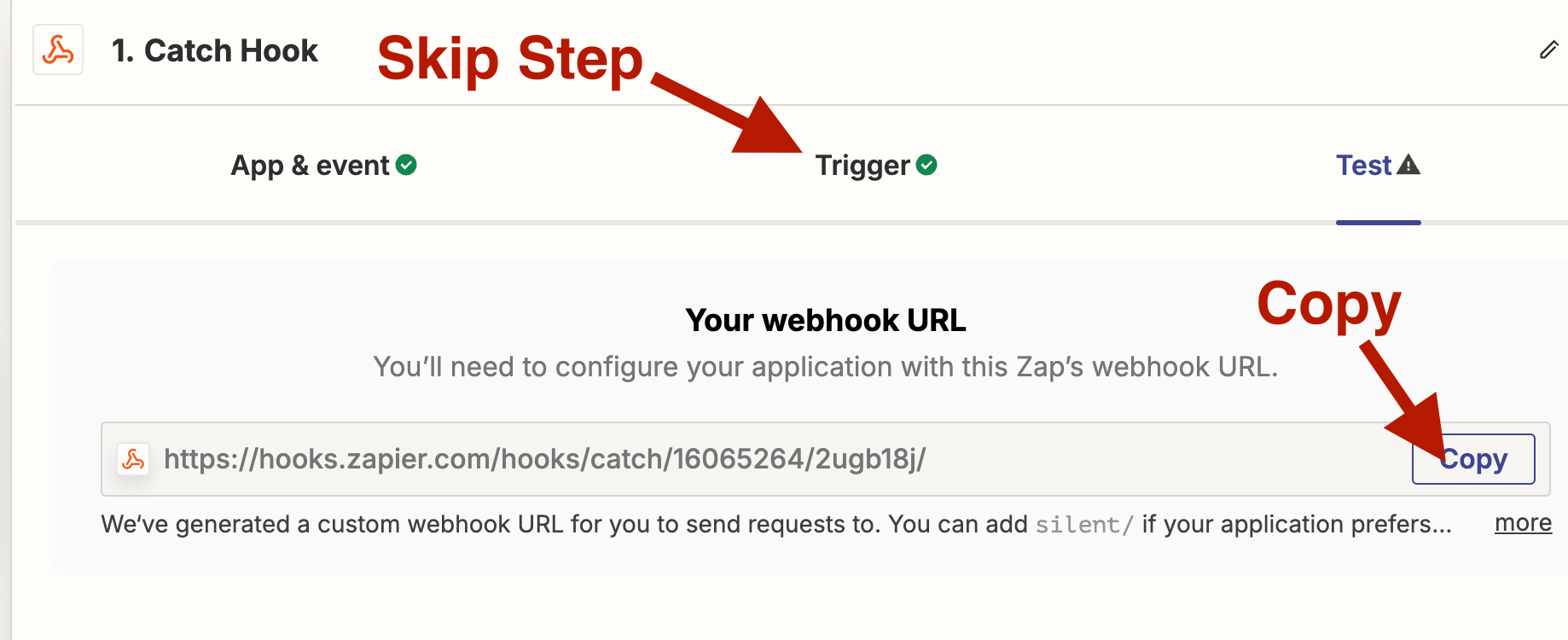
 ## 3. Skip the TRIGGER step, jump to TEST, and copy the Webhook URL
 ## 4. Back in Sendspark, you should now create your Dynamic Video Campaign (Check this article if you haven't done that yet) but do not create any videos yet:
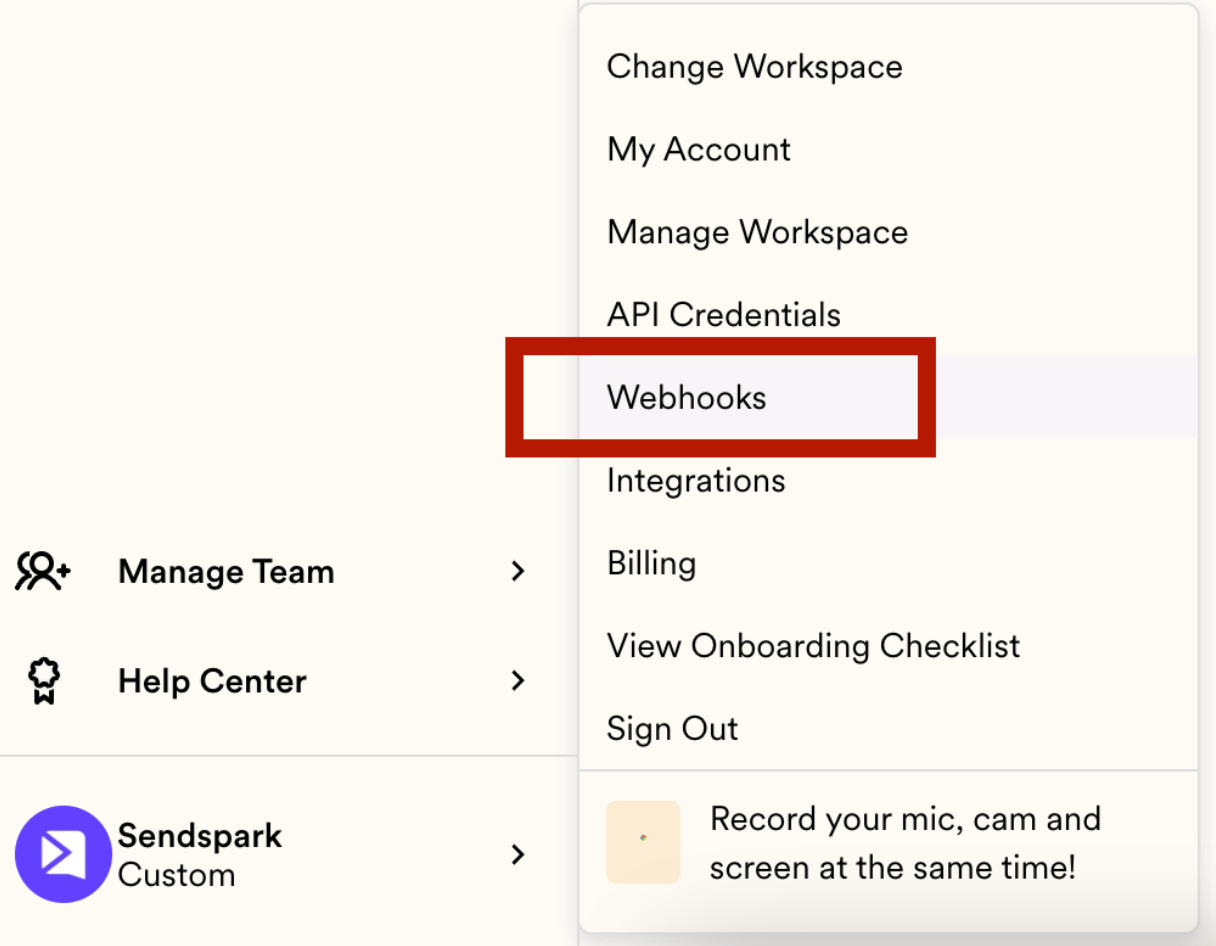
 ## 5. Once done, head to Webhooks through your menu:
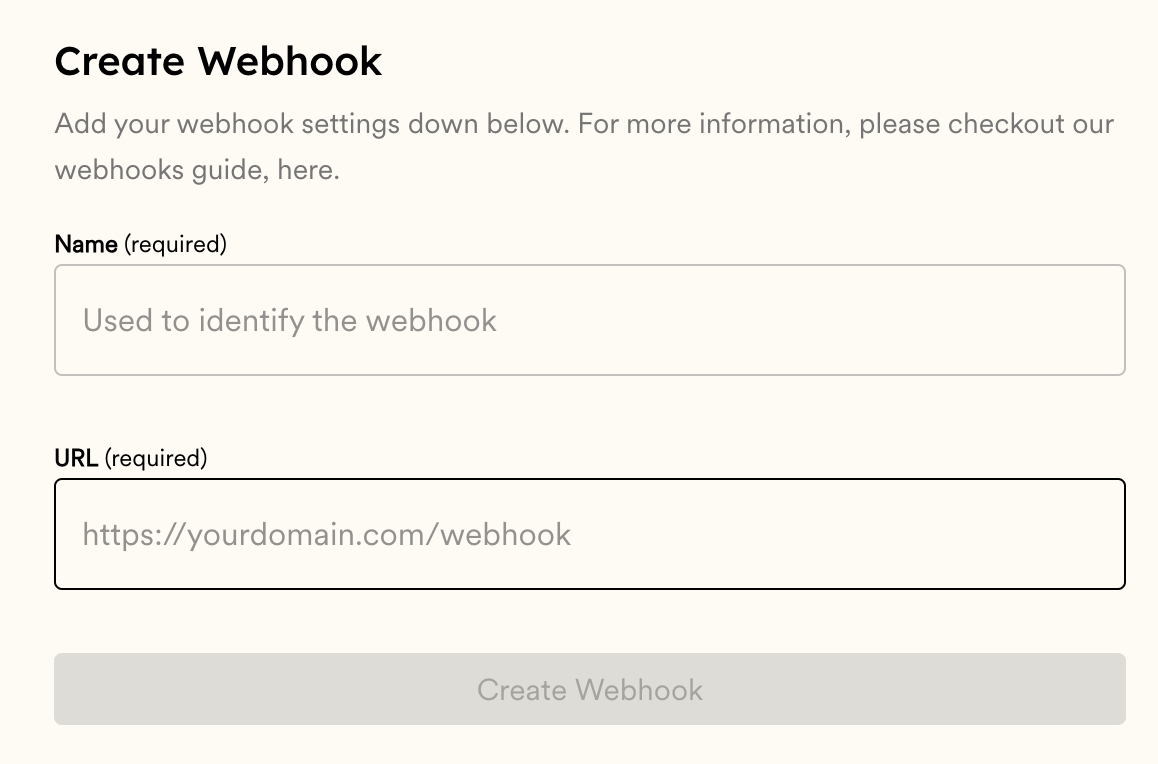
 ## 6. And create a new one. Be sure to paste the Webhook URL you copied from Zapier and add any name that will help you identify it:
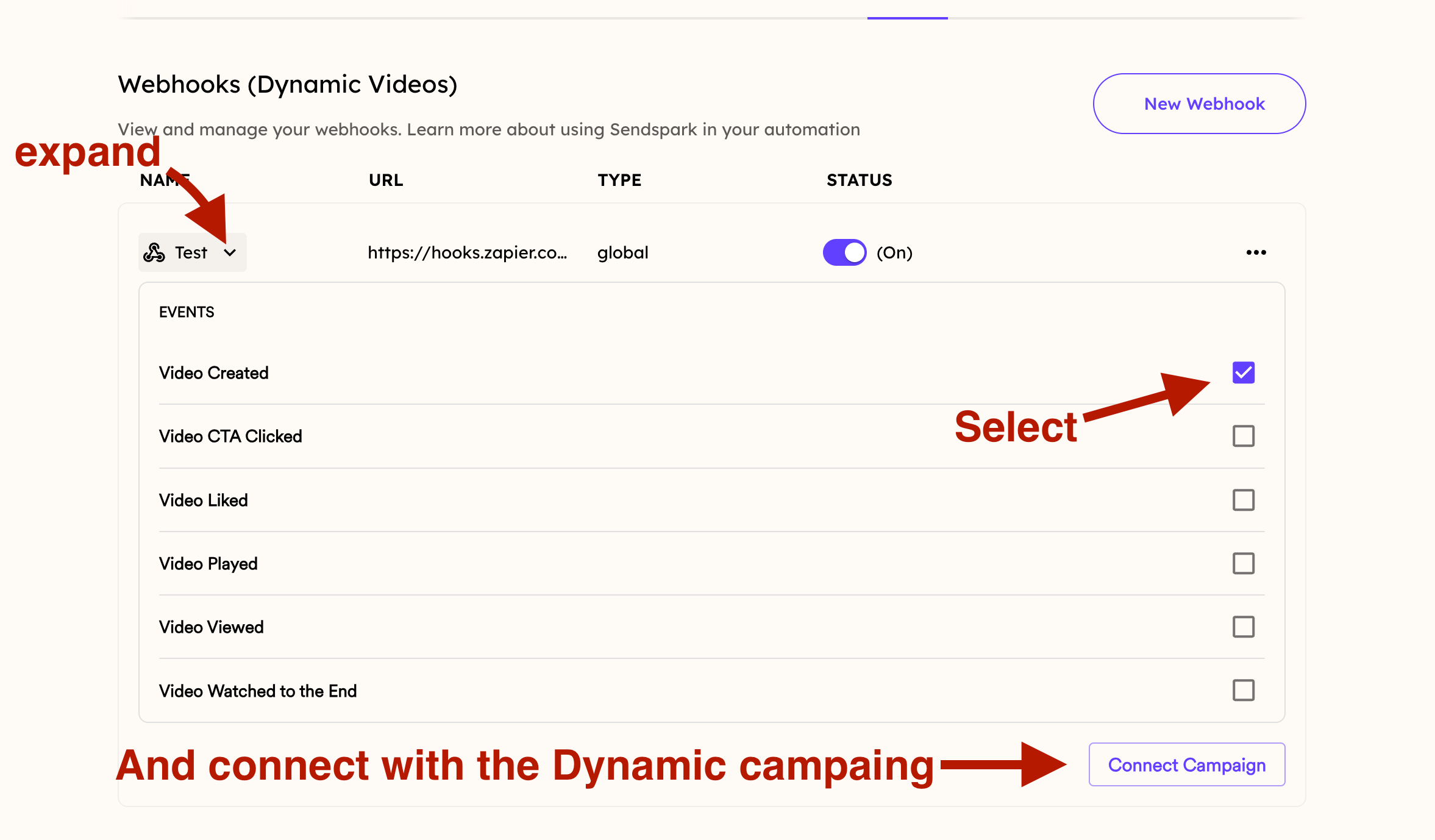
 ## 7. Once created, click on the name of the webhook to EXPAND its details, Select the VIDEO CREATED, so that every time a video is created, the webhook will capture all the information that involves that video, and finally, hit on the CONNECT CAMPAIGN button to connect it to the DV campaign you created in the previous step:
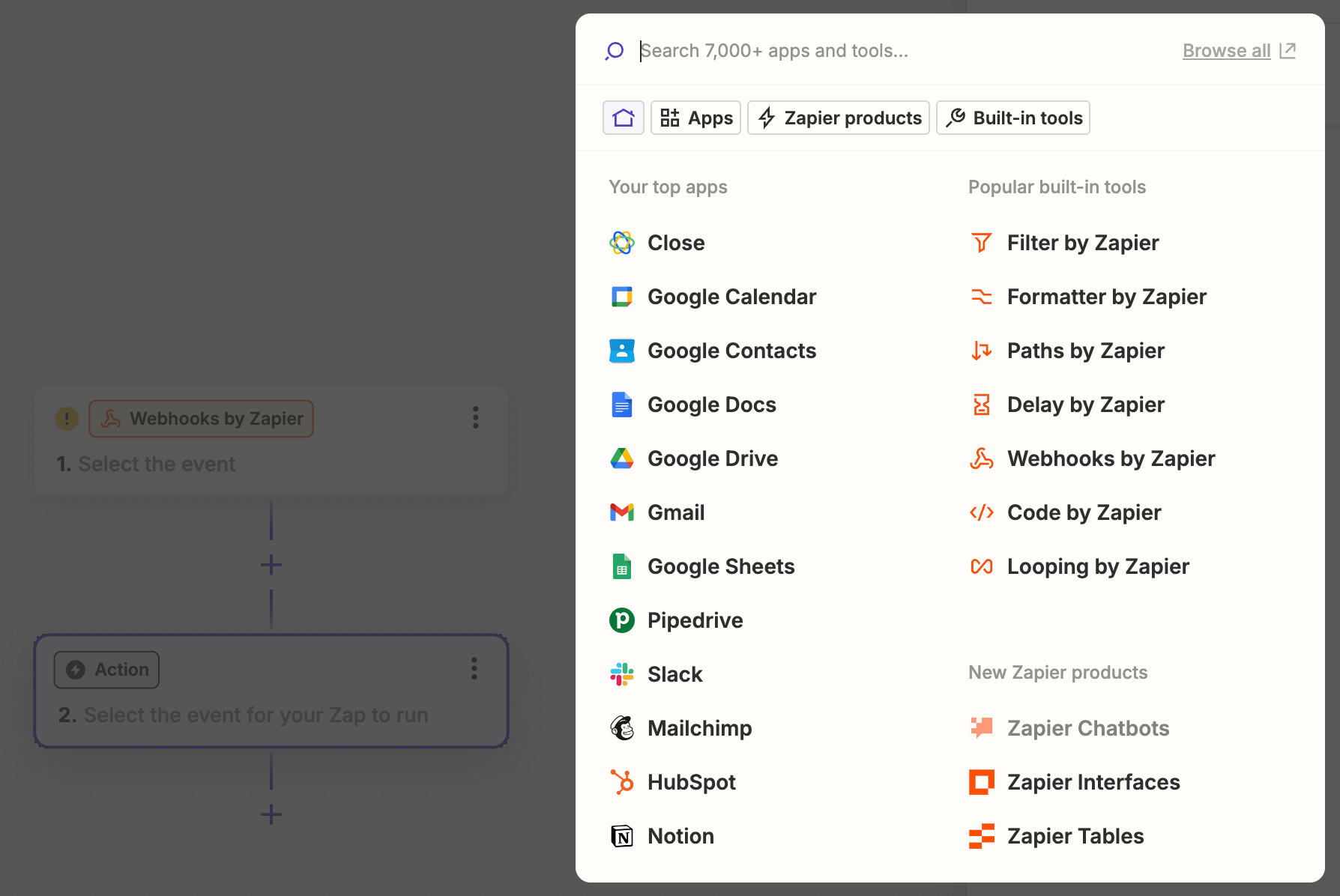
 ## 8. Back to Zappier, you are now free to create an action and event based on your app of choice. There are thousands of apps! Look for yours :)
 ## Frequently asked questions
Use the "Webhooks by Zapier" trigger with the Catch Hook event, then copy the webhook URL from the Test step.
No. Create your Dynamic Video Campaign first but do not generate any videos yet. Set up and connect the webhook, then create videos so each one fires the webhook.
Expand the webhook in Sendspark and select the Video Created event. Every time a video is created, the webhook captures all of that video's information.
Anything Zapier supports. After the Catch Hook receives the data, you can build an action for any of the thousands of apps available in Zapier, such as your CRM or email tool.
*Updated July 2026.*
## Frequently asked questions
Use the "Webhooks by Zapier" trigger with the Catch Hook event, then copy the webhook URL from the Test step.
No. Create your Dynamic Video Campaign first but do not generate any videos yet. Set up and connect the webhook, then create videos so each one fires the webhook.
Expand the webhook in Sendspark and select the Video Created event. Every time a video is created, the webhook captures all of that video's information.
Anything Zapier supports. After the Catch Hook receives the data, you can build an action for any of the thousands of apps available in Zapier, such as your CRM or email tool.
*Updated July 2026.*