> ## Documentation Index
> Fetch the complete documentation index at: https://help.sendspark.com/llms.txt
> Use this file to discover all available pages before exploring further.
# Auto Email Video Watchers [Instantly]
> Set up automated follow-up emails for video prospects who don't reply using Instantly and Sendspark integration in 5 simple steps.
Set up an automation that emails prospects who watched your video but haven't replied, using Sendspark and Instantly. Create an automation in Sendspark triggered by Video Played, search the lead in Instantly, use a Router to split repliers from non-repliers, then enroll non-repliers into a casual follow-up campaign in Instantly.
## Key takeaways
* Trigger on **Sendspark: New Video Played - Specific Campaign** to catch prospects who watched a chosen video or campaign.
* Use an Instantly **Search Lead** action with the contact email from the trigger step, then a **Router tool** to separate leads who replied from those who didn't.
* Enroll non-repliers into a follow-up campaign with **Add Lead to Campaign** in Instantly.
* A short, casual follow-up works best, for example: "Hey \[First Name], I noticed you watched the video I sent. I'd love to hear your thoughts."
## Step 1: Create an Automation in Sendspark
1. Log into your [Sendspark dashboard](https://sendspark.com).
2. Go to **Agentic Workflows** in the menu.
3. Click **New Automation** and name it something like *Video Viewed — No Reply*.
***
## Step 2: Set the Trigger to “Video Played”
1. In the automation builder, choose **Trigger → Sendspark: New Video Played - Specific Campaign**
2. Select the video or campaign you want to track.
***
## Step 3: Check for Replies in Instantly
1. Add an **Action** to **Search Lead** in **Instantly**
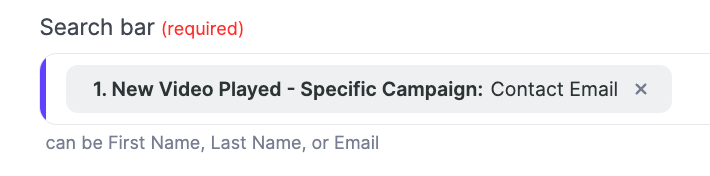
2. Use the contact email from your first step
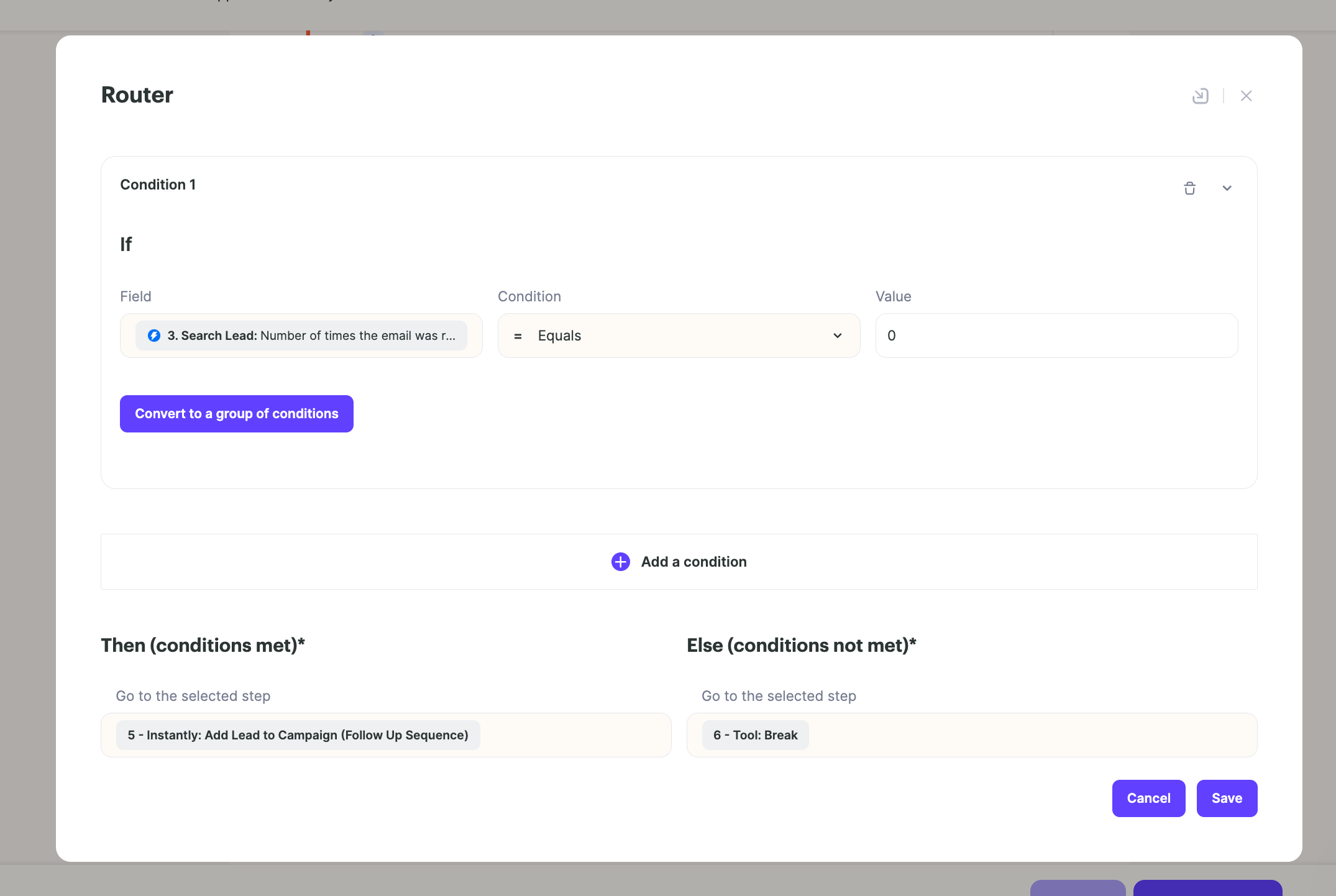
3. Then add a **Router tool** to distinguish between leads who have replied or not
***
## Step 4: Add to a Follow-Up Campaign in Instantly
1. If no reply is found, enroll the contact into a follow-up sequence in Instantly.
2. Add an additional Action to Add Lead to Campaign in Instantly
3. In that campaign, you can have a a short, casual follow-up email such as: *“Hey \[First Name], I noticed you watched the video I sent. I’d love to hear your thoughts.”*
## Step 5: Start Automation
1. When you're ready, hit the Start button to turn on your automation.
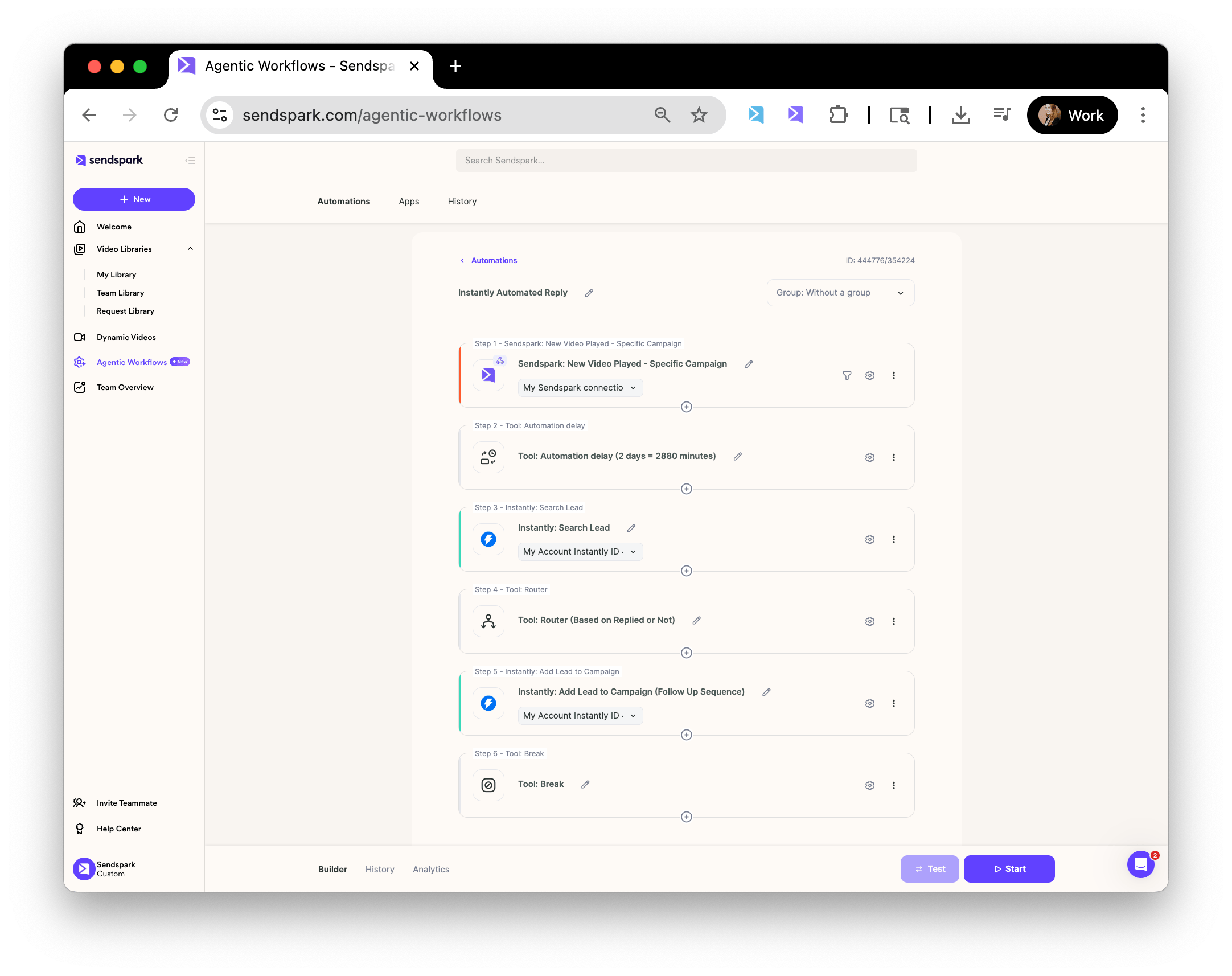
2. Your whole automation should look something like this:
## Frequently asked questions
The Sendspark trigger **New Video Played - Specific Campaign**, which fires when a prospect watches the video or campaign you selected.
Add an Instantly **Search Lead** action using the contact email from the trigger step, then a **Router tool** to distinguish between leads who have replied and those who haven't. Only non-repliers continue to the follow-up.
If no reply is found, the contact is enrolled into a follow-up sequence in Instantly using the **Add Lead to Campaign** action.
Keep it short and casual, for example: "Hey \[First Name], I noticed you watched the video I sent. I'd love to hear your thoughts."
When you're ready, hit the **Start** button to turn on your automation.
*Updated July 2026.*
 ***
## Step 3: Check for Replies in Instantly
1. Add an **Action** to **Search Lead** in **Instantly**
***
## Step 3: Check for Replies in Instantly
1. Add an **Action** to **Search Lead** in **Instantly**  2. Use the contact email from your first step
  3. Then add a **Router tool** to distinguish between leads who have replied or not
  ***
## Step 4: Add to a Follow-Up Campaign in Instantly
1. If no reply is found, enroll the contact into a follow-up sequence in Instantly.
***
## Step 4: Add to a Follow-Up Campaign in Instantly
1. If no reply is found, enroll the contact into a follow-up sequence in Instantly.  2. Add an additional Action to Add Lead to Campaign in Instantly
3. In that campaign, you can have a a short, casual follow-up email such as: *“Hey \[First Name], I noticed you watched the video I sent. I’d love to hear your thoughts.”*
## Step 5: Start Automation
1. When you're ready, hit the Start button to turn on your automation.
2. Your whole automation should look something like this:
2. Add an additional Action to Add Lead to Campaign in Instantly
3. In that campaign, you can have a a short, casual follow-up email such as: *“Hey \[First Name], I noticed you watched the video I sent. I’d love to hear your thoughts.”*
## Step 5: Start Automation
1. When you're ready, hit the Start button to turn on your automation.
2. Your whole automation should look something like this:
 ## Frequently asked questions