> ## Documentation Index
> Fetch the complete documentation index at: https://help.sendspark.com/llms.txt
> Use this file to discover all available pages before exploring further.
# AI Voice Cloning - How to Get The Best Results?
> Learn how to get the best results from AI voice cloning in Sendspark. Tips and best practices for creating natural-sounding personalized video audio.
To get the best AI voice cloning results in Sendspark, record in a quiet room with no echo or reverb using the best microphone you have. Start your video with "Hi Watermelon," leave a small pause after it, keep your volume, pace, and phrasing steady throughout, speak clearly, and make the video at least 15 seconds long.
## Key takeaways
* AI voice quality depends directly on your recording: record in a quiet, echo- and reverb-free room using the best microphone you have on hand.
* Start the video with "Hi Watermelon" (which is replaced with "Hi \[Name]"), and leave a small space after "watermelon" so the intro sounds seamless.
* Maintain the same sound level, volume, and phrasing throughout, speak clearly at a moderate pace, and make the video at least 15 seconds long.
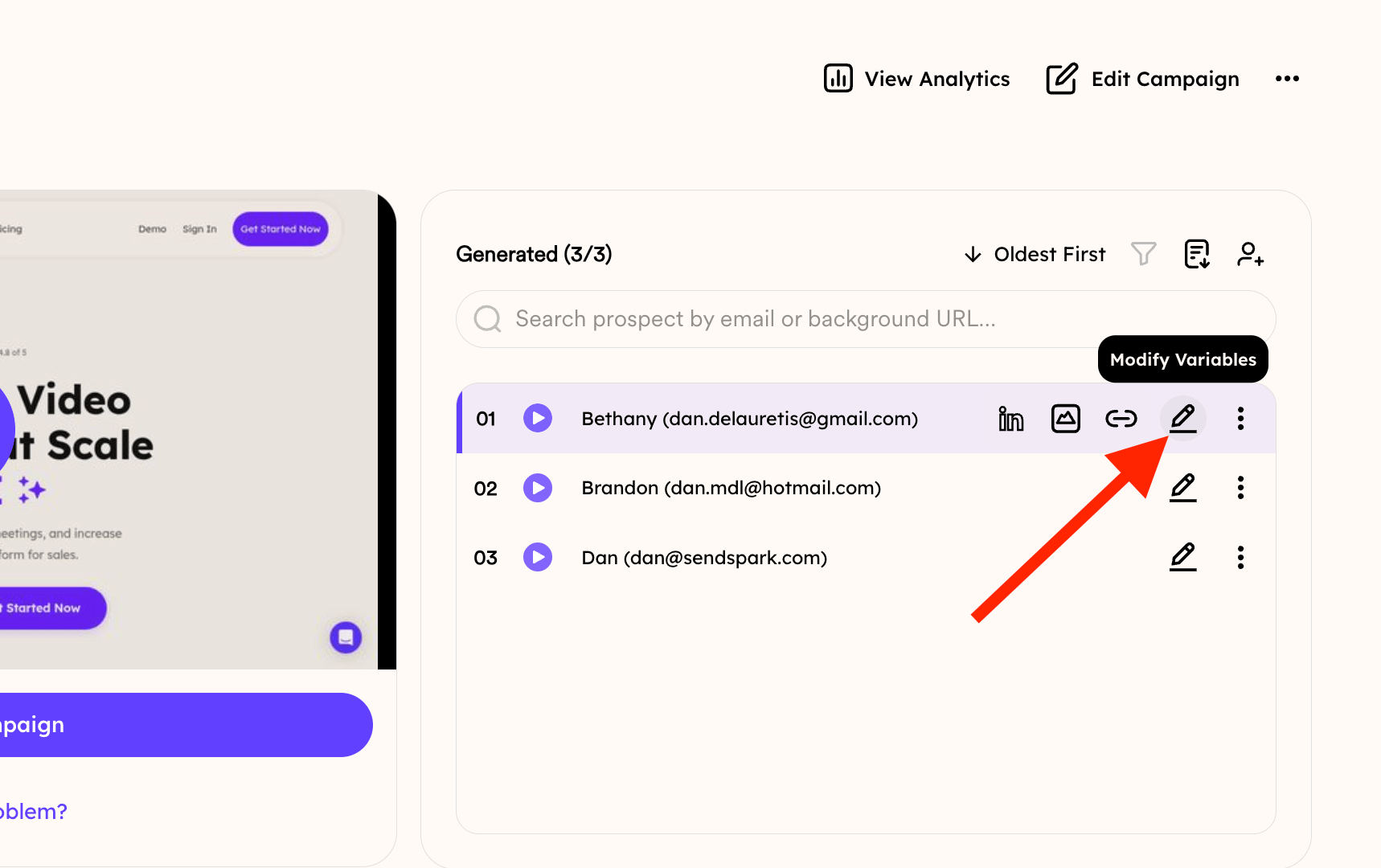
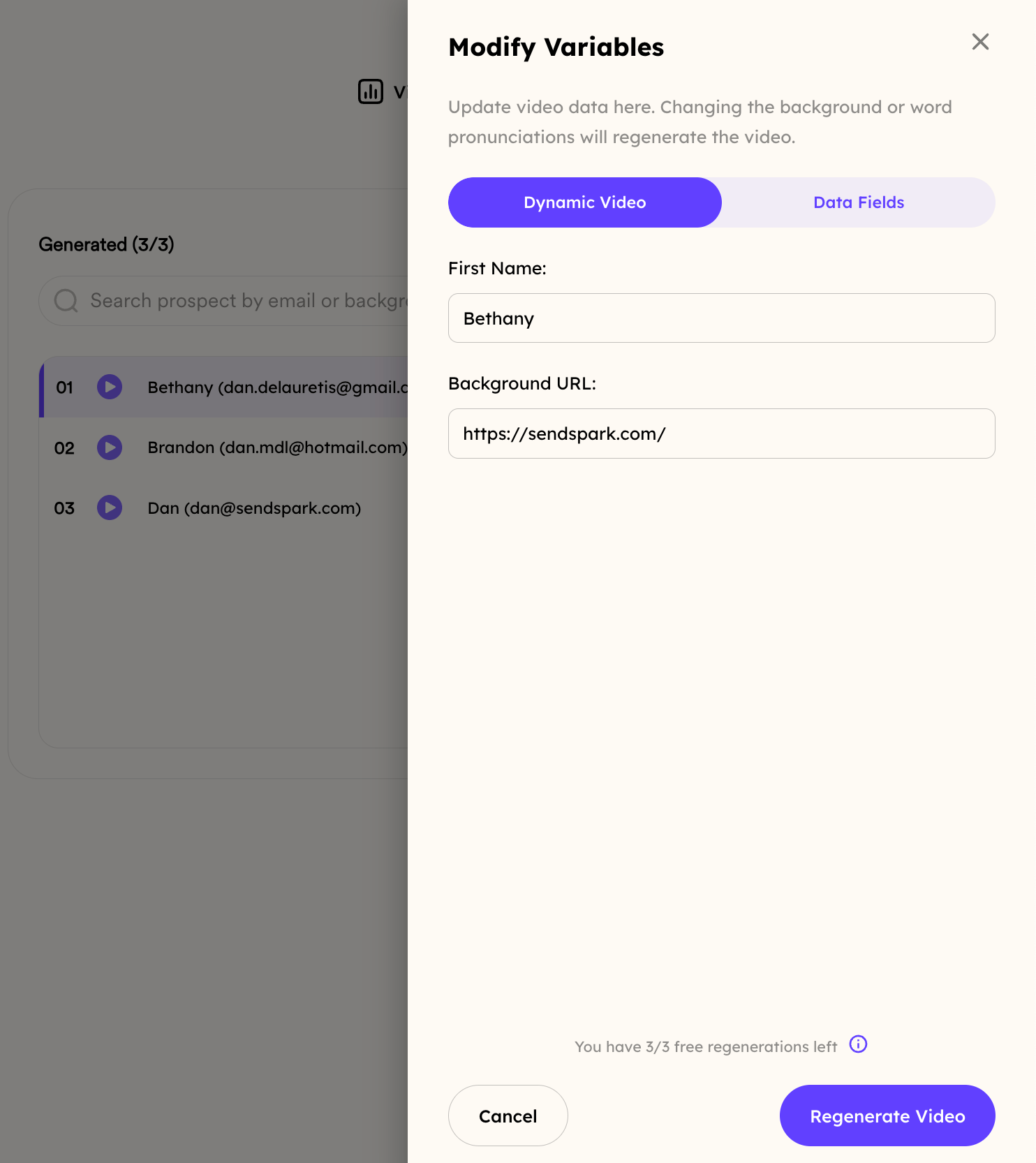
* If you're unhappy with the output, re-record with smoother pacing and fewer pauses, or regenerate a name's pronunciation with the Modify Variable button, then click Generate Video.
Sendspark's AI voice cloning success depends on the quality of your initial recording. Please follow the steps below for the best results.
The ultimate quality of the AI voice output is directly influenced by how closely your recording conforms to best practices.
This guide covers two key aspects of successful AI voice cloning: proper recording techniques and optimizing the AI voice output after recording.
## Set Up Your Environment
* Ensure that you are in a**quiet environment**with no background noise interfering with your voice.
* Make sure your recording room has\*\*no echo or noticeable reverberation sounds.\*\*This can occur in small rooms with flat walls or mirrors.
* Use the **best quality microphone** you have on hand
## Record Your Video
* Start your video with\*\*"Hi Watermelon."\*\* This part of the video will be replaced with "Hi \[Name]" in the final video.
* Do not link words right after you say "watermelon." Instead,**leave a small space**before the next word.
* Make sure to maintain the **same sound level and style** throughout your entire video.
* Make sure the video is at least 15 seconds long
## Additional Tips
* Use the same audio frequency and volume throughout the video.
* Speak clearly and at a moderate pace.
* Avoid mumbling or slurring your words.
* Pronounce each word carefully.
* Use natural pauses to create a more engaging flow.
* Practice your delivery before recording.
* Speak names with clear pronunciation. Using appropriate accents for language-specific names can improve accuracy.
* Maintain consistent phrasing throughout your recording.
## Troubleshooting Voice Issues
* If you're dissatisfied with the AI voice output, re-record with smoother pacing and fewer pauses.
* Ensure your speaking tone is clear and steady for better AI replication.
* For improved name pronunciation, make sure your audio is crisp and free of background noise.
You can regenerate a pronunciation by clicking on the Modify Variable button:
Then simply click "generate video" at the bottom:
## Frequently asked questions
Start your video with "Hi Watermelon." This part is replaced with "Hi \[Name]" in the final video. Don't link words right after you say "watermelon"; instead, leave a small space before the next word so it sounds seamless.
Make sure the video is at least 15 seconds long.
Record in a quiet environment with no background noise, and make sure the room has no echo or noticeable reverberation (which can occur in small rooms with flat walls or mirrors). Use the best quality microphone you have on hand.
Re-record with smoother pacing and fewer pauses, and make sure your speaking tone is clear and steady for better AI replication. For improved name pronunciation, make sure your audio is crisp and free of background noise.
You can regenerate a pronunciation by clicking the Modify Variable button, then click "generate video" at the bottom.
*Updated July 2026.*
 Then simply click "generate video" at the bottom:
 ## Frequently asked questions