> ## Documentation Index
> Fetch the complete documentation index at: https://help.sendspark.com/llms.txt
> Use this file to discover all available pages before exploring further.
# AI Video Campaigns: Clay + Lemlist Setup
> Learn how to automate AI personalized video email campaigns using Clay, Lemlist, and Sendspark with dynamic video templates and
To automate AI-personalized video emails with Lemlist and Clay: build a dynamic video campaign in Sendspark as your template, paste Sendspark's Lemlist snippet into your Lemlist email through code view, then run Clay's Sendspark enrichment to generate each video and Clay's Lemlist enrichment to enroll contacts once their video is ready.
## Key takeaways
* Three tools work together: Sendspark creates the personalized video, Clay generates the videos and enrolls contacts, and Lemlist sends the emails.
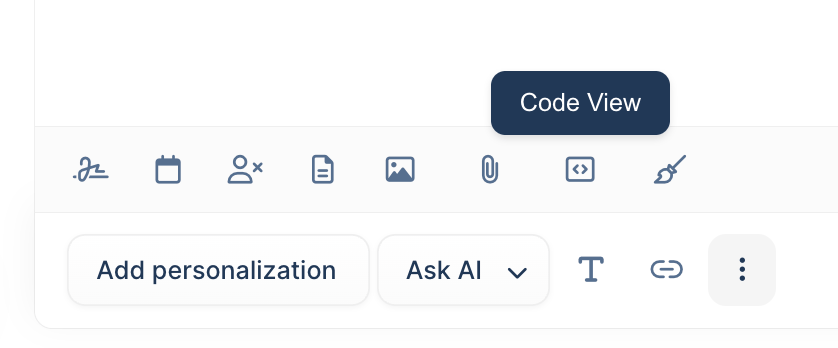
* Paste the Sendspark snippet into Lemlist through **code view** (click "more rich," then "code view"), then switch back out of code view to finish editing.
* In Clay, add a **"video link"** column so you can confirm videos generated successfully before adding contacts into the Lemlist campaign.
* Set Clay's Lemlist enrichment to only add contacts after their videos have generated, so no one is emailed before their video is ready.
* No Clay? Run the same automation through [Sendspark Automated Workflows](/sendspark-automated-workflows-beginner-s-guide) to use fewer tools.
To see how this works, either watch this full tutorial, or follow the steps below:
## How to Send AI Personalized Videos with Lemlist and Clay
## 1. Create your Dynamic Video Campaign in Sendspark
Start by creating your [dynamic video campaign](/dynamic-videos-make-videos-with-ai-introductions) in Sendspark. This will be the template for all of your AI personalized videos.
## 2. Add Video Placeholder to Lemlist
Create your email campaign in Lemlist, and add the Sendspark placeholder where the video should go.
You can add this placeholder by following these steps:
* Select **"Share Campaign"** in Sendspark
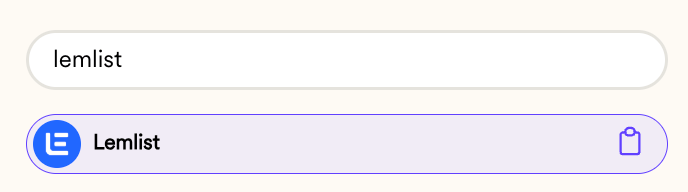
* Search for \*\*"Lemlist"\*\*and click to copy the snippet
* In your Lemlist email template, click\*\*"more rich"\*\* and then\*\*"code view"\*\*
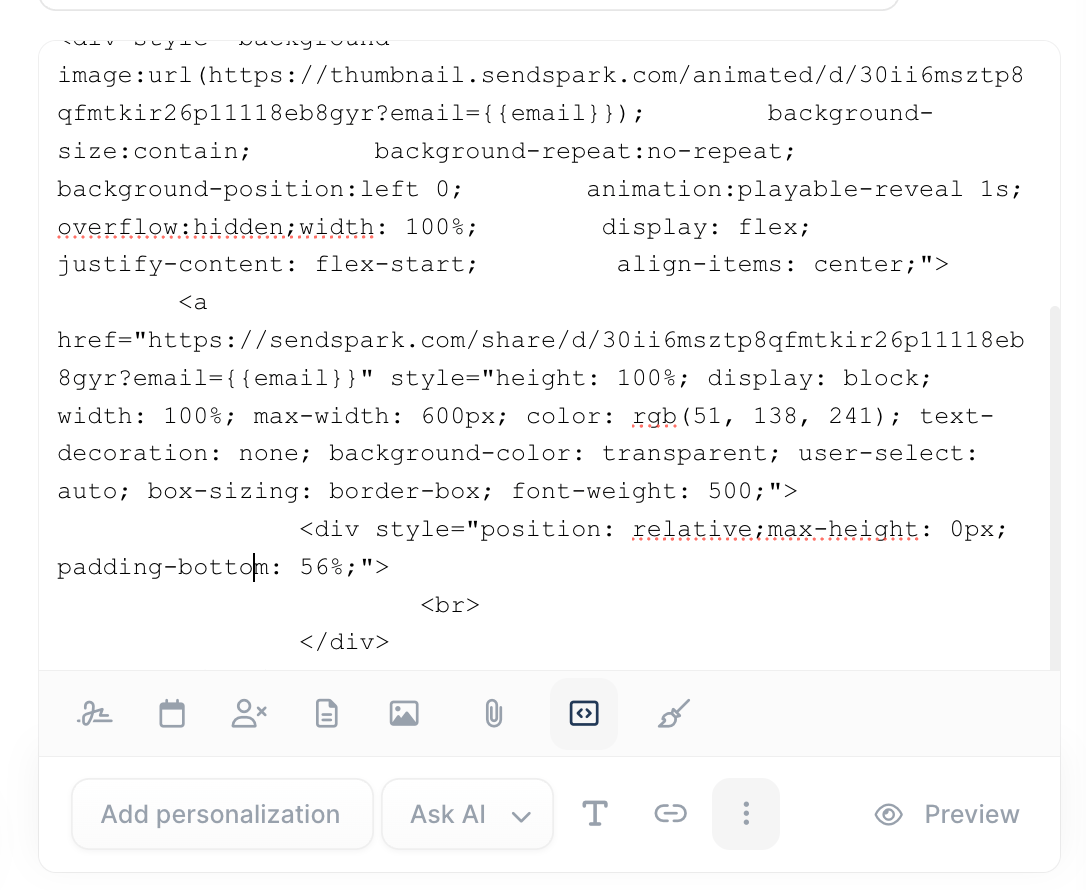
* **Paste** the Sendspark snippet directly into your Lemlist email campaign
* Switch back to out of code view to **finish editing**your email
## 3. Automate through Clay
Watch this video to see just how to run this automation in Clay:
In Clay, [use this template](https://app.clay.com/shared-table/share_0svfkpzWzDCHZrXApE9) or follow the steps below\...
* Use the **[Sendspark Clay enrichment](/clay-integration-create-ai-videos)** to create AI-personalized videos
* Add a column for\*\*"video link,"\*\* so you have a way to verify that videos were successfully generated before adding contacts into the Lemlist campaign
* Then, use the **Lemlist enrichment** to add contacts into Lemlist campaigns. Make sure to use this run setting to only add contacts after their videos have generated.
Since we already have the Sendspark video placeholder snippet in Lemlist, that is all we need to do!
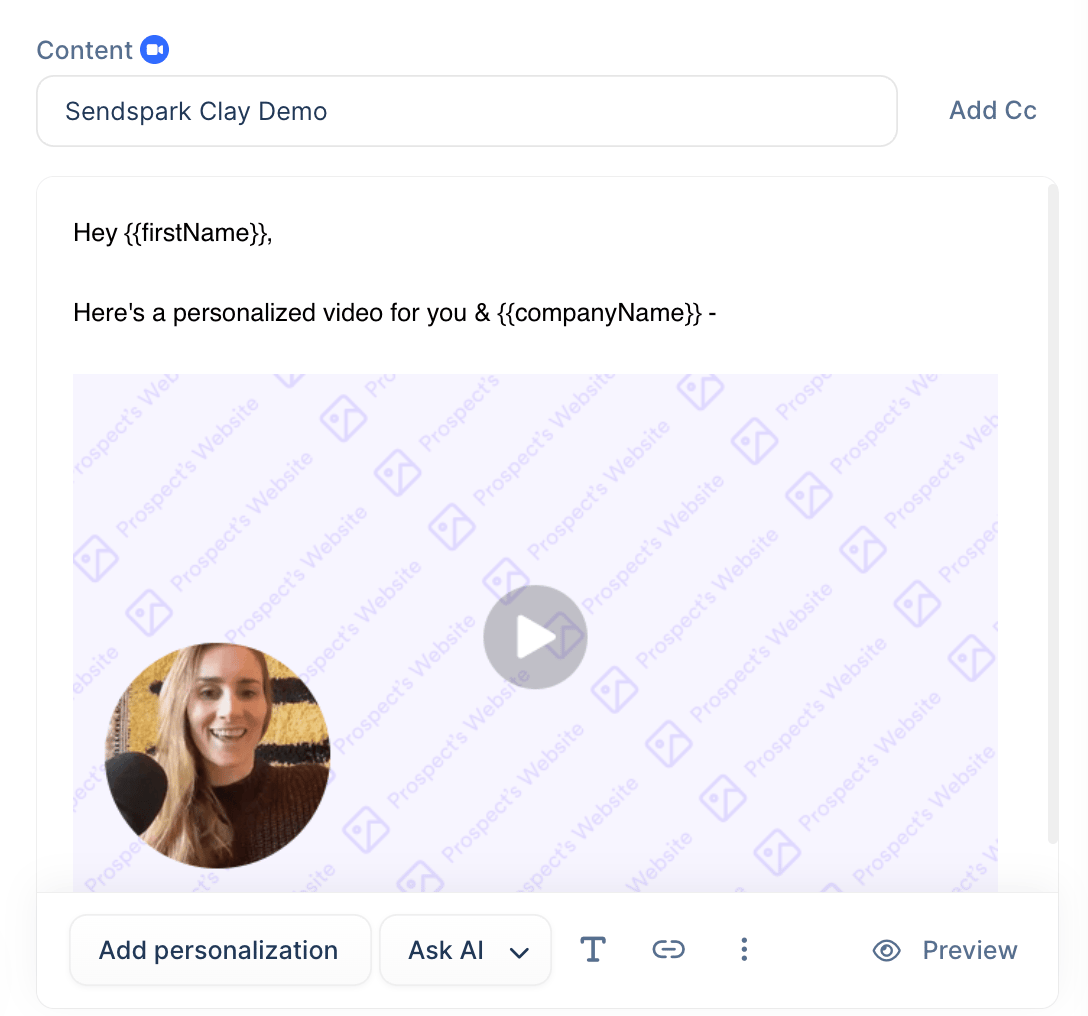
The emails will update with the correct video when the emails send out, the same way that #\{\{firstName}} & #\{\{companyName}} get updated with the correct data.
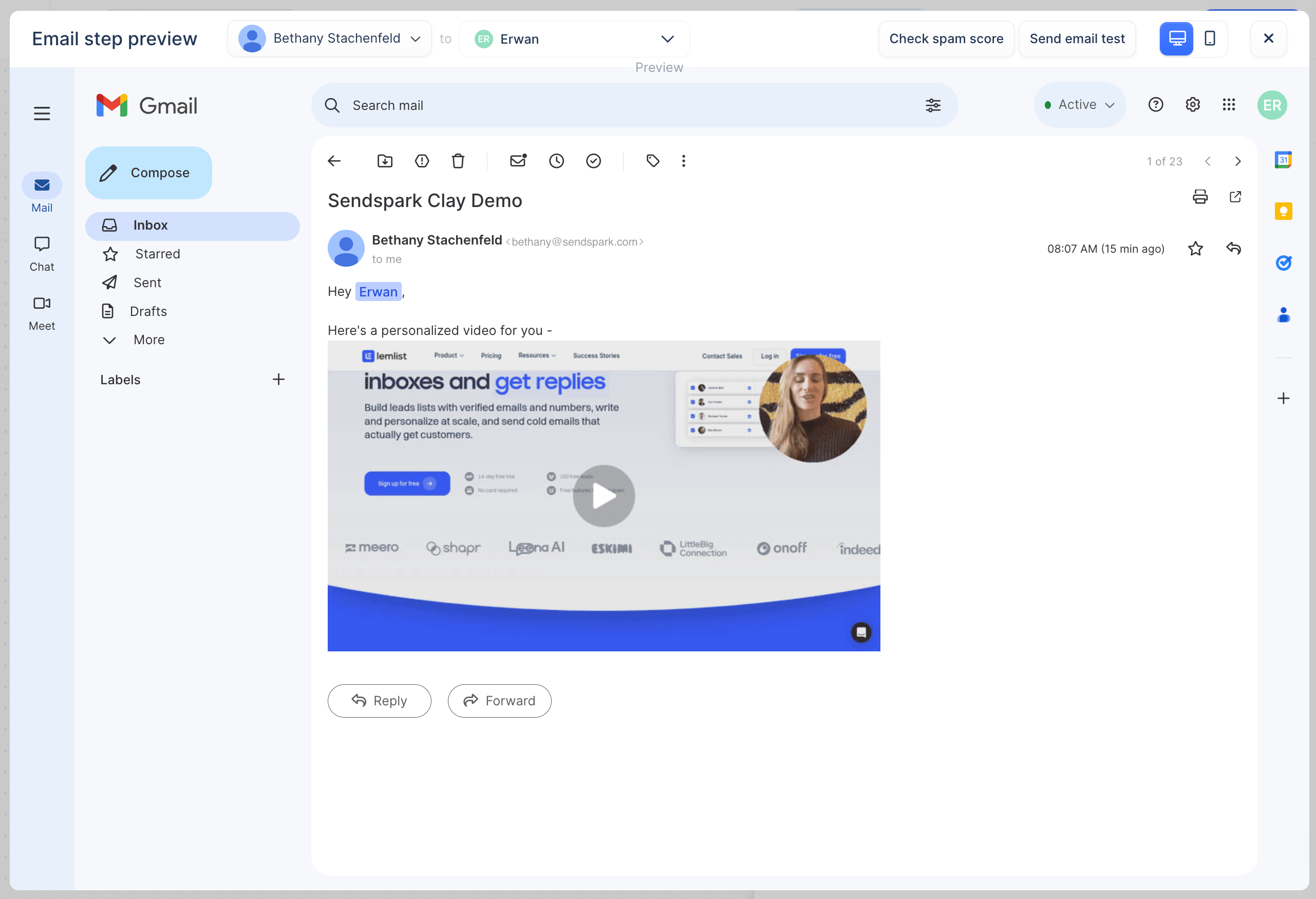
You can hit "preview" to preview the video email as it will look for your contacts:
## Additional Notes
This guide is assuming that you are currently use Clay, and want to run your automation through them! If you do not use Clay, you can run this automation through [Sendspark Automated Workflows](/sendspark-automated-workflows-beginner-s-guide) instead to use fewer tools.
## Frequently asked questions
No. This guide runs the automation through Clay, but if you don't use Clay you can run the same automation through [Sendspark Automated Workflows](/sendspark-automated-workflows-beginner-s-guide) to use fewer tools.
In your Lemlist email template, click **"more rich"** and then **"code view,"** paste the Sendspark snippet directly into the email, then switch back out of code view to finish editing.
In Clay, add a **"video link"** column so you can verify videos generated successfully, then set the Lemlist enrichment's run setting to only add contacts after their videos have generated.
The placeholder snippet stays in your Lemlist email and updates with the correct video when the email sends — the same way #\{\{firstName}} and #\{\{companyName}} get updated with the correct data. You can hit "preview" to see the video email as it will look for your contacts.
*Updated July 2026.*
 * Search for \*\*"Lemlist"\*\*and click to copy the snippet
  * In your Lemlist email template, click\*\*"more rich"\*\* and then\*\*"code view"\*\*
  * **Paste** the Sendspark snippet directly into your Lemlist email campaign
  * Switch back to out of code view to **finish editing**your email
 ## 3. Automate through Clay
Watch this video to see just how to run this automation in Clay:
In Clay, [use this template](https://app.clay.com/shared-table/share_0svfkpzWzDCHZrXApE9) or follow the steps below\...
* Use the **[Sendspark Clay enrichment](/clay-integration-create-ai-videos)** to create AI-personalized videos
* Add a column for\*\*"video link,"\*\* so you have a way to verify that videos were successfully generated before adding contacts into the Lemlist campaign
* Then, use the **Lemlist enrichment** to add contacts into Lemlist campaigns. Make sure to use this run setting to only add contacts after their videos have generated.
Since we already have the Sendspark video placeholder snippet in Lemlist, that is all we need to do!
The emails will update with the correct video when the emails send out, the same way that #\{\{firstName}} & #\{\{companyName}} get updated with the correct data.
You can hit "preview" to preview the video email as it will look for your contacts:
## 3. Automate through Clay
Watch this video to see just how to run this automation in Clay:
In Clay, [use this template](https://app.clay.com/shared-table/share_0svfkpzWzDCHZrXApE9) or follow the steps below\...
* Use the **[Sendspark Clay enrichment](/clay-integration-create-ai-videos)** to create AI-personalized videos
* Add a column for\*\*"video link,"\*\* so you have a way to verify that videos were successfully generated before adding contacts into the Lemlist campaign
* Then, use the **Lemlist enrichment** to add contacts into Lemlist campaigns. Make sure to use this run setting to only add contacts after their videos have generated.
Since we already have the Sendspark video placeholder snippet in Lemlist, that is all we need to do!
The emails will update with the correct video when the emails send out, the same way that #\{\{firstName}} & #\{\{companyName}} get updated with the correct data.
You can hit "preview" to preview the video email as it will look for your contacts:
 ## Additional Notes
This guide is assuming that you are currently use Clay, and want to run your automation through them! If you do not use Clay, you can run this automation through [Sendspark Automated Workflows](/sendspark-automated-workflows-beginner-s-guide) instead to use fewer tools.
## Frequently asked questions
## Additional Notes
This guide is assuming that you are currently use Clay, and want to run your automation through them! If you do not use Clay, you can run this automation through [Sendspark Automated Workflows](/sendspark-automated-workflows-beginner-s-guide) instead to use fewer tools.
## Frequently asked questions