> ## Documentation Index
> Fetch the complete documentation index at: https://help.sendspark.com/llms.txt
> Use this file to discover all available pages before exploring further.
# AI-Personalized Videos in LinkedIn Automation
> Want to send personalized videos in LinkedIn messages and InMails... But without recording videos individually for each viewer?
Sendspark lets you send AI-personalized videos in LinkedIn messages and InMails without recording each one individually. Create a Dynamic Video Campaign with a "watermelon" placeholder, import your contacts' CSV (mapping the LinkedIn Profile URL), generate videos in bulk, then export the CSV and import it into nearly any LinkedIn automation platform.
## Key takeaways
* Create one Dynamic Video Campaign using the placeholder word "watermelon" where the viewer's first name should go.
* Map the LinkedIn Profile URL when importing your CSV so the right video matches the right person later.
* After generating in bulk, export Sendspark's CSV — it adds a "Video Links" column of unique, AI-personalized video URLs.
* In your LinkedIn automation platform, map both LinkedIn URL and Video Link, then use the Video Link placeholder in your message.
* Sendspark has a native Expandi integration if you don't already use a LinkedIn automation tool you love.
Want to send personalized videos in LinkedIn messages and InMails... But without recording videos individually for each viewer?
In this tutorial, we'll show how you can use [Sendspark](https://sendspark.com) to create personalized videos, and send them in nearly any LinkedIn automation platform.
Note: Sendspark has a native integration with Expandi. So, if you're not using a LinkedIn automation platform you love yet, we recommend using Expandi for the best experience. (See the [Sendspark + Expandi Integration Guide](/expandi-integration-ai-personalized-videos))
## How to Sendspark AI-Personalized Videos in LinkedIn Automation
1. Create \*\*"Dynamic Video Campaign"\*\*in Sendspark using the placeholder word \*\*"watermelon"\*\*where you want your viewer's first name to go
(Learn more about [creating dynamic videos here](/dynamic-videos-make-videos-with-ai-introductions))
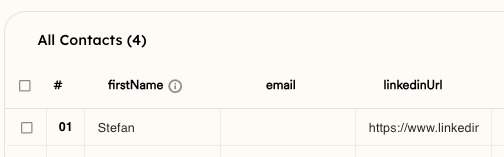
2. **Import your CSV** of contacts for whom you'd like to create videos.
Make sure to map the "LinkedIn Profile URL" into Sendspark to use it later to match the right video to the right person.
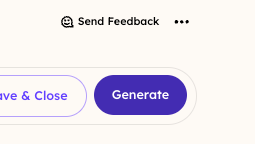
 3. Click **"Generate"** to generate the personalized videos in bulk.
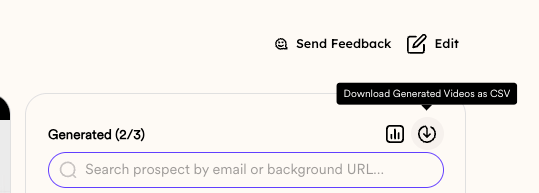
 4.**Export the CSV from Sendspark**(which will include a new column for "Video Links"). The video links are the links to unique, AI-personalized videos for your contacts.
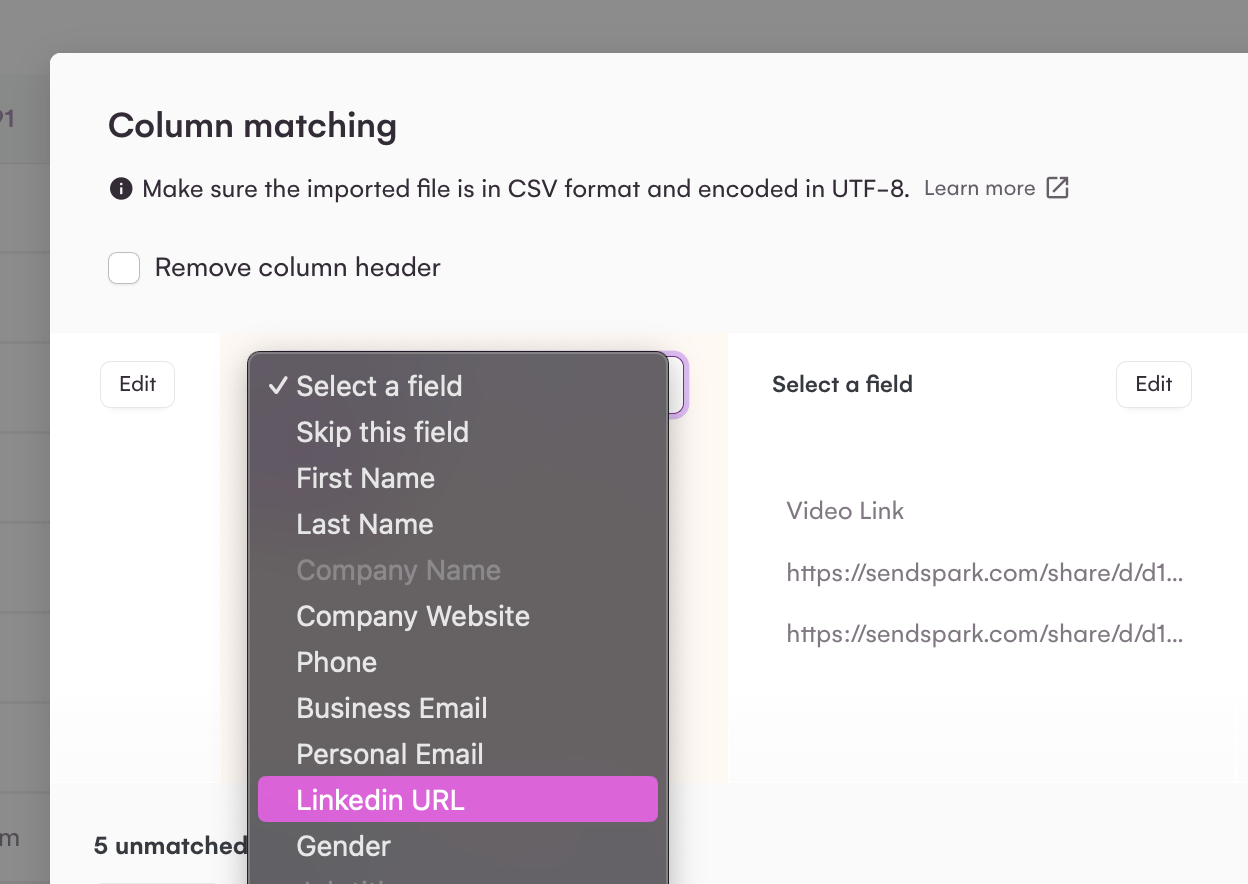
 5. I**mport the CSV into Your LinkedIn Automation**
Make sure to map...
* "LinkedIn Url" from Sendspark to the LinkedIn profile of the platform you're using (to make sure the right person gets the right video)
* "Video Link" from Sendspark into a field in your platform, so you can use this variable where you want to send the video in your message.
5. I**mport the CSV into Your LinkedIn Automation**
Make sure to map...
* "LinkedIn Url" from Sendspark to the LinkedIn profile of the platform you're using (to make sure the right person gets the right video)
* "Video Link" from Sendspark into a field in your platform, so you can use this variable where you want to send the video in your message.
 6. When setting up your LinkedIn automation, use the \*\*"Video Link"\*\*dynamic placeholder for where you want to include your personalized video.
7. **Turn on your workflow**to start sending!
## Frequently asked questions
No. You record one Dynamic Video Campaign using the "watermelon" placeholder, and Sendspark generates a unique AI-personalized video for every contact in bulk.
The LinkedIn Profile URL is what matches the right video to the right person. Map it on import into Sendspark and again when importing the exported CSV into your LinkedIn automation platform.
Nearly any LinkedIn automation platform works, since you send the video through a "Video Link" field. Sendspark also has a native Expandi integration, which we recommend if you don't already have a platform you love.
"Watermelon" is the placeholder word you say where the viewer's first name should go. Sendspark replaces it with each contact's real first name when it generates their personalized video.
*Updated July 2026.*
6. When setting up your LinkedIn automation, use the \*\*"Video Link"\*\*dynamic placeholder for where you want to include your personalized video.
7. **Turn on your workflow**to start sending!
## Frequently asked questions
No. You record one Dynamic Video Campaign using the "watermelon" placeholder, and Sendspark generates a unique AI-personalized video for every contact in bulk.
The LinkedIn Profile URL is what matches the right video to the right person. Map it on import into Sendspark and again when importing the exported CSV into your LinkedIn automation platform.
Nearly any LinkedIn automation platform works, since you send the video through a "Video Link" field. Sendspark also has a native Expandi integration, which we recommend if you don't already have a platform you love.
"Watermelon" is the placeholder word you say where the viewer's first name should go. Sendspark replaces it with each contact's real first name when it generates their personalized video.
*Updated July 2026.*