> ## Documentation Index
> Fetch the complete documentation index at: https://help.sendspark.com/llms.txt
> Use this file to discover all available pages before exploring further.
# Agentic Workflows: Add Variable Fallbacks
> Learn how to add fallbacks for missing variables in Agentic Workflows using Table Replacement to ensure clean automation data.
In Agentic Workflows, use the **Table Replacement** tool to add a fallback for missing variables like first name. Point it at the field to check, compare it against **Empty List**, and if the field is empty substitute a natural word such as "there." Then use the replacement value field wherever the variable appears so messages never read awkwardly.
## Key takeaways
* The **Table Replacement** tool adds a fallback value when a field (for example, First Name) is empty.
* Set **Field Input Data** to the field you want to check and the **Second Field** to **Empty List** to detect blanks.
* If the value is non-empty, use the original field data; otherwise, use your fallback word (for example, "there").
* Reference the `Table replacement: Replacement value` field wherever you want the fallback to appear, such as a dynamic video's Contact Name field.
When you’re working with automations, it’s common to run into missing data. For example, if a contact doesn’t have a first name filled in, your video or email could look awkward. To prevent this, you can add a **fallback value** using the **Table Replacement** tool in Sendspark’s Agentic Workflows.
This guide will walk you through setting up a fallback step so your automations always have clean, usable data.
## Step 1: Add the Table Replacement Tool
Inside your Agentic Workflow:
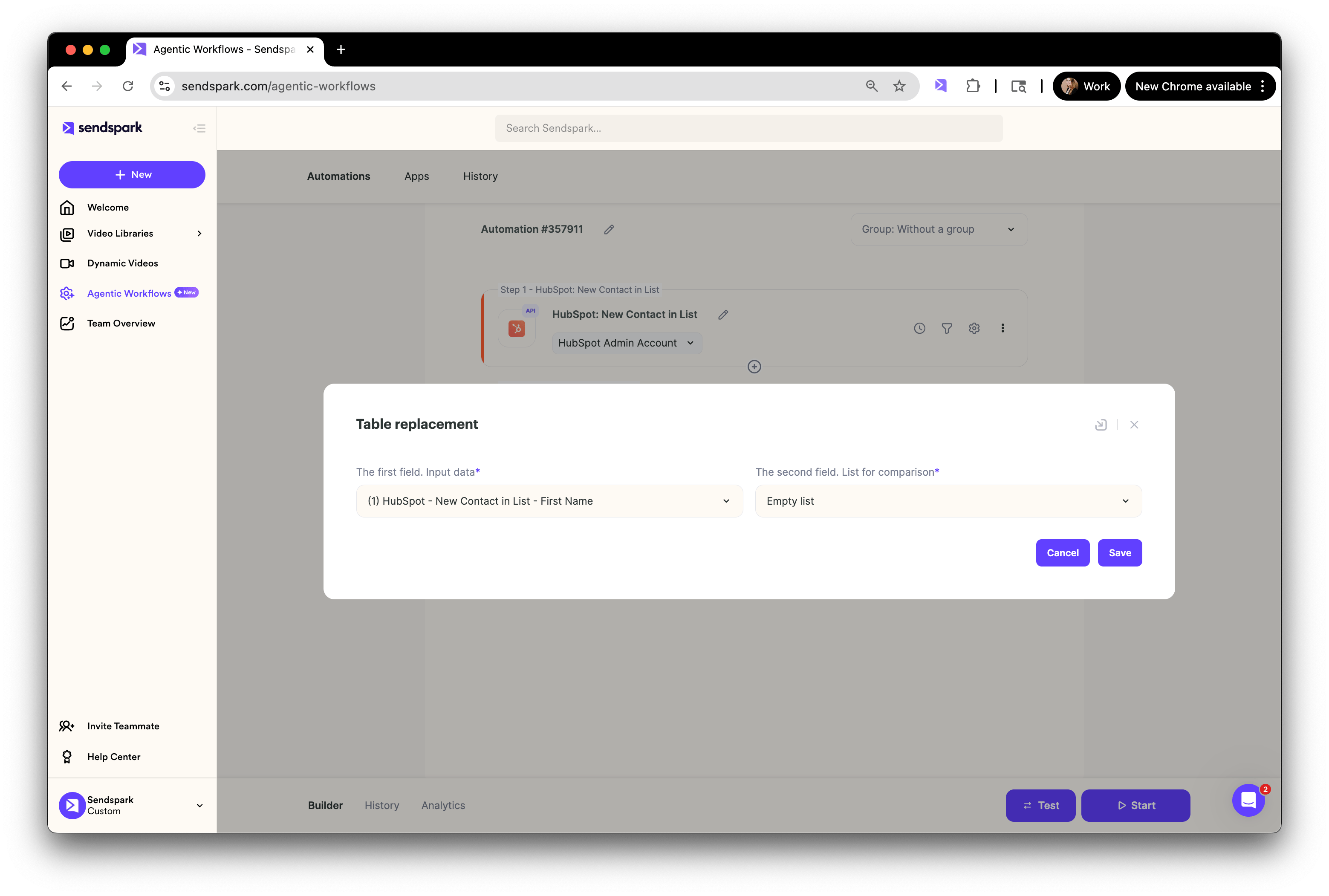
1. Add a tool for **Table Replacement**.
2. For the **Field Input Data**, select the field you want to check (e.g. "First Name").
3. For the **Second Field**, select **Empty List**.
This setup lets the workflow detect when the selected field is empty.
*Example:*
 ## Step 2: Configure the Logic
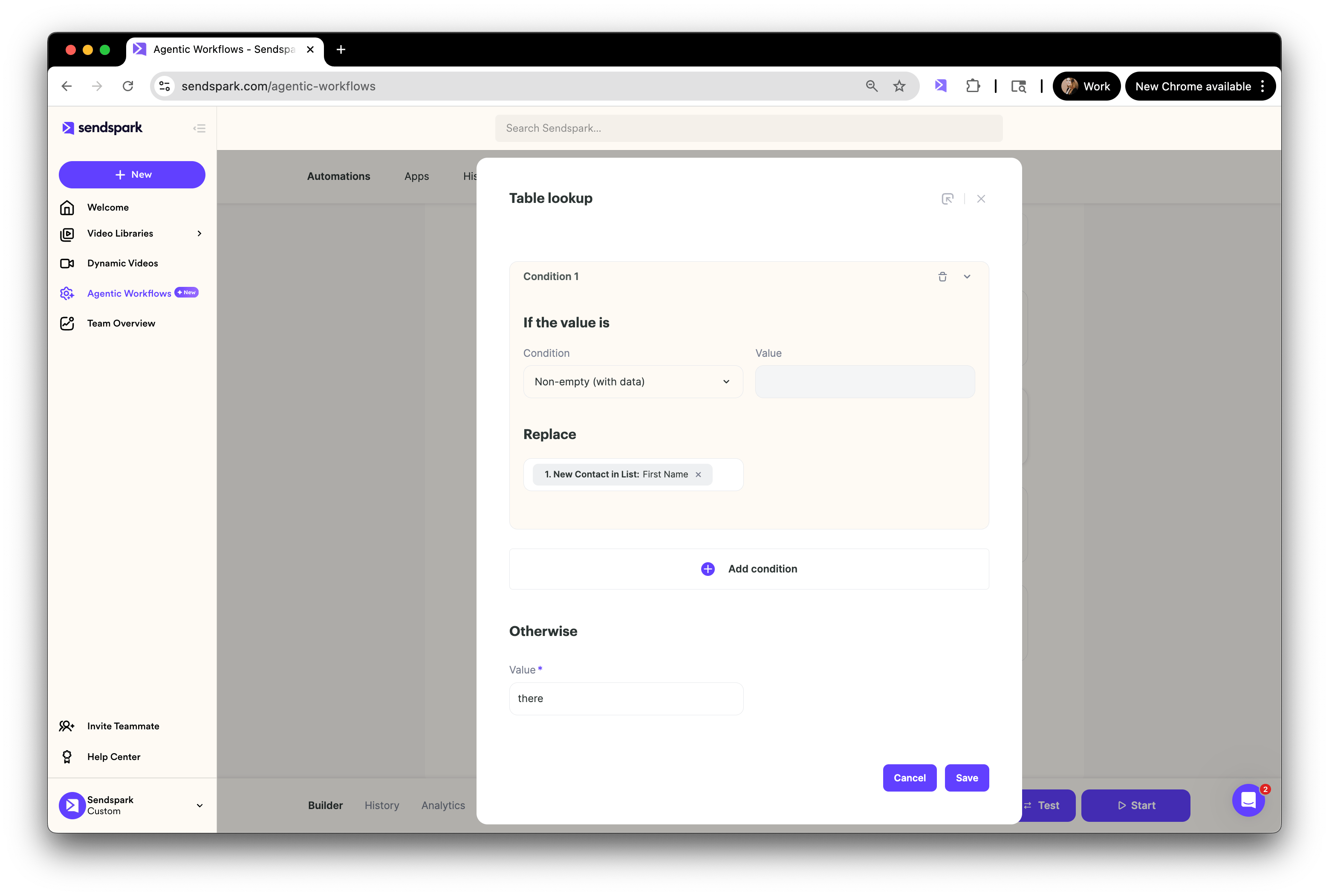
Next, tell the workflow what to do if the field is empty.
1. Add a condition: **If the value is non-empty, replace it with the original field data**.
2. Otherwise, specify a fallback word (for example, "there").
This ensures that if a contact’s first name is missing, the message still flows naturally:\
*“Hi there”* instead of *“Hi watermelon.”*
*Example:*
## Step 2: Configure the Logic
Next, tell the workflow what to do if the field is empty.
1. Add a condition: **If the value is non-empty, replace it with the original field data**.
2. Otherwise, specify a fallback word (for example, "there").
This ensures that if a contact’s first name is missing, the message still flows naturally:\
*“Hi there”* instead of *“Hi watermelon.”*
*Example:*
 ## Step 3: Use the Replacement Field in Your Workflow
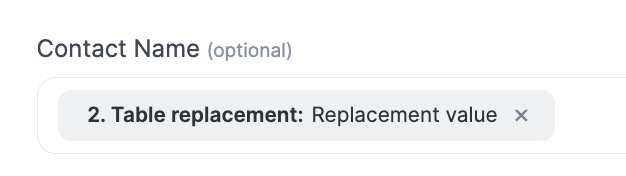
Finally, make sure you’re using the updated field everywhere you want the fallback to appear.
For example, in the **Contact Name** field of a dynamic video, select:\
`Table replacement: Replacement value`
This way, Sendspark will automatically use the contact’s real data if available, or your fallback value if not.
*Example:*
## Step 3: Use the Replacement Field in Your Workflow
Finally, make sure you’re using the updated field everywhere you want the fallback to appear.
For example, in the **Contact Name** field of a dynamic video, select:\
`Table replacement: Replacement value`
This way, Sendspark will automatically use the contact’s real data if available, or your fallback value if not.
*Example:*
 ## Best Practices for Fallbacks
* **Keep it natural**: Use fallback values like “there,” “friend,” or “your team” that sound human in context.
* **Match the tone**: If your brand is casual, “there” works. If it’s more formal, try “valued contact.”
* **Test before launching**: Always run a test automation to make sure your fallback logic displays correctly.
* **Use sparingly**: Fallbacks are a safety net, not a replacement for clean CRM data. Keep your contact lists as complete as possible.
***
## Summary
By adding a fallback with the **Table Replacement** tool, you ensure your automations always look polished, even if some data fields are missing. This small step can make your personalized videos and outreach feel much more natural and professional.
***
## Frequently asked questions
It lets you detect when a field is empty and substitute a fallback value, so missing data (like a blank first name) doesn't make your video or email look awkward.
Add the Table Replacement tool, set **Field Input Data** to the field you want to check (e.g. "First Name"), and set the **Second Field** to **Empty List**. That configuration lets the workflow tell when the field is empty.
Use something natural that fits your brand tone — "there," "friend," or "your team" for casual, or "valued contact" for formal. So "Hi there" reads well instead of an awkward placeholder.
Use the updated field everywhere you want the fallback to appear. For example, in a dynamic video's **Contact Name** field, select `Table replacement: Replacement value`. Sendspark then uses real data when available and the fallback when not.
No. Fallbacks are a safety net, not a substitute for clean data. Keep your contact lists as complete as possible and test your automation before launching to confirm the fallback logic displays correctly.
*Updated July 2026.*
## Best Practices for Fallbacks
* **Keep it natural**: Use fallback values like “there,” “friend,” or “your team” that sound human in context.
* **Match the tone**: If your brand is casual, “there” works. If it’s more formal, try “valued contact.”
* **Test before launching**: Always run a test automation to make sure your fallback logic displays correctly.
* **Use sparingly**: Fallbacks are a safety net, not a replacement for clean CRM data. Keep your contact lists as complete as possible.
***
## Summary
By adding a fallback with the **Table Replacement** tool, you ensure your automations always look polished, even if some data fields are missing. This small step can make your personalized videos and outreach feel much more natural and professional.
***
## Frequently asked questions
It lets you detect when a field is empty and substitute a fallback value, so missing data (like a blank first name) doesn't make your video or email look awkward.
Add the Table Replacement tool, set **Field Input Data** to the field you want to check (e.g. "First Name"), and set the **Second Field** to **Empty List**. That configuration lets the workflow tell when the field is empty.
Use something natural that fits your brand tone — "there," "friend," or "your team" for casual, or "valued contact" for formal. So "Hi there" reads well instead of an awkward placeholder.
Use the updated field everywhere you want the fallback to appear. For example, in a dynamic video's **Contact Name** field, select `Table replacement: Replacement value`. Sendspark then uses real data when available and the fallback when not.
No. Fallbacks are a safety net, not a substitute for clean data. Keep your contact lists as complete as possible and test your automation before launching to confirm the fallback logic displays correctly.
*Updated July 2026.*